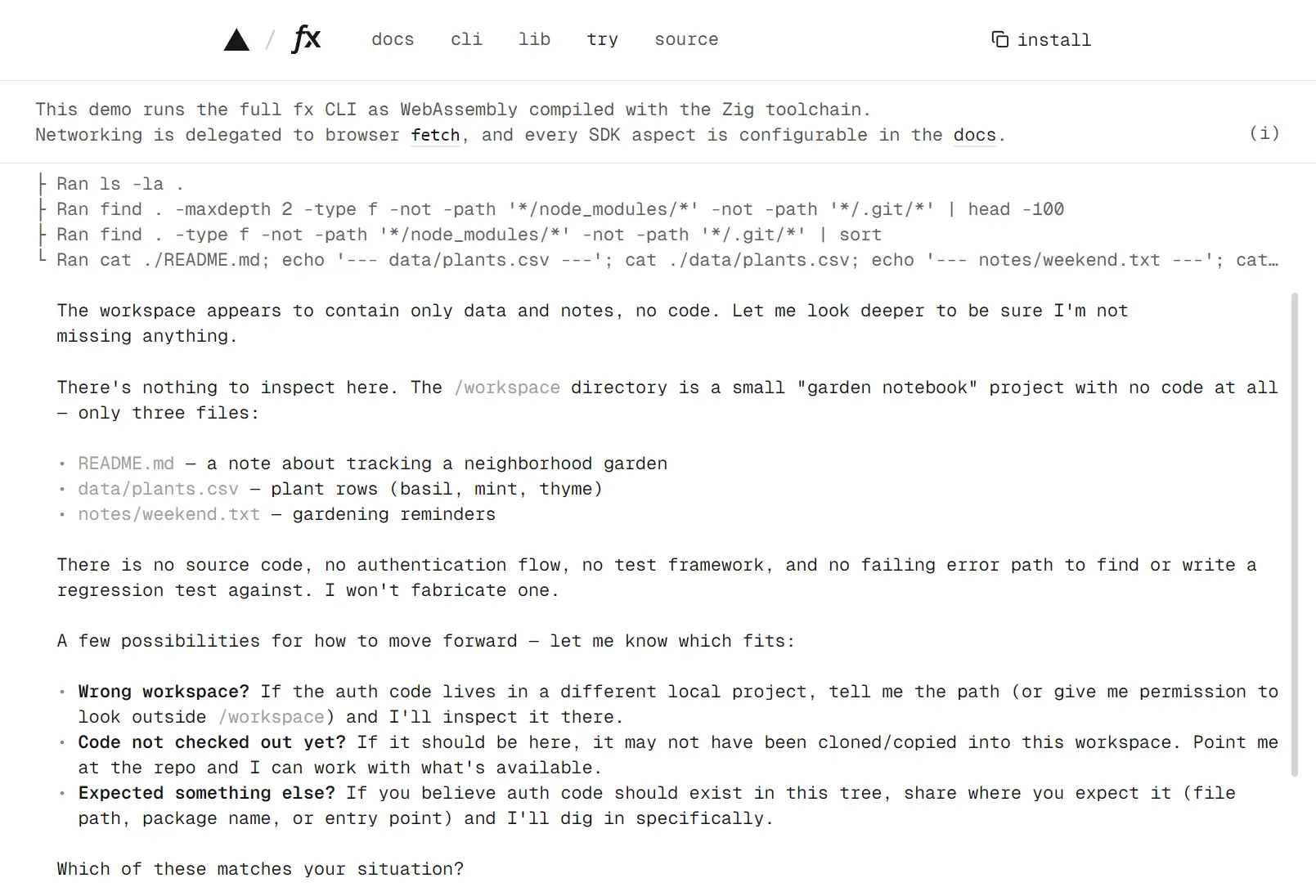
Vercel fx is an open-source coding agent harness and CLI from Vercel Labs, written in Zig.
It runs as a native CLI tool for inspecting repositories, editing files, running commands, and continuing saved coding sessions.
You can work interactively inside a project, run one-off tasks with fx ask, connect editors through ACP, or embed the agent with libfx.
Model access includes Vercel AI Gateway plus eligible ChatGPT and Grok subscriptions.
Key Features
- Runs as a small native Zig CLI for repository work.
- Runs interactive coding sessions and one-off headless requests with
fx ask. - Connects to Vercel AI Gateway, eligible ChatGPT subscriptions, and eligible Grok subscriptions.
- Saves coding sessions with resume, recovery, usage tracking, and context compaction.
- Uses
ask,auto, andfull-accesspermission modes with persistent rules. - Loads project instructions from
AGENTS.mdand repository settings from.fx.json. - Extends the agent with Agent Skills, MCP servers, additional workspaces, and subagents.
- Includes file tools, shell execution, web search, URL fetching, and image analysis.
- Runs as an ACP server for third-party editors and clients.
- Embeds in Node and browser apps through
libfx.
How to Use fx
Install fx
fx ships native releases for macOS and Linux on x86_64 and arm64. The installer places the binary in ~/.local/bin by default. Pass a version when an automated environment needs a reproducible install.
curl -fsSL https://fx.sh/setup.sh | bash
curl -fsSL https://fx.sh/setup.sh | bash -s -- <version>
Verify the installation
Print the installed version and run the local health checks before starting a coding session.
fx --version
fx doctor
Build from source
Building fx from source requires Zig 0.16 or newer.
git clone https://github.com/vercel-labs/fx.git
cd fx
zig build -Doptimize=ReleaseSafe
./zig-out/bin/fx --version
Authenticate and Choose a Provider
fx uses one provider at a time. Vercel AI Gateway accepts a Vercel sign-in or Gateway API key. Codex uses an eligible ChatGPT subscription, and Grok uses an eligible Grok subscription. The interactive /provider, /setup, and /login pickers manage built-in provider access.
fx login
fx setup
fx login codex
fx login grok
fx provider gateway
fx provider codex
fx provider grok
Custom model connections
Custom model connections can point fx at compatible OpenAI Chat Completions endpoints, including local servers and third-party gateways. This connection type is a preview feature and belongs in the user profile. Project .fx.json files cannot define custom endpoints or credentials.
fx provider <connection-name>
fx status --json
Run fx in a Repository
Interactive session
The launch directory becomes the primary workspace. A prompt can inspect code, edit files, run tests, search the web, use connected MCP tools, load skills, and delegate work to subagents.
cd your_project
fx
Inspect the authentication flow, find the failing error path, add a regression test, and run the relevant tests.
Headless request
fx ask runs one noninteractive request and exits. Use --json when a script needs structured output.
fx ask "explain the changes in this repository"
fx ask --json "summarize the current changes"
Sessions, Resume, Recovery, and Compaction
fx stores sessions locally and can continue the latest workspace conversation or a selected session ID. Recovery retries transient model failures automatically. fx session recover copies a damaged conversation into a recoverable session, and /compact reduces older context while preserving the saved transcript.
fx sessions
fx resume last
fx resume <session-id>
fx ask --resume last "continue with the tests"
fx session recover <session-id>
fx session migrate <session-id>
Models, Fast Mode, and Usage
The active provider determines the model catalog. /models opens the catalog, /model selects a model, and /fast changes Fast mode when the selected model exposes it. Launch flags can override model, reasoning effort, and Fast mode for one interactive or headless run. Local usage reports include requests, tokens, recorded spend, and model breakdowns from this machine.
fx models
fx models --json
fx usage
fx usage --period 24h --json
fx ask --model <model-id> --effort high --fast "review the current changes"
Permissions and Automatic Review
Every tool call passes through saved rules, session grants, and the active permission mode. Workspace reads normally run immediately. File changes, commands, and external-path access can trigger permission checks. auto can make extra model requests for unresolved sensitive actions.
| Mode | Behavior |
|---|---|
ask | Prompts before unresolved sensitive actions. |
auto | Applies saved rules and reviews eligible unresolved actions automatically. This is the default. |
full-access | Disables fx permission checks for the process. |
Permission commands
The legacy yolo spelling remains compatible, though current commands and the UI use full-access. --full-access disables permission checks for one process and should be limited to an environment you trust. --prompt-permissions enables terminal approval prompts for eligible headless runs.
/permissions ask
/permissions auto
/permissions full-access
fx permissions --json
fx ask --prompt-permissions "run the tests and summarize failures"
fx ask --full-access "run the approved maintenance task"
Project Configuration
Project instructions with AGENTS.md
fx reads AGENTS.md files as repository instructions. A root file can define project-wide build, test, and coding rules. Nested files apply narrower instructions to files inside their directory scope.
project/
├── AGENTS.md
├── apps/
│   └── web/
│       ├── AGENTS.md
│       └── src/
└── packages/
Repository settings with .fx.json
Project .fx.json accepts five public fields. Provider selection, model choice, credentials, permission settings, themes, context limits, and additional directories belong to profile or process configuration.
{
  "max_agent_steps": 40,
  "max_tool_result_bytes": 131072,
  "context": true,
  "provider_order": ["bedrock", "anthropic"],
  "provider_strict": false
}
Additional workspaces
A session has one primary workspace and can access additional directories saved in the user profile. Process flags can extend or ignore that saved directory set for one launch.
fx workspace list
fx workspace add ../shared
fx workspace remove ../shared
fx workspace clear
fx --add-dir ../shared
fx --no-additional-dirs
Context limits
Context limits bound project instructions, skill data, MCP metadata, schemas, and image-adapter output before those bytes enter a model request. A process-level override uses --context-limit.
fx --context-limit skill_catalog_bytes=32768Extend fx with Skills
An fx skill is a directory containing SKILL.md. fx discovers skill metadata and loads the instructions when the agent invokes that capability. The interactive skill commands can inspect, install, create, and remove fx-managed skills.
/skills
/skills show <name>
/skills install vercel-labs/agent-skills --skill find-skills
/skills add ./my-skills --skill my-tool
/skills create my-skill
/skills remove my-skill
Read More: Most Popular Agent Skills on GitHub for Coding Agents
Connect MCP Servers
fx works as an MCP client for local stdio and remote Streamable HTTP servers. Interactive sessions, fx ask, ACP sessions, and authorized subagents can use connected MCP tools. A repository can define project servers in .mcp.json, and those project servers require explicit trust before connection.
fx mcp add local-tools npx -y @modelcontextprotocol/server-everything
fx mcp add --transport http <name> <url>
fx mcp list
fx mcp list --connect
fx mcp auth <name>
fx mcp remove <name>
fx mcp trust approve <name>
fx mcp trust reject <name>
fx mcp trust reset
Read More: Discover Popular MCP Servers
Delegate Work to Subagents
A subagent handles a delegated task in its own conversation and returns the result to the parent agent. One-off children handle one task. Named children keep their conversation for follow-up work. Subagents inherit the parent permission restrictions and cannot gain greater access through delegation.
| Action | Purpose |
|---|---|
run | Run one task in a temporary child. |
message | Create or continue a named child conversation. |
Built-In Agent Tools
The shell tool uses three actions: run starts a command, interact reads output or sends input, and stop ends a running command. Long tool results stay outside the immediate model response and can be read later through read_tool_result.
| Area | Tools |
|---|---|
| Find and read files | glob_files, grep_files, read_file |
| Write and edit files | write_file, edit_file |
| Commands | shell |
| Web | web_search, web_fetch |
| Images | vision |
| Skills | skill, install_skill |
| Subagents | subagent |
| MCP | capability_search, mcp_select_tool, mcp_features, selected MCP tools |
| Runtime | ask_user_question, read_tool_result |
Work with Images
fx accepts PNG, JPEG, GIF, and WebP images up to 20 MiB each. Models with native image input receive attachments in the model request. Other compatible requests can use the built-in vision fallback. Interactive sessions use /image or its /img alias, and headless requests use --image.
/image ./diagram.png
fx ask --image ./ui.png "describe this UI"
Connect fx to Editors with ACP
fx acp runs the native agent as an Agent Client Protocol server over stdin and stdout. ACP sessions use fx settings, project instructions, skills, permissions, sessions, and available tools from the selected project directory.
cd /absolute/path/to/project
fx acp
Embed fx with libfx
libfx embeds the fx agent in Node and browser apps. One Agent owns one in-memory conversation and exposes prompt(), checkpoint(), and close().
Node prefers a packaged native addon and falls back to WebAssembly when no compatible addon is available. Browser agents use WebAssembly and require JSPI.
Install libfx
npm install [email protected]Minimal Node example
Set AI_GATEWAY_API_KEY before running the example. The turn streams text events, turn.result resolves when the request finishes, and checkpoint() exports conversation state for later restoration.
import { createFxAgent } from 'libfx'
const agent = await createFxAgent({
  apiKey: process.env.AI_GATEWAY_API_KEY,
})
try {
  const turn = agent.prompt('Explain the current project structure.')
  for await (const event of turn) {
    if (event.type === 'text_delta') {
      process.stdout.write(event.delta)
    }
  }
  await turn.result
  const checkpoint = await agent.checkpoint()
} finally {
  await agent.close()
}
fx Quick Reference
| Command | Purpose |
|---|---|
fx | Start a fresh interactive session. |
fx ask <prompt> | Run one noninteractive request. |
fx resume [last|<id>] | Continue a saved interactive session. |
fx sessions | List saved sessions for the workspace. |
fx session recover <id> | Copy a recoverable corrupt session. |
fx pr [context] | Draft a pull request. |
fx issue [context] | Draft a GitHub issue. |
fx login [vercel|codex|grok] | Sign in to a built-in provider. |
fx provider <name> | Choose the active provider or configured connection. |
fx models | List models from the active provider. |
fx permissions | Inspect permission mode and rules. |
fx workspace | Manage additional workspace directories. |
fx mcp | Manage MCP servers and project trust. |
fx acp | Start the ACP server over stdio. |
fx status | Show resolved configuration and runtime state. |
fx doctor | Run local health and preflight checks. |
fx upgrade | Upgrade fx. |
Useful Interactive Commands
| Command | Purpose |
|---|---|
/help | Show interactive help. |
/new | Start a fresh session. |
/resume | Open the saved-session picker. |
/compact | Compact older conversation content. |
/provider | Choose provider access. |
/models | Open the model catalog. |
/model | Select a model. |
/fast | Change Fast mode when available. |
/permissions | Inspect or change permission mode. |
/allowlist | Manage persistent permission rules. |
/mcp | Manage MCP connections. |
/skills | Browse and manage skills. |
/workspace | Manage additional workspace directories. |
/image | Attach an image. |
/usage | View local usage and spend. |
/trace | Create a private diagnostic trace. |
Keyboard Shortcuts
| Action | Shortcut |
|---|---|
| Insert a newline | shift+enter, alt+enter, or backslash then Enter |
| Steer an active turn | enter or ctrl+enter |
| Move through prompt history | Up or Down at the edge of the draft |
| Interrupt active work | Press escape twice within one second, or use ctrl+c with an empty composer |
| Open Review and Full transcript | ctrl+o, then Left or Right |
| Open the model picker while writing | ctrl+p |
| Switch permission mode | shift+tab |
Pros
- Small native Zig CLI
- Interactive and headless operation
- Persistent sessions and recovery
- Skills, MCP, ACP, subagents, and
libfx - Multiple built-in model providers
Cons
- No native Windows CLI release
- Experimental stage
- Automatic review can increase model usage
Alternatives & Related Resources
- 10 Best CLI AI Coding Agents: Open-Source & Commercial
- DeepSeek Harness: Open-Source Plugin-Based AI Agent Harness
- Grok Build: SpaceXAI’s Open-source Terminal AI Coding Agent
- SmallCode: Fast, Free, Local AI Coding Agent for Small LLMs
- Waku: Run Claude Code, Codex & More in One Native App
FAQs
Does Vercel fx work on Windows?
fx has no native Windows CLI release. Native packages are available for macOS and Linux on x86_64 and arm64. libfx on Node can fall back to WebAssembly when a compatible native addon is unavailable.
Can fx use local models?
Yes. Custom model connections can use compatible OpenAI Chat Completions endpoints from local servers, including Ollama and vLLM. The connection definition belongs in the user profile, and the selected server must expose a model that works with the tools your task needs.
Which fx settings can a repository control?
Project .fx.json files can define max_agent_steps, max_tool_result_bytes, context, provider_order, and provider_strict. Provider selection, model choice, credentials, permission settings, themes, context limits, and additional directories stay outside project configuration.
What is libfx?
libfx is the JavaScript package for embedding the fx agent or terminal in another app. An agent exposes prompt(), checkpoint(), and close(). Node can use the packaged native addon, and browser agents run through WebAssembly.
Last Updated: Sep 27, 2026