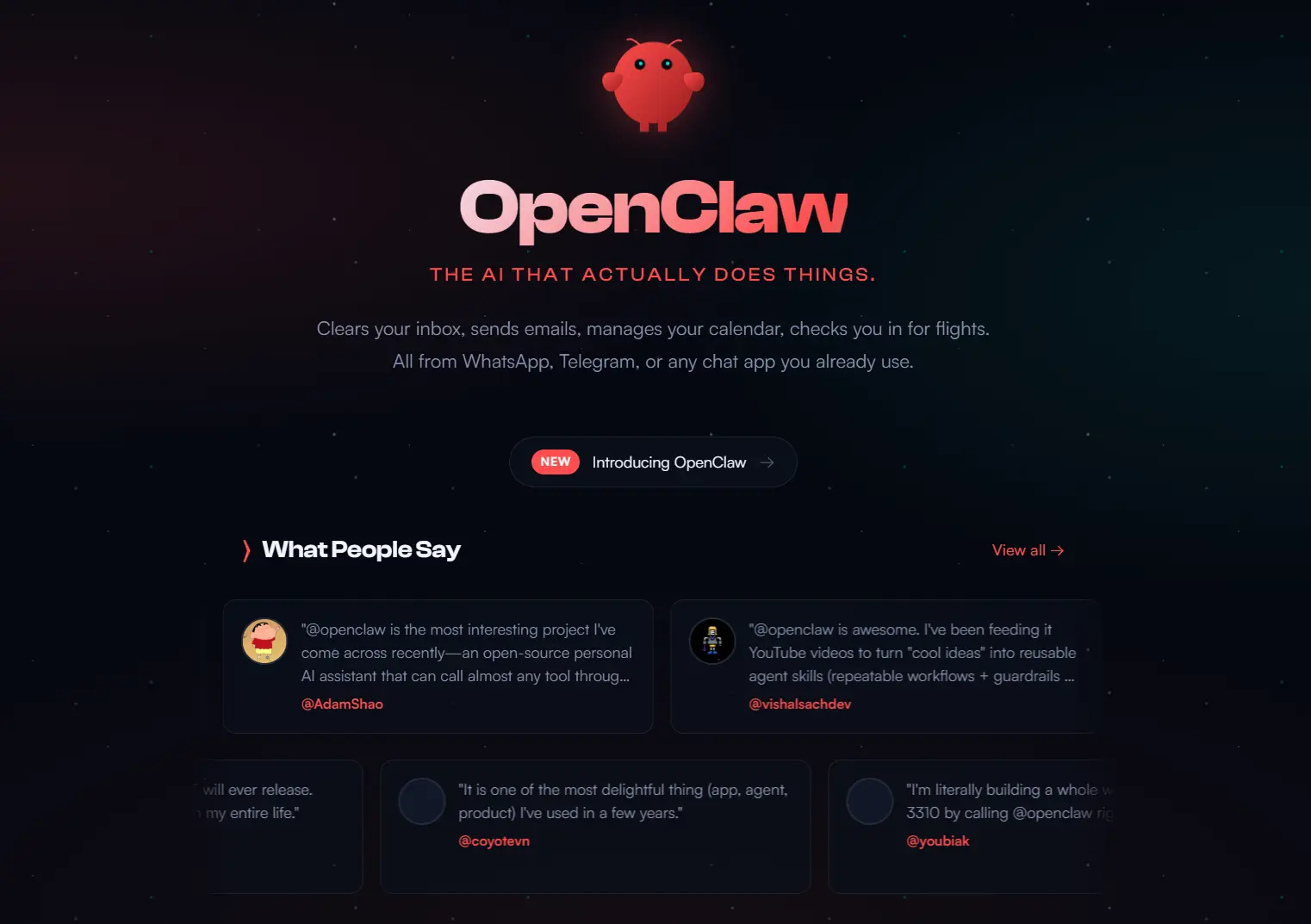
OpenClaw is an open-source, self-hosted personal AI assistant that connects AI models to messaging apps, tools, and devices through a Gateway you control. It can run on your own device or server and work with hosted or local AI models.
Once configured, you can talk to OpenClaw from WhatsApp, Telegram, Discord, Slack, WebChat, the CLI, or companion apps. When you send a request, the agent can use the files, browser sessions, shell commands, scheduled jobs, plugins, skills, and devices you have approved, then return the result to the conversation.
The Gateway manages sessions, workspace state, tools, channels, and permissions for the agent. Work can continue across conversations and connected devices with the relevant context and resources available to that agent.
Features
- Connects one Gateway to WhatsApp, Telegram, Discord, Slack, Signal, Google Chat, Microsoft Teams, iMessage, Matrix, WebChat, and additional messaging services.
- Works with hosted model providers and local model servers such as LM Studio and Ollama.
- Runs browser actions, shell commands, file operations, web requests, and device actions through agent tools.
- Schedules recurring jobs with cron, webhooks, channel triggers, and conversation loops.
- Extends agents with skills, plugins, MCP servers, workspace instructions, and reusable tool configurations.
- Coordinates subagents and named agents for tasks that need multiple concurrent or specialized runs.
- Connects companion apps and device nodes on Windows, macOS, iOS, and Android.
- Handles voice features through supported desktop, mobile, and channel integrations.
- Displays agent-created visual content through Canvas, widgets, and session dashboards.
- Controls access with DM pairing, sender allowlists, sandboxing, per-agent permissions, and operator roles.
What’s New in OpenClaw 2.0
- Conversation search. Search visible conversation text by exact words or phrases and reopen the surrounding messages.
- Sessions beyond the Gateway. Run a session on a paired device or cloud worker and move its workspace with the session.
- Persistent progress. Follow plans, subagent activity, and accumulating edits across reloads, web chat, and native apps.
- Interactive results. Pin widgets and MCP app views to session dashboards and export rendered views as images.
- Credential and automation approvals. Enter secrets through masked prompts and approve an exact recurring operation that can be reviewed or revoked later.
- Memory and learning. Eligible private conversations can recall bounded same-agent history, and approved learned skills can be reused on later tasks.
- Team controls. Named roles can limit agent access, session access, operator scopes, and sandbox requirements for trusted collaborators.
Use Cases
- Personal admin. Prepare morning briefings, summarize messages, manage reminders, organize files, and send results back through your preferred chat app.
- Code and operations. Inspect repositories, run shell commands, review logs, work with Git, control browser sessions, and delegate tasks to subagents.
- Research and monitoring. Search the web, fetch pages, process structured data, watch selected sources, and deliver scheduled updates.
- Content and publishing. Prepare drafts, reuse writing skills, process source material, and schedule repeated publishing tasks.
- Device automation. Run approved actions on paired computers, mobile nodes, managed browser sessions, and cloud workers.
How to Install and Set Up OpenClaw
1. Install OpenClaw with the platform installer. The installer detects your operating system, installs a supported Node.js runtime when needed, installs OpenClaw, and launches onboarding.
macOS, Linux, or WSL2
curl -fsSL https://openclaw.ai/install.sh | bashWindows PowerShell
iwr -useb https://openclaw.ai/install.ps1 | iexWindows also has a signed Windows Hub app with desktop setup, tray status, chat, node mode, and local MCP features.
2. If you manage Node.js yourself, use Node 22.22.3+, 24.15+, or 25.9+. Current npm releases use the OpenClaw package script permission flag during global installation.
npm install -g openclaw@latest --allow-scripts=openclawFor pnpm, allow the OpenClaw build during the global install.
pnpm add -g --allow-build=openclaw openclaw@latest3. Run onboarding to choose a model provider, create the agent workspace, configure authentication, and install the managed Gateway service.
openclaw onboard --install-daemon4. Confirm that the Gateway is running, open the Control UI, then connect the messaging channels you plan to use.
openclaw gateway status
openclaw dashboard
openclaw channels add
Keep DM pairing or a narrow sender allowlist for private-message access. Run the security audit before exposing the Gateway beyond your own device or trusted network.
openclaw security audit5. Create a verified backup before an update that includes configuration or database migrations, then use OpenClaw’s updater.
mkdir -p ~/Backups/openclaw
openclaw backup create --output ~/Backups/openclaw --verify
openclaw update
If an update reports configuration or migration problems, run the repair command.
openclaw doctor --fixOpenClaw Command Reference
| Command | What it does |
|---|---|
openclaw gateway status | Checks the managed Gateway service. |
openclaw dashboard | Opens the Control UI. |
openclaw channels add | Configures a messaging channel. |
openclaw agent --agent <id> --message "text" | Runs one agent turn through the Gateway. |
openclaw message send --channel <name> --target <target> --message "text" | Sends a message through a configured channel. |
openclaw pairing approve <channel> <code> | Approves a sender waiting for DM pairing. |
openclaw security audit | Checks security and network-exposure risks. |
openclaw doctor | Checks configuration, authentication, plugins, and setup problems. |
openclaw doctor --fix | Applies supported repairs and configuration migrations. |
openclaw update | Updates the current installation. |
openclaw update --dry-run | Previews an update. |
openclaw backup create --output <dir> --verify | Creates and verifies a backup archive. |
openclaw nodes list | Lists paired device nodes. |
openclaw plugins list | Shows installed and enabled plugins. |
openclaw cron list | Lists scheduled automation jobs. |
openclaw mcp list | Lists configured MCP servers. |
Chat Commands
| Command | What it does |
|---|---|
/new [model] | Archives the current session and starts a fresh session. |
/reset | Resets the current session in place. |
/compact [instructions] | Compacts the current session context. |
/status | Shows runtime, Gateway, plugin, and provider status. |
/tools | Shows the tools available to the current agent in this conversation. |
/model <name> | Shows or changes the model for an allowed scope. |
/steer <message> | Injects guidance into an active run. |
/goal ... | Creates or manages a durable goal for the current session. |
/tasks | Lists active or recent background tasks for the session. |
/learn [request] | Drafts a reviewable skill from the conversation or selected sources. |
/loop [interval] <prompt> | Creates owner-only recurring work in the current conversation. |
/btw <question> | Asks a side question without changing future session context. |
/subagents list | Lists subagent runs for the current session. |
/approve <id> <decision> | Resolves supported approval prompts. |
Models, Workspace, and Skills
OpenClaw reads its JSON5 configuration from the default file below.
~/.openclaw/openclaw.jsonThe default agent configuration can define a workspace, a primary model, and fallback models.
{
  agents: {
    defaults: {
      workspace: "~/.openclaw/workspace",
      model: {
        primary: "<provider>/<model-id>",
        fallbacks: ["<provider>/<fallback-model-id>"]
      }
    }
  }
}
Agent behavior can also be shaped by workspace instruction files such as AGENTS.md, SOUL.md, and TOOLS.md. Workspace skills use a SKILL.md file inside each skill directory, and Skill Workshop can draft reviewable skills from successful conversations.
Read More: 400+ Most Popular Agent Skills on GitHub for Coding Agents
Supported Messaging Channels
| Channels | |
|---|---|
| Mainstream messaging | Discord, Slack, SMS, Telegram, WhatsApp, Signal, Microsoft Teams, Google Chat, iMessage, Matrix |
| Developer and self-hosted chat | A2A, Buzz, ClickClack, IRC, Mattermost, Nextcloud Talk, Nostr, Reef, Raft, Tlon, Synology Chat, Twitch |
| Regional platforms | LINE, WeChat, WeCom, QQ Bot, Feishu, Yuanbao, Zalo, Zalo ClawBot, Zalo Personal |
| Built-in web chat | WebChat through the Gateway and Control UI |
Security and Privacy
An OpenClaw agent can run shell commands, read and write files, control browsers or devices, reach network services, and send messages through connected accounts when those permissions are enabled. Review tool access before the agent handles important files, accounts, or credentials.
Self-hosting the Gateway does not keep every request on one device. Hosted model providers, messaging platforms, cloud workers, remote browsers, plugins, and connected web services can receive data when those integrations are active.
DM-capable channels use pairing by default. Unknown senders receive a pairing code, and OpenClaw ignores their messages until you approve access. Allowlists can restrict access to known senders, and public inbound DMs require an explicit open policy.
Sandboxed tool execution and per-agent permissions can restrict what a session can access. OpenClaw 2.0 also introduces named team roles, private credential prompts, shared credential controls, session permission modes, plugin provenance checks, and recurring-operation approvals. Shared Gateway deployments assume trusted collaborators; mutually untrusted participants need host-level isolation.
Apps, Devices, and Cloud Workers
The Gateway can operate on its own, and companion apps or paired machines extend where you can chat with the agent or run a session.
| Platform | OpenClaw support |
|---|---|
| Windows | Windows Hub app, PowerShell installer, WSL2 Gateway option, chat, node mode, and local MCP features. |
| macOS | Native companion app with Gateway controls, chat, voice features, widgets, skills, device permissions, and session hosting. |
| iOS and Android | Gateway pairing, chat, media, voice, notifications, and supported device actions. |
| Linux | Gateway, CLI, browser, web, and server deployments. A Linux companion app is planned. |
| Paired devices and cloud workers | Eligible sessions can execute on another machine, with the session workspace attached to the selected runtime. |
Pros
- Open-source codebase.
- Self-hosted Gateway.
- Large messaging-channel selection.
- Hosted and local model support.
- Browser, files, shell, MCP, cron, and webhook automation.
- Cross-device and cloud-worker sessions.
- Conversation search, persistent progress, and memory tools.
Cons
- Installation and permissions require technical decisions.
- Model, hosting, voice, and connected API costs can apply.
- Host-level tools can affect sensitive files and accounts.
- Cloud services can send data beyond the Gateway host.
Why Is OpenClaw Also Called Moltbot or Clawdbot?
Clawdbot was an earlier name for the project. It became Moltbot in January 2026 and adopted the OpenClaw name a few days later. OpenClaw is the current project name, and v2026.8.1 is the release branded as OpenClaw 2.0.
Alternatives & Related Resources
- 7 Best OpenClaw Alternatives for Safe & Local AI Agents
- NanoClaw: Lightweight, Secure OpenClaw Alternative
- Free Browser-based AI Assistant Inspired by Nanoclaw – OpenBrowserClaw
- OpenClaw 2.0 Release Notes
- OpenClaw Installation Guide
- OpenClaw Security Guide
FAQs
Q: Is OpenClaw free?
A: OpenClaw is open source and can run on hardware you control. Model providers, cloud workers, hosting services, messaging platforms, voice providers, or connected APIs can charge separately.
Q: Can OpenClaw use local AI models?
A: Yes. OpenClaw can connect to local model servers including LM Studio and Ollama, as well as custom OpenAI-compatible servers. Local inference needs enough hardware for the model and agent context you plan to run.
Q: How does OpenClaw compare with ChatGPT or Claude?
A: ChatGPT and Claude provide their own hosted assistant environments. OpenClaw can use model providers as reasoning engines, then connect those models to files, browser sessions, shell tools, messaging channels, agents, MCP servers, automations, and devices through its Gateway.
Q: Can several people share one OpenClaw Gateway?
A: Yes, when the participants trust each other. OpenClaw 2.0 supports named operator roles, shared profiles, shared credentials, session ownership, and sandbox requirements. Mutually untrusted participants should use isolated Gateways and host-level isolation.
Last Updated: Aug 31, 2026