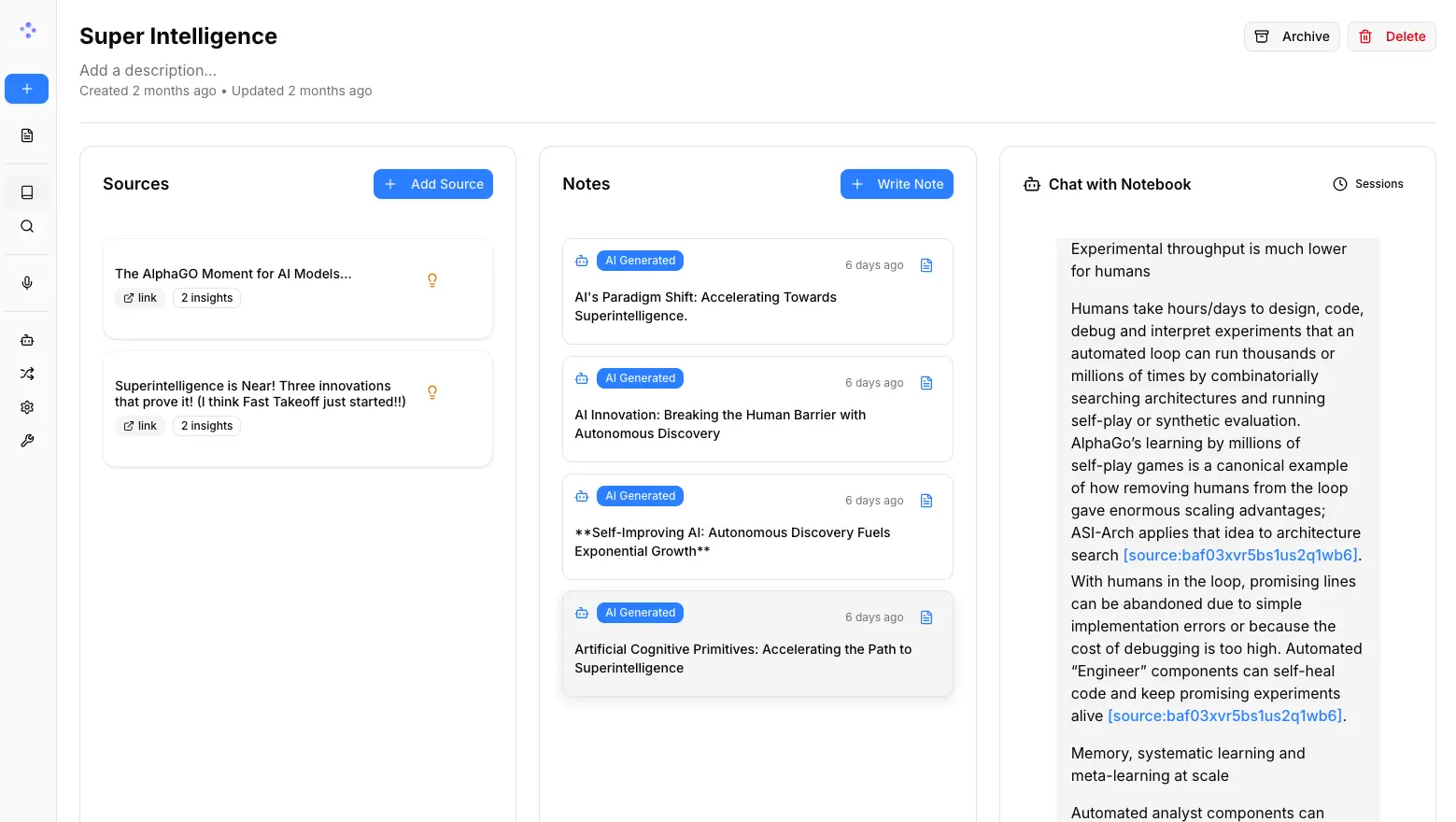
Open Notebook is an open-source, self-hosted AI research and note-taking app that turns documents, web pages, audio, video, and text into searchable notebooks.
It runs through Docker on your computer or server and serves as a self-hosted alternative to Google’s Gemini Notebook (formerly NotebookLM). You can connect cloud AI providers or local models through Ollama, LM Studio, and OpenAI-compatible endpoints.
After a source is processed, Open Notebook indexes its text for full-text and vector search. Chat and Ask responses can open the related source, note, or insight, and reusable transformations can save summaries, key points, or other outputs. Notebook material can also be turned into podcasts with up to four speakers.
The app, database, and uploaded sources stay on your infrastructure. A fully local model stack keeps AI processing on that infrastructure. If you connect a cloud model provider, the context sent to that API leaves your server. You choose which services handle language models, embeddings, speech-to-text, and text-to-speech.
Features
- Connect OpenAI, Anthropic, Google, OpenRouter, DeepSeek, SiliconFlow, Z.ai, Ollama, and LM Studio models.
- Import PDF, Office, OpenDocument, EPUB, web, YouTube, audio, video, and text sources.
- Process scanned documents and JavaScript-heavy pages with optional Docling and Crawl4AI engines.
- Search source text, insights, and notes with full-text and vector search.
- Open references from Chat and Ask responses to the related source, note, or insight.
- Control which source text or saved insights enter each notebook chat.
- Save reusable transformations that generate summaries, key points, and other source insights.
- Generate podcasts with one to four speakers, custom voices, languages, and episode profiles.
- Keep sources, notes, chat sessions, insights, and generated audio organized by notebook.
- Use the REST API or MCP server for notebook, source, search, chat, model, and settings access.
- Render inline and display math in chat with KaTeX.
- Encrypt saved provider credentials and protect the web UI and API with an optional shared password.
Use Cases
- Research papers, books, lectures, and data inside one source-grounded notebook.
- Collect interviews, articles, statistics, and reference documents for content research.
- Search private API documentation, architecture notes, issue discussions, and technical specifications.
- Build study notebooks from course files, recordings, web pages, and saved notes.
- Keep sensitive research on local language, embedding, transcription, and speech models.
Open Notebook vs Gemini Notebook (NotebookLM)
Open Notebook and Google’s Gemini Notebook both answer questions from user-supplied sources. Open Notebook focuses on self-hosting, model choice, automation, and configurable podcast generation. Gemini Notebook is a managed Google service with Gemini models, cross-product notebook sync, and ready-made Studio outputs.
| Open Notebook | Gemini Notebook | |
|---|---|---|
| Hosting | Self-hosted with Docker | Google-hosted web and mobile service |
| AI models | Local and cloud providers | Gemini models managed by Google |
| Data control | Self-managed storage. Cloud providers receive selected context | Google-managed service and notebook storage |
| Research outputs | Referenced chat, notes, insights, transformations, search, and multi-speaker podcasts | Chat, reports, Audio and Video Overviews, mind maps, flashcards, quizzes, and Studio outputs |
| Automation | REST API and optional MCP server | Google integrations and cross-product notebook sync |
| Cost | MIT-licensed software. Hosting and optional API costs are extra | Free access with compute-based limits. Paid plans raise usage limits |
How to Install and Use Open Notebook
1. Install Docker Desktop on Windows or macOS, or Docker Engine with the Compose v2 plugin on Linux.
2. Create an empty folder and download the Compose file:
curl -o docker-compose.yml https://raw.githubusercontent.com/lfnovo/open-notebook/main/docker-compose.yml3. Open docker-compose.yml and replace change-me-to-a-secret-string in OPEN_NOTEBOOK_ENCRYPTION_KEY. Keep this key with your backups because stored provider credentials depend on it.
4. If the installation will be reachable outside your private machine or network, configure OPEN_NOTEBOOK_PASSWORD, restrict CORS_ORIGINS, and place the service behind HTTPS before exposing it.
5. Start the services:
docker compose up -d6. Open http://localhost:8502. The web UI uses port 8502, the REST API uses port 5055, and the standard Compose file binds SurrealDB port 8000 to localhost.
7. Open Manage → Models, add a provider credential, test the connection, discover and register models, and assign defaults. Auto-Assign Defaults can fill the required chat and embedding assignments after models are registered.
8. Create a notebook and import sources. After processing finishes, the material becomes available for search, chat, notes, transformations, and podcast generation.
9. Choose the context level for each source in chat. Full content sends the source text. Sources with saved insights can use Insights only. Not included in chat removes the source from that conversation’s context.
Run Open Notebook Locally with Ollama or LM Studio
For Ollama, use the project’s Docker Compose examples or connect Open Notebook to an Ollama server already running on the host. When Open Notebook runs in Docker and Ollama runs on the host, use http://host.docker.internal:11434. Linux also needs an extra_hosts mapping for host.docker.internal:host-gateway, and Ollama must listen on 0.0.0.0. Restrict port 11434 to the host and its Docker networks.
LM Studio works through an OpenAI-compatible connection. A fully local stack can also use local embeddings, speech-to-text, and text-to-speech. After the required application images and model files are downloaded, locally stored sources can be processed with no cloud AI API. Web imports and other network-based sources require internet access.
Pros
- Self-hosted notebook storage
- Local and cloud model choice
- One-to-four-speaker podcast generation
- REST API and MCP access
- MIT-licensed source code
Cons
- You manage deployment, backups, upgrades, and server security.
- Cloud providers can receive source context and charge API usage.
- Local models require substantial RAM, storage, and compute.
Alternatives and Related Resources
- Google NotebookLM: AI Research Assistant for Students and Professionals
- Open-Source Local AI Notebook for Research (NotebookLM Alternative) – Deta Surf
FAQs
Q: Is Open Notebook free and open source?
A: Yes. Open Notebook is MIT-licensed and free to self-host. Server resources and commercial AI APIs can create extra costs. A local setup can use Ollama plus local embedding and speech models.
Q: Does Open Notebook require an API key?
A: No cloud API key is required when you use local models. Cloud providers require their own credentials. Open Notebook lets you assign different providers to language, embedding, speech-to-text, and text-to-speech tasks.
Q: Is a self-hosted Open Notebook installation completely private?
A: Self-hosting keeps the app, database, and uploaded sources on infrastructure you control. A cloud model provider receives the context sent to its API. A fully local model stack keeps AI processing on your infrastructure. Internet-facing deployments also need a long, unique application password, HTTPS, restricted CORS origins, backups, and normal host security.
Q: What computer does Open Notebook need?
A: The base installation needs at least 4GB of free RAM, and 8GB or more is recommended. Local models require additional memory and disk space. The full-local Compose example lists 8GB RAM, 20GB disk space, and four CPU cores as its minimum CPU-only configuration.
Q: Does Open Notebook have an API or MCP integration?
A: Yes. The REST API exposes notebooks, sources, notes, search, chat, models, and settings. The optional Open Notebook MCP server connects those capabilities to compatible AI clients.
Last Updated: October 4, 2026