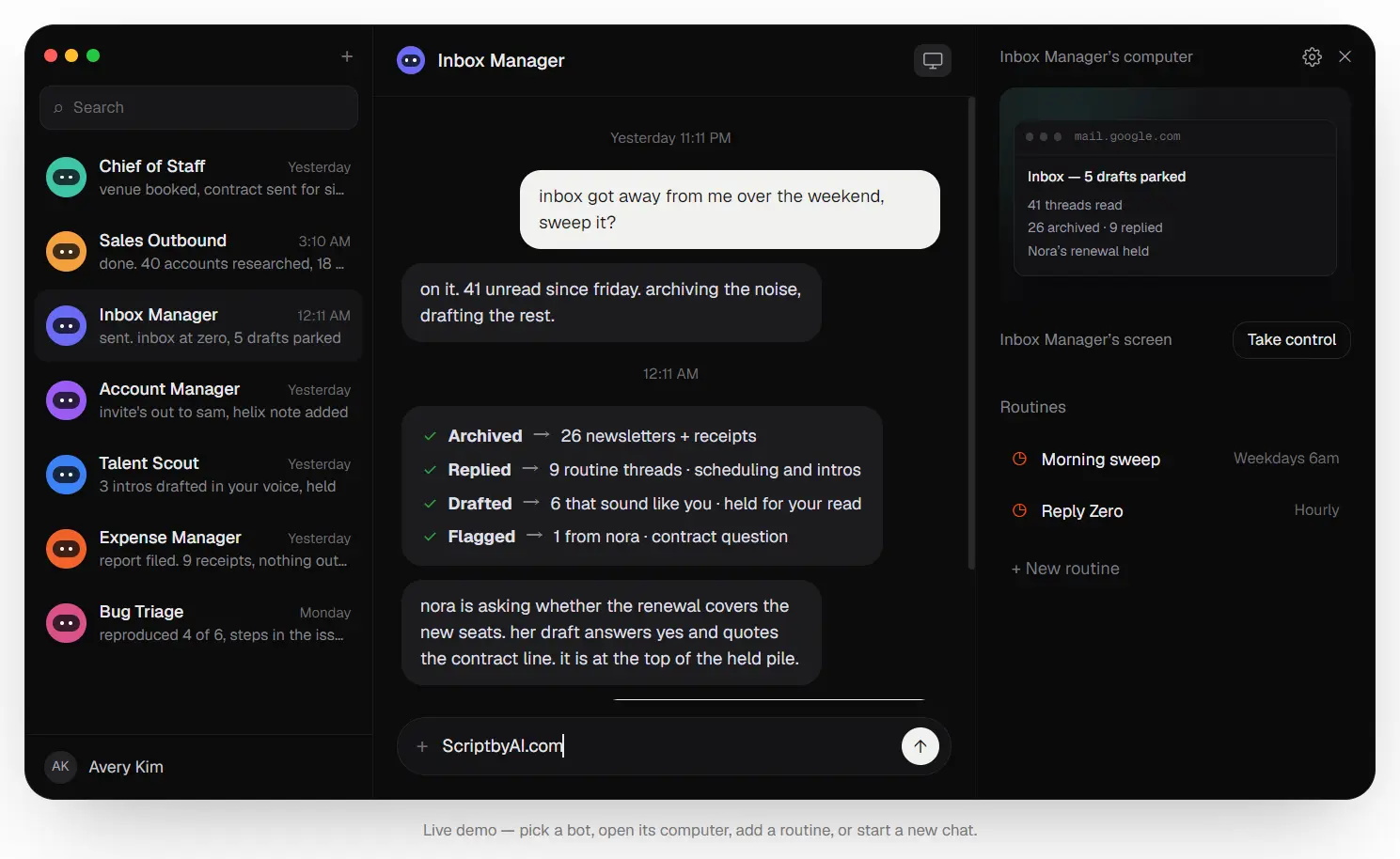
Rakazo is an open-source Grok Bot alternative for running persistent AI teammates. Each bot combines a long-lived thread, memory, routines, and history with access to a working computer.
A Rakazo bot uses a live desktop for websites and graphical applications, shell commands, and file operations. It can return to the same work later with its history and workspace intact.
For example, an inbox bot can keep a recurring cleanup routine and browser session. A bug-triage bot can keep a different thread, files, and task history. Bots can also create persistent peers or start short-lived subagents for work inside the current turn.
How a Rakazo Bot Works
A bot combines conversation state with a computer it can return to later.
- Thread: stores the bot’s conversation history.
- Computer: supplies the desktop, browser sessions, shell, applications, and files used for work.
- Memory: keeps information that should persist across interactions.
- Routines: store recurring instructions in readable Markdown.
- History: records earlier work associated with the bot.
- Peer bots: create another persistent bot with its own thread and computer context.
- Subagents: handle temporary work inside the current turn.
A Rakazo workspace starts with a Team Computer. Team bots use the same computer workspace and begin in their own bots/<bot-id>/ directories. Shared files belong in shared/. These folders organize work; every Team bot can access the full Team workspace.
A bot can use a Private Computer when it needs its own workspace. This is the relevant isolation choice for files and browser state inside a Rakazo workspace.
Human input can share the live computer session. Take control makes the embedded viewer accept your mouse and keyboard input. The agent run continues unless the workflow explicitly pauses or requests protected human input.
What Rakazo Bots Can Do on a Computer
Rakazo connects the model to a desktop through its computer tools. A bot can:
- observe the current screen;
- click, type, scroll, and interact with graphical applications;
- open websites and work through browser sessions;
- launch applications;
- run shell commands;
- list, read, write, and organize files;
- keep workspace data for later runs;
- execute recurring routines;
- create peer bots for longer-lived delegated work;
- start temporary subagents for a single turn.
Note that screen-based work requires an AI model that can accept image tool results and reason about screenshots.
Rakazo also supports approvals and an audit log for agent actions. These controls matter when a bot has access to accounts, files, shell commands, or connected applications.
Model Access and Plugins
Rakazo uses Pi as its agent runtime and exposes models available through Pi. You can connect a deployment-level model key or choose a supported account login during onboarding.
| Model or Service | Rakazo Access |
|---|---|
| OpenRouter | OPENROUTER_API_KEY or a key entered during onboarding |
| ChatGPT Plus or Pro | OpenAI Codex device-code sign-in |
| GitHub Copilot | GitHub Copilot device-code sign-in |
| SuperGrok / X Premium | xAI device-code sign-in |
| Claude Pro subscription | No Rakazo Web UI login path at present |
| Composio | Optional COMPOSIO_API_KEY for connected-app plugins |
Choose Where the Bot Computer Runs
The client you open and the computer provider are independent settings. Web, Electron, and mobile can connect to the same Rakazo server. The computer provider determines where browser, shell, and desktop actions execute.
| Provider | Where the Bot Runs | Best Use |
|---|---|---|
docker | Docker computer on the Rakazo host | Local and trusted single-machine self-hosting |
e2b | Remote E2B desktop | Public or multi-user deployments |
desktop / This Mac | API/worker host | Trusted single-user desktop use |
fake | In-process emulator | Tests |
How to Run Rakazo Locally
The standard local setup requires:
- Node.js 22 or newer;
- pnpm 9;
- Docker Desktop.
Create the environment file from the repository root:
cp .env.example .envSet BETTER_AUTH_SECRET and ENCRYPTION_KEY to long random values before exposing the installation to a network. Add OPENROUTER_API_KEY if you want a deployment-level OpenRouter key. You can also enter a model key or use a supported account sign-in during onboarding.
Add COMPOSIO_API_KEY only when you want plugins to connect to live applications.
Start Postgres, install the project, prepare the database and sandbox image, then launch the development stack:
docker compose --env-file .env -f infra/compose/docker-compose.yml up postgres -d
pnpm install
pnpm db:generate
pnpm db:migrate
pnpm sandbox:build
pnpm dev
pnpm dev starts:
- the API on port
3100; - Graphile Worker;
- the Vite web app on port
5173; - the sandbox supervisor on port
7091.
Open:
http://127.0.0.1:5173Create an account, connect a model, create a bot, and give it a task. The Computer panel opens the bot’s Linux desktop.
You can confirm the standard runtime path with:
curl -s http://127.0.0.1:3100/healthDesktop and Mobile Access
Rakazo includes an Electron desktop client that uses the same application and backend.
Leave the development stack running, then start Electron with:
pnpm --filter @rakazo/desktop devThe first desktop launch asks the deployment owner to choose Docker or This Mac for bot computers. Docker stays as the standard computer provider. Choosing This Mac runs bot commands on that machine under the Rakazo process user’s permissions.
Packaged desktop builds can be created with:
pnpm --filter @rakazo/desktop packRakazo generates macOS DMG/ZIP, Windows NSIS, and Linux AppImage output under apps/desktop/out/. A packaged desktop client connects to a running Rakazo API and web origin.
Rakazo Use Cases
Recurring Browser and Account Work
An inbox, sales, recruiting, or account-management bot can keep a routine, browser context, task history, and working files across repeated runs. Human review can enter through the same computer session when a task reaches an approval point.
Bug Triage and Technical Investigation
A bot can reproduce a report in a browser, run diagnostic commands, inspect files, and keep investigation artifacts in its workspace. A persistent bot can continue the same issue history across later sessions.
Research and Content Operations
A research bot can maintain a dedicated set of files, browser sessions, notes, and recurring instructions. Another bot can keep a different subject area or publishing task with its own history.
Multi-Bot Work
One bot can create a peer for another ongoing responsibility. Peer bots are full Rakazo bots with independent threads and the same Team or Private Computer choices. Subagents handle temporary work that belongs to one turn.
Alternatives & Related Resources
- AionUi: Free Open-source Cowork App
- Cumora: Team Chat for Humans and Persistent AI Agents
- Hermes Agent: Free, Open-source, Self-Improving AI Agent
- 7 Best OpenClaw Alternatives for Safe & Local AI Agents
- 10 Best Open-Source AI Agents
FAQs
Do Team bots have isolated files?
No. Team bots start in their own bots/<bot-id>/ directories. Those folders organize files; every Team bot can access the full Team Computer workspace. Use a Private Computer when the bot needs its own workspace.
What happens to an E2B computer when Rakazo replaces it?
Rakazo restores the latest checkpointed portable workspace and browser-profile data from its own DATA_DIR. System packages installed outside that portable workspace do not move with it. Reproducible images or setup scripts are the safer way to preserve machine-level customization.
Does Take Control pause the AI agent?
No. Take Control makes the embedded computer viewer accept your input. It does not automatically pause the active agent run. Rakazo has a takeover request mechanism for work that needs protected human input or judgment.