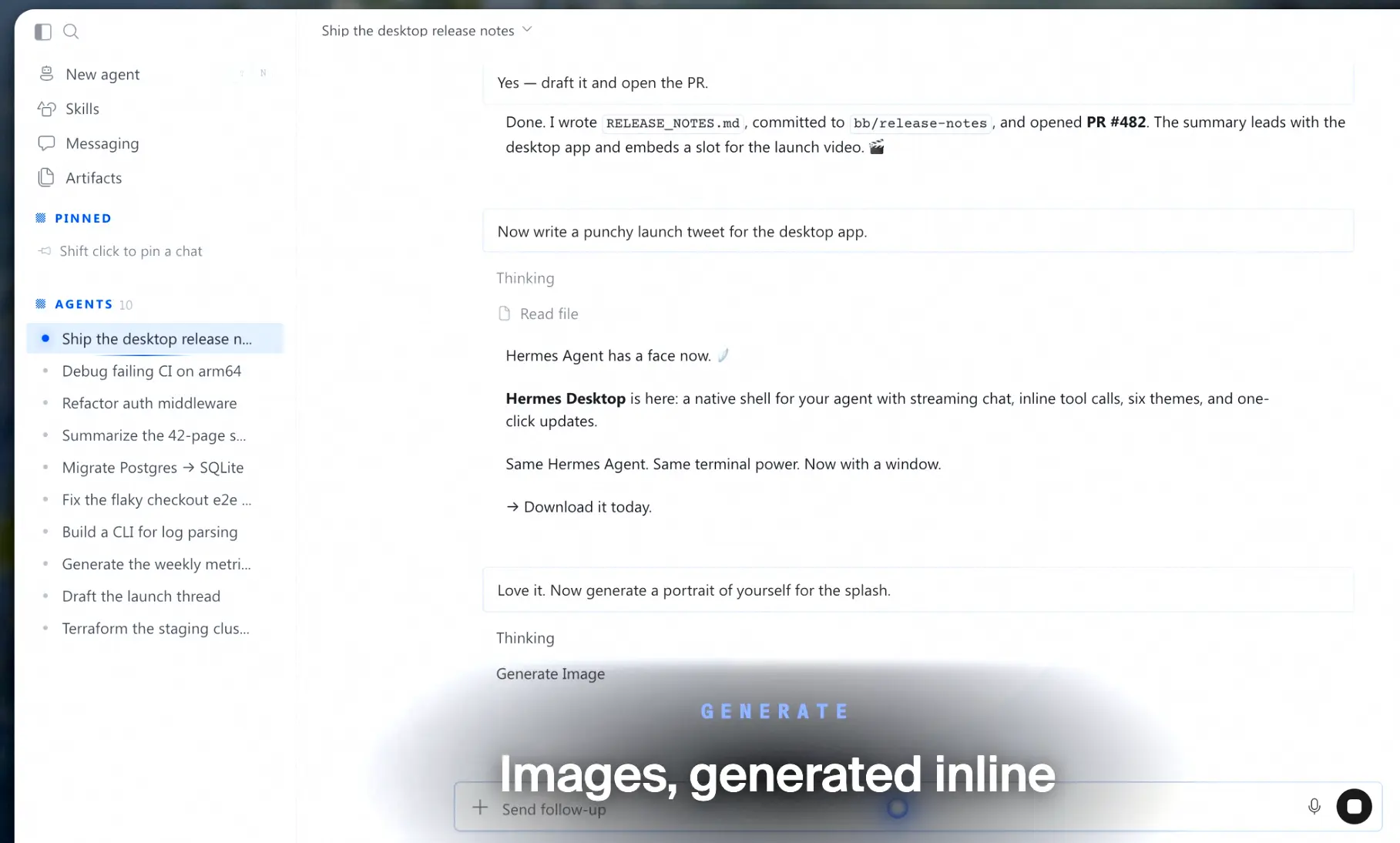
Hermes Agent is a free, open-source personal AI agent from Nous Research for coding, research, browser tasks, and recurring automation. It runs in a terminal, the Hermes Desktop app, or messaging services such as Telegram and Discord.
The agent keeps project memory across conversations and learns reusable skills from completed work. You can assign tasks to specialist bots, schedule work to run later, and connect the agent to remote machines or other apps. It runs with cloud providers and locally hosted models.
Key Features
- Creates and improves reusable skills from repeated work and corrections.
- Keeps persistent memories and recalls relevant information across conversations.
- Runs specialist bots with their own profiles, models, tools, and chat history.
- Executes terminal, coding, browser, file, and research tasks locally or on remote machines.
- Works through Hermes Desktop, the CLI, TUI, web dashboard, and messaging channels.
- Runs scheduled jobs, delegates subtasks, and coordinates long-running work through Kanban boards.
- Connects to hosted apps and local or remote MCP servers.
- Installs catalog plugins that extend tools, memory, voice, models, and desktop functions.
- Uses cloud model providers, custom endpoints, or managed local open models.
- OpenClaw migration.
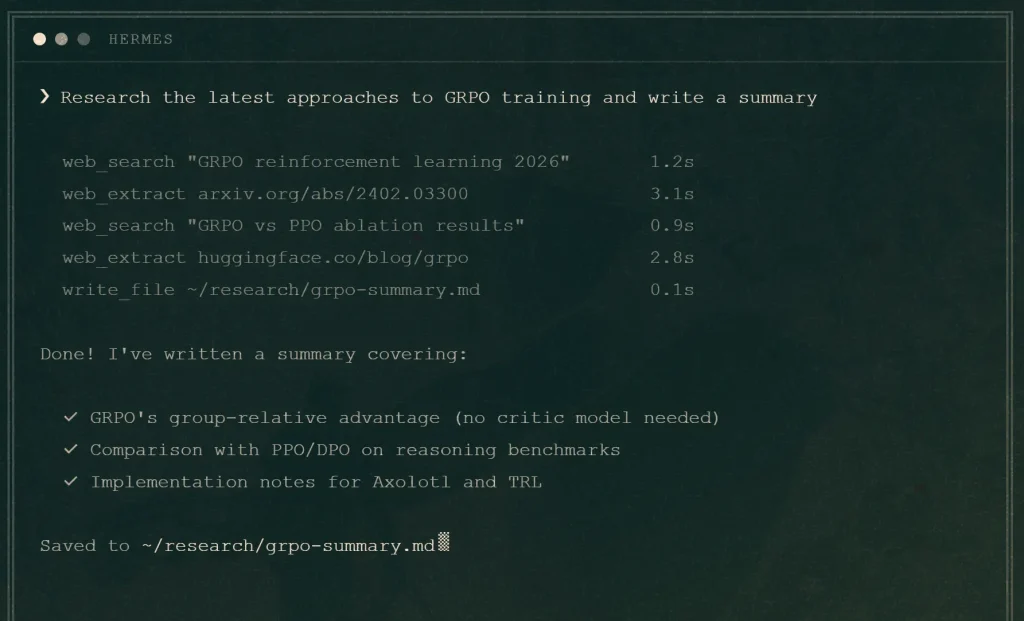
Hermes Agent Quick Start
| Task | Command |
|---|---|
| Start a terminal conversation | hermes |
| Open the terminal UI | hermes --tui |
| Configure models and accounts | hermes model |
| Configure agent tools | hermes tools |
| Open the desktop app | hermes desktop |
| Set up messaging | hermes gateway setup |
| Inspect the installation | hermes status |
How Hermes Agent Learns and Works Across Sessions
Hermes stores session history and persistent memories about ongoing projects. When it encounters a similar task later, the agent can recall relevant details from earlier conversations. Use /journey to inspect recorded memories and its learning history.
Hermes learns procedures as reusable Agent Skills documents. Run /learn after completing a repeatable task to save the procedure, or correct an existing skill when a method needs improvement. Skills from the built-in library or Skills Hub can also be loaded into later sessions. Memory retains project facts, and skills retain the instructions for recurring work.
Coding and Research Tasks
For coding tasks, Hermes can inspect a repository, edit project files, execute terminal commands, and review Git changes. Use /init to create project instructions in AGENTS.md and /diff to review modifications. Worktrees and isolated execution backends are available for tasks that need their own working environment.
For research, Hermes can search the web, extract source material, and organize findings across sessions. When you enable the grounded-citations skill, the agent can include citations and perform evidence checks.
Browser Automation, Voice, and Remote Execution
Hermes can open websites, click controls, read pages, capture screenshots, and complete tasks in Chromium through the browser_exec tool. Cloud browser services and access to an existing signed-in Chromium profile are optional. Browser sessions can also be isolated for parallel agents. If you connect a browser where you are already signed in, the agent can interact with the websites and accounts accessible through that profile.
Voice interaction is available through the CLI, TUI, desktop, and certain messaging channels. After configuring speech recognition and text-to-speech providers, Hermes can transcribe spoken prompts, play streamed spoken responses, and use a wake word for hands-free conversations. Live transcription requires a provider with a streaming speech-to-text endpoint.
Terminal tasks can run directly on the local machine or inside Docker, SSH, Singularity, Modal, Daytona, or Vercel Sandbox environments. Set the terminal backend in the agent configuration to determine where commands execute. A remote gateway can keep the agent running on another machine while the conversation continues in Desktop or a messaging app.
Hermes Desktop and Bot Mode
Hermes Desktop brings conversations, project files, model settings, profiles, scheduled jobs, and agent management into a native app. The desktop, CLI, TUI, and web dashboard use the Hermes runtime and underlying session data. An existing terminal setup can therefore be managed from the app. The desktop can also connect to a Hermes gateway running on another computer.
Bot Mode turns Hermes profiles into specialist agents. Create a research bot, coding bot, or monitoring bot with its own model, memory, tools, skills, credentials, and chat history. Bots can communicate in direct chats, participate in group rooms, and exchange work through hermes peer. A profile can also be opened directly from the terminal.
The desktop onboarding experience now uses a guided setup conversation on a fresh local installation. It introduces the app, offers hosted connectors and plugins, and suggests initial tasks. Bot Screen can expose the desktop of an appropriately configured Linux-gateway bot, including a takeover option for interactive sign-ins. That optional capability is disabled by default.
Models, Local Inference, and Free Access
Cloud providers and account access
Hermes is a model-agnostic agent runtime. Configure a provider through hermes model or the desktop Providers settings, then select a model for a chat or profile. Available connection types include Nous Portal, OpenAI Codex and GitHub Copilot sign-in, Anthropic accounts or API credentials, OpenRouter, Google Gemini, and other API providers. Custom OpenAI-compatible endpoints work with self-hosted servers such as Ollama and vLLM.
For tool-enabled agent work, Hermes requires a context window of at least 64,000 tokens. This is especially relevant to locally hosted Ollama models, whose default context size can be smaller. Your provider account or subscription determines which hosted models you can select.
Nous Portal gives subscribers model access and managed services for web search, image generation, speech, and cloud browsing. You can also authenticate with other providers or enter API credentials.
Hermes offers Mixture-of-Agents presets for tasks that benefit from several models: reference models contribute an analysis, and an aggregator model writes the answer and handles tool calls. The aggregator’s provider accounts for most of a preset’s inference cost.
Run open models on your own computer
Hermes can install and operate a managed llama.cpp runtime for local models. In Desktop, open Settings → Providers → Local Models, install the runtime, select a downloadable model, and choose Use.
From the terminal, select Local models under hermes model. Hermes assesses GPU memory and system RAM, downloads an appropriate model build, and starts the local inference server. It also accepts compatible GGUF models from Hugging Face.
After the model and runtime have been downloaded, local inference can run on your own hardware without sending model prompts to a cloud provider. Web search, hosted connectors, cloud execution, or other enabled remote tools can still transmit task data.
What is actually free?
Hermes Agent is free to download, modify, and self-host under the MIT license. A fresh Hermes Desktop installation can use the nous/welcome model for a one-time onboarding trial, limited to one trial per operating-system user.
Local models can run without paid API calls on capable hardware. Hosted models and optional services can require their own credits or subscriptions.
Connectors, MCP Servers, and Plugins
Hosted app connectors
Hermes can act in hosted services such as Linear and Notion through a hosted tool gateway. Request an integration in chat, approve the connection in a browser, and the relevant app tools become available to the agent. The first connector use can create a free connector identity without requiring an existing Nous account. Multiple accounts for a service can be configured, and hermes connectors or /connectors opens connection management.
Hermes Desktop now groups hosted apps and MCP servers in a Connectors page. Connecting an account can be free, although individual third-party services can have their own paid plans or usage conditions. The agent receives the permissions granted during sign-in, and content sent to a hosted service leaves your local environment.
MCP servers
Model Context Protocol servers give Hermes external tools for GitHub, databases, file systems, developer services, and custom APIs. Hermes can discover tools from local stdio or remote HTTP MCP servers, filter the tools exposed to the agent, and manage configured servers through hermes mcp or the Connectors screen.
Plugin Catalog
The Plugin Catalog lets you search for extensions that supply new agent tools, model providers, memory backends, messaging integrations, voice functions, and desktop panels. Entries are installed at a pinned reviewed commit through hermes plugins install <name>.
Plugins can also be installed from an external Git repository, though those sources do not receive the catalog’s review process.
Scheduled Tasks, Subagents, and Multi-Agent Kanban
Hermes cron jobs run recurring prompts and can deliver results through configured channels. The --continuity option passes a job’s previous output into its next execution, which helps recurring reports carry forward earlier results. Cron schedules can recover missed runs after a restart and respect provider retry delays. A job without a pinned model uses the model configured when the job fires.
For a single complex task, Hermes can delegate work to subagents, monitor their progress, and steer or stop a running child agent. Bot chats and hermes peer support exchanges between longer-lived specialist profiles.
Kanban coordinates work that needs durable task records, assigned roles, dependencies, reviews, or continuation after a restart. The board stores tasks in a local database, and dispatcher workers operate as independent processes. Open hermes dashboard to view the board, or manage tasks through hermes kanban and /kanban. Kanban is useful for a research task that passes to a writer and then a reviewer, where each worker needs a record of previous output and what remains unfinished.
Hermes Agent vs OpenClaw
Both Hermes Agent and OpenClaw can run personal agents across chat channels and connected tools. Hermes emphasizes learned skills, profile-based specialist bots, native local-model management, and a unified runtime across its CLI and desktop. OpenClaw is a self-hosted personal assistant with its own messaging gateway, device connections, and automation integrations.
| Hermes Agent | OpenClaw | |
|---|---|---|
| Primary use | Personal agent with learned skills and specialist bots | Personal assistant across chat apps, devices, and services |
| Persistent context | Memory, skills, profiles, and Bot chats | Sessions, persistent state, and skills |
| Team tasks | Delegated subagents, peer messaging, and Kanban | Subagents and automation workflows |
| Models | Cloud providers and managed local models | Configurable model providers |
| Migration | Can import selected OpenClaw settings and data | Uses its own configuration and onboarding |
If you are moving an existing OpenClaw setup to Hermes, hermes claw migrate can preview and import compatible material, including selected skills, memory, profiles, and settings.
Use Cases
- Research assistant: Gather material from the web, inspect sources, and preserve context for a continuing topic or project.
- Coding assistant: Analyze a repository, work through changes, inspect Git diffs, and use worktrees or isolated terminal execution for parallel work.
- Recurring monitor: Check a news source or service status on a schedule and carry the previous report into the next run.
- Specialist bot team: Give research, writing, and review tasks to different profiles and track handoffs in Kanban.
- App operations: Connect hosted services, then ask Hermes to retrieve or update information using those services’ authorized tools.
- Local assistant: Run a suitable open model with managed llama.cpp on a computer that has enough RAM or GPU memory.
- Remote agent: Chat from the desktop or a messaging app while the Hermes runtime works through SSH, Docker, or another configured execution backend.
How to Install and Use Hermes Agent
1. Install the desktop app or CLI
For a packaged desktop installation, download Hermes Desktop for macOS Apple Silicon or Windows.
For Linux, macOS, and WSL2, install the command-line agent with:
curl -fsSL https://hermes-agent.nousresearch.com/install.sh | bashOn native Windows, use PowerShell:
iex (irm https://hermes-agent.nousresearch.com/install.ps1)2. Configure a model and open a conversation
For terminal installation, use the setup wizard or choose your provider explicitly:
hermes setup
hermes model
hermes chat
Use hermes --tui for the terminal UI or hermes desktop for the desktop experience after the relevant app components are installed. Connect a hosted model account or configure the local-model runtime before expecting regular conversations beyond the one-time desktop onboarding trial.
3. Create profiles and specialist bots
Create a profile in Hermes Desktop’s Bot Mode or from the command line. Each profile can have its own model, instructions, skills, memory, and tool selection:
hermes profile create research
hermes profile list
hermes -p research chat
4. Enable tools, plugins, and connectors
Use hermes tools to configure the agent’s tool access, hermes mcp to manage MCP servers, and hermes plugins to install extensions. Open hermes connectors to authorize hosted accounts.
For command execution inside a Docker container, set terminal.backend to docker. An SSH backend is available for commands that should run on a remote machine.
hermes tools
hermes mcp catalog
hermes mcp install <name>
hermes plugins search github
hermes connectors
hermes config set terminal.backend docker
5. Set up messaging and recurring jobs
The Hermes gateway connects channels such as Telegram, Discord, Slack, WhatsApp, Signal, and email. Once a model and agent tools work locally, configure the gateway and a recurring task:
hermes gateway setup
hermes gateway start
hermes cron create "every 6h" "Check project updates and summarize changes" --continuity
6. Update Hermes and inspect the running version
hermes status
hermes doctor
hermes update
Hermes Agent Command Cheat Sheet
Terminal and Setup Commands
| Command | Purpose |
|---|---|
hermes chat | Open a CLI conversation |
hermes --tui | Open the terminal UI |
hermes desktop | Launch the desktop app |
hermes model | Choose providers, models, or local inference |
hermes setup | Run interactive setup |
hermes auth | Manage provider sign-in |
hermes tools | Manage enabled tools |
hermes status / hermes doctor | Inspect the setup and troubleshoot issues |
hermes dashboard | Open the web management dashboard |
hermes sessions export backup.jsonl --redact | Export redacted session data |
hermes update | Update the managed installation |
hermes update --set-channel main | Use the development update channel |
Profiles, Integrations, and Automation
| Command | Purpose |
|---|---|
hermes profile list | List agent profiles |
hermes -p <profile> chat | Chat as a chosen profile |
hermes gateway setup | Configure messaging channels |
hermes gateway start | Start the messaging gateway |
hermes cron list | List scheduled jobs |
hermes mcp | Manage MCP servers |
hermes connectors | Manage hosted app connections |
hermes plugins search <term> | Search the plugin catalog |
hermes plugins install <name> | Install a catalog plugin |
hermes skills list | Browse reusable skills |
hermes peer list | Inspect peer gateways |
hermes kanban list | List Kanban tasks |
hermes claw migrate --dry-run | Preview OpenClaw migration |
hermes mcp catalog | List available MCP integrations |
hermes mcp install <name> | Install an MCP catalog entry |
hermes peer dm <peer>/<agent> "..." | Send a message to another agent |
hermes cron edit <job_id> --continuity | Carry previous results into future runs |
In-Chat Commands
| Command | Purpose |
|---|---|
/new | Create a fresh conversation |
/model | Switch the selected model |
/status | Inspect the active session |
/context | View context usage |
/init | Generate or update project AGENTS.md |
/diff | Inspect project Git changes |
/plan | Prepare an implementation plan |
/learn | Save a process as a reusable skill |
/journey | Inspect memory and learning history |
/agents | Monitor delegated work |
/goal | Set a continuing task goal |
/focus | Reduce routine tool-progress output |
/cron | Manage scheduled tasks |
/kanban | Manage Kanban tasks |
/connectors | Manage hosted connections |
/browser | Inspect browser connections |
/compress | Compress context |
/usage | Review available usage information |
/rollback | Inspect or restore checkpoints |
/voice on | Enable voice if dependencies are configured |
Pros
- Open-source MIT license and substantial local control.
- Persistent memory and learned skills across sessions.
- Desktop, terminal, messaging, remote execution, and Bot Mode access.
- Cloud and local model choices, plus connectors and plugins.
- Scheduled agents, subagents, and durable Kanban handoffs.
Cons
- Not every feature is available on every platform.
- Multiple bots, hosted connectors, and remote execution require careful credential and tool-permission setup.
- Local-model performance depends on available memory and hardware.
FAQs
Is Hermes Agent free?
Yes. The Hermes Agent source code is free under the MIT license. Self-hosted local-model use does not incur model API fees. Paid model APIs, Nous Portal, remote machines, and third-party applications have their own pricing and access rules. The included welcome model is a one-time desktop onboarding trial.
Can Hermes Agent run entirely locally?
Yes. Hermes can run its agent runtime and a managed local open model on suitable hardware. Local model inference does not send prompts to a cloud model provider after download. Internet searches, remote tools, hosted connectors, or cloud backends transmit data when you enable and use them.
Can Hermes Agent use my ChatGPT or Claude subscription?
Hermes provides provider sign-in flows for OpenAI Codex and Anthropic and also accepts API credentials. Subscription eligibility and usable models depend on the relevant provider and account. Select and authenticate the provider through hermes model.
What is the difference between Bot Mode and a subagent?
A Bot Mode bot is a persistent Hermes profile with its own ongoing chat, tools, memory, and model settings. A subagent performs a delegated task inside a larger assignment. Kanban can coordinate durable tasks across multiple specialist profiles.
Is Hermes Agent private?
Hermes stores local session state, memory, skills, and configuration on the machine or server where it runs. Cloud model API requests, hosted connectors, remote browser services, and external MCP servers can send data to their respective services. Privacy depends on the models, tools, and permissions configured for each task.
Can Hermes access a browser where I am signed in?
Yes. Hermes can connect to an authenticated Chromium-family browser session when you explicitly enable that connection. The agent can interact with signed-in pages and accounts available to that browser, subject to the browser tools and permissions you configure.
Alternatives & Related Resources
- OpenClaw: Self-Hosted Personal AI Assistant for Chat & Automation
- 7 Best OpenClaw Alternatives for Safe & Local AI Agents
- 10 Best Agent Skills for Claude Code & Codex
- 460+ Most Popular Agent Skills on GitHub for Coding Agents
Sources
Last updated: Oct, 15, 2026