AionUi is a free, open-source desktop Cowork app for running AI agents on your own computer.
It includes the built-in Aion agent and supports installed AI coding agents such as Gemini CLI, Claude Code, Codex, OpenCode, OpenClaw, Goose, and Kimi CLI.
From the app, you can open project folders, run separate agent sessions, manage model/API settings, configure MCP services, preview generated files and diffs, create office documents, spreadsheets, dashboards, and images, use the WebUI, and schedule recurring jobs.
Features
- Built-in Aion agent: Start agent work without installing Gemini CLI, Claude Code, Codex, or another external CLI first.
- Multi-agent sessions: Run separate conversations for different agents, folders, tasks, and model choices.
- Model providers: Gemini, Gemini Vertex AI, OpenAI, Anthropic, AWS Bedrock, OpenRouter, Ollama, LM Studio, New API, Dashscope, Qwen, DeepSeek, Moonshot, and more.
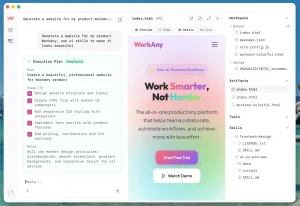
- Office assistants: Create PPTX, Word, Excel, dashboards, pitch decks, academic papers, forms, diagrams, and other structured files from prompts and project context.
- Preview panel: Open generated PDF, Word, Excel, PowerPoint, Markdown, HTML, images, code, and diff files inside the app.
- MCP management: Configure Model Context Protocol services once and make them available to connected agents.
- Remote access: Use WebUI mode from a browser after setup, or connect supported chat channels such as Telegram, Lark, DingTalk, and WeChat.
- Scheduled tasks: Create cron, interval, or one-time jobs for recurring reports, reminders, file cleanup, and other repeated agent work.
See It In Action
Use Cases
- Repository review: Ask an agent to inspect a project folder, explain architecture, draft code edits, compare diffs, or prepare documentation.
- Office file generation: Turn prompts and attached files into presentations, Word documents, Excel reports, dashboards, pitch decks, and academic drafts.
- Local file management: Sort folders, batch rename files, merge documents, classify downloads, and review file actions before accepting them.
- Spreadsheet and report work: Clean tables, format Excel files, generate charts, and create reusable reports from raw data.
- Remote monitoring: Continue agent work from WebUI or chat channels after you configure remote access.
- Recurring automation: Schedule weekly reports, folder cleanup, data collection, reminders, or other repeated tasks inside a conversation
How to Use It
Install the desktop app
Download AionUi from the GitHub releases page and choose the package for your operating system. macOS users can also install it with Homebrew:
brew install aionuiAdd a model provider
Open AionUi after installation and add at least one model provider for the built-in agent: Settings > Models > Add Model. Choose the provider you already use, then enter the required API key, endpoint, local server address, project ID, or cloud credential.
For local models, choose the Custom platform and point AionUi to an OpenAI-compatible endpoint such as Ollama at http://localhost:11434/v1 or LM Studio at http://localhost:1234/v1.
Many API-key providers support multi-key rotation. Enter multiple keys in the API key field, separated by line breaks or commas, if you want AionUi to rotate keys after rate limits or temporary failures.
Start your first conversation
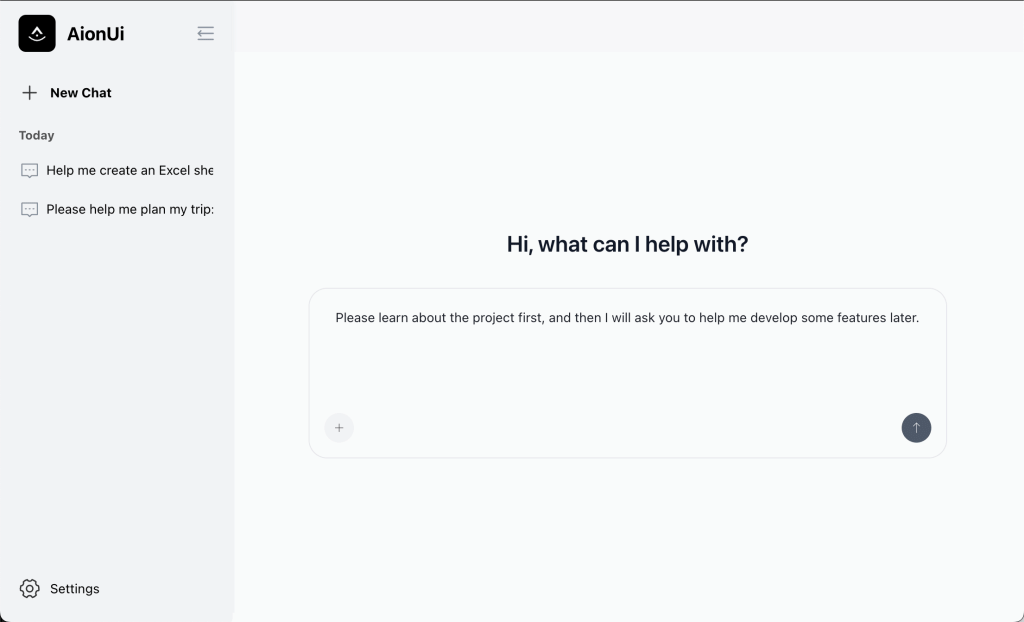
Open the Chat area, create a new conversation, choose an agent, and choose a model from the selector near the input box. Use the built-in Aion agent first if you want AionUi’s own file operations, web search, image generation, MCP tools, scheduled tasks, and built-in office assistants.
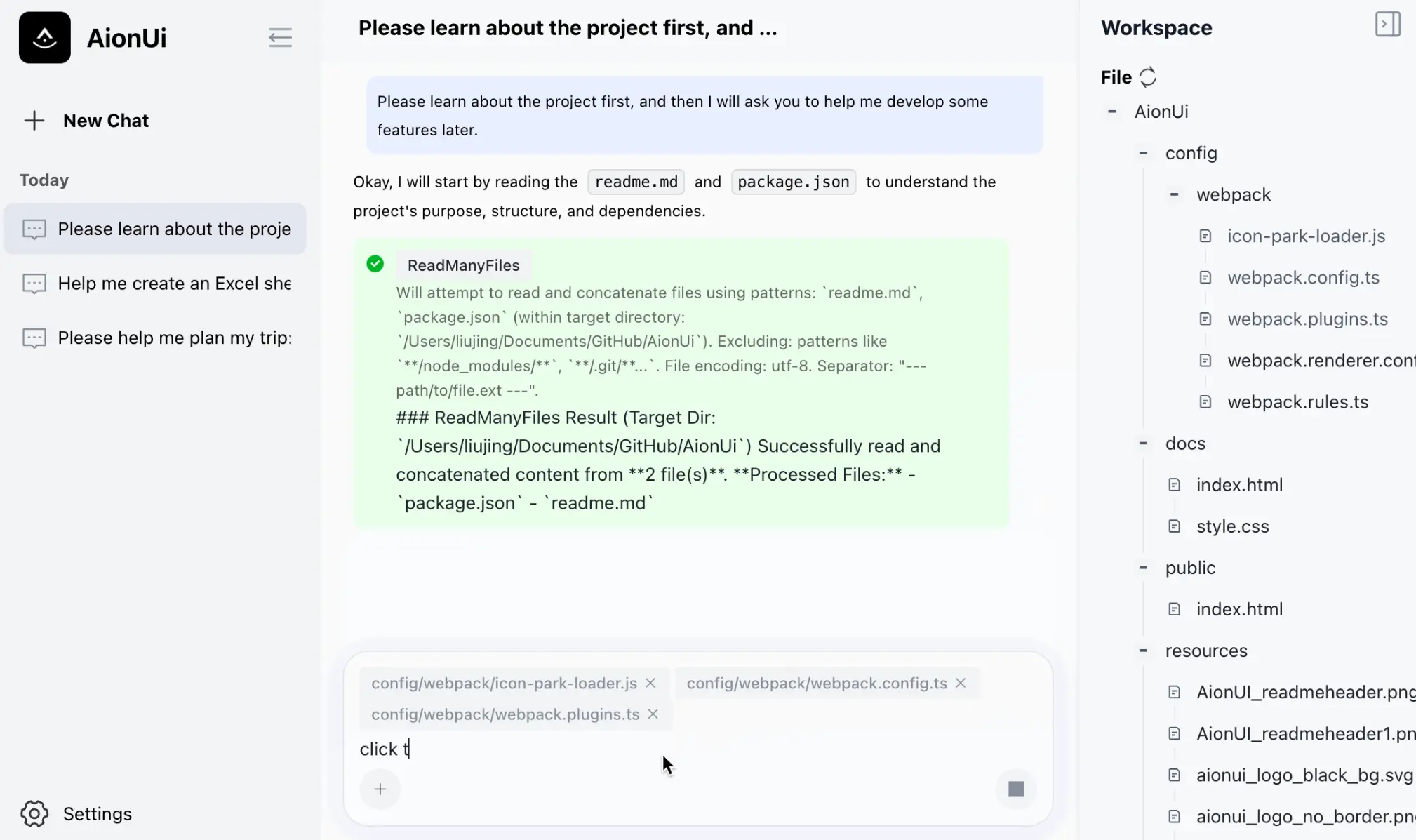
Attach files by dragging them into the input box or by using the plus button. You can also open a project folder from the same plus menu. AionUi then shows the folder tree in the project panel, lets you attach files from that folder, and keeps the folder bound to that conversation. Start a new chat when you want to work in a different folder.
Use AionUi as a Gemini CLI GUI
To run Gemini CLI from AionUi, install Gemini CLI separately, complete its own login or API setup, confirm the gemini command is available on your system path, then restart AionUi. Detected agents appear on the welcome screen and can be selected when you start a conversation.
The same Multi-Agent Mode applies to Claude Code, Codex, Qwen Code, Goose, OpenCode, OpenClaw, Cursor Agent, Kimi CLI, Hermes Agent, Snow CLI, and other ACP-compatible agents. AionUi scans for installed CLI agents at startup. If an ACP agent is not auto-detected, add it from Settings > Agent Management > Custom Agents with its display name, command, and arguments.
Each external CLI agent keeps its own authentication, model behavior, and native tools. AionUi adds the desktop conversation UI, project folder handling, file preview, permission prompts, conversation history, and multi-agent orchestration around that agent. When a connected agent asks to read files or run actions, review the approval prompt before granting one-time or persistent permission.
Pick assistants and skills for the job
AionUi includes built-in assistants for common work such as Cowork, PPT Creator, Word Creator, Word Form Creator, Excel Creator, Morph PPT, Pitch Deck Creator, Dashboard Creator, Academic Paper Writer, Financial Model Creator, UI/UX Pro Max, 3D Game, Beautiful Mermaid, OpenClaw Setup, and Story Roleplay. Pick the assistant that matches the output you need instead of sending every task to a general chat.
Assistants combine a backend agent, Markdown rules, and enabled skills. If the built-in presets do not match your workflow, open Settings > Assistants, create a custom assistant, choose the backend agent, write its rules, and enable the skills it should use. AionUi supports built-in skills, custom skills, and extension skills.
Configure MCP tools
Open Settings > Tools Settings > MCP Management to add Model Context Protocol services. AionUi supports local stdio MCP servers and remote sse, http, or streamable_http servers. You can paste a standard mcpServers JSON configuration or import MCP settings from an existing CLI setup.
After you add a service, AionUi tests the connection and shows its status and available tools. This central MCP panel is the right place to manage external services instead of repeating the same JSON in several agent-specific config files.
Preview and review generated files
Use the preview panel after an agent creates or edits files. AionUi can preview PDF, Word, Excel, PowerPoint, Markdown, HTML, code, images, and diff or patch files. Markdown, code, and HTML files can be edited in the preview area, and multi-tab previews let you compare several outputs without leaving the app.
For coding and file-management tasks, review diffs and generated files before accepting changes. For document tasks, open the PPTX, DOCX, XLSX, or dashboard output in the preview panel first, then export or continue editing when the structure looks right.
Use WebUI and remote channels
For browser access, open Settings > WebUI and enable WebUI. The desktop-bundled WebUI uses the same desktop app data, including conversations, scheduled tasks, and the admin password. Local browser access normally uses http://localhost:25808.
Turn on Allow LAN Access only on a trusted network. AionUi then shows a network URL that can be opened from a phone, tablet, or another computer on the same Wi-Fi. The first WebUI launch creates an admin password; copy it immediately and change or reset it from WebUI settings when needed.
AionUi can also connect to chat channels such as Telegram, Lark, DingTalk, WeChat, and WeCom from Settings > WebUI > Channels. These channels are optional. Use them when you want to send tasks to your local AionUi agents from a chat app instead of a browser.
Headless and server users can run AionUi in WebUI mode from the command line. Use the platform-specific binary path for your install. The standalone aionui-web path uses a separate data directory by default, so do not assume it shares the desktop app’s conversations unless you configure the data directory yourself.
# Windows
AionUi.exe --webui
AionUi.exe --webui --remote
AionUi.exe --resetpass
# macOS
/Applications/AionUi.app/Contents/MacOS/AionUi --webui
/Applications/AionUi.app/Contents/MacOS/AionUi --webui --remote
/Applications/AionUi.app/Contents/MacOS/AionUi --resetpass
# Linux
AionUi --webui
AionUi --webui --remote
AionUi --resetpass
Schedule recurring agent work
Create scheduled tasks from the Scheduled Tasks area or ask an agent to create one during a conversation. AionUi supports cron expressions with timezone settings, fixed intervals such as every 30 minutes, and one-time triggers.
Choose whether a task should continue in the existing conversation or create a new conversation each time. Continuing in the same conversation keeps the prior context, which helps for ongoing monitoring. Starting a new conversation works better for independent reports. Each task can also have its own model, workspace directory, and reasoning setting.
Scheduled tasks are useful for weekly reports, recurring code review, folder cleanup, data collection, reminders, and backup checks. AionUi can keep the system awake while tasks are active and detect missed triggers after the computer wakes.
Review permissions before you let an agent modify a private repository, run terminal commands, or process sensitive files. AionUi stores its own conversations and app data locally in SQLite. Your connected model provider or external CLI provider can still receive the prompts, file excerpts, images, and task context required for a request.
Alternatives & Related Resources
- Gemini CLI: Start here if you want Google’s terminal-first Gemini agent before adding a desktop Cowork app.
- Antigravity CLI: Compare Google’s newer terminal agent path for Gemini-related CLI work.
- 10 Best CLI AI Coding Agents: Compare terminal agent options before adding several of them to AionUi.
- OpenMausBot: Claude, Codex as Persistent AI Bots (Grok Bot Alternative)
- 10 Best Open-Source AI Agents: Compare local, hosted, and self-managed AI agent projects.
- OpenClaw: Compare AionUi with a self-hosted personal assistant and agent runtime.
- AionUi Website: Open the product page and download entry point.
- AionUi GitHub Repo: View source code, releases, issues, license, docs, and project activity.
Pros
- Free Apache-2.0 project.
- Built-in agent included.
- Cross-platform desktop releases.
- WebUI and chat channels.
Cons
- External CLIs need setup.
- Agent permissions need review.
- Remote access needs configuration.
FAQs
Q: Should I start with the built-in Aion agent or Gemini CLI?
A: Start with the built-in Aion agent if you want AionUi’s document assistants, image generation, MCP tools, scheduled tasks, and model-provider settings. Use Gemini CLI inside AionUi when you already rely on Gemini CLI and want a desktop GUI for conversations, project folders, previews, and permission prompts.
Q: What should I check if Gemini CLI does not appear in AionUi?
A: Confirm Gemini CLI is installed, authenticated, and callable as gemini from a fresh terminal. Restart AionUi after fixing the system path. If another ACP-compatible agent is not detected, add it from Settings > Agent Management > Custom Agents with the command and arguments it needs.
Q: What does AionUi add to an external CLI agent?
A: AionUi does not replace the CLI agent’s own model, login, or native behavior. It adds a desktop workspace around that agent: conversation history, project folder selection, file attachments, previews, diffs, permission prompts, and multi-agent organization.
Q: Can AionUi work with local models?
A: Yes. Use the Custom platform for an OpenAI-compatible local endpoint, such as Ollama or LM Studio. Local models can reduce cloud-model exposure, but connected CLI agents, MCP services, image tools, and chat channels may still send data to the services they use.
Q: What data can leave my computer?
A: AionUi stores its own app data locally, including conversations in SQLite. A request can still send prompts, file excerpts, images, tool outputs, or task context to the model provider, API gateway, CLI agent account, MCP server, or chat channel involved in that task.
Q: When should I enable WebUI or chat channels?
A: Enable WebUI when you want browser or phone access to the same AionUi workspace. Keep LAN access off unless the network is trusted. Use Telegram, Lark, DingTalk, WeChat, or WeCom only when you are comfortable sending tasks through that chat platform’s bot or account flow.
Q: What are scheduled tasks best for?
A: Scheduled tasks fit repeatable work with clear instructions, such as weekly reports, folder cleanup, data collection, reminders, and routine checks. Use a separate conversation for independent reports. Keep the existing conversation when the task needs prior context.