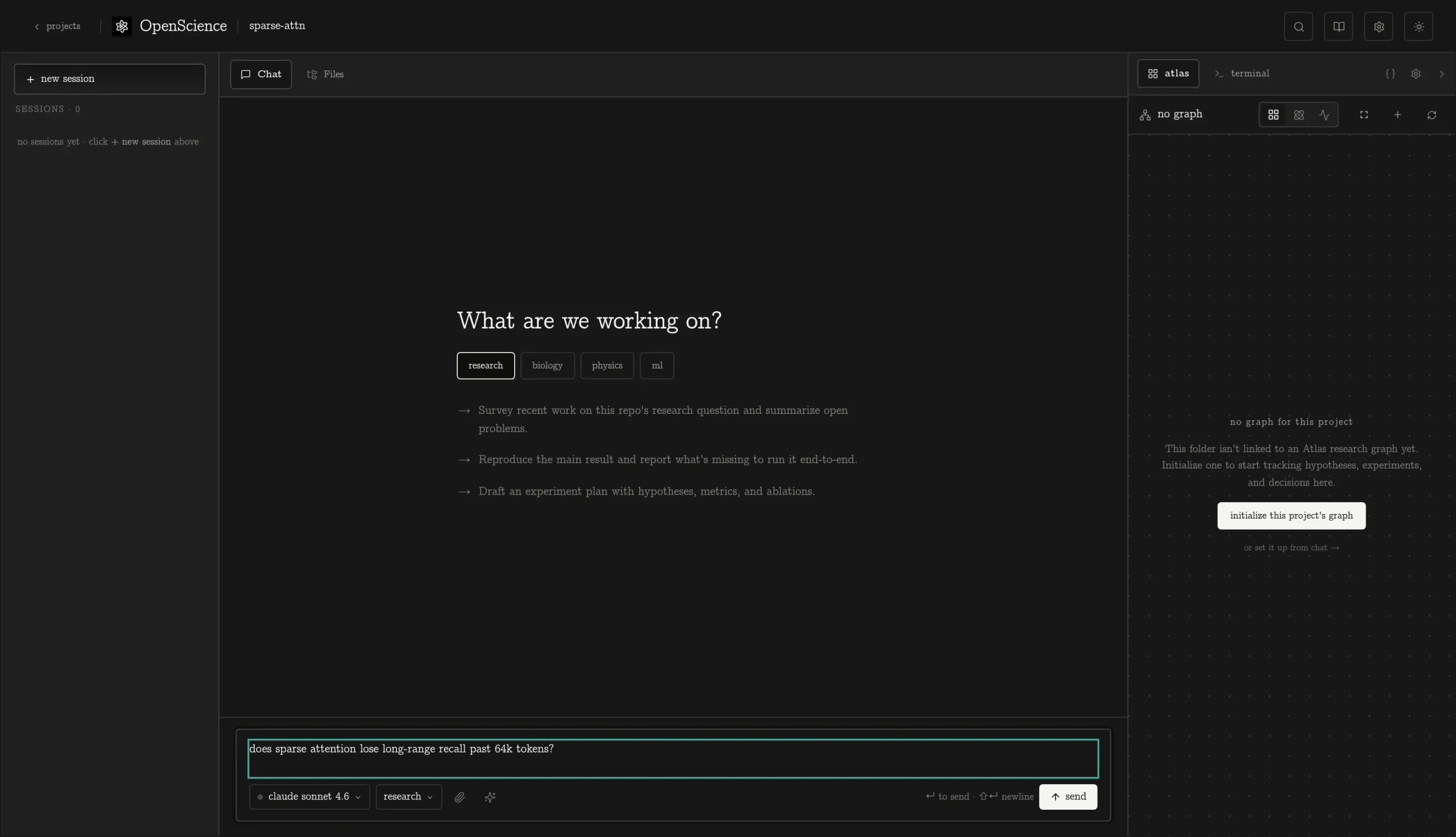
OpenScience by Synthetic Sciences is a free, open-source AI workbench for scientific research and an alternative to Claude Science.
It can read literature, analyze data, write and run code, execute experiments, and prepare research outputs from a desktop app, browser workspace, or terminal.
You can use Ace managed models, connect your own provider API keys, sign in with eligible ChatGPT Plus or Pro accounts, or connect local models.
The workbench ships with hundreds of bundled research skills, scientific database access, custom agents, compute integrations, and project-based session history.
Last Updated: Sep 27, 2026
Features
- Handles literature review, data analysis, code, experiments, figures, and research writing in one project.
- Runs as a desktop app on macOS, Windows, and Linux, plus a browser workspace and CLI.
- Hundreds of bundled skills across biology, chemistry, physics, machine learning, data engineering, and scientific writing.
- Connects UniProt, PDB, ChEMBL, PubChem, arXiv, and dozens of other scientific sources.
- Accesses models through Ace, provider API keys, provider sign-in, or local endpoints.
- Connects eligible ChatGPT Plus and Pro accounts through OpenAI sign-in.
- Uses a Research agent, Plan mode, Explore and General workers, plus five domain specialists.
- Runs multiple research sessions on one project and can use local, cluster, or GPU compute.
- Works with MCP servers, custom agents, commands, plugins, ACP, and the TypeScript SDK.
- Stores projects, sessions, credentials, and results on your machine.
OpenScience vs Claude Science
| OpenScience | Claude Science | |
|---|---|---|
| License | Apache-2.0 open-source. | Anthropic product in beta. |
| Access | Desktop app, browser workspace, and CLI. Interactive first-run setup requires a Synthetic Sciences account. Headless openscience run does not. | Available to Claude Pro, Max, Team, and Enterprise plans. Team and Enterprise admins must enable it. |
| Platforms | Desktop app, CLI and browser workspace. | Claude Science app for macOS and Linux. |
| Models | Ace managed models, provider API keys, eligible provider sign-in, and local models. | Built around Claude models and the Claude ecosystem. |
| Research resources | Hundreds of bundled skills plus scientific database and literature connections. | More than 60 curated skills and connectors, with access to more than 60 scientific databases. |
| Compute | Local compute plus connected cluster and GPU workflows. | Local or lab infrastructure, SSH/HPC access, and Modal compute workflows. |
| Extensibility | MCP connections, custom agents, skills, commands, plugins, ACP, and SDK integrations. | Claude Science skills, connectors, reviewer agents, lab infrastructure integrations, and reusable research workflows. |
| Cost | Ace, external model providers, search services, and compute can have usage costs. | Requires Claude Pro, Max, Team, or Enterprise access. |
Research Agents, Workers, and Skills
OpenScience uses a lead Research agent alongside reusable skills, delegated workers, and scientific connections.
The Research agent handles the main session. Skills define procedures for specialized research tasks, and workers handle focused exploration or domain work.
Agents and workers
| Agent / Worker | Use it for | Typical work |
|---|---|---|
research | General scientific research | Literature, data analysis, code, compute, experiments, and synthesis. |
plan | Planning before execution | Inspects available material and prepares a plan before the analysis runs. |
explore | Read-only exploration | Scouts files, data, code, and papers for a bounded research question. |
general | General delegated work | Handles multi-step worker briefs that do not belong to one scientific specialty. |
ml | Machine learning | Training, evaluation, deep learning, LLMs, classical ML, and related experiments. |
biology | Biology | Sequences, omics, structures, pathways, and biological databases. |
physics | Physics | Simulation, equations, numerical analysis, and computational physics tasks. |
chemistry | Chemistry | Molecular analysis, cheminformatics, reactions, structures, and chemistry data. |
data | Data work | Pipelines, processing, coding, statistics, and visualization. |
openscience agent list
openscience run --agent physics "Fit the dispersion relation in data/spectra.csv"
Bundled research skills
The bundled skill library spans biology, chemistry, physics, machine learning, datasets, model training and evaluation, scientific figures, LaTeX, research writing, and cloud compute. A skill defines a procedure.
Check the external packages, models, databases, and services required by the skill before a long or expensive run.
openscience skill list --all
openscience skill show <namespace/skill>
openscience skill add gh:owner/repository
Model Access and Pricing
The OpenScience workbench is free and open source. Model and service costs depend on the access method you select.
| Access | Setup | Billing |
|---|---|---|
| Ace | Sign in to Synthetic Sciences, select a funding workspace, and fund its Wallet. | Pay as you go from the selected Wallet. |
| Your API key | Connect a provider key in Customize or with openscience keys add. | Your provider bills usage under its own rates. |
| Provider sign-in | Complete an eligible browser sign-in. ChatGPT Plus and Pro access can be connected with openscience keys signin. | Access and limits follow the provider account. |
| Local model | Connect Ollama, LM Studio, or another compatible endpoint. | Runs on your own hardware with no Ace model charge. |
Ace managed models
Ace uses a Synthetic Sciences Wallet for managed model access and research search. There is no monthly subscription. Ace requests sent directly to model providers have no funding or service fee. Requests served through OpenRouter carry a 5.5% funding fee by default in the displayed Wallet rate. Card processing fees appear during Wallet funding.
If automatic reloads are enabled, purchased Wallet funds below $5 trigger a fixed $20 reload plus the disclosed processing fee. Billing controls the monthly automatic-charge limit and can turn future reloads off. Automatic reload continues until you turn it off in Wallet, including after a switch to your own keys or subscriptions.
openscience login
openscience status
openscience wallet show
openscience wallet topup
Use your own provider or ChatGPT subscription
openscience keys signin starts the browser flow for eligible ChatGPT access. Available models and usage limits follow the connected OpenAI account.
openscience keys add
openscience keys list
openscience keys signin
openscience models --flat
Connect a local model
OpenScience connects to Ollama, LM Studio, and other compatible local or self-hosted endpoints. Research tasks that read files, search, or run code need a model with tool-calling capability.
openscience local add
openscience local list
openscience run --model <provider/model> "Review the analysis in this project"
How to Use OpenScience
Desktop app
Desktop installers are available for macOS, Windows, and Linux. Interactive first-run setup requires a Synthetic Sciences account. Ace is optional. Provider keys, eligible provider sign-ins, and local models can be configured during setup or later in Customize.
CLI and browser workspace
The CLI opens the browser workspace after installation. Choose the install method that matches your system.
| Method | Command |
|---|---|
| npm | npm install -g @synsci/openscienceopenscience |
| npx launcher | npx synsci |
| Standalone installer on macOS/Linux | curl -fsSL https://openscience.sh/install | bash |
Open a project folder
After model access is configured, open the folder that contains your research files and project outputs.
openscience ~/research/my-projectStart a research task
Begin with a small task whose inputs and outputs you can inspect. Keep the original data unchanged during the first run.
Inspect data/measurements.csv for missing values, inconsistent units, and duplicate rows.
Keep the original data unchanged. Save a data-quality report and a plot in results/.
Run a terminal task
Use openscience run for one-shot terminal work and --continue to continue the latest session.
openscience run "Summarize the files in this project and suggest a first analysis"
openscience run --continue "Write the analysis plan to results/plan.md"
OpenScience CLI Reference
Run openscience <command> --help for the flags available in your installed release.
Workspace and research
| Command | Purpose |
|---|---|
openscience [project] | Open the browser workspace in the current or selected project folder. |
openscience web [project] | Use the explicit browser-workspace command. |
openscience serve | Start the local server in headless mode. |
openscience init | Run interactive setup. onboard is an alias. |
openscience doctor | Check configuration and incomplete setup. |
openscience run "request" | Run one terminal research turn. |
openscience run --continue "request" | Continue the latest session. |
openscience run --session <id> "request" | Continue a selected session. |
openscience session list | List recent sessions. |
openscience export <id> | Write a session export to stdout. |
openscience import <file> | Import a saved session export. |
openscience stats | Show local usage statistics. |
Run options
| Option | Purpose |
|---|---|
--model <provider/model> | Select a model for the run. |
--agent <agent> | Select a primary or custom agent. |
--effort <normal|ultra> | Set research effort for the run. |
--variant <tier> | Select a model reasoning tier. |
--file <path> | Attach one or more files. |
--title <title> | Set the session title. |
--command <command> | Run a configured custom command. |
--format json | Emit structured JSON events. |
--bare | Disable all tools for a one-shot response. |
--attach <url> | Use an existing OpenScience server. |
--workspace <isolated|project> | Choose the default tool directory for a new session. |
--delegation <off|light|standard|high> | Set how freely the lead agent dispatches workers. |
--worker-model <provider/model> | Select the model used by workers. |
--autonomy <interactive|balanced|autonomous> | Set how the lead agent handles decision points. |
--deadline <seconds> | Set a wall-clock budget for the run. |
--deny-prompts | Reject permission requests for the run. |
--auto-approve | Approve permission requests and recommended question options. |
Models and account access
| Command | Purpose |
|---|---|
openscience keys add | Connect a provider API key or eligible sign-in. |
openscience keys signin | Connect eligible ChatGPT access. |
openscience keys list | Show connected providers. |
openscience keys rm | Remove a saved provider credential. |
openscience connect codex | Connect eligible ChatGPT access through the Codex provider connection. |
openscience disconnect codex | Disconnect the Codex provider sign-in. |
openscience model [provider] | List available models. models is an alias. |
openscience model --flat | Print one provider/model identifier per line. |
openscience model --verbose | Show model metadata. |
openscience model --refresh | Refresh the model catalog. |
openscience local add | Discover or configure a local model endpoint. |
openscience local list | List configured local providers. |
openscience local remove <id> | Remove a local provider configuration. |
Ace and Wallet
| Command | Purpose |
|---|---|
openscience login | Sign in for Ace and Synthetic Sciences account features. |
openscience login --no-browser | Print browser sign-in instructions for a headless machine. |
openscience login --key <workspace-key> | Connect an existing Ace workspace key. |
openscience status | Show account state, model access, and Wallet information. |
openscience wallet show | Show purchased Wallet balance and access. |
openscience wallet topup | Open billing to review a Wallet payment. |
openscience sync | Refresh shared workspace connections. |
openscience devices | Show the device sign-in state. |
openscience logout | Sign the current device out. |
Skills and agents
| Command | Purpose |
|---|---|
openscience skill list --all | List the bundled and installed skill library. |
openscience skill show <target> | Inspect a namespace or skill. |
openscience skill add <url> | Install skills from a public Git repository. |
openscience skill new <name> | Create a user skill. |
openscience skill edit <name> | Edit a local user skill. |
openscience skill validate <target> | Validate a skill definition and run safety checks. |
openscience skill set-entries <namespace> <entries> | Choose comma-separated picker entry names. |
openscience skill remove <target> | Remove a skill or namespace. |
openscience agent list | List installed agent profiles. |
openscience agent create | Create a custom agent. |
Connections and integrations
| Command | Purpose |
|---|---|
openscience tools add | Configure an external connection. |
openscience tools list | List external connections. mcp is an alias for tools. |
openscience tools auth <name> | Authorize an external connection. |
openscience tools logout <name> | Remove authorization for a connection. |
openscience tools remove <name> | Remove a connection configuration. |
openscience acp --cwd <project> | Connect OpenScience through an ACP-compatible editor. |
openscience pr <number> | Check out a GitHub pull request branch and launch OpenScience on it. |
Sandbox controls
| Command | Purpose |
|---|---|
openscience sandbox | Show the sandbox backend and active policy. |
openscience sandbox enable | Enable workspace write containment on an available macOS or Linux backend. |
openscience sandbox enable --network deny | Enable containment and deny network egress. |
openscience sandbox test | Test workspace writes, outside writes, and network egress against the policy. |
openscience sandbox disable | Disable the execution sandbox. |
Maintenance
| Command | Purpose |
|---|---|
openscience --version | Show the installed version. |
openscience --help | Show available commands. |
openscience upgrade [version] | Update the CLI. |
openscience uninstall --dry-run | Preview uninstall changes. |
openscience uninstall | Remove OpenScience and keep work and settings by default. |
openscience debug paths | Show resolved application directories. |
openscience completion | Generate shell completion for the detected shell. |
Privacy and Execution Safety
OpenScience stores projects, sessions, credentials, and results locally. Requests to model providers and scientific databases go directly from your machine to the selected service. Ace and other Synthetic Sciences managed services use Synthetic Sciences infrastructure for the requests you send through those services.
Requests using your provider keys or ChatGPT sign-in go directly to the provider. Local models, Python and R processes, SSH compute, and your own Modal account operate outside Synthetic Sciences services. Local provider credentials are encrypted at rest, and known credential patterns are redacted from tool output before session storage.
When you sign in to Synthetic Sciences, the service receives account identity and Wallet activity and records managed-request routing and cost data. Session trace sharing is enabled by default for signed-in accounts. Account controls can disable analytics, research-content sharing, and trace sharing from user-owned model connections.
The execution sandbox is off by default. On macOS or Linux systems with an available sandbox backend, openscience sandbox enable can restrict shell and notebook writes to the workspace and deny network egress. Use openscience sandbox test to verify the active policy. Use a container or virtual machine for untrusted code when you require OS-level process isolation.
Pros
- Apache-2.0 open source
- Desktop, browser, and CLI access
- Hundreds of bundled research skills
- BYOK, Ace, local, and provider sign-in
- Eligible ChatGPT Plus/Pro subscription sign-in
Cons
- Execution sandbox disabled by default
- Signed-in trace sharing enabled by default
- Ace auto-reload must be disabled in Wallet
Alternatives & Related Resources
- Free Self-Hosted AI Research Assistant – Dr. Claw
- ClaudePrism: Free Local AI Research Writing Workspace (OpenAI Prism Alternative)
- Open Deep Research: Free Alternative to Gemini Deep Research
- 10 Best Agent Skills for Claude Code & Codex
- Claude Science, an AI workbench for scientists