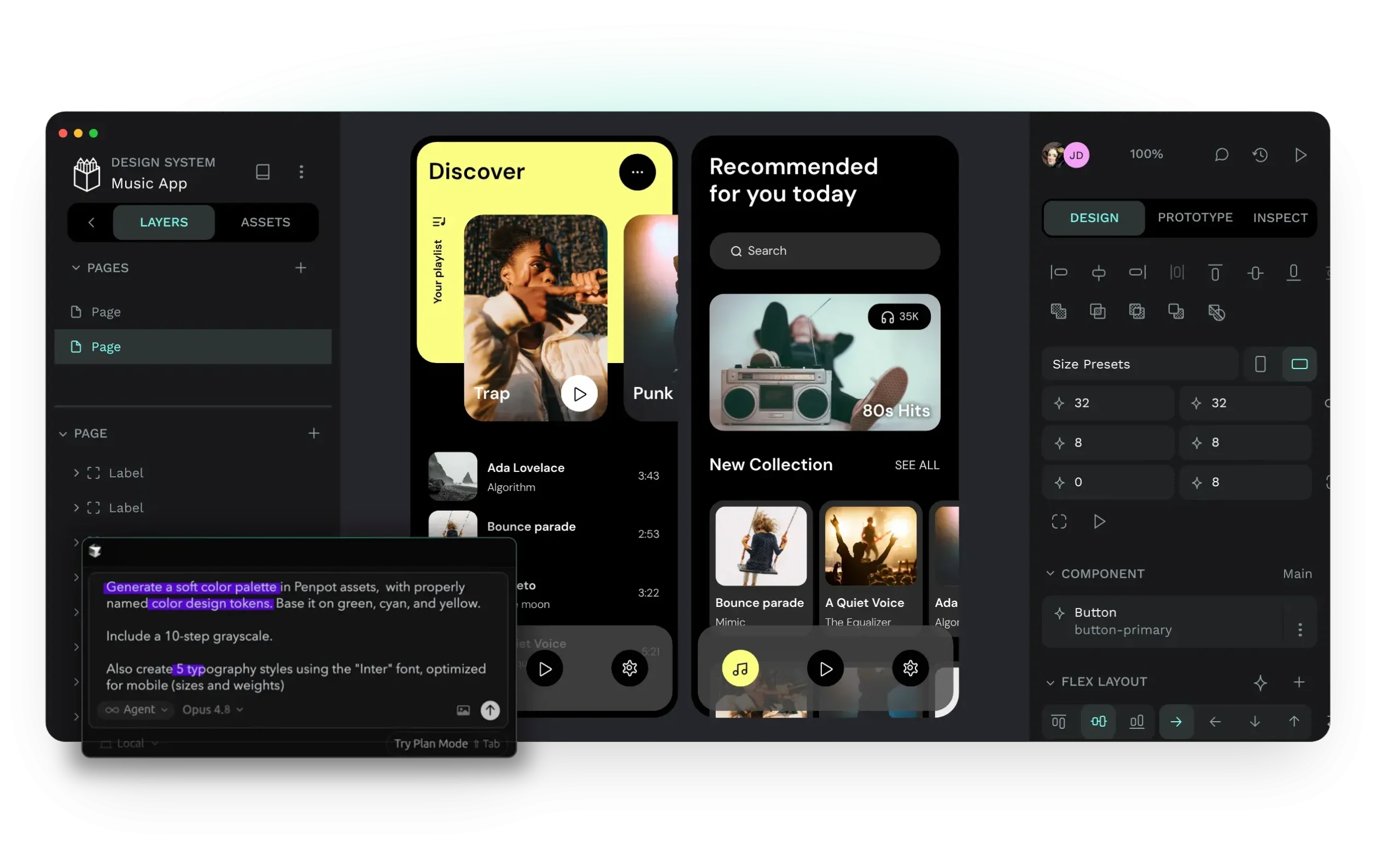
Penpot is an open-source, self-hosted design platform for product UI, shared component libraries, and design-to-code handoff. Its design files use open web-oriented structures, and Inspect mode exposes layer measurements, as well as CSS, HTML, and SVG snippets.
Most UI work moves from rough screens to reusable components, responsive layouts, interactive prototypes, review comments, and implementation details. Penpot keeps those stages within a single workspace. A file can hold pages, boards, libraries, token sets, prototype connections, and export presets while the same project remains available to collaborators in real time.
Key Features
- Creates wireframes, interface screens, and clickable prototypes inside a browser workspace.
- Uses components, variants, shared libraries, and native design tokens for repeatable interface patterns.
- Applies CSS Flex Layout and CSS Grid Layout to boards and components that need responsive behavior.
- Shows layer measurements, visual properties, CSS, HTML, and SVG in Inspect mode.
- Exports selected layers and boards as PNG, JPEG, WebP, SVG, or PDF with named presets and scale settings.
- Stores project files in a
.penpotcontainer that combines binary assets and readable JSON. - Runs real-time coediting, comments, shared presentations, and view-only inspection.
- Connects an MCP client to design files for design queries, transformations, and element creation.
Use Cases
- Design and prototype digital products with a team in real time.
- Build and maintain scalable design systems with design tokens, components, and variants.
- Deploy a private, self-hosted design tool for organizations with strict data governance requirements.
- Connect design files to AI agents via the MCP server for automated workflows.
- Integrate Penpot into GitOps or DesignOps workflows using the open API and webhooks.
- Export design tokens as ready-to-use code or parseable data files.
Penpot vs. Figma
| Penpot | Figma | |
|---|---|---|
| Hosting model | Runs in Penpot Cloud or on infrastructure your organization manages. | Runs as a hosted design platform. |
| Source code | Uses an open-source MPL 2.0 codebase. | Uses a proprietary product model. |
| Data control | Keeps design files, storage, backups, and access policies inside your own environment when self-hosted. | Keeps design collaboration inside Figma’s hosted workspace. |
| Design tokens | Uses native design tokens with sets, themes, aliases, and JSON import or export through the DTCG format. | Uses Variables, collections, modes, and shared libraries inside Figma files. |
| Responsive layout | Exposes CSS Grid Layout and Flex Layout directly in the design canvas. | Uses Figma’s own auto layout and responsive design controls. |
| Code handoff | Shows CSS, HTML, SVG, measurements, and export data for selected layers. | Uses Dev Mode, component inspection, variables, and Code Connect for design-to-code handoff. |
| AI agent connection | Connects design files to AI agents through Penpot MCP Server and a local plugin connection. | Keeps AI and code workflows inside Figma’s product ecosystem and connected services. |
| Migration cost | Starts cleanly for new design systems or teams replacing a self-hosted design stack. | Preserves established libraries, plugins, client review flows, and production file history. |
Penpot becomes the clear choice when self-hosting, open-source code, portable design data, and direct control over AI-agent access are operational requirements. Its advantage grows when your design system already uses CSS concepts such as tokens, Grid, Flexbox, and reusable components.
Figma remains the better choice when your company already runs its component libraries, design reviews, plugin stack, and handoff process inside Figma. A migration only makes sense after you account for library rebuilding, file conversion, workflow retraining, and client collaboration changes.
Self-Hosting Penpot
Penpot supports Docker Compose, Kubernetes through Helm, Elestio, TrueNAS, and community-maintained deployment paths.
A production Docker installation needs Docker, Docker Compose, DNS management, and a reverse proxy. The default Docker stack listens on port 9001. Pin a tested Penpot version before a production rollout. Small version increments reduce migration risk.
Download the Docker Compose file from the project repository.
wget https://raw.githubusercontent.com/penpot/penpot/main/docker/images/docker-compose.yamlStart the stack.
docker compose -p penpot -f docker-compose.yaml up -dPin a release version for a controlled deployment.
PENPOT_VERSION=2.16.0 docker compose -p penpot -f docker-compose.yaml up -dPull updated images before a planned upgrade.
docker compose -f docker-compose.yaml pull
docker compose -p penpot -f docker-compose.yaml up -d
Kubernetes deployments use the Penpot Helm repository.
helm repo add penpot http://helm.penpot.app
helm install my-release penpot/penpot
Penpot MCP Server for AI Workflows
Penpot’s MCP server connects an AI client to a Penpot design file through a companion plugin. It can retrieve design data, transform existing elements, and create new design elements inside the file. The server does not include its own language model. You connect the MCP client and model that your team trusts.
Install dependencies from the cloned penpot-mcp repository.
npm installBuild and start the MCP server and plugin server.
npm run bootstrapOpen the target file in Penpot after the servers start. Load the plugin manifest from http://localhost:4400/manifest.json, open the plugin panel, and connect it to the MCP server. Chromium-based browsers may ask for local network access when the cloud workspace connects to the local plugin. Approve that request only after you confirm the local server and client configuration.
Use MCP for tasks that already have clear boundaries. An agent can inspect token names before a component task, pull design structure into an implementation prompt, or create a controlled first draft of a screen. Keep write access out of critical files until your team has reviewed the agent’s behavior and plugin permissions.
Alternatives and Related Tools
- OpenPencil: An open-source AI-native design editor that reads and writes native Figma files through MCP.
- DesignMD: Extracts a design-system reference from a live website.
- Google Stitch: Generates interface concepts and frontend code from prompts, screenshots, or sketches.
- Figma Dev Mode MCP: Connects Figma design context to AI assistants and coding environments.
- Penpot MCP Server: Install the server and plugin for agent-connected design workflows.
Pros
- Open-source MPL 2.0 code.
- Cloud and self-hosted access.
- Native design tokens.
- CSS Grid and Flex layouts.
- MCP design-file access.
- Free cloud starter plan.
Cons
- Free cloud plan caps seats.
- Self-hosting needs operations knowledge.
- MCP setup needs Node and plugins.
- Inspect code is not application code.
FAQs
Q: Can a client review a Penpot prototype without creating an account?
A: Yes. Penpot generates a public prototype link through View mode. Anyone with that link can open the prototype in a browser, move through the defined flows, and review the screens without joining your Penpot team.
Q: Can I move a design file from Penpot Cloud to a self-hosted instance?
A: Yes. Export the file as a .penpot file, then import it into the destination instance. Penpot also accepts ZIP imports. The import limit is 1 GB per file or archive, so large asset libraries need storage planning before migration.
Q: Does Penpot import Figma files directly?
A: Penpot’s native import format is .penpot, plus ZIP archives that contain Penpot files. Plan a separate migration process for Figma libraries, components, variables, prototype links, and plugin-dependent workflows. Do not treat a Penpot rollout as a one-click Figma file conversion.
Q: Can Penpot design tokens go straight into a CSS project?
A: Penpot exports design tokens as JSON aligned with the DTCG format. Your codebase still needs a token transformation step that converts those values into CSS variables, Sass maps, Tailwind configuration, or another format used by the application.
Q: What does a frontend engineer receive from Penpot Inspect mode?
A: Inspect mode exposes dimensions, spacing, colors, typography, SVG markup, CSS properties, HTML snippets, and exportable assets from selected layers. It does not create your production component architecture, accessibility behavior, API data flow, or application state logic.
Q: Which browsers should run Penpot?
A: Penpot runs in the browser. Current Chrome and Firefox provide the recommended experience. Safari and other WebKit-based browsers have supported access, but large files and complex canvases deserve testing on the browsers your team uses in production.
Q: Are Penpot plugins part of the core application?
A: No. Penpot plugins run as separate web applications outside the main Penpot codebase. Review the plugin host, maintenance status, and data path before adding a plugin to a company design workflow.
Q: Can Penpot replace Figma for an existing product team?
A: Penpot can replace Figma when the organization is prepared to rebuild or migrate shared libraries, component variants, token structures, review habits, and plugin-dependent workflows. The transition makes the most sense when self-hosting, open-source ownership, and direct design-to-code or MCP integration outweigh the cost of changing established files and processes.