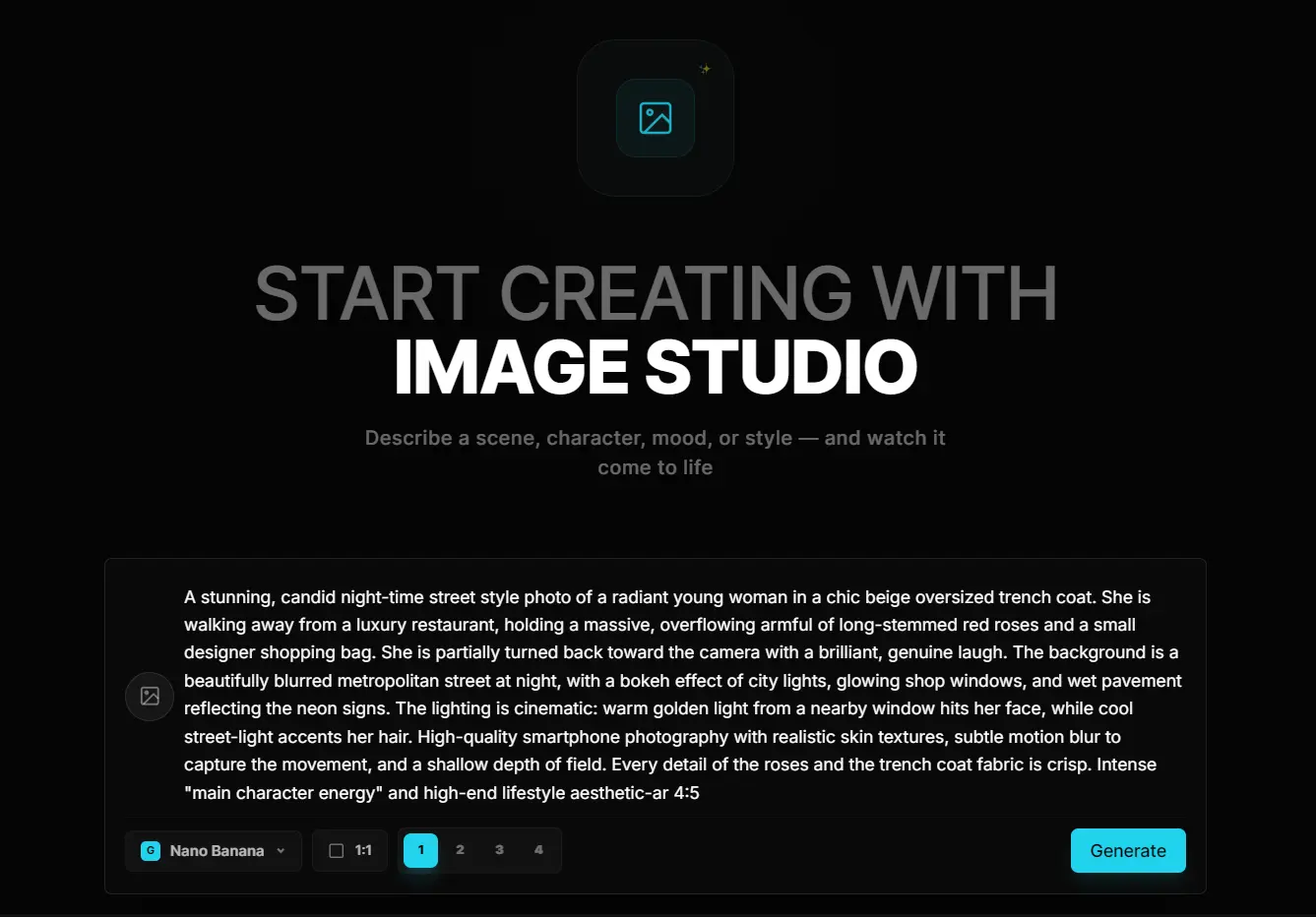
Open Generative AI is a free, open-source AI media studio for creating AI images, videos, lip sync clips, cinematic shots, audio assets, and multi-step media workflows.
It runs in the browser, as a desktop app, or as a self-hosted Next.js project. The model catalog covers image generation, image editing, text-to-video, image-to-video, lip sync, audio, and workflow automation through Muapi plus local inference options in the desktop app.
AI video work rarely stays within a single model. You may start with a reference image, test several video generators, send a frame back through an image editor, add lip sync, then save the result as part of a larger content workflow.
Open Generative AI keeps those stages in one workspace, with separate studios for images, video, lip sync, cinema controls, audio, and visual workflows.
The web version is enough for a first look, but the desktop and self-hosted paths are the reason this project deserves attention.
A single-purpose AI video generator will be faster for one-off clips. Open Generative AI earns its place when one project needs model comparison, reference-image reuse, lip sync, local image generation, and repeatable media workflows.
Features
- Generates text-to-image outputs with 50+ models, including Flux, Nano Banana, Seedream, Ideogram, GPT Image, Midjourney, and SDXL.
- Transforms reference images through 55+ image-to-image models, including edit, upscaling, background removal, and style transfer models.
- Accepts up to 14 reference images in compatible image-editing models, with selection order badges and batch upload.
- Creates text-to-video outputs with 40+ models, including Kling, Veo, Wan, Seedance, Hailuo, and Runway.
- Animates start-frame images through 60+ image-to-video models, including Kling I2V, Veo3 I2V, Runway I2V, Seedance I2V, Midjourney I2V, Hunyuan I2V, and Wan I2V.
- Creates talking videos in Lip Sync Studio from portrait images plus audio or existing videos plus audio.
- Provides 9 lip sync models, including Infinite Talk, Wan Speech to Video, LTX Lipsync, Sync, LatentSync, Creatify, and Veed.
- Cinema Studio controls for camera type, lens style, focal length, and aperture.
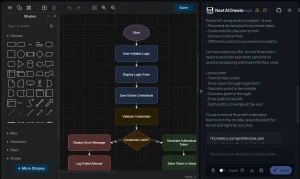
- Builds multi-step media pipelines through Workflow Studio, templates, custom workflows, community workflows, a node builder, and a playground.
- Stores upload history and generation history in browser storage for easier reuse across sessions.
- Runs local image models through bundled
sd.cppin the desktop app. - Connects to a user-run Wan2GP server for local or remote GPU video generation.
- Desktop installers for Windows, macOS Apple Silicon, macOS Intel, Linux AppImage, and Linux DEB.
Use Cases
- Create AI images from text prompts for concept art, thumbnails, mockups, product visuals, and social posts.
- Edit reference images with multiple inputs for character consistency, product variations, style transfer, and visual remixing.
- Generate short AI videos from prompts or start-frame images for experiments, storyboarding, social clips, and visual drafts.
- Sync voices to portrait images or existing videos for talking-head demos, character clips, and prototype narration.
- Build repeatable image, video, and audio pipelines through visual workflows or API execution.
How to Use Open Generative AI
Use the hosted version
- Open
https://muapi.ai/open-generative-ai. - Create a free account before the first generation.
- Choose Image Studio, Video Studio, Lip Sync Studio, Cinema Studio, or Workflow Studio.
- Enter a prompt before choosing a text-to-image or text-to-video model.
- Upload a reference image before choosing an image-to-image or image-to-video model.
- Select the model first when you need model-specific controls such as aspect ratio, resolution, quality, duration, or reference-image count.
- Upload all reference images in the order the model should read them when a multi-image picker appears.
- Download completed outputs from the generation history panel.
Use the desktop app
- Download the current desktop build from the releases page.
- Choose the installer that matches your operating system and processor.
- Open the app after installation.
- Add a Muapi access key only when you plan to use Muapi cloud models.
- Skip the Muapi key when you plan to use only supported local models.
- Open Settings > Local Models before local generation.
- Install the
sd.cppengine inside the app for local image models. - Choose a smaller SD 1.5 model on an 8 GB Mac.
- Use Z-Image models only on machines with enough RAM.
- Set a custom local AI storage directory before downloading multi-GB models when your system drive is small.
Use local image generation through sd.cpp
- Open Settings > Local Models.
- Install the
sd.cppinference engine. - Download Dreamshaper 8, Realistic Vision v5.1, Anything v5, SDXL Base 1.0, Z-Image Turbo, or Z-Image Base.
- Download the shared Qwen3-4B text encoder and FLUX VAE files when you choose a Z-Image model.
- Open Image Studio.
- Turn on the Local toggle beside the model selector.
- Select the local model.
- Generate the image without a Muapi API key.
Dreamshaper 8 is the safest first local test on lower-memory Macs because the Z-Image path has much higher memory pressure.
Use Wan2GP for local video generation
- Run Wan2GP on a machine with a CUDA or ROCm GPU.
- Start the Wan2GP server on the GPU machine.
- Open Settings > Local Models in Open Generative AI.
- Paste the Wan2GP server URL.
- Click Test.
- Save the connection.
- Choose a Wan2GP model from the desktop app.
Wan2GP makes the most sense when you already own a gaming PC, Linux GPU box, workstation, or rented GPU instance. Mac-only users can still run the desktop app on macOS and send video jobs to a separate GPU server.
Technical Details
Access and platform options
| Option | Requirement | Best use |
|---|---|---|
| Hosted web app | Free account | Fast browser access and cloud models. |
| Desktop app | Windows, macOS, or Linux installer | Local engines, desktop workflow, and fewer browser limits. |
| Source build | Node.js v18+ and repository setup | Development, customization, and self-hosting. |
sd.cpp local engine | Desktop app and local model weights | Local image generation. |
| Wan2GP server | Separate CUDA or ROCm GPU machine | Local or remote video generation. |
| Muapi API | Muapi access key | Cloud model requests and API workflows. |
macOS Gatekeeper command
Run this command after dragging the app into /Applications.
xattr -cr "/Applications/Open Generative AI.app"Linux build and install commands
Build Linux installers.
npm run electron:build:linuxRun the AppImage.
chmod +x "release/Open Generative AI-*.AppImage"
./release/Open\ Generative\ AI-*.AppImage
Install the DEB package.
sudo apt install ./release/open-generative-ai_*_amd64.debInstall libfuse2 when older systems cannot start the AppImage.
sudo apt install libfuse2Apply the temporary Ubuntu 24.04+ AppArmor workaround for AppImage builds.
sudo sysctl -w kernel.apparmor_restrict_unprivileged_userns=0Make the Ubuntu 24.04+ AppArmor workaround persistent.
echo 'kernel.apparmor_restrict_unprivileged_userns=0' | sudo tee /etc/sysctl.d/99-userns.confWan2GP server setup
Clone and install Wan2GP on the GPU machine.
git clone https://github.com/deepbeepmeep/Wan2GP
cd Wan2GP
./install.sh
python wgp.py --listen --server-name 0.0.0.0
Windows users can use install.bat during the Wan2GP install step.
install.batSource setup
Clone the repository with submodules.
git clone --recurse-submodules https://github.com/Anil-matcha/Open-Generative-AI.git
cd Open-Generative-AI
Initialize submodules after a normal clone.
git submodule update --init --recursiveInstall dependencies and build workspace packages.
npm run setupStart the desktop app in development mode.
npm run electron:devStart the hosted web version in development mode.
npm run devBuild and start the production web app.
npm run build
npm run start
Build desktop apps.
npm run electron:build
npm run electron:build:win
npm run electron:build:linux
npm run electron:build:all
Local model storage
| Platform | Default local AI path |
|---|---|
| macOS | ~/Library/Application Support/open-generative-ai/local-ai |
| Windows | %APPDATA%\open-generative-ai\local-ai |
| Linux | ~/.config/open-generative-ai/local-ai |
Set OPEN_GENERATIVE_AI_LOCAL_AI_DIR before launching the app when model weights belong on another drive.
export OPEN_GENERATIVE_AI_LOCAL_AI_DIR="/Volumes/AIModels/open-generative-ai"SD 1.5 local verification on Mac
Define the app data path.
APP_DATA="${OPEN_GENERATIVE_AI_LOCAL_AI_DIR:-$HOME/Library/Application Support/open-generative-ai/local-ai}"
ls "$APP_DATA/bin"
ls "$APP_DATA/models"
Download Dreamshaper 8.
curl -L --fail --progress-bar \
  -o "$APP_DATA/models/DreamShaper_8_pruned.safetensors" \
  "https://huggingface.co/Lykon/DreamShaper/resolve/main/DreamShaper_8_pruned.safetensors"
Run a 512×512 test generation.
DYLD_LIBRARY_PATH="$APP_DATA/bin" "$APP_DATA/bin/sd-cli" \
  -m "$APP_DATA/models/DreamShaper_8_pruned.safetensors" \
  -p "a serene mountain lake at sunrise, oil painting" \
  -o /tmp/sd15-test.png \
  --steps 12 -H 512 -W 512 --cfg-scale 7.5 --seed 42 \
  --sampling-method euler_a
Check Metal linkage when the run falls back to CPU.
otool -L "$APP_DATA/bin/libstable-diffusion.dylib" | grep -i metalLocal engines
| Engine | Runs inside | Hardware | Model types |
|---|---|---|---|
sd.cpp | Desktop app | CPU, Apple Silicon Metal, CUDA, Vulkan, ROCm | SD 1.5, SDXL, Z-Image image models. |
| Wan2GP | Separate Gradio server | CUDA or ROCm GPU | Flux.1 Dev, Qwen Image, Wan 2.2, Hunyuan Video, LTX Video. |
Local image model notes
| Model | Type | Size notes | Practical note |
|---|---|---|---|
| Z-Image Turbo | Diffusion Transformer | 2.5 GB plus 2.7 GB auxiliary files | Use 16 GB RAM or higher. |
| Z-Image Base | Diffusion Transformer | 3.5 GB plus 2.7 GB auxiliary files | Higher quality path with more steps. |
| Dreamshaper 8 | SD 1.5 | 2.1 GB | Good first test model. |
| Realistic Vision v5.1 | SD 1.5 | 2.1 GB | Photorealistic image path. |
| Anything v5 | SD 1.5 | 2.1 GB | Anime and illustration path. |
| SDXL Base 1.0 | SDXL | 6.9 GB | Higher-resolution image path. |
Model categories
| Category | Count | Examples |
|---|---|---|
| Text-to-image | 50+ | Flux Dev, Nano Banana 2, Seedream 5.0, Ideogram v3, Midjourney v7, GPT-4o, SDXL. |
| Image-to-image | 55+ | Nano Banana 2 Edit, Flux Kontext Pro, GPT-4o Edit, Seededit v3, Upscaler, Background Remover. |
| Text-to-video | 40+ | Kling v3, Sora 2, Veo 3, Wan 2.6, Seedance 2.0, Hailuo 2.3, Runway Gen-3. |
| Image-to-video | 60+ | Kling I2V, Veo3 I2V, Runway I2V, Seedance I2V, Midjourney I2V, Hunyuan I2V, Wan I2V. |
| Lip sync | 9 | Infinite Talk, Wan 2.2 Speech to Video, LTX Lipsync, Sync, LatentSync, Creatify, Veed. |
Lip sync endpoints
| Model | Endpoint | Input mode | Resolution |
|---|---|---|---|
| Infinite Talk | infinitetalk-image-to-video | Portrait image plus audio | 480p, 720p |
| Wan 2.2 Speech to Video | wan2.2-speech-to-video | Portrait image plus audio | 480p, 720p |
| LTX 2.3 Lipsync | ltx-2.3-lipsync | Portrait image plus audio | 480p, 720p, 1080p |
| LTX 2 19B Lipsync | ltx-2-19b-lipsync | Portrait image plus audio | 480p, 720p, 1080p |
| Sync Lipsync | sync-lipsync | Video plus audio | Not listed |
| LatentSync | latentsync-video | Video plus audio | Not listed |
| Creatify Lipsync | creatify-lipsync | Video plus audio | Not listed |
| Veed Lipsync | veed-lipsync | Video plus audio | Not listed |
| Infinite Talk V2V | infinitetalk-video-to-video | Video plus audio | 480p, 720p |
API pattern
| Step | Method | Endpoint | Purpose |
|---|---|---|---|
| Submit | POST | /api/v1/{model-endpoint} | Send prompt, model parameters, and input URLs. |
| Poll | GET | /api/v1/predictions/{request_id}/result | Check job status until completion. |
| Upload | POST | /api/v1/upload_file | Upload media and receive a hosted URL. |
Authentication uses thex-api-keyheader. Multi-image models send the fullimages_listarray in one request. Lip sync jobs sendimage_urlorvideo_urlwithaudio_urland poll until the output video URL becomes available.
Alternatives and Related Tools
- Free AI Video Generators and Editors
- Free AI Image Generation & Editing Tools
- 10 Best AI Image Generators – Free and Paid
- 10 Best AI Video Generators – Free and Paid
- 10 Best Free AI Tools for YouTube Creators
- Use Claude Code with Any Free & Local Models
Pros
- MIT licensed.
- Hosted web access.
- Desktop installers available.
- 200+ model catalog.
- Local image generation.
- Visual workflow builder.
- Lip sync included.
- Multi-image editing.
Cons
- Free account needed online.
- Muapi key needed cloud.
- Local video needs GPU.
- No guardrails require judgment.
FAQs
Q: Is Open Generative AI free?
A: Open Generative AI is free and open source. The hosted browser version starts with a free account, while cloud model usage depends on Muapi access and the selected model route.
Q: Does Open Generative AI include content filters?
A: Open Generative AI advertises no built-in content filters or prompt blocking. You should apply your own content policy before using it in public, client, or brand-sensitive workflows.
Q: Is Open Generative AI good for developers?
A: Developers can self-host the app, build from the Next.js monorepo, call Muapi endpoints, run workflows through API execution, and connect related agent or workflow projects.
Q: Can Open Generative AI replace paid AI video platforms?
A: Open Generative AI can replace parts of a paid AI video workflow when model access, self-hosting, and customization matter. A closed paid platform may still be easier for teams that need managed billing, stricter review controls, and predictable support.
Q: Can I generate video locally without a GPU?
A: The sd.cpp engine generates images locally on CPU, Metal (Apple Silicon), CUDA, Vulkan, or ROCm. Video generation locally requires a Wan2GP server running on a CUDA or ROCm GPU machine. No local video path exists for CPU or Apple Silicon alone.
Q: What is the Workflow Studio?
A: Workflow Studio is a node-based visual pipeline builder inside the app. You can connect image, video, and audio model steps into automated sequences, run them in an interactive playground, browse and clone community workflow templates, and call any saved workflow from external code through the Muapi API.