Pi Bot is an open-source desktop app that lets AI agents work with files, websites, and apps on your computer. Based on the Pi AI agent.
Give one Bot a project folder and a task, or create a group where several Bots share the work. You can follow their progress, review file changes, and approve actions from the same desktop app.
In a group, a coordinator breaks a task into steps and assigns them to Bots with different roles. For example, a researcher can gather sources for a report, a writer can prepare the draft, and a reviewer can check it before you accept the result.
Pi Bot stores chats, memories, and activity records on your device, and you choose which AI models (paid or local) the Bots use.
Key Features
- Create Bots for coding, research, writing, design, and other tasks, each with its own model, instructions, skills, and memory.
- Put 2 to 6 Bots in a group chat where a coordinator assigns tasks and tracks the handoffs.
- Let Bots edit files in a chosen working folder, run commands, and show changes for review.
- Research websites in a built-in Bot browser or approve a Bot to operate desktop apps.
- Connect MCP servers, skills, local apps, and existing coding agents such as Codex and Claude Agent.
- Run recurring tasks on a schedule, after folder changes, or when a connected service has new activity.
- Pair an Android phone for remote chats and approvals, or a Runner for work on another computer.
How Pi Bot’s Agent Teams Work
You can use Pi Bot in a direct chat with one Bot. For larger tasks, choose a group template such as Research Group or Lean Dev Team, or build a group from two to six Bots.
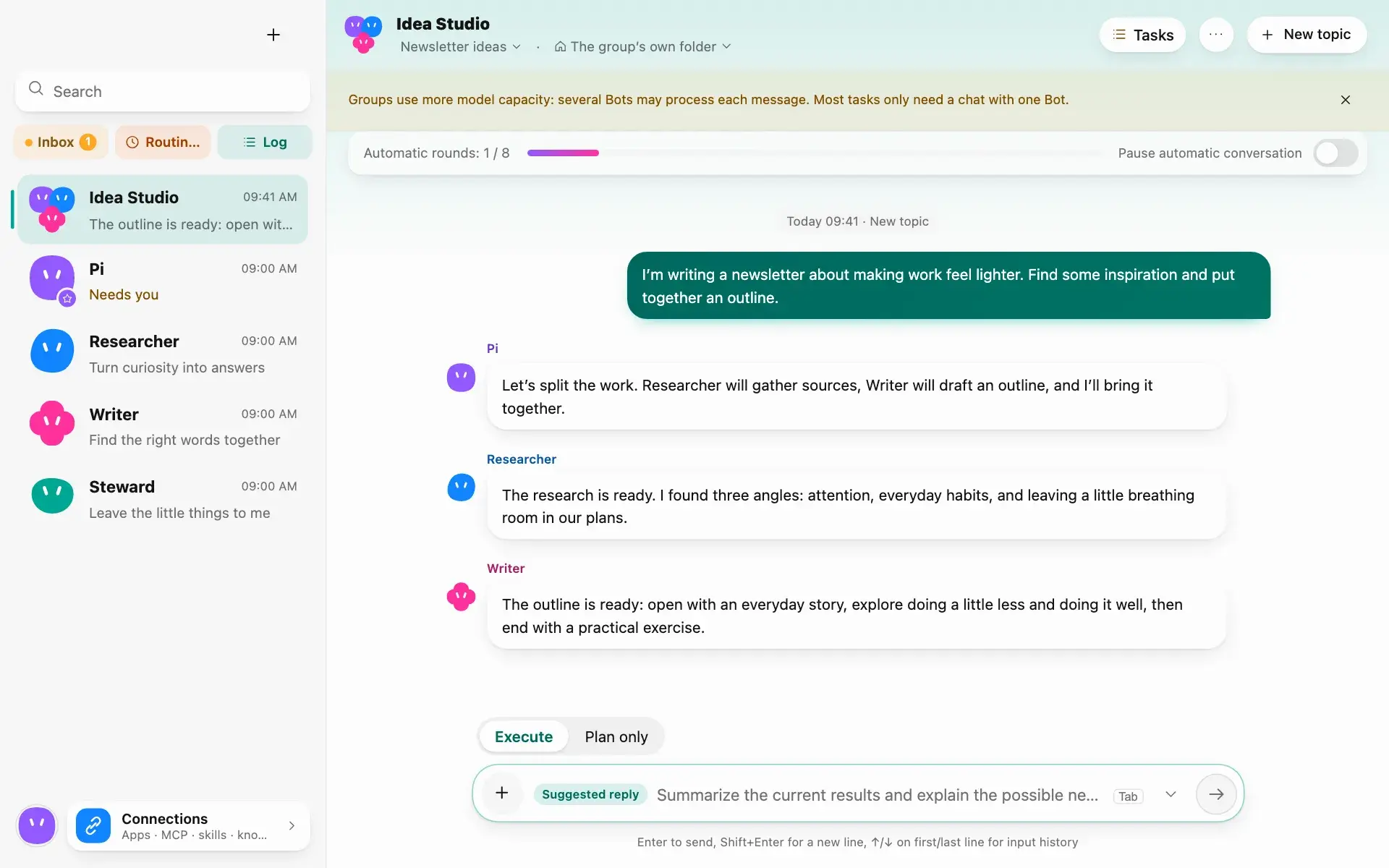
Each member has its own role and model. The group has one coordinator that turns your request into a plan and assigns its steps.
Suppose you want a short report based on several files. You can ask a research Bot to read the files and prepare findings, a writing Bot to draft the report from those findings, and a reviewer to check it.
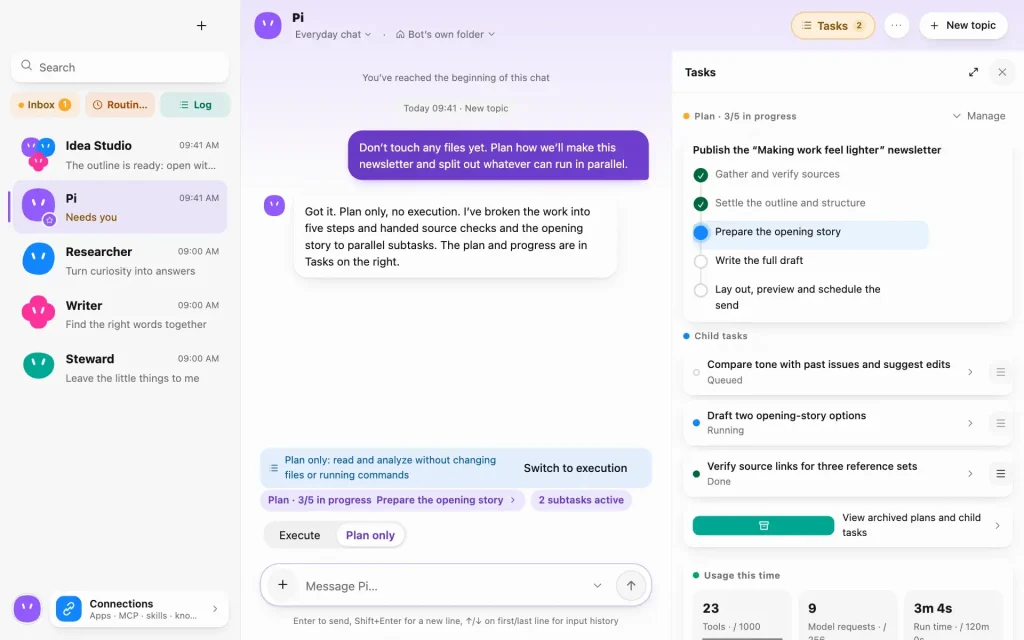
The coordinator shows a plan before execution. As the work moves forward, the Tasks panel displays the assigned Bot, each step’s status, and any decision waiting for you. Finished files are attached to the task results.
Group members can hand work back for corrections when a check fails. You can pause the group and resume it later.
Completed steps are retained, and Pi Bot tells the continuing Bot which files or commands were affected by the pause.
Files, Browser Tasks, and Connections
Each chat topic has a working folder. Point it at a website project, a folder of documents, or a Git repository.
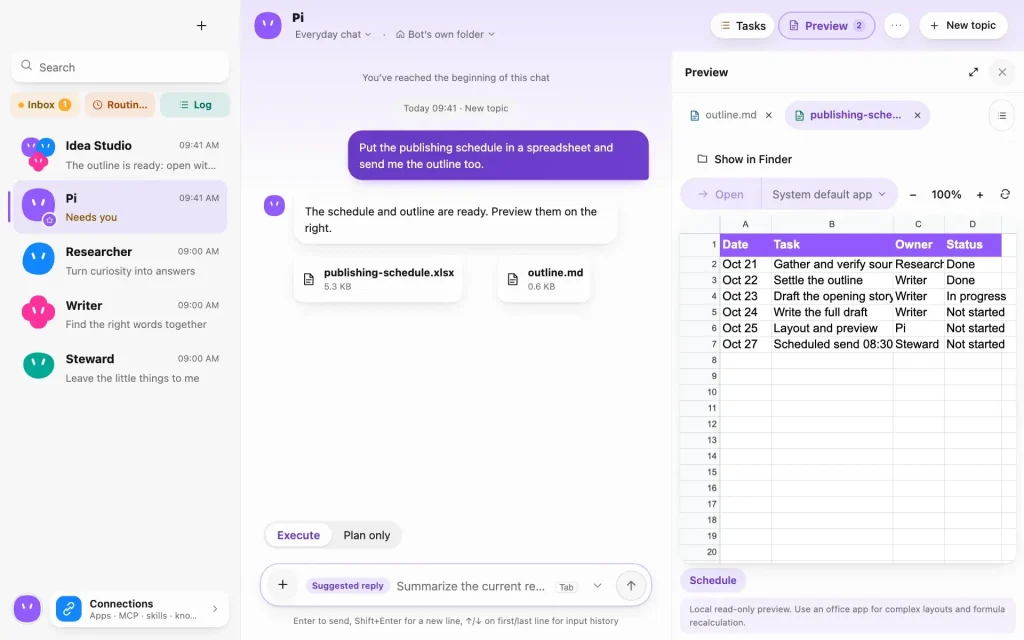
A Bot can inspect the files, propose changes, and edit files within its permissions. The Changes panel shows a line-by-line diff where you can comment on or discard edits.
You can also ask another Bot to review code changes in read-only mode. Pi Bot can read, write, and preview Word, Excel, and PowerPoint files, so a task can generate a document or spreadsheet as well as code.
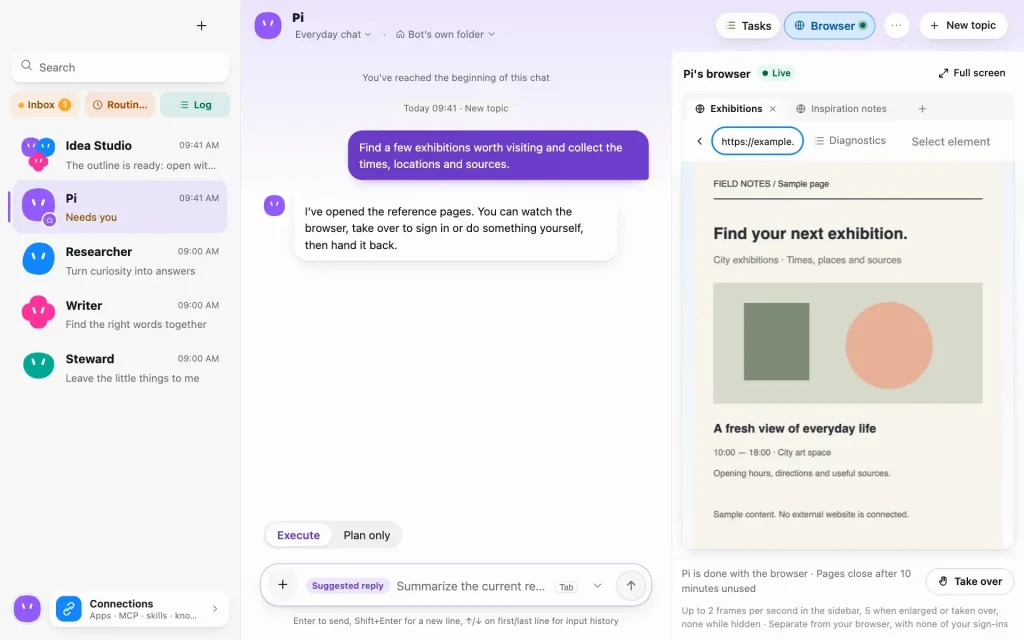
For web research, Bots use their own browser. It starts apart from your personal browser and your own accounts. You can take over a page to sign in or handle a step yourself.
If a task needs an installed desktop app, Pi Bot can operate permitted windows, click controls, and take screenshots after you grant computer-use access.
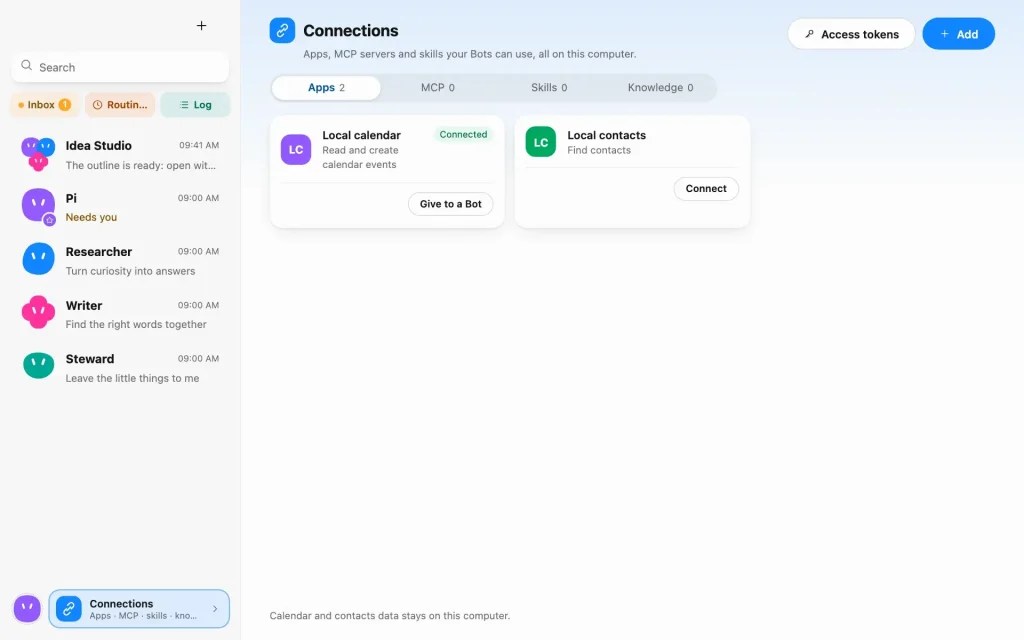
Under Connections, you can add MCP servers and skills or import those already configured in Claude Code, Codex, Cursor, pi, or OpenCode.
Existing coding agents can join the team as Bots. From + → New Bot → External agents, select an installed Codex, Claude Agent, Cursor, or OpenCode agent.
You can also connect an ACP-capable editor such as Zed to a running Pi Bot app on macOS.
How to Install Pi Bot and Run Your First Task
1. Get the desktop installer from the official download page.
2. Connect an AI model. The welcome screen offers an online provider with an API key, ChatGPT plan sign-in, or Local · Ollama. For an API key, enter the key and select Save & test. For Ollama, install and start Ollama, download a model on your computer, then return to Pi Bot and select Check again. Pick the model after Pi Bot detects the service.
3. Select a built-in role or start with Pi.
4. Open a new topic, select a small project folder at the top, and choose Plan only. Ask: “Read this project’s files, describe its structure, and suggest one improvement to the README.” The Bot can inspect the folder and suggest a change without editing files.
5. Select Switch to execution and ask it to apply the proposed README change. Open Changes to inspect the actual diff, and check the chat for the result and work receipt.
6. To try a group next, choose + → New group chat, select a template or your own Bots, and pick a coordinator. Give the group a working folder and a task. Review its execution plan, then follow the handoffs in Tasks.
Permissions and Privacy
Chats, Bot settings, memories, and activity records are stored locally. Pi Bot encrypts saved API keys and sign-in tokens through the operating system’s credential store.
When you use an online model, the provider receives the conversation and relevant files or tool results needed for the request. Web searches go to the selected search provider, and connected apps receive the information required for their actions.
You can set file, command, website, and tool permissions to Never, Ask, or Always where that action permits it. An approval card identifies the proposed action and working folder.
The activity log and work receipts let you inspect what a Bot did, what it changed, and which approvals were given. Computer use asks you to approve the task and the apps it may control.
On macOS and Linux, Bot commands run in a sandbox with file and network restrictions. On Windows, Pi Bot currently has no command sandbox, and commands require your approval by default.
Windows also has an explicit opt-in for allowing commands through YOLO mode when isolation is unavailable. A Windows command runs with your account’s access. Review it before allowing it.
To keep model conversations and files local, use a local model and disable Visit websites under Settings → Permissions. Turn off command network access and leave external connections disabled for that Bot.
Routines, Android, and Remote Runners
A routine can ask a Bot to work on a schedule, when files change, or when a connected app reports new activity.
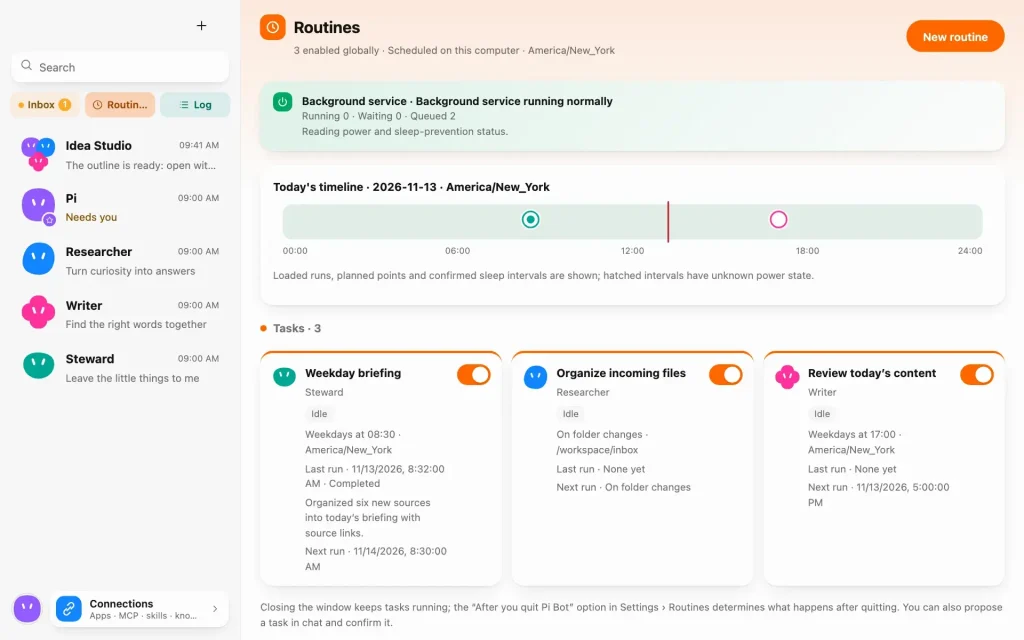
Open Routines → New routine, choose the Bot, write the task instructions, select a trigger and working folder, and save it.
Scheduled work can continue after the window closes. A sleeping or shut-down computer cannot run local tasks until it wakes or starts again.
The Android app lets you chat with Bots, follow group work, review results, and handle approvals while away from the desktop.
On the computer, turn on Allow paired devices to connect under Settings → Devices, choose Add device → Phone (scan), and scan the QR code in the Android app. Confirm that the safety codes match.
You can turn on offline replies for selected Bots so the phone can answer private chats through a configured model when the computer is unreachable.
These replies do not run desktop group tasks or operate the desktop computer. With a separate, time-limited grant, the phone can also direct a paired Runner while the computer is offline, with each command confirmed on the phone.
A Runner lets Bots work on files stored on another computer or server. Install the Runner there, then use Settings → Devices → Add device → Another computer / server on your desktop.
Enter the one-time pairing code in the Runner’s pairing window or run pibot runner pair "<code>" on the remote machine.
Once paired, choose a Runner folder from a chat’s folder selector. The primary computer handles model calls, chat history, and approval checks during normal Runner use.
Commands execute on the remote machine under its platform’s command-isolation rules.
Pros
- Coordinated group tasks show each Bot’s steps, file changes, and review results.
- You can choose each Bot’s model, working folder, and permissions.
- Local models, MCP servers, reusable skills, and existing coding agents offer several ways to extend the app.
- No required Pi Bot subscription.
Cons
- Groups can use more model requests than a direct chat.
- Windows commands run without a sandbox, and approval is required by default.
- Android offline replies cannot run desktop group tasks
- No iOS app yet.
- macOS users need to approve the current unnotarized installer.
Alternatives & Related Resources
- Wayland: Local-First AI Agent Command Center for Claude Code & Codex
- Open-Source Browser Automation & AI Assistant – DeepSeek Cowork
- Moltis: Personal AI Agent for Secure Local Automation (OpenClaw Alternative)
- 7 Best OpenClaw Alternatives for Safe & Local AI Agents (2026)