VoiceFlow is a free, open-source desktop app for local voice dictation and meeting transcription on Windows and Linux.
Hold a global hotkey, speak, and release it to transcribe your speech with Whisper and paste the text at the active cursor.
Dictation runs locally through faster-whisper. VoiceFlow can use CUDA or CPU processing, stores transcript history on your computer, and does not require a VoiceFlow account or transcription subscription.
For longer sessions, VoiceFlow records microphone and system audio in one file and transcribes the recording locally.
Meeting summaries are optional and can run through a local or remote LLM provider.
Features
- Transcribe speech locally with faster-whisper and paste text at the active cursor.
- Use Hold or Toggle mode with configurable global hotkeys.
- Record microphone and system audio together for long-form meetings.
- 16 Whisper models, including multilingual, English-only, Turbo, and distilled variants.
- Run transcription through CUDA or CPU processing.
- Search transcript history stored in a local SQLite database.
- Re-transcribe saved meetings with another model, device, or language.
- Generate optional meeting summaries through local or remote LLM providers.
- Export meeting content as Markdown, plain text, SRT, or JSON.
How VoiceFlow Dictation Works
VoiceFlow runs from the system tray and listens for the configured global hotkey. Press and hold the hotkey while speaking. A small popup displays the incoming audio level during recording.
Releasing the hotkey ends the recording, faster-whisper transcribes the speech, and VoiceFlow pastes the result at the active cursor.
Toggle mode changes the recording control to two key presses. One press starts recording and another ends it.
Choosing a Whisper Model and Compute Device
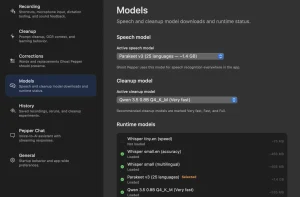
VoiceFlow has 16 Whisper model options range from Tiny at about 75 MB to Large-v3 at about 3.09 GB, with Turbo, English-only, and distilled models also available.
The model picker displays approximate disk size, parameter count, speed, and accuracy information for each option.
VoiceFlow detects CUDA-capable hardware and can run transcription on the GPU. Computers that do not use CUDA can run transcription on the CPU.
Recording and Transcribing Meetings
Meeting mode handles longer recordings with microphone and system audio. Windows captures system audio through WASAPI loopback, and Linux uses PipeWire or PulseAudio monitor sources.
Recording controls are available from the dashboard and tray menu, including pause, resume, and stop.
After a recording ends, VoiceFlow transcribes the saved audio locally with faster-whisper. A saved meeting can be transcribed again with another Whisper model, compute device, or language setting.
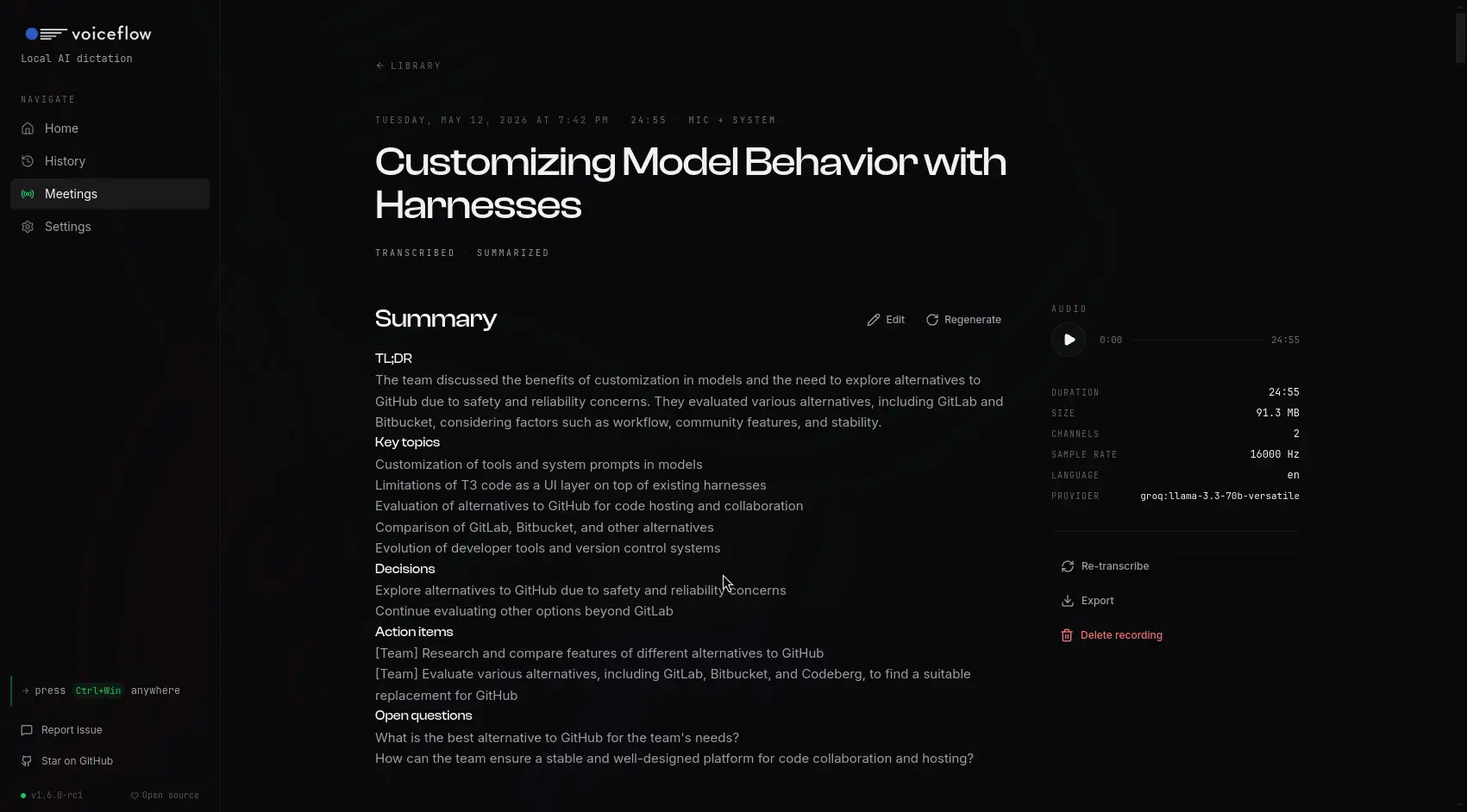
The meeting detail view shows the transcript beside built-in audio playback. Clicking a transcript line jumps to the corresponding position in the recording.
Meeting summaries can use OpenAI, Groq, OpenRouter, Ollama, or another OpenAI-compatible endpoint.
VoiceFlow can also generate a topic-based title after transcription. API keys for configured LLM providers are stored in the operating system keychain.
Meeting content can be exported as Markdown, plain text, SRT, or structured JSON.
Local Storage and Privacy
Push-to-talk audio stays in RAM during dictation, and faster-whisper processes the speech on the local machine. VoiceFlow does not include telemetry, analytics, or phone-home behavior.
Meeting recordings, transcripts, search data, and local history are stored on the computer. Remote meeting summaries create an optional network request to the configured provider. Ollama can run the summary locally.
VoiceFlow stores its SQLite database under ~/.VoiceFlow/VoiceFlow.db on Linux and the corresponding .VoiceFlow directory in the Windows profile. Meeting recordings are stored inside the VoiceFlow data directory.
How to Install VoiceFlow
Download the latest VoiceFlow app from the VoiceFlow GitHub Releases page.
| Platform | Release status | Package |
|---|---|---|
| Windows 10/11 | Official | .exe installer |
| Linux x86_64 | Official | .AppImage or .tar.gz |
| macOS | Source build, not an official release | .dmg build command |
First Launch
First launch guides you through microphone selection, compute-device selection, Whisper model download, and hotkey configuration. If a downloaded model is deleted later, you can download it again or select another model.
Linux Input and Paste Behavior
On Linux, VoiceFlow works on Wayland and X11. Global input uses evdev, and text insertion can use wl-copy with wtype or ydotool. Hyprland-specific window rules are included in the project.
Build VoiceFlow From Source
The source build uses Node and Python dependencies. Clone the repository, run pnpm run setup to install the required dependencies, then start the Vite frontend and Pyloid backend with pnpm run dev.
git clone https://github.com/infiniV/VoiceFlow.git
cd VoiceFlow
pnpm run setup
pnpm run dev
Build Platform Installers
Run the installer command on the matching operating system after the development dependencies are ready.
pnpm run build:installer
pnpm run build:installer:linux
pnpm run build:installer:macos
Pros
- Free and open source
- Local Whisper transcription
- No VoiceFlow account required
- CPU and CUDA processing
- Meeting recording with system audio
- Local or remote meeting summaries
Cons
- No macOS build
- 64-bit systems required
- Large Whisper models use substantial disk space
- Remote summaries can incur API charges
Alternatives & Related Resources
- Private Voice Dictation & Meeting Transcription for macOS – Ghost Pepper
- Free, Private AI Meeting Transcription & Summary – Meetily
- Open-Source AI Meeting Notes for Privacy-Conscious Teams – Note67
- 10 Best Free AI Audio Transcription Tools