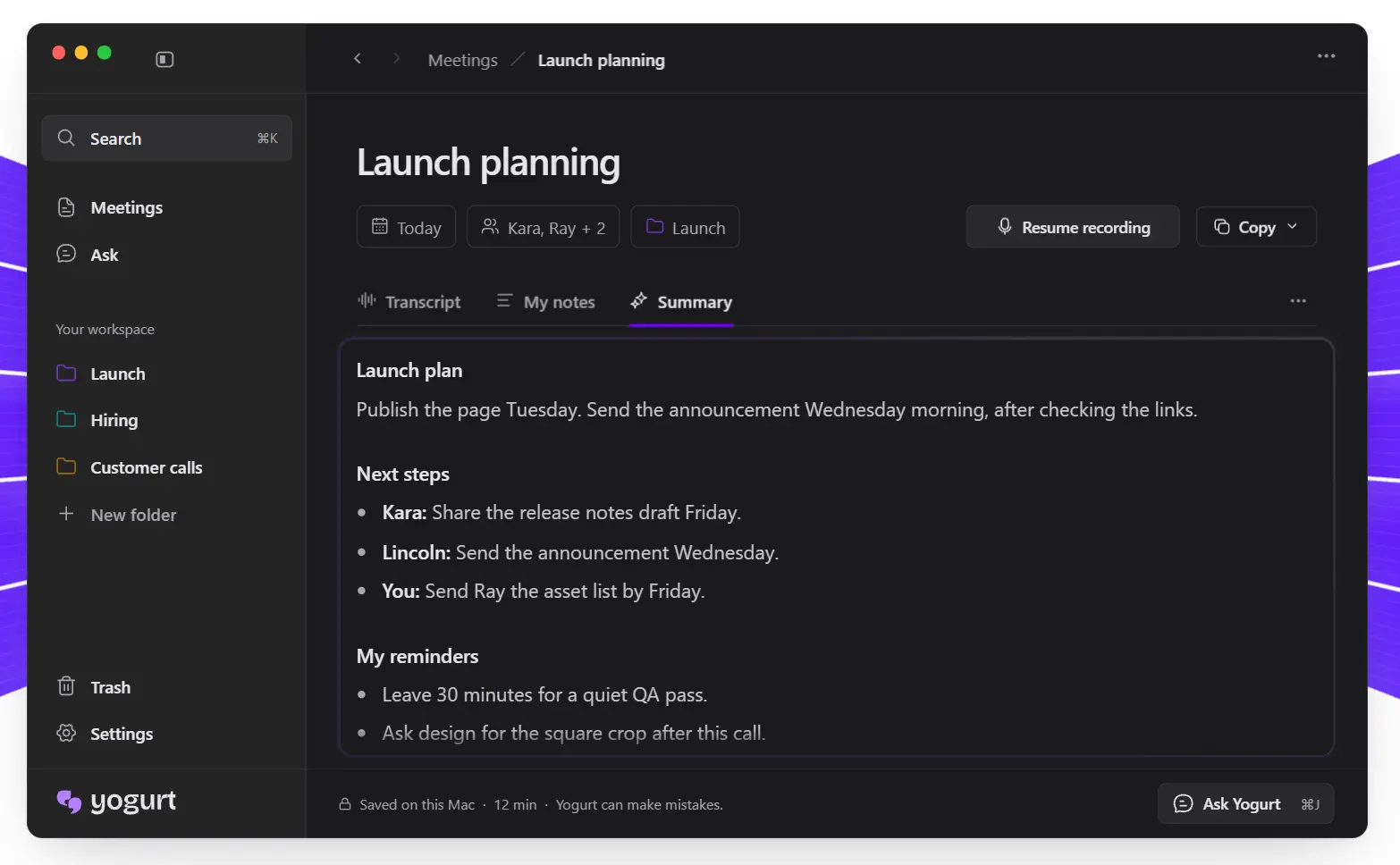
Yogurt is a free, open-source AI meeting notes app that records calls, transcribes conversations, and generates summaries using models on your computer.
It captures your microphone and the audio playing through your device during Zoom, Google Meet, Microsoft Teams, and other calls.
You can add your own notes during a call and leave with a summary of the discussion and next steps.
Yogurt also keeps recordings and transcripts available for questions about earlier meetings.
Built by Frigade as a local alternative to Granola, it runs on macOS, Windows, and Linux with no account or subscription.
Key Features
- Record microphone and computer audio during calls, with automatic stop when a detected call ends.
- Get a recording prompt when Yogurt detects a Zoom, Google Meet, or Teams call.
- Read a live transcript and add your own notes while the conversation takes place.
- Generate meeting summaries that incorporate your notes, decisions, and follow-up tasks.
- Ask questions during a meeting or across one meeting, a folder, or your meeting history, with links to the source.
- Search past meetings by title, folder, notes, or transcript text.
- Replay saved audio and export notes or transcripts as Markdown.
- Transcribe speech in 99 languages using the Multi-language setting.
- Connect an MCP-capable AI assistant to your saved meeting records when you enable access.
How Yogurt Works During and After a Meeting
Yogurt monitors call activity and can offer to record when Zoom, Google Meet, or Teams starts. Recording begins when you select Record.
It captures your microphone and the computer audio, and it can record other calling apps when you start a session manually. For detected calls, recording stops when the call ends.
As people speak, a live transcript appears beside your own notes. You might record a proposed launch date or a question that needs an answer.
After the meeting, Yogurt combines the conversation and your notes into a summary with follow-ups and reminders. You can replay the saved audio whenever you want to hear the original exchange.
You can ask Yogurt what someone agreed to do, even while the meeting is underway. Its answers refer back to the meeting transcript.
On macOS, optional Accessibility permission also lets Yogurt read visible speaker names from supported Zoom, Meet, and Teams calls.
How to Get Started
1. Install the macOS DMG, Windows EXE, or Linux AppImage for your computer.
2. Give Yogurt microphone and call-audio access.
3. Yogurt downloads the speech models it needs for your computer.
4. Recording is available when setup finishes. The local model used to generate summaries and answer questions can continue downloading afterward, so let that download finish before expecting AI notes.
5. Inform participants and obtain any consent required for recording. Accept Yogurt’s recording prompt or start a recording manually, then add your own notes. Open the saved meeting after the call to review its transcript, summary, next steps, and audio.
6. On a Mac, you can also grant Calendar access to show meetings from calendars already configured on your computer. Notifications can remind you to record when a call starts. Both are optional.
Local AI, Privacy, and System Requirements
Yogurt transcribes speech with Whisper through whisper.cpp. Macs can also use Apple’s on-device SpeechAnalyzer for live transcription.
It generates meeting summaries and answers with an open-weight model from the Gemma 4, gpt-oss, or Qwen3 families, selected for your hardware and run through llama.cpp.
Audio, transcripts, notes, and AI processing stay on your device. After the initial model downloads, transcription, summaries, and meeting questions work offline.
Yogurt connects to the internet for model downloads and update checks, and it does not collect telemetry or upload meeting recordings.
Each device needs at least 8 GB of RAM. Yogurt first downloads a notes model of roughly 5 GB and can download larger models, including 14 GB or more on capable machines.
On Windows and Linux, Yogurt checks transcription speed during setup. Setup stops if the your computer cannot process audio fast enough.
| Platform | Requirements |
|---|---|
| macOS | Apple Silicon with macOS 14.4 or newer. |
| Windows | x64 with Windows 10 version 2004 or newer. The installer is currently unsigned and may trigger a SmartScreen warning. |
| Linux | x64 with Ubuntu 22.04 or a comparable newer distribution and PulseAudio or PipeWire. The AppImage may need FUSE 2. |
Find, Export, and Back Up Meetings
Organize saved meetings into folders, then search by title, notes, or transcript content to find a conversation. The Ask feature can answer questions about a single call, a folder, or your complete history.
Answers link to the source material, and you can replay the recording to check the original wording.
Copy or export notes and transcripts as Markdown for use in other documents. Settings → Backup saves meetings and audio in a ZIP file. You can import that backup into Yogurt on macOS, Windows, or Linux.
Connect Meeting Notes to Claude or Other AI Apps with MCP
Yogurt includes a local Model Context Protocol (MCP) server for sharing meeting information with an assistant that supports local MCP connections.
Open Settings -> AI apps, enable access, copy the helper command, and add it as a local MCP server in your AI agent. The agent can then read meetings, notes, and transcripts and use them to answer your questions.
Pros
- Free, MIT-licensed meeting notes with no account, subscription, or external AI API key.
- Local recording, transcription, summaries, and searchable meeting history on all three major desktop operating systems.
- Audio playback, Markdown export, cross-platform backups, and optional MCP access.
Cons
- The local AI models require several gigabytes of storage and sufficient processing power.
- Calendar integration and meeting-app speaker-name reading are available on macOS.
- Windows and Linux can reject setup when the transcription speed check fails.
Frequently Asked Questions
Does Yogurt require Ollama or an API key?
No. Yogurt downloads and runs its own speech-recognition and meeting-notes models. You do not need to install Ollama or configure an AI API key.
Can Yogurt transcribe meetings in languages other than English?
Yes. Go to Settings -> Language -> Spoken language and select Multi-language to transcribe 99 languages.
Where does Yogurt store recordings, and what happens if I uninstall it?
Yogurt stores meetings, audio, models, and settings in your user account’s application data folder:
- macOS:
~/Library/Application Support/Yogurt - Windows:
%APPDATA%\Yogurt - Linux:
~/.config/Yogurt, or$XDG_CONFIG_HOME/Yogurtwhen configured
Uninstalling the desktop app leaves this data in place. You can save a ZIP backup under Settings -> Backup before deleting the data folder if you want to remove the recordings and models.
Alternatives & Related Resources
- Free, Private AI Meeting Transcription & Summary – Meetily
- Open-Source AI Meeting Notes for Privacy-Conscious Teams – Note67
- Free Local-First AI Notepad for Private Meetings – Hyprnote
- Free, Private, Local AI Meeting Notes for Mac – Snaply (Granola Alternative)
- 10 Best Free AI Meeting Assistants for Notes and Summaries