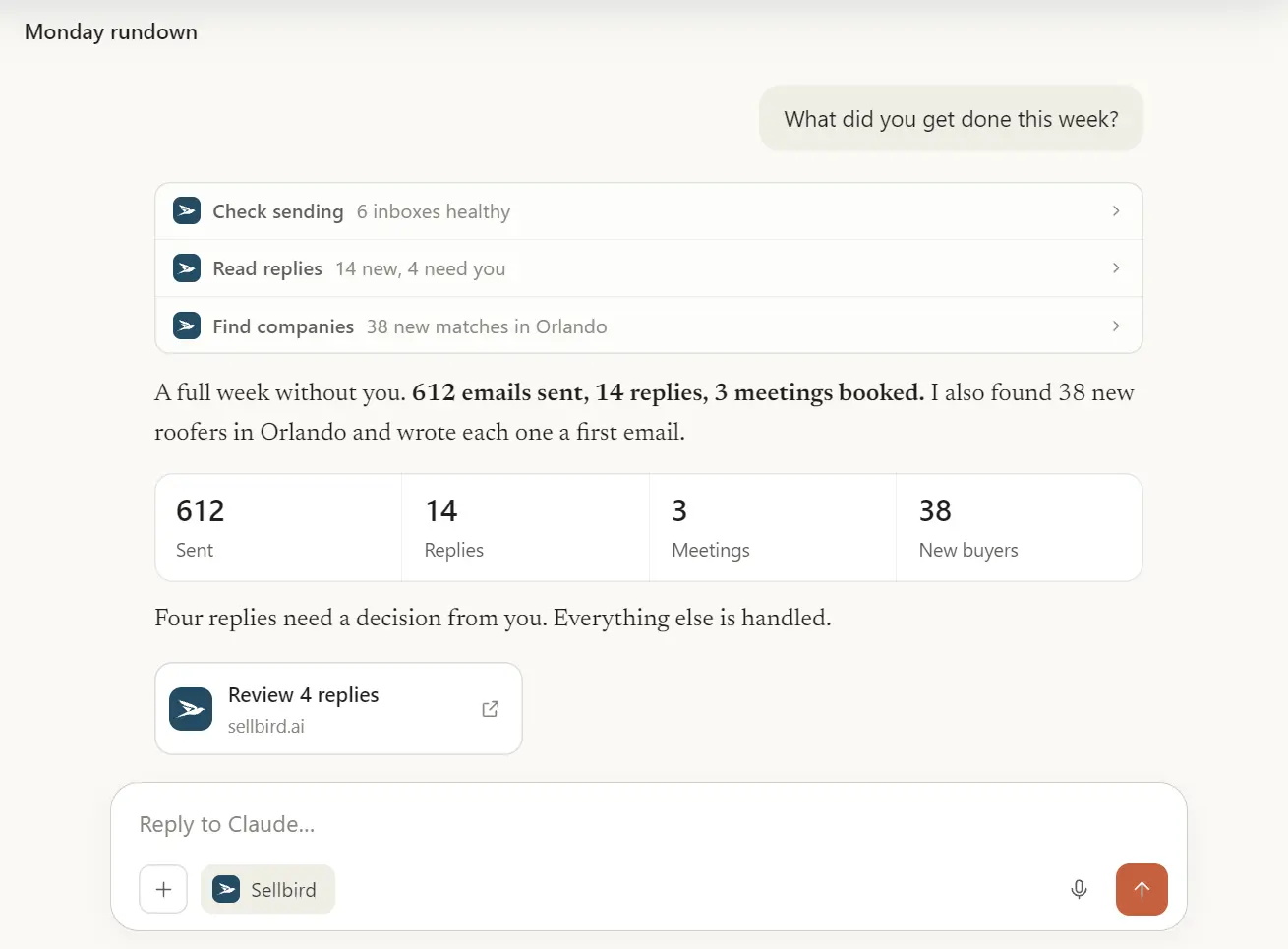
Sellbird (formerly Harvey) is an open-source AI sales agent for B2B prospecting and cold email.
It finds businesses that match your target market, identifies people to contact, and manages outreach through your own mailbox, from the first email to follow-ups and replies.
The agent runs on your computer and uses Claude Code or Codex to write messages based on its prospect research.
Each draft appears in a local dashboard alongside the company information and contact details used to write it.
You decide which messages to send, with the option to automate sending once your campaign is ready.
Key Features
- Discover businesses that match your target market using free and paid search providers.
- Collect buying signals from company websites and filter prospects by the characteristics you select.
- Find relevant decision-makers and check the deliverability of their email addresses.
- Generate personalized email sequences using editable sales playbooks and Claude Code or Codex.
- Review, edit, and approve outgoing emails or enable automatic sending within your campaign limits.
- Send messages through Gmail, Microsoft 365, or SMTP and manage responses in threaded conversations.
- Monitor campaign activity, AI usage, and prospect details from a local web dashboard.
- Export prospect lists as CSV files for use in other sales tools.
How Sellbird Works
Sellbird starts with your ideal customer profile and the buying signals you confirm. If you sell online booking software to local service businesses, for example, a website with no visible booking option could be a relevant signal.
OpenStreetMap is the default discovery source and requires no paid account. For businesses that are poorly represented on maps, you can use web search providers such as TinyFish or Serper, or business listings from DataForSEO.
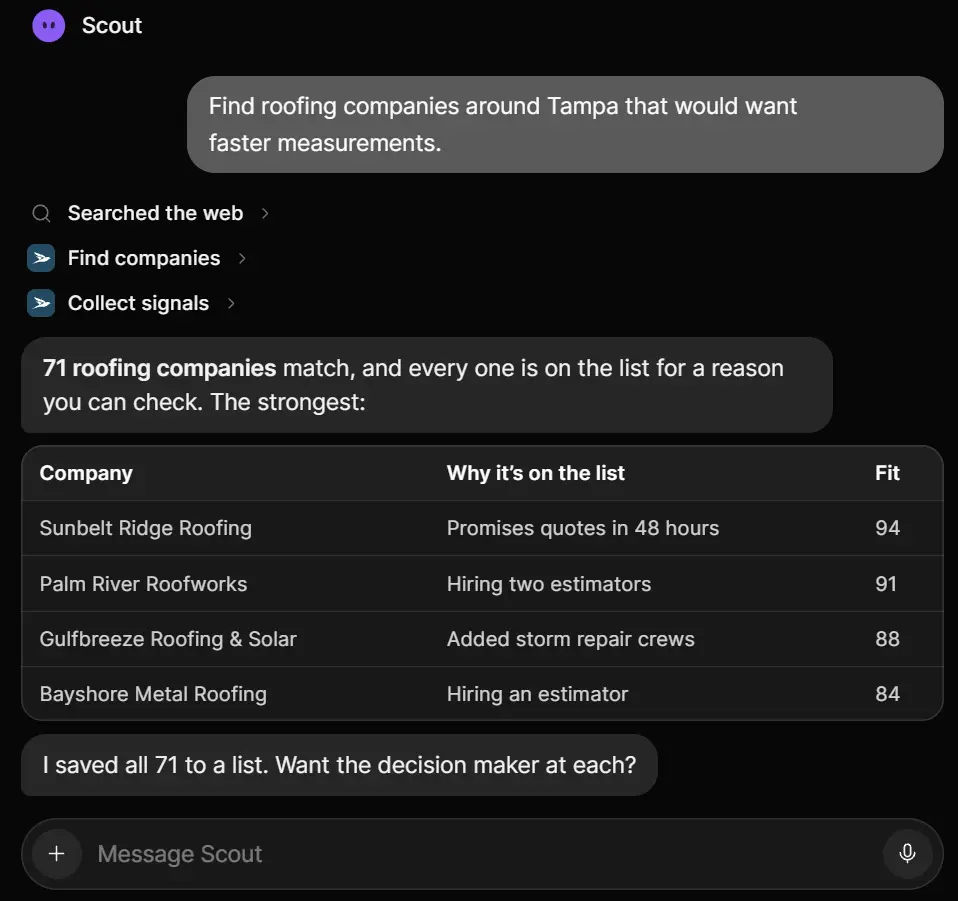
Sellbird estimates the cost before paid searches. It then collects website information through HTTP requests, a profiling step that consumes no AI model usage.
You can combine the recorded signals in the dashboard’s cohort builder to create a group of companies for a campaign.
For the booking software campaign, this means filtering your results by business type, location, and the absence of a visible booking option.
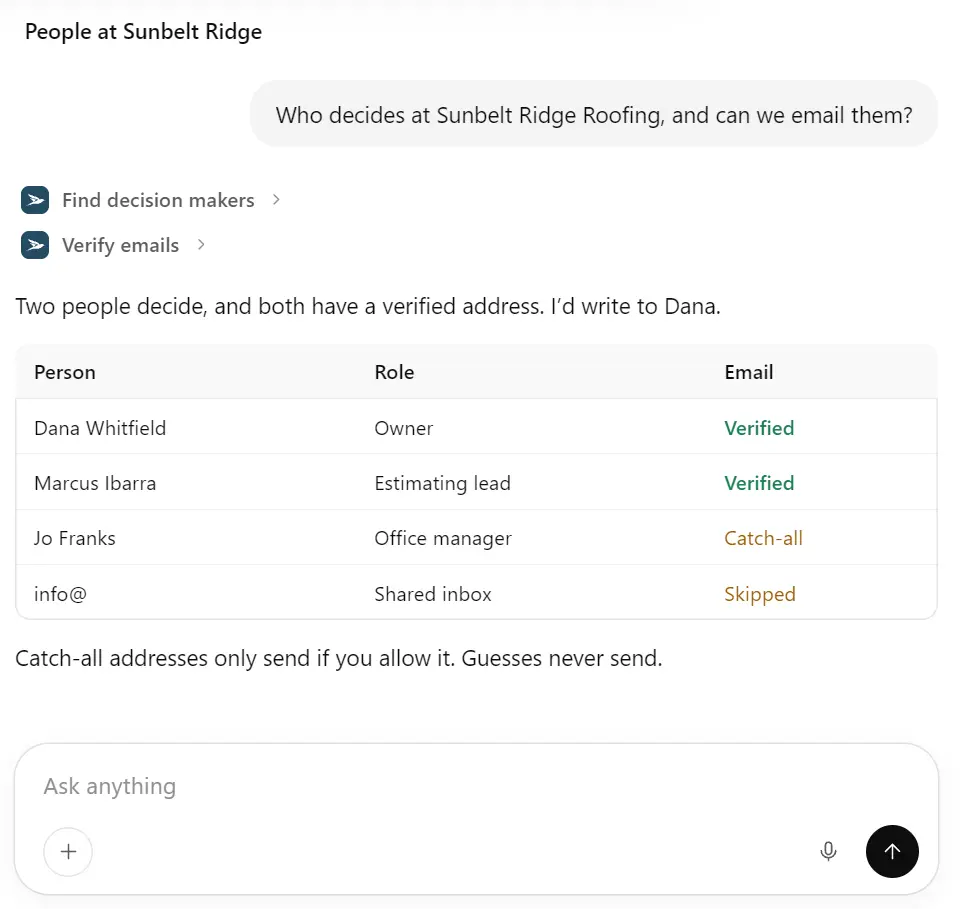
Sellbird looks for up to two relevant contacts per company, prioritizing owners and managers identified on company websites. It checks email addresses through an email verification service and classifies them as verified, risky, guessed, or invalid.
If no suitable named contact is found, the agent can use a verified general business mailbox published on the company’s website.
Personalized Email Sequences
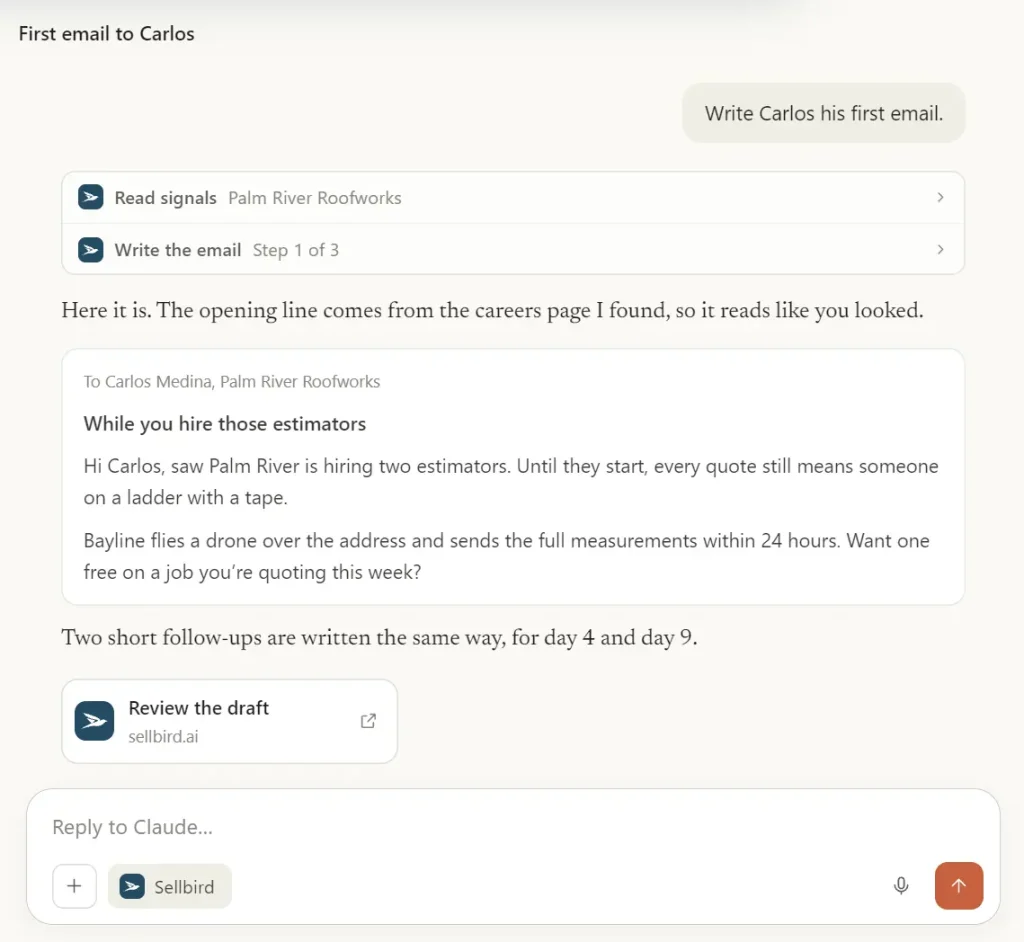
The AI writer uses your product information and the prospect’s business profile to create an initial email and follow-up messages. You can edit the Markdown sales playbooks to adjust the writing style, offer, and responses to objections.
For the booking software campaign, the writer can use its website findings to explain why your service is relevant. Those findings appear beside the draft in the Outbox, where you can verify the claim before sending.
A website scan can miss a booking widget or a feature on another page. You can also exclude website findings from the writer’s input.
For a research-only workflow, run sellbird export after contact verification to generate a prospect CSV. The default export excludes opted-out contacts.
Email Approval, Sending, and Reply Management
Sellbird queues initial emails, follow-ups, and drafted replies for your approval by default. From the Outbox, you can edit the text, approve the email, or reject the draft.
Approved cold emails are scheduled within your daily limits and the recipient’s sending window. If you connect multiple mailboxes, follow-ups and replies use the inbox associated with the original thread. The warm-up ramp controls sending volume for new mailboxes.
When a recipient responds, Sellbird stops the company’s pending outreach sequence, classifies the response, and drafts an answer when appropriate. Automatic replies are set aside, opt-outs are recorded, and conversations requiring your judgment appear in the dashboard for manual handling.
You can activate autopilot in the sending settings. Checks on email content and recipient addresses still apply, and messages containing unapproved external links or suspicious requests are held for review.
How to Install and Use Sellbird
For local installation, you need Python 3.11 or newer, a signed-in Claude Code or Codex CLI, a sending mailbox, and an email verification service key. The following setup uses Claude Code on macOS or Linux.
Set Up with Claude Code
Sign in to Claude Code with your Claude Pro or Max account. Clone the repository and open it in Claude Code:
git clone https://github.com/ethanplusai/sellbird.git
cd sellbird
claude
Ask Claude Code to “set up Sellbird for me”. The project’s setup instructions guide the agent through installation, mailbox configuration, and training on your product.
Manual Installation
If you prefer to configure Sellbird yourself, create a virtual environment using Python, then install the package from the repository:
python3.13 -m venv .venv
source .venv/bin/activate
pip install -e .
cp .env.example .env
Edit .env with your mailbox credentials and at least one verification key: REOON_API_KEY or ZEROBOUNCE_API_KEY. Select your email provider in the configuration.
Gmail uses sellbird gmail auth for OAuth authorization. Microsoft 365 uses sellbird microsoft auth, and SMTP requires the corresponding mail server settings. Don’t forget to warm up your sending mailbox before launching a live campaign.
Train the agent on your business website and confirm the free prospecting signals. Replace the example URL with your own website:
sellbird train https://your-company.com
sellbird signals --confirm free
sellbird discover
Open the dashboard to inspect the discovered companies. Use the private URL printed by the command, normally on 127.0.0.1:5555.
sellbird dashboardWith the dashboard open, run the agent loop from another terminal in the project directory with the virtual environment activated. The loop processes prospects and incoming responses periodically. Drafts become available in the Outbox for approval.
sellbird runUse Codex with a ChatGPT Plan
Sellbird also supports Codex as the AI provider. You currently need macOS or Linux, Node.js, Codex CLI, and a ChatGPT plan with Codex access. Install the pinned CLI and sign in with ChatGPT using file-based credential storage:
npm install -g @openai/[email protected]
codex login
Select Codex during sellbird setup and choose a model available to your account.
The Codex integration rejects other CLI versions and is unavailable on Windows or in the project’s Docker image. Use the Claude provider on those environments.
MCP Server
Sellbird provides an optional local MCP server that lets Claude Code or Codex read prospect and campaign information, estimate discovery costs, and pause sending.
Use sellbird mcp install for Claude Code or sellbird mcp install codex for Codex.
Is Sellbird Free?
The self-hosted version is free to download and use under the AGPL-3.0 license. AI writing and reply handling consume usage from your existing Claude or ChatGPT subscription. Sellbird monitors AI usage and can pause processing when the configured budget or subscription limit is reached.
Pros
- Combines prospect research, email sequences, and reply management in one local application.
- Uses Claude or ChatGPT subscriptions for AI tasks.
- Shows the research behind each draft and lets you approve messages individually.
- Offers customizable sales playbooks and CSV exports.
Cons
- Requires mailbox configuration and ongoing sending-domain maintenance.
- Free discovery coverage varies by business type and location.
Related Resources
- Turn Email Lists into Rich Company Datasets – Grok 4 Fire Enrich
- Apify MCP Server: Web Automation for AI Agents
- Linked API MCP Server: Automate LinkedIn