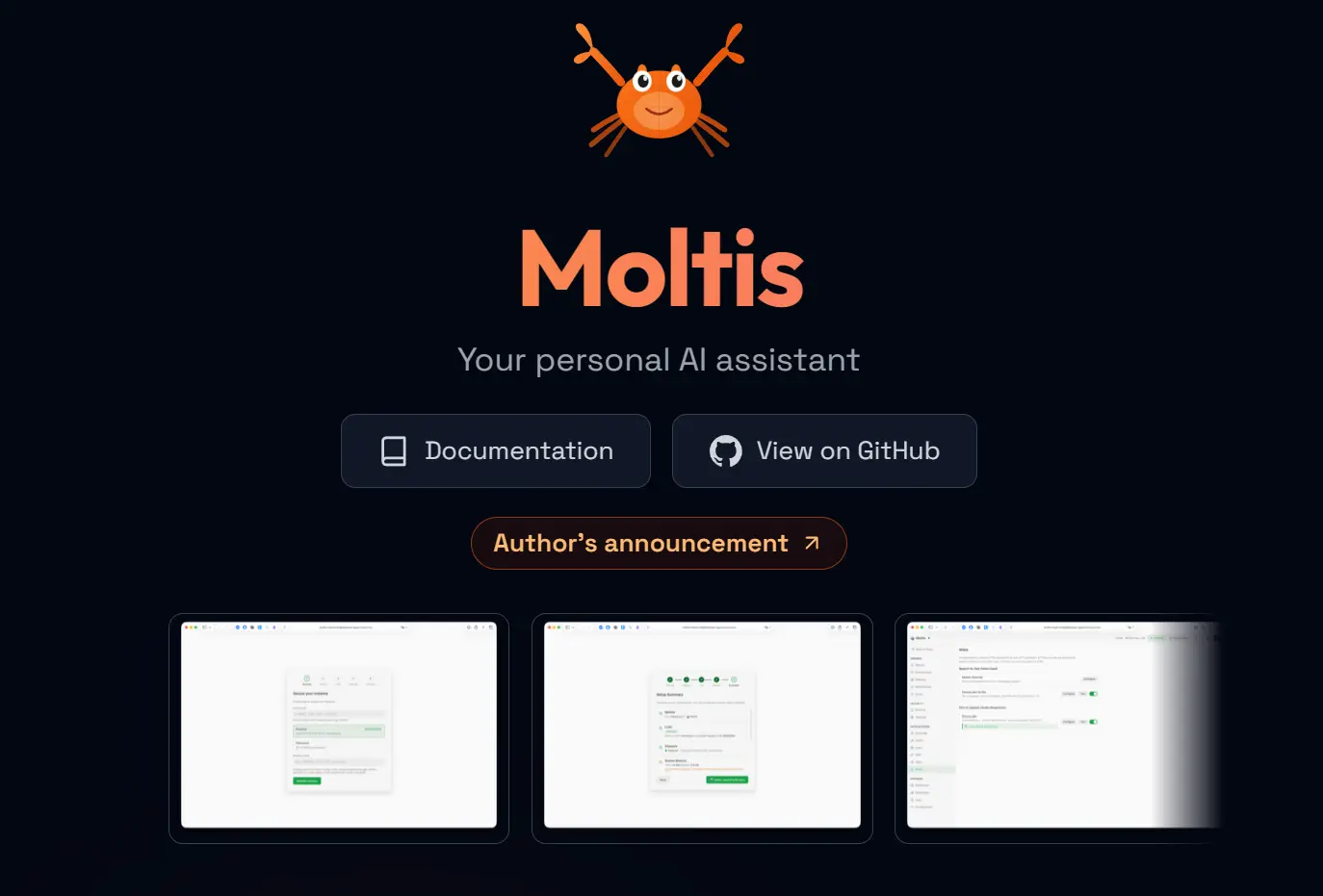
Moltis is a free, open-source personal AI agent written in Rust. It is a free OpenClaw alternative for people who want to run an agent on their own computer or server, choose their LLM provider, and keep control of the agent’s data, integrations, and access.
Install the single binary, connect an API provider or local model, and use the web UI or messaging channels to chat, browse the web, run scheduled tasks, and call tools.
The agent ships with much of the personal-agent workflow associated with OpenClaw, with a Rust codebase, built-in sandbox options, MCP support, and an importer for existing OpenClaw data.
Features
Moltis runs a persistent gateway for one personal AI agent. The gateway keeps its chat sessions, memory, configuration, and integrations in your own environment. Start in the browser, then add channels, scheduled tasks, MCP servers, or remote nodes as your setup needs them.
- Chat and agent work: Use the web UI for conversations, coding tasks, web research, file work, and tool calls.
- Provider choice: Connect cloud providers with an API key, sign in through supported OAuth flows, or select a local LLM.
- Persistent context: Store sessions and long-term memory locally, with vector and full-text search for remembered information.
- Channels and voice: Extend the same agent to services such as Telegram, WhatsApp, Discord, Slack, Matrix, Nostr, Teams, and voice input or output.
- Automation and extensions: Run cron jobs, add MCP servers, create skills and hooks, or pair another machine as a node.
- Controlled execution: Run shell work in a sandboxed Docker or Apple Containers environment when your deployment supports it.
Use Cases
- A personal AI assistant you control: Run an always-available agent on a Mac, Linux system, Raspberry Pi, or server you manage.
- Development and research work: Connect coding tools, repositories, local files, MCP servers, and isolated command execution to one agent workspace.
- Moving away from OpenClaw: Import supported settings, skills, memory, sessions, channels, MCP servers, and workspace files into a Moltis workspace.
How to install Moltis
For macOS or Linux, the official installer downloads the current release and places it in your local bin directory.
curl -fsSL https://www.moltis.org/install.sh | shHomebrew users can install it with the official tap:
brew install moltis-org/tap/moltisDocker images are published to GitHub Container Registry for amd64 and arm64 deployments.
docker pull ghcr.io/moltis-org/moltis:latestYou can also install Linux packages through the official installer, use Snap, download an AppImage, or build from source. A source build needs Rust 1.91 or later, a C compiler, just, and Node.js for the web UI assets.
How to Use Moltis
1. Start the gateway: Run moltis, then open the localhost address printed in the terminal. Moltis saves its selected port for later launches.
2. Connect a model provider: Open Settings > Providers. Add an API key for Anthropic, OpenAI, Gemini, or another supported provider; use an available OAuth connection such as Codex or GitHub Copilot; or select a local LLM. An agent cannot answer until a provider and model are configured.
3. Test the agent in Chat: Start with a low-risk task such as summarizing a page, drafting a file, or explaining a codebase. Check its proposed tool work before connecting it to important files, services, or accounts.
4. Choose the first extension that solves a real task: Add a messaging channel for mobile access, an MCP server for an external service, or a scheduled task for recurring work.
Add channels after the local setup works
Moltis can extend the same agent to Telegram, WhatsApp, Discord, Slack, Matrix, Nostr, Teams, and voice.
Configure the channel in Settings and use a dedicated bot account or token where the service requires one. Start with a private conversation or a small test group.
A messaging integration can expose the agent to prompts from other people, so set access controls before inviting it into a shared space.
Add tools through MCP
MCP servers connect Moltis to external tools and data sources.
Add a local stdio server or a remote Streamable HTTP server through Settings > MCP Servers, then test one tool with a non-sensitive request.
Schedule repeatable work
Use Moltis scheduling for repeatable tasks such as a morning research brief, a weekly repository check, or a reminder.
Test the prompt manually first, then create the schedule. Review the agent’s tool permissions and model cost before making a task run unattended.
Configuration, data, and MCP servers
The main configuration file is ~/.config/moltis/moltis.toml. Provider credentials are stored in ~/.config/moltis/provider_keys.json; sessions, memory, and logs live under ~/.moltis/. Back up these directories before moving a self-hosted deployment or uninstalling it.
MCP support lets Moltis connect to external tool servers through local stdio or remote Streamable HTTP. Add a server in Settings > MCP Servers or define it in moltis.toml.
Treat every MCP server as software with its own permissions and data exposure. Review its source and configuration before giving it credentials or file access.
Security and self-hosting considerations
Moltis includes authentication, a password vault, sandbox options, tool policies, and network controls. These features reduce risk; they do not remove the need to make careful deployment choices. Keep the web UI private unless you have configured remote access, use strong authentication, and limit tool permissions to the files, services, and machines the agent actually needs.
Docker deployment needs extra care. A Moltis container can need access to the host Docker socket to create sibling sandbox containers. Review third-party skills, hooks, MCP servers, and remote nodes before enabling them.
Moving from OpenClaw
Moltis can detect an OpenClaw workspace and import supported identity settings, provider credentials, skills, memory, sessions, Telegram and Discord settings, MCP servers, workspace Markdown files, and non-default agent presets. Existing Moltis settings take precedence where the importer avoids overwriting user content. Check the import results before deleting an older installation.
Pros
- Free, MIT-licensed source code.
- Single Rust binary with a built-in web UI.
- Cloud, OAuth, and local-model provider options.
- Built-in channels, memory, scheduling, voice, MCP, and remote nodes.
- Sandbox and authentication features for self-hosted deployments.
Cons
- You must manage hosting, updates, backups, and access controls.
- Skills, MCP servers, and host integrations need security review.
- Local-model performance depends on your hardware and selected model.
Related resources
- OpenClaw: Open-Source Personal AI Assistant
- 7 Best OpenClaw Alternatives for Safe and Local AI Agents
- Automate Anything: 10 Best Open-Source AI Agents
- Moltis GitHub Repository
- Moltis Documentation
FAQs
Q: Can Moltis work without a paid API?
A: It can use a local LLM, provided your hardware can run the model you select. Hosted APIs, OAuth-connected services, and other integrations can have their own costs or account requirements.
Q: What should I check before exposing Moltis beyond localhost?
A: Set up authentication, confirm the network and trusted-host settings, use HTTPS where appropriate, and review every enabled channel, tool, MCP server, skill, and remote node. Do not expose a development setup to the public internet unchanged.
Q: Will an OpenClaw import overwrite my existing Moltis setup?
A: The importer preserves existing Moltis identity and skips destinations that already contain user content. Review the imported settings, credentials, files, and sessions before relying on the migrated workspace.
Last Updated: July 13, 206