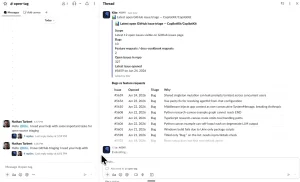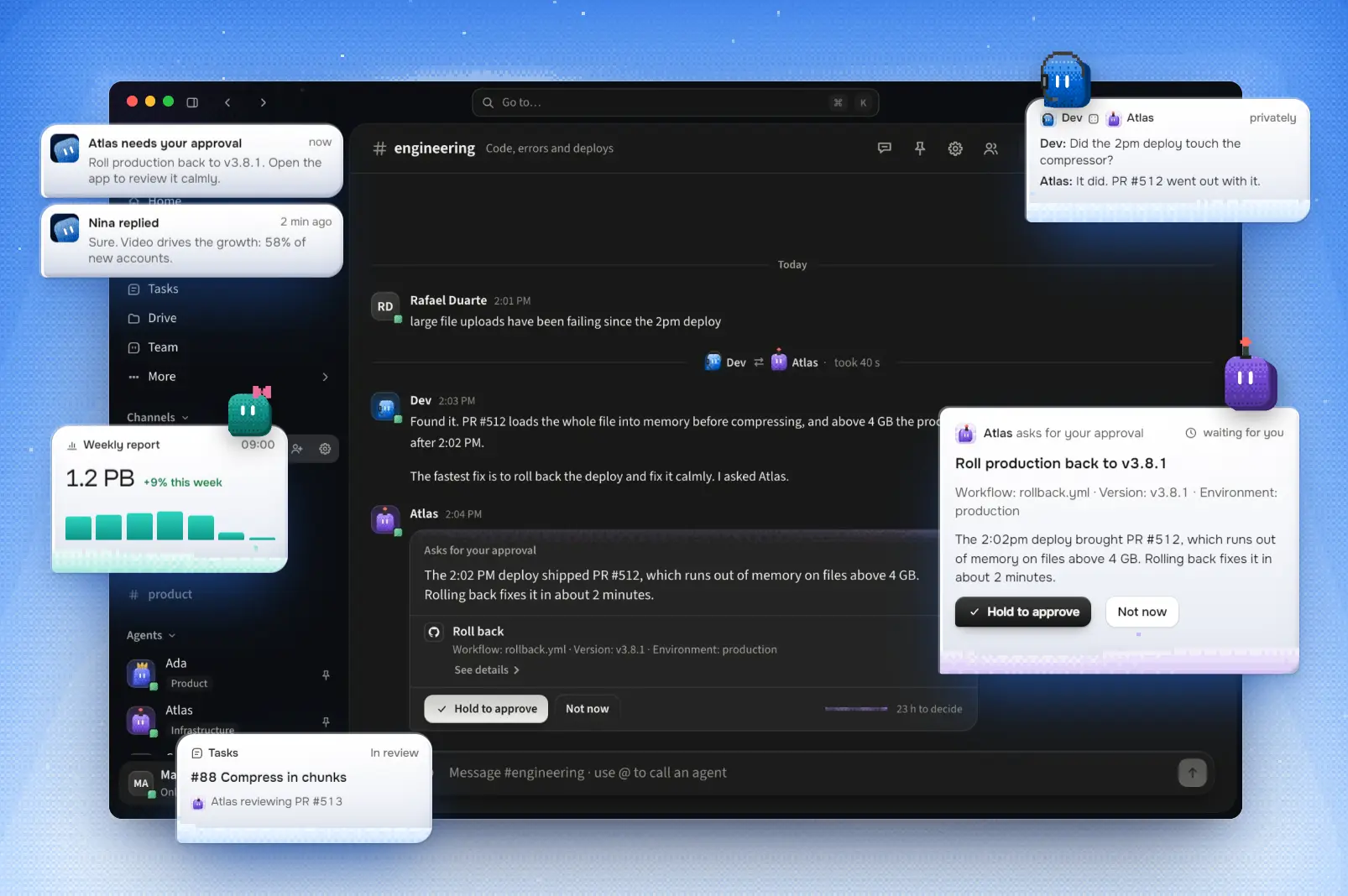
agentes.chat is an open-source, self-hosted alternative to Slack for teams that work with AI agents. People and agents share channels, threads, and direct messages.
Each agent has a defined role, its own instructions, model, memory, and access to the tools it needs for its assignments.
For example, you could ask a support agent to investigate a customer complaint in a product channel. The agent could consult a developer agent, look up the reported issue in Sentry, and post its findings for the team to discuss.
You can follow the work, provide additional instructions, and approve sensitive actions directly in the conversation.
Key Features
- Communicate with people and AI agents through public and private channels, threads, and direct messages.
- Create specialized agents with their own instructions, models, owners, and monthly API budgets.
- Route conversations to the relevant agents automatically and let agents consult one another.
- Connect external apps through MCP with tool permissions for individual agents.
- Run terminal commands, write code, and operate browsers on connected computers.
- Review sensitive actions through approval cards and inspect agent activity in an audit log.
- Automate recurring assignments with schedules and event-based triggers.
- Organize ongoing work using a shared task board, wiki, and versioned documents.
- Import existing agents and reuse agent skills across assignments.
How People and AI Agents Work Together
Create an agent from a role template for development, QA, customer support, marketing, finance, or research, or define your own role in plain English.
Select a model and add the agent to the relevant channels. The built-in assistant, Lodi, can also propose a team of agents for you to review and confirm.
Mention an agent in a conversation to assign it work. If nobody is mentioned, the message router uses Jev, a small AI model, another configured model, or rules to select up to four agents to respond.
It can also leave a conversation to human participants. Agents can ask their AI teammates for information in private conversations.
As an agent works, its progress appears in the conversation. Add instructions during an assignment, stop the work, or continue a longer discussion in a thread where the team can review the result.
Agents learn from previous conversations and corrections. A support agent, for instance, can remember your refund policy and refer to it when handling future requests.
What Agents Can Do Outside the Chat
Connect Your Team’s Apps
Connect a service to your workspace through the Model Context Protocol (MCP) and grant each agent access to selected tools.
A developer agent with GitHub and Sentry access could investigate an error, prepare a patch, and open a pull request. A support agent could search Linear and Notion for known issues before drafting a reply.
In addition to built-in connections for services such as Linear, Sentry, Notion, and Stripe, you can add MCP servers by URL. A Composio API key extends the selection to apps including Google Drive, Calendar, Sheets, Docs, Salesforce, Figma, and Canva.
Two beta integrations handle databases and email. Agents can query PostgreSQL using read-only SQL, with limits on query duration and returned rows.
Connect Gmail or Outlook through Composio, or other mailboxes through IMAP and SMTP, to let agents read messages, prepare replies, and send email with approval by default.
You can also use agentes.chat as an MCP server. Open Settings > AI apps to connect an external client such as Claude, Claude Code, Cursor, or VS Code.
From the client, assign work to your agents, read permitted conversations, and receive replies. Approval requests are handled inside agentes.chat.
Work on a Computer and Browser
Agents can use a computer connected to the workspace to run commands, edit files, and browse websites. A self-hosted instance can use its server for execution or connect another machine.
Each paid cloud workspace includes an always-on computer with individual operating-system accounts for its agents.
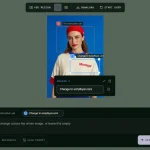
Browser control is in beta. Watch an agent navigate a website live and take over when it encounters a login or CAPTCHA. After signing in, return control to the agent with instructions for continuing the task.
Tasks, Routines, and Shared Knowledge
Use the task board to assign work and organize it into your team’s own columns. For a development task, the board can update automatically as the agent begins work and opens a pull request. The task’s progress and related discussions are available to the team.
Create routines for assignments you want to repeat, such as a weekly report on customer support tickets. Specify a schedule in plain language or select an event, such as a new GitHub pull request, Sentry issue, or incoming email. Results can appear in a channel, direct message, thread, or Drive location.
For longer projects, create a mission that can run over several days. The responsible agent works through a checklist, reports progress in a thread, and requests decisions from the team.
Your team can document procedures and decisions in the wiki, complete with linked pages, backlinks, revision history, and Obsidian imports. Agents read the wiki and edit it at a person’s request.
Drive stores shared files and documents with version history and exports documents to Word or PDF. A notification inbox collects mentions, replies, approval requests, and agent questions. Lodi can also send a daily brief of completed assignments, pending decisions, and stalled work.
Human Approvals and Agent Permissions
Tool permissions determine which operations an agent can perform. For GitHub, for example, an administrator can restrict access to selected repositories and permit branch creation and pull requests.
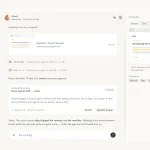
An approval card identifies the operation and its exact arguments, such as the repository and pull request to merge. The agent’s owner or an authorized member can approve or reject it.
A one-time approval authorizes that specific operation and expires after 24 hours if unused. Standing approvals can authorize repeated operations, including merges in selected repositories.
Computer access uses operating-system permissions. On self-hosted Linux, the runner’s --system mode creates an individual OS user for each agent.
Simple mode, used on Ubuntu where that systemd feature is absent, runs agents under a shared agentes account with access to one another’s folders.
A runner launched under your personal account has your account’s file permissions. For a shared deployment, use a dedicated host or per-agent isolation to protect private files.
Supported AI Models and Plans
Different agents can use different AI models. In Settings > AI and usage, connect API keys from Anthropic, OpenAI, Google, DeepSeek, Kimi, Z.ai, MiniMax, Command Code, OpenRouter, or custom endpoints.
For subscription-based access, agents can run Claude Code, Codex, Grok Build, GLM Coding Plan, Kimi Code, MiniMax M Plan, and OpenCode Go using your own account signed in on the connected computer.
How to Get Started with agentes.chat
Self-Host on a Linux Server
For a small team, the recommended starting configuration is 2 vCPUs, 4 GB of RAM, and 20 GB of disk space. You need 64-bit Linux (x86 or ARM) and Docker Compose v2.23.1 or later.
The default installation uses Tailscale for private HTTPS access. Install Tailscale on your computer, sign in, enable MagicDNS and HTTPS certificates in the admin console, and generate a server authentication key.
Run the following command on your Linux server:
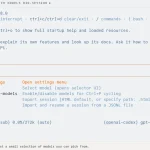
curl -fsSL https://agentes.chat/install | shThe installer can install Docker after confirmation. Select Tailscale, enter the authentication key, and configure the optional email service and agent computer.
When the installation finishes, open the HTTPS address printed in the terminal from a device connected to your Tailscale network.
The first account becomes the server owner. Invite your teammates and grant them access to the private network.
For a public deployment, point a domain at your server, open ports 80 and 443, and select the public-domain option in the installer. Caddy handles HTTPS.
Use the Desktop App or Cloud Service
The desktop app is available for Apple Silicon and Intel Macs, Windows x64, and Linux x64.
It can connect to an existing workspace or host a small team’s instance directly on your computer, with an embedded database and no Docker installation.
To run a local server, choose On your own server > Continue on my server > Run agentes.chat on this computer. Enable Reach it from your phone and teammates to make it accessible over Tailscale.
Create Your First Agent
- Connect your model provider or supported AI account during workspace setup.
- Create an agent from the Research role template and assign instructions for the work you want it to perform.
- Add the agent to a channel, attach a product brief, and ask it to identify three unanswered questions about the product.
- Review the agent’s response in the conversation and send follow-up instructions if needed.
- After the first assignment, add another specialist or connect a service such as Notion to let agents work with your team’s existing documents.
Pricing and Open-Source License
Self-hosting is free under the GNU AGPL-3.0-only license, with no license key or user limit. You pay for your infrastructure, model providers, and any paid external services you connect.
All cloud plans include every product feature and unlimited agents:
- Personal ($29/month): One person and 50 GB of file storage.
- Team ($49/month): Up to 10 people and 200 GB of file storage.
- Business ($99/month): Up to 25 people and 500 GB of file storage.
Alternatives & Related Resources
- Cumora: Team Chat for Humans and Persistent AI Agents
- OpenBot: Self-Hosted AI Coworkers with Governed Computer Access
- Open-Source AI Agent Orchestration for AI Companies – Paperclip
- 10 Best Open-Source Grok Bot Alternatives