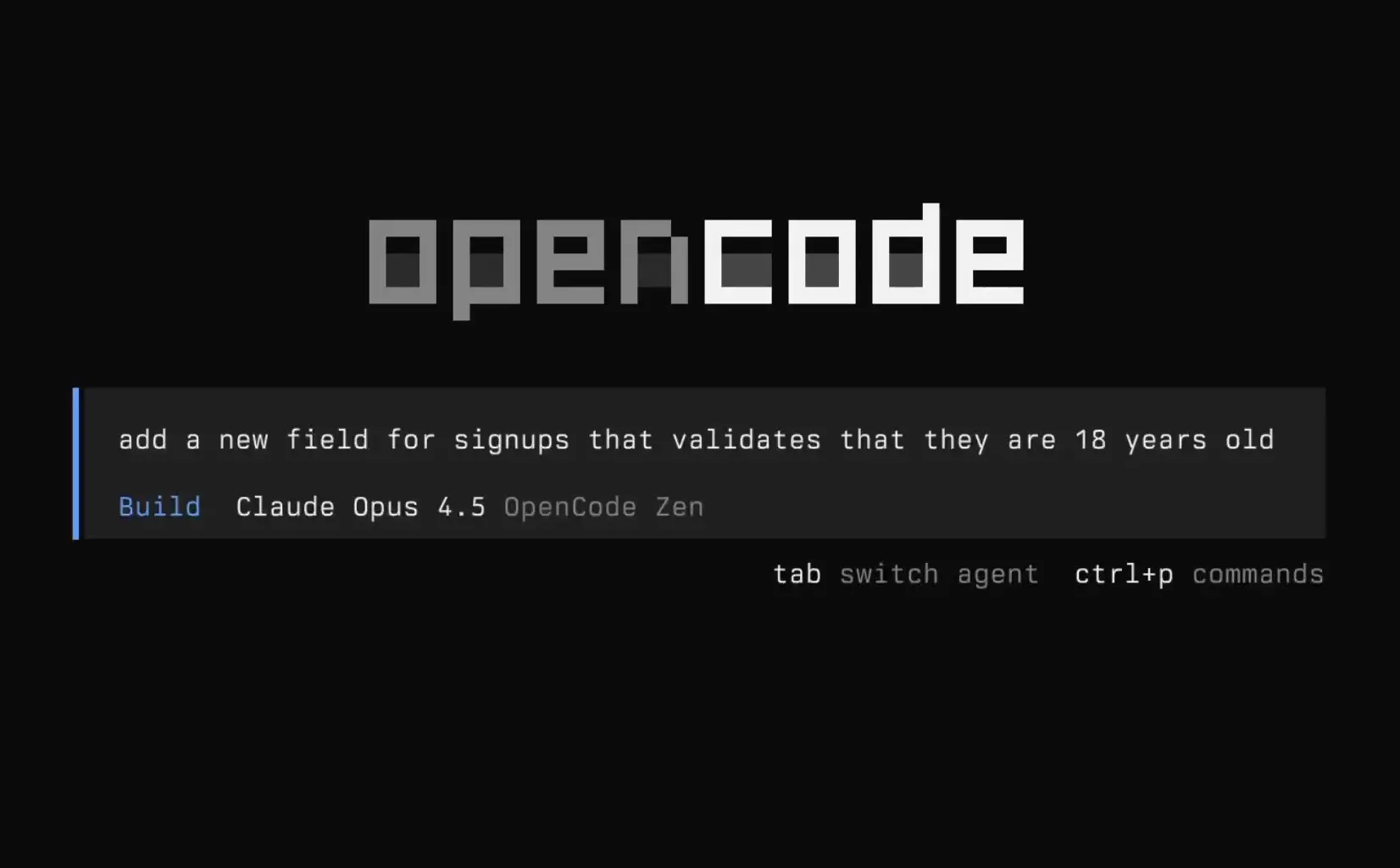
OpenCode v2 is an open-source AI coding agent that explores codebases, changes files, and runs development commands in response to natural-language requests. You can use it in a terminal, a desktop app, or a browser, and select the AI model that handles each coding session.
A session can begin with a question about unfamiliar code and continue through debugging, editing, and testing. OpenCode records the conversation and tool activity alongside the project. In v2, a shared local service connects the different clients to project sessions, while specialized agents handle planning, implementation, and delegated research.
Key Features
- Searches, reads, creates, and edits files in your repository.
- Runs shell commands and project tests as part of a coding task.
- Switches between Build and Plan agents and delegates research to subagents.
- Opens project sessions in a full-screen terminal, desktop app, or browser.
- Connects provider APIs, compatible custom endpoints, and local AI models.
- Resumes sessions and supports conversation-aware undo and redo.
- Creates Git worktrees for isolated branches of development work.
- Loads project instructions, Agent Skills, custom commands, MCP servers, and plugins.
- Connects to ACP-compatible editors and supports scripted or embedded agent sessions.
How OpenCode Works in a Repository
OpenCode works with the files in the project directory you open. Suppose a login request returns the wrong error. Ask the agent to find the authentication handler and related tests. It can search for matching functions, read their implementations, and trace the error-handling logic. A follow-up request can ask it to change the handler and run the existing test suite. The session keeps the investigation, file edits, command output, and subsequent questions together.
In the terminal UI, type @ to find and reference a project file. For example, Review @src/auth.ts for missing error handling points the agent at a specific file. You can also enter shell mode by typing ! at the beginning of an empty prompt. To redirect an active task, send another message during execution or queue a follow-up with the terminal’s leader-key controls.
Sessions are available for later continuation. OpenCode can undo and redo recent turns and associated file changes using project snapshots. These snapshots are best-effort recovery for agent activity. Git commits are the durable history for changes you intend to keep.
Build, Plan, and Subagents
Build is OpenCode’s default primary agent. Ask Build to implement a feature, fix a defect, refactor a module, or run tests. It has access to file and command tools, subject to configured permissions. By default, many ordinary tools are allowed, while sensitive environment files and access outside the workspace request approval.
Plan is the other built-in primary agent. It can inspect a codebase, examine dependencies, and propose how to implement a change. It does not edit ordinary project files, although it can write OpenCode plan files when requested. Shell commands follow the current permission rules. Switch between primary agents from the terminal when you want to move from investigation to implementation.
Two built-in subagents handle delegated tasks. Explore searches and reads local or web sources and cannot edit files. General handles longer investigations and multistep research with wider tool access. General cannot launch another layer of subagents. A primary agent can delegate a focused question to either one and continue working with the returned findings.
You can create project-specific agents in .opencode/agents/. Each Markdown definition can assign a system instruction, preferred model, primary or subagent role, and tool permissions. For example, a reviewer agent can inspect changed code and test results with edit permission denied, preserving a review-only role.
Terminal, Desktop, and Web Access
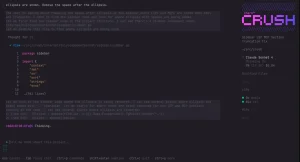
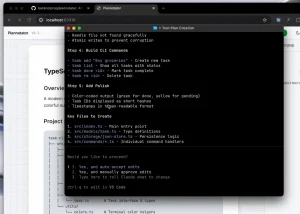
The terminal UI (TUI) is the keyboard-first client for repository work. It handles prompts, project file references, sessions, models, agents, and tool activity. For a smaller interactive terminal experience, run opencode mini. For a single prompt in a shell script or CI job, use opencode run.
The desktop app provides a graphical view of sessions and project work on macOS, Windows, and Linux. OpenCode’s desktop-attached browser tools can inspect a web page, click controls, enter form values, capture screenshots, examine console and network activity, and run Lighthouse audits. The agent can investigate a broken web interaction in the browser and examine the source code in the related project session.
The web UI opens sessions through the OpenCode service running on your computer or server. Run opencode pair to create a one-time browser sign-in link or QR code. Pairing on a local machine uses a localhost address by default. You can also forward a remote server’s local port over SSH or enable authenticated remote pairing with opencode pair --remote. Remote pairing asks for confirmation before exposing the service on a public address.
OpenCode runs one background service per local user account. The terminal, desktop, and browser clients access sessions and models through that service. You can also launch opencode serve as a dedicated foreground server for deployment under a process manager. A Console subscription is not required for local project sessions or the web UI.
OpenCode v2 Command Quick Reference
Read More: OpenCode Cheat Sheet: CLI Commands, Shortcuts & Config
| Task | Command |
|---|---|
| Open the terminal UI in a project | opencode /path/to/project |
| Send a one-off prompt | opencode run "Explain this repository" |
| Use the minimal terminal UI | opencode mini |
| List model options | opencode models |
| Pair the web UI or another client | opencode pair |
| List configured MCP servers | opencode mcp list |
| Start a foreground API server | opencode serve |
| Start the ACP editor agent | opencode acp |
| List saved sessions | opencode session list |
| Export a session as JSON | opencode session export SESSION_ID |
How to Install and Start Using OpenCode v2
Install the CLI on macOS or Linux
curl -fsSL https://opencode.ai/v2/install | bash
# Alternative: Homebrew
brew install anomalyco/tap/opencode-v2
# Alternative: npm
npm install -g @opencode/cli
Install on Windows or download the desktop app
# CLI
winget install --id Anomaly.OpenCode -e
# Desktop app
winget install --id Anomaly.OpenCode.Desktop -e
Run your first coding session
Open a repository in the terminal and launch OpenCode. Inside the TUI, run /connect to sign in to a provider or enter an API key, and use /models to select an available model.
Ask it to locate a function and explain its existing tests. Once the response identifies the relevant files, you can request an edit and ask Build to run the related tests.
File changes, tool output, and any permission prompts appear in the active session.
cd /path/to/your/project
opencode
Models, Provider Access, and Pricing
You can connect OpenCode to supported model providers with an API key or the sign-in method exposed by that provider. The model catalog draws on models.dev and OpenCode’s provider definitions.
Run /connect to establish access, then /models to choose a model. A project, custom agent, or individual opencode run command can use a specific model when needed.
OpenCode works with providers including OpenAI, Anthropic, Google, and GitHub Copilot, as well as custom OpenAI-compatible endpoints.
For local inference, connect a running Ollama, LM Studio, or vLLM server and select a compatible model. Local models need enough capability and memory for the repository task and tool calls.
OpenCode Console
Console provides prepaid access to hosted coding models through an OpenCode account. Connect its provider from /connect, then select a model in /models.
Console’s pay-as-you-go inference deducts model usage from credits. There is no standard per-seat Console charge. A credit top-up carries a payment processing fee of 4.6% plus $0.31 per transaction.
For example, $50 of credits costs $52.61 at checkout. When you connect your own provider to a Console workspace, that provider bills its model usage directly.
OpenCode Go and Go Plus
Go costs $10 per month and Go Plus costs $40 per month. They provide subscription access to a changing selection of models through Console. They are intended for single-member workspaces. Go Plus provides higher included usage allowances.
Usage is accounted for separately by model. Each model has a monthly dollar-value allowance, with a five-hour limit of 20% and a weekly limit of 50% of that model’s monthly allowance.
For example, Kimi K3 has a $15 monthly allowance on Go and a $60 monthly allowance on Go Plus in the current plan table.
Once a subscription allowance is exhausted, you can use an eligible free model if available or use prepaid Console credits when that billing option is enabled.
Read More: AI Coding Plan Comparison: Prices, Limits, and Features
Skills, MCP, Plugins, and Developer Integrations
Project instructions, Skills, and custom commands
Keep repository conventions in project instructions and use Agent Skills for recurring tasks that need more detailed procedures. A Skill lives in .opencode/skills/<skill-name>/SKILL.md and can have related scripts or reference files beside it.
OpenCode also discovers compatible Skills from .claude/skills/ and .agents/skills/. When the coding task needs a Skill, the agent loads its instructions into the current conversation.
For a repeatable prompt, create a Markdown command file in .opencode/commands/. For example, review.md with the instruction Review $ARGUMENTS for bugs and missing tests. becomes /review src/auth.ts in the terminal.
Read More: Most Popular Agent Skills on GitHub for Coding Agents
MCP servers and plugins
An MCP server gives the agent access to external tools or information, such as current library documentation or a connected development service. OpenCode supports local MCP processes and remote MCP endpoints.
Add a remote server from the relevant project, then inspect its connection state. OAuth-enabled servers can complete authentication through the /mcps screen in the TUI.
opencode mcp add context7 --url https://mcp.context7.com/mcp
opencode mcp list
Plugins and custom integrations
Plugins extend OpenCode with custom tools, event hooks, and other integrations. They can be loaded from JavaScript or TypeScript files or installed as packages.
Worktrees, editors, and automation
For an experimental feature or refactor, ask OpenCode to create a Git worktree and move its session into that checkout.
A worktree keeps changes for that task in a distinct working directory and branch. Deleting a worktree with uncommitted changes requires an explicit force option.
OpenCode can also act as an Agent Client Protocol (ACP) agent inside a compatible editor, including Zed.
Run opencode acp for the editor connection. Scripts and CI jobs can use opencode run, including JSON-formatted output and file attachments.
The server API and JavaScript client expose sessions and events to external programs. Developers embedding an agent into another app can use the @opencode/sdk host to run OpenCode components in-process.
Pros
- Free, MIT-licensed coding agent with model-provider choice.
- Terminal, desktop, and browser access to local project sessions.
- Built-in planning, subagents, session recovery, and Git worktree tools.
- Skills, MCP, plugins, ACP, API, and SDK integration options.
Cons
- Hosted inference requires provider charges, Console credits, or subscription usage.
- Build allows many tool actions by default. Stricter approvals require permission configuration.
- Remote server access requires authentication and network settings.
FAQs
Is OpenCode v2 free to use?
Yes. The OpenCode agent and clients are free under the MIT License. You pay for a hosted model when using a paid provider, Console credits, or Go subscription. A local model uses your own computing resources.
Can I export an OpenCode v2 session?
Yes. opencode session export SESSION_ID exports session data in JSON. Use --sanitize to redact sensitive transcript and file data. Import a saved session using opencode session import FILE.
Can I attach images and files to a prompt?
Yes. The desktop and web clients accept attachments. CLI runs accept file paths through --file, and the terminal UI can reference project files with @. Image interpretation depends on the selected model’s input capabilities.
Alternatives & Related Resources
- 10 Best CLI AI Coding Agents
- Kimi Code CLI: Open-Source AI Coding Agent with Skills & MCP Support
- MiMo Code: Free Open-Source AI Coding Agent with Persistent Memory
- bb: Free Open-Source Agentic IDE for AI Coding Agents
- The Ultimate Claude Code Resource List: Agents, Skills, Plugins & More