Qwen-Image Move is a free, lightweight AI image editor for repositioning and resizing objects with Qwen-Image 2.1.
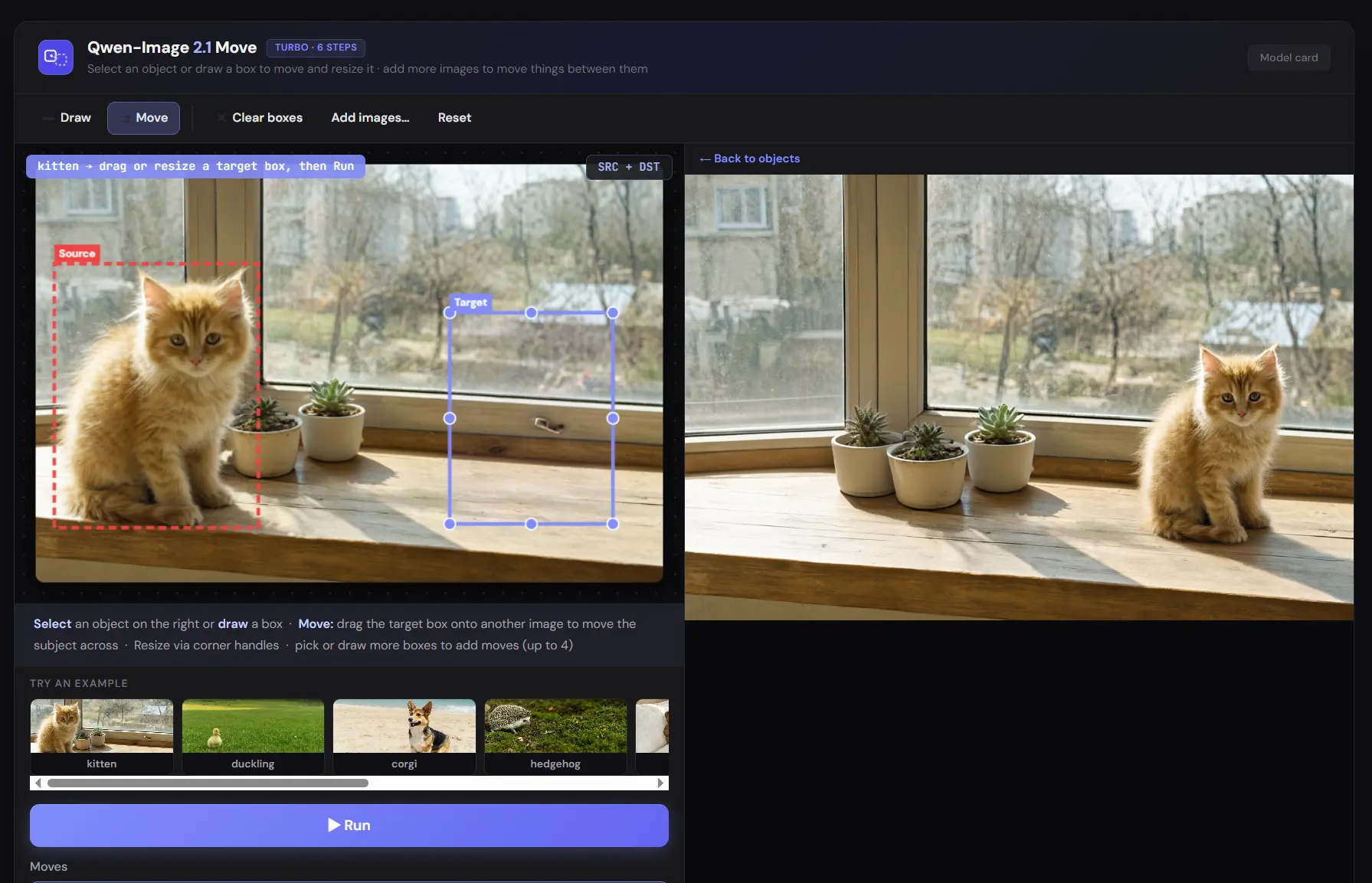
Select an automatically detected object or draw a box around it, drag the destination box to a new location, and change its size before generating the edit.
The destination can stay inside the current image or land on another uploaded image.
You can load up to four images and prepare up to four moves on one canvas.
Position and scale come from the boxes you place on the canvas.
Key Features
- Auto-detects prominent objects after upload and presents them for selection.
- Draw your own source box when you need a different selection.
- Drag and resize the destination box to control the requested position and scale.
- Move a subject inside the current image or place it into another uploaded image.
- Set a seed and choose four to eight inference steps, with six used by default.
How Qwen-Image Move Works
Each edit uses a source box and a destination box. The source box marks the object to relocate. The destination box defines its new position and approximate size.

For a move inside one image, the editor sends Qwen-Image 2.1 an annotated image and an edit instruction. Qwen reconstructs the area left by the object and renders the subject at the destination.
Cross-image editing uses two generation stages. One removes the selected subject from the source image. The second places the referenced subject inside the destination image, using the original source as a reference for its appearance.

Automatic detection uses the Qwen3-VL component already loaded in the Qwen-Image 2.1 pipeline. It identifies prominent subjects after upload. Manual boxes are available when you want a tighter selection or an object outside the detected set.
The app runs Qwen-Image 2.1 with a Viggle turbo LoRA for faster sampling. Six inference steps are used by default, and the editor accepts values from four through eight.
How to Use Qwen-Image 2.1 Move
1. Open Qwen-Image 2.1 Move and upload an image. Upload more images when you plan to transfer a subject between photos.
2. Select one of the detected objects or draw a source box around the subject you want to move.
3. Drag the destination box to the new location. You can place it inside the current image or onto another uploaded image.
4. Resize the destination box when the subject should appear larger or smaller.
5. Create more moves when needed. One run accepts up to four moves across up to four uploaded images.
6. Open the settings when you want to change the seed or inference-step count. The editor accepts four to eight steps and uses six by default.
7. Click Run. The generated result appears in the output area after Qwen finishes the requested edits.
Pros
- Position and scale are controlled directly with source and destination boxes.
- Choose between automatic detection and manual boxes.
- Move subjects between uploaded images from one canvas.
- Up to four object moves before one generation run.
Cons
- A maximum of four images.
- A maximum of four moves.
Related Resources
- Precise Editing: Pixel-level AI Image Editing Tool by FLUX 3 Image
- Qwen 3D Camera Control: Generate New Image Perspectives Free
- Transfer Poses from One Photo to Another – Qwen Edit Any Pose
- AI Magic Eraser: Free AI Object Remover for Photos
- 10 Best AI Image Editors to Edit Photos Fast