Kimi Code CLI is Moonshot AI’s open-source AI coding agent for working with software projects from the terminal. It can inspect a codebase, edit files, run shell commands, and carry out multi-step coding tasks from a project directory.
The coding agent also opens a local browser UI and works with ACP-compatible editors. MCP servers, Agent Skills, plugins, subagents, Plan mode, and configurable model providers extend how the agent works inside a project.
You can use it for codebase exploration, implementation, debugging, refactoring, and longer coding tasks that need project context, external tools, or reusable instructions.
Features
- Reads and edits project files and runs shell commands with approval controls.
- Runs in the terminal and opens a local browser UI with
kimi web. - Connects to ACP-compatible editors through
kimi acp. - Configures MCP servers and MCP OAuth from the terminal UI.
- Loads Agent Skills from user, project, extra, and built-in directories.
- Loads plugins that package Skills, agents, MCP servers, hooks, and slash commands.
- Delegates focused work to built-in or custom subagents.
- Includes Plan mode for exploration and Goal mode for persistent objectives.
- Connects to Kimi, Anthropic, OpenAI, Gemini, and Vertex AI provider types.
- Accepts image and video input when the selected model exposes those capabilities.
How to Use It
Installation
macOS and Linux
curl -fsSL https://code.kimi.com/kimi-code/install.sh | bashWindows
Install Git for Windows before the first Kimi Code CLI launch. Kimi Code CLI uses the bundled Git Bash as its shell environment.
irm https://code.kimi.com/kimi-code/install.ps1 | iexnpm
npm installation requires Node.js 22.19.0 or later.
npm install -g @moonshot-ai/kimi-codeStart and authenticate
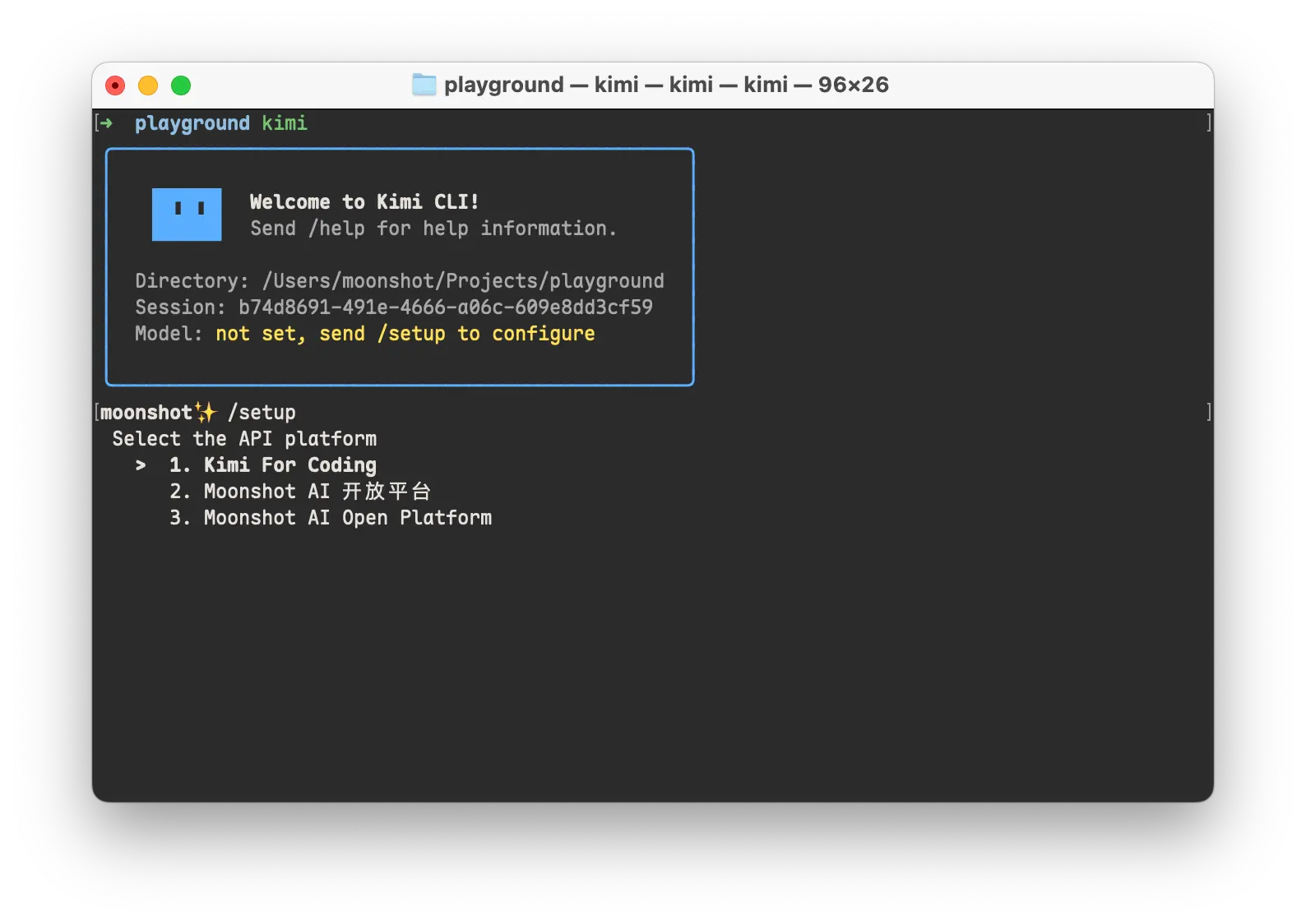
Verify the executable, open your project directory, and launch the TUI. Inside Kimi Code CLI, /login offers Kimi Code OAuth and Kimi Platform API key authentication. Use /init when the project needs an AGENTS.md instruction file.
kimi --version
cd your-project
kimi
/login
/initShell mode and browser UI
Type ! in an empty TUI input box to enter shell mode. Shell command output is added to the conversation context. Review permission prompts before approving file edits, shell commands, or network-facing actions. Run kimi web from a regular shell to open the browser UI.
kimi webUpdate or uninstall
Use kimi upgrade to check for an available update. npm installations can be removed with the npm uninstall command.
kimi upgrade
npm uninstall -g @moonshot-ai/kimi-code
Migrate from the legacy Kimi CLI
Kimi Code CLI checks ~/.kimi/ on first launch and can offer a migration. Run kimi migrate at any time to start it manually. OAuth login credentials, MCP authorizations, and legacy Kimi CLI plugins are excluded, and the existing ~/.kimi/ data stays intact.
The migration can import:
config.tomlconfiguration.- MCP server configuration.
- Input history.
- Selected chat sessions.
Kimi CLI vs. Kimi Code CLI
| Kimi Code CLI | Legacy Kimi CLI | |
|---|---|---|
| Status | Current project | Legacy project with maintenance winding down |
| Implementation | TypeScript and Node.js | Python and uv |
| Local data | ~/.kimi-code/ | ~/.kimi/ |
| Migration | Imports selected legacy data with kimi migrate | Provides data from ~/.kimi/ |
Kimi Code CLI commands
| Command or option | What it does |
|---|---|
kimi | Starts a new interactive terminal session. |
kimi --version | Shows the installed version. |
kimi --help | Shows command help. |
kimi -p "TEXT" | Runs one prompt without opening the TUI. |
kimi -p "TEXT" --output-format stream-json | Returns non-interactive output as JSON lines. |
kimi --model NAME | Overrides the model for the current run. |
kimi --add-dir PATH | Adds another directory to the workspace scope. |
kimi --continue | Continues the latest session in the current working directory. |
kimi --session [ID] | Opens the session picker or resumes a specified session. |
kimi --yolo | Starts in Ask When Needed mode for routine tool approvals. |
kimi --auto | Starts in Never Ask mode for autonomous execution. |
kimi --plan | Starts in Plan mode for read-only exploration and planning. |
kimi --skills-dir PATH | Loads Skills from the specified directory for that run in place of auto-discovered Skill directories. |
kimi login | Starts non-interactive Kimi Code OAuth login. |
kimi acp | Starts ACP IDE mode. |
kimi web | Starts the local web UI server in the foreground. |
kimi doctor | Validates configuration files without starting the TUI. |
kimi export | Exports a session as a ZIP file. |
kimi migrate | Migrates local data from the legacy kimi-cli installation. |
kimi upgrade | Checks for updates and offers available upgrade options. |
kimi vis [sessionId] | Opens the session visualizer in a browser. |
kimi provider | Manages providers and model catalogs. |
Slash commands
| Slash command | What it does |
|---|---|
/help | Shows shortcuts and available commands. |
/login | Signs in with Kimi Code OAuth or a Kimi Platform API key. |
/logout | Clears credentials for the selected account. |
/provider | Opens the provider manager. |
/model | Switches the current session’s model. |
/settings | Opens the TUI settings panel. |
/permission | Selects a permission mode. |
/new | Starts a fresh session. |
/sessions | Browses and restores historical sessions. |
/tasks | Opens the background task list. |
/fork | Forks a new session while preserving history. |
/compact | Compacts the current context. |
/reload | Reloads the current session with updated configuration. |
/init | Analyzes the codebase and generates AGENTS.md. |
/add-dir | Adds another workspace directory to the current session. |
/web | Opens the current session in the web UI. |
/yolo | Opens Ask When Needed permission mode. |
/auto | Opens Never Ask permission mode. |
/plan | Toggles Plan mode. |
/goal | Starts or manages an autonomous goal. |
/usage | Shows token, context, and quota usage. |
/status | Shows the current session runtime state. |
/mcp | Lists MCP server connection status. |
/mcp-config | Configures MCP servers and handles MCP OAuth. |
/plugins | Opens the plugin manager. |
/skill:<name> | Loads an external Skill. Flow Skills also use this namespace. |
Provider management
Kimi Code CLI provider types include Kimi, Anthropic, OpenAI Chat Completions, OpenAI Responses, Google GenAI, and Vertex AI. Provider credentials are stored in ~/.kimi-code/config.toml.
kimi provider listkimi provider catalog listkimi provider catalog add anthropic --api-key YOUR_API_KEYMCP setup
Use /mcp-config to add or edit MCP servers and complete MCP OAuth authorization. Use /mcp to view configured servers and their connection status in the current session.
/mcp-config/mcpIDE and Zsh integration
ACP-compatible editors launch kimi acp as a child process and reuse the CLI’s existing authentication state.
Zed
Add Kimi Code CLI to Zed’s ~/.config/zed/settings.json. Use the full executable path when kimi is not available on the IDE process PATH.
{
  "agent_servers": {
    "Kimi Code CLI": {
      "type": "custom",
      "command": "kimi",
      "args": ["acp"],
      "env": {}
    }
  }
}
JetBrains IDEs
JetBrains ACP configuration requires the absolute path to the kimi executable.
{
  "agent_servers": {
    "Kimi Code CLI": {
      "command": "/Users/you/.local/bin/kimi",
      "args": ["acp"],
      "env": {}
    }
  }
}
Zsh
The zsh-kimi-cli plugin can switch from Zsh into Kimi Code CLI with Ctrl-X. Clone it into the Oh My Zsh custom plugins directory, add kimi-cli to ~/.zshrc, and reload the shell configuration.
git clone https://github.com/MoonshotAI/zsh-kimi-cli.git \
  ${ZSH_CUSTOM:-~/.oh-my-zsh/custom}/plugins/kimi-cli
plugins=(... kimi-cli)Agent Skills
Kimi Code CLI loads Agent Skills from SKILL.md files. Skills can live in user directories, project directories, extra configured directories, or built-in package directories.
User-level skill paths
$KIMI_CODE_HOME/skills/
~/.agents/skills/
Project-level skill paths
.kimi-code/skills/
.agents/skills/
Built-in Skills
| Built-in skill command | What it does |
|---|---|
/mcp-config | Configures MCP servers and handles MCP OAuth login. |
/custom-theme | Creates or edits a TUI color theme. |
/update-config | Inspects or edits runtime and TUI configuration. |
/check-kimi-code-docs | Answers Kimi Code product questions against the official documentation. |
/import-from-cc-codex | Imports Claude Code and Codex instructions, Skills, and MCP settings. |
/sub-skill | Reviews or reorganizes local Skills into sub-skill bundles. |
Plugins
Kimi Code CLI plugins use a kimi.plugin.json manifest and can package Agent Skills, custom agents, MCP server definitions, lifecycle hooks, system instructions, and slash commands.
Open /plugins to manage installed, official, curated, and custom plugins. Enabled plugin MCP servers and related configuration changes become active after /reload or in a new session.
/pluginsKimi Code CLI vs. Claude Code or Cursor
| Product | Primary workflow | Main distinction |
|---|---|---|
| Kimi Code CLI | Terminal, browser UI, and ACP editor sessions | MIT-licensed CLI with multi-provider configuration, MCP, Agent Skills, plugins, and subagents. |
| Claude Code | Terminal coding agent | Anthropic’s first-party coding agent for Claude workflows. |
| Cursor | AI coding editor | Editor-centered development environment with integrated coding-agent features. |
| Gemini CLI | Terminal coding agent | Google’s Gemini-focused command-line coding agent. |
| Qwen Code | Terminal coding agent | Command-line coding agent for the Qwen ecosystem. |
Pros
- MIT-licensed open-source CLI.
- Terminal, browser, and ACP editor access.
- MCP, Agent Skills, plugins, and subagents.
- Multiple provider types.
Cons
- Model access is required.
- Auto mode runs with no interactive approval prompts.
Alternatives & Related Resources
- Best CLI AI Coding Agents
- How to Use Kimi K3 in Codex & Claude Code
- Kimi Model Timeline
- AI LLM API Pricing
- AI Coding Plan Comparison
- Kimi Code Documentation
FAQs
Q: Is Kimi Code CLI free?
A: Kimi Code CLI is open-source under the MIT license. Model-backed sessions require Kimi Code access, a Moonshot AI Open Platform API key, or credentials for another configured provider.
Q: Does Kimi Code CLI require an API key?
A: Kimi Code OAuth uses device-code authentication with no API key entry. Kimi Platform access uses an API key, and other providers use credentials stored in ~/.kimi-code/config.toml.
Q: Does Kimi Code CLI work on Windows?
A: Yes. Install it from PowerShell and install Git for Windows before the first launch. Kimi Code CLI uses Git Bash as its shell environment on Windows.
Last updated: Sep 16, 2026