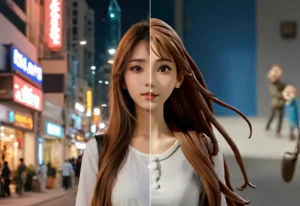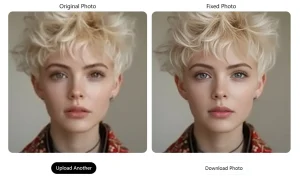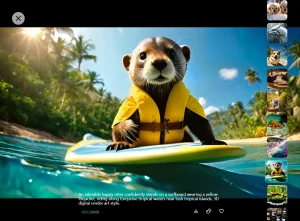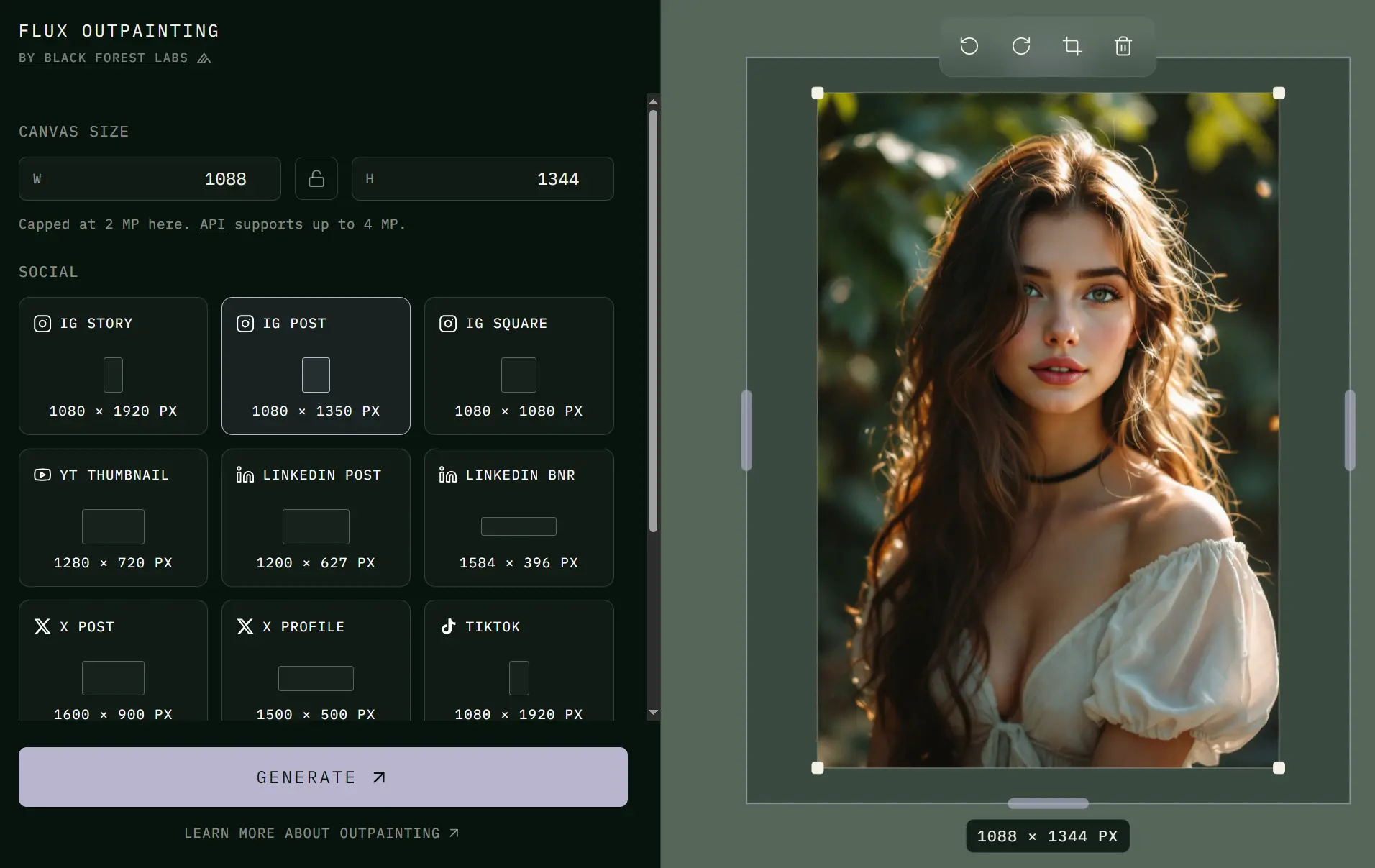
FLUX Outpainting is a free AI outpainting tool from Black Forest Labs that expands any image to a larger canvas in any direction. Upload a photo, set the target dimensions, and the model fills the surrounding area with content that matches the source image’s lighting, texture, and composition.
Outpainting matters when a good image has the wrong shape. Product photos, portraits, editorial images, and generated art often need extra space for Instagram Stories, YouTube thumbnails, LinkedIn banners, X posts, TikTok layouts, or website hero sections. Manual canvas extension takes retouching skill, and weak outpainting tools create visible seams, broken lighting, or texture drift near the original image edge.
FLUX Outpainting targets this at the model level. Black Forest Labs trained the model to extend existing scenes in a single generation pass, with fill color handling managed automatically server-side. The model determines what belongs beyond the image borders from the source content alone.
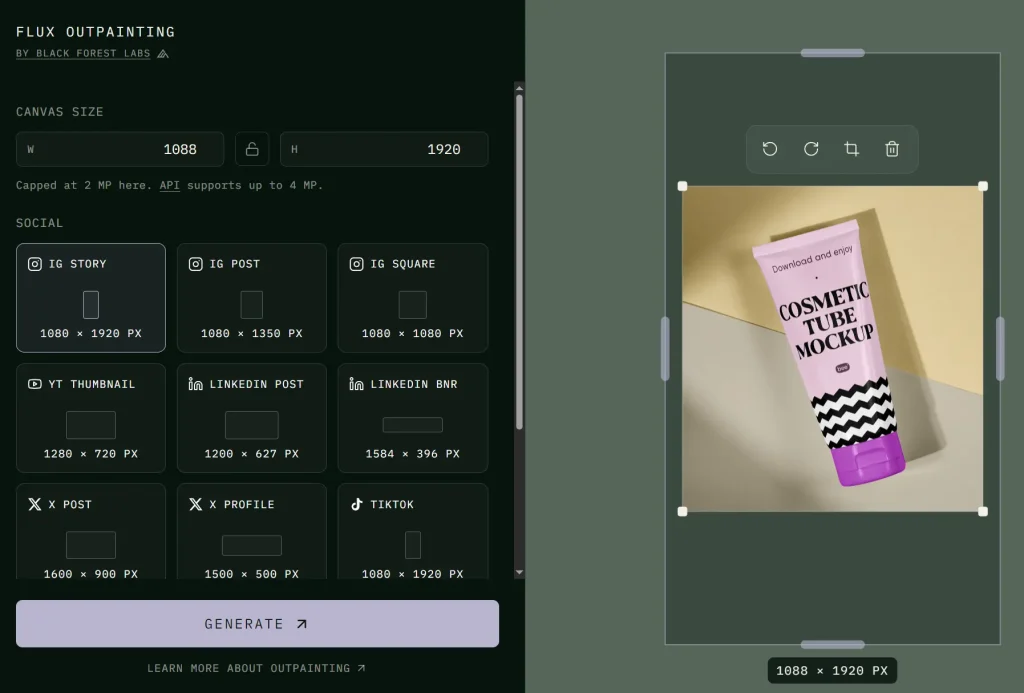
My Test: Cosmetic Product Photo
I tested FLUX Outpainting on a cosmetic tube product photo using the Instagram Story preset at 1080×1920 pixels.
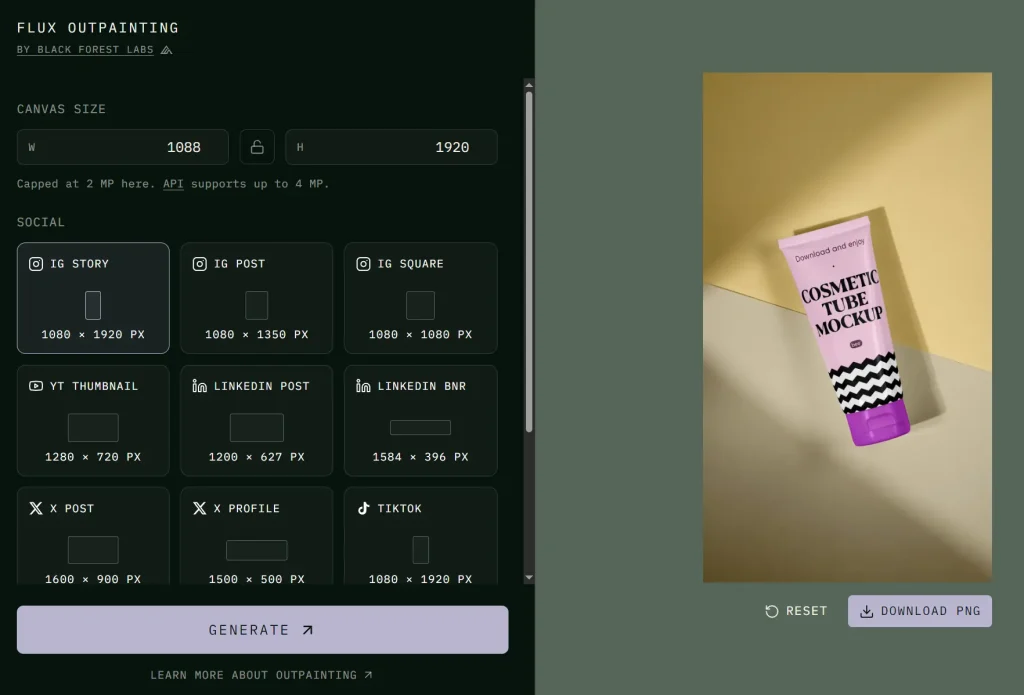
The tool returned the expanded image about 30 seconds after clicking Generate. The AI filled the vertical space above and below the product with background content that matched the original. The result was clean and production-ready.
Features
- Expands any image to a larger canvas in any direction.
- Generates new pixels around the original image and preserves scene structure, lighting, and texture.
- Web tool supports canvas output up to 2 megapixels. The API supports up to 4 megapixels.
- Preset canvas sizes: Instagram Story (1080×1920), IG Post (1080×1350), IG Square (1080×1080), YouTube Thumbnail (1280×720), LinkedIn Post (1200×627), LinkedIn Banner (1584×396), X Post (1600×900), X Profile (1500×500), and TikTok (1080×1920).
- Preset aspect ratios: 21:9, 16:9, 4:3, 1:1, 3:4, 9:16, and 9:21.
- Use the API endpoint to submit outpainting jobs from your own app or workflow.
Use Cases
- Resize product photos to Instagram Story, Post, or Square formats.
- Generate YouTube thumbnails from a tightly framed screenshot.
- Create LinkedIn banner art from a narrow portrait shot.
- Expand a cropped team photo to a wider composition for a website header.
- Prep social media assets in multiple aspect ratios without starting a new composition.
How to Use It (Web Tool)
1. Open the FLUX Outpainting web tool and upload an image through drag and drop, file picker, or clipboard paste.
2. Set the target canvas width and height.
3. Or select a preset size & aspect ratio if you need a common social layout.
| Preset Canvas Size | Size |
|---|---|
| IG Story | 1080 × 1920 px |
| IG Post | 1080 × 1350 px |
| IG Square | 1080 × 1080 px |
| YT Thumbnail | 1280 × 720 px |
| LinkedIn Post | 1200 × 627 px |
| LinkedIn Bnr | 1584 × 396 px |
| X Post | 1600 × 900 px |
| X Profile | 1500 × 500 px |
| TikTok | 1080 × 1920 px |
| Preset Aspect Ratio | Best Fit |
|---|---|
| 21:9 | Wide banners and cinematic crops. |
| 16:9 | YouTube thumbnails and website media. |
| 4:3 | Standard image layouts. |
| 1:1 | Square social posts. |
| 3:4 | Vertical portraits and product |
4. Click Generate.
5. Download the expanded image as a PNG file.
How to Use It (API)
API Endpoints
| Endpoint | Method | Purpose |
|---|---|---|
/v1/flux-tools/outpainting-v1 | POST | Submits an outpainting task. |
/v1/get_result?id=<TASK_ID> | GET | Polls the task result. |
Set the API key as an environment variable.
export BFL_API_KEY="your_api_key_here"Submit an outpainting task with a base64 image or an HTTPS image URL.
curl --request POST \
  --url https://api.bfl.ai/v1/flux-tools/outpainting-v1 \
  --header "Content-Type: application/json" \
  --header "x-key: $BFL_API_KEY" \
  --data '{
    "input_image": "BASE64_IMAGE_OR_HTTPS_URL",
    "width": 1080,
    "height": 1920,
    "output_format": "png",
    "reference_offset_x": null,
    "reference_offset_y": null,
    "auto_crop": false,
    "safety_tolerance": 2
  }'
Poll the returned task ID until the status changes to Ready.
curl --request GET \
  --url "https://api.bfl.ai/v1/get_result?id=TASK_ID" \
  --header "x-key: $BFL_API_KEY"
API Parameters
| Parameter | Type | Required | Detail |
|---|---|---|---|
input_image | string | Yes | Base64 image data or HTTPS image URL. |
width | integer | Yes | Target output width, minimum 64 px. |
height | integer | Yes | Target output height, minimum 64 px. |
auto_crop | boolean | No | Crops the input image to canvas bounds when true. |
safety_tolerance | integer | No | Moderation tolerance from 0 to 5. |
output_format | string | No | Supports png, jpeg, and webp. |
prompt | string | No | Adds experimental text guidance for the expanded region. |
reference_offset_x | integer | No | Sets the left offset of the input image on the canvas. |
reference_offset_y | integer | No | Sets the top offset of the input image on the canvas. |
API Response Fields
| Field | Meaning |
|---|---|
id | Task ID for polling. |
polling_url | URL used to check task status. |
cost | Credit cost for the request. |
input_mp | Input image megapixels. |
output_mp | Output image megapixels. |
status | Task state such as Pending, Ready, Error, Request Moderated, Content Moderated, or Task not found. |
result.sample | Final image URL after the task reaches Ready. |
Signed delivery URLs remain valid for 10 minutes, so retrieve the final file after the Ready response.
Alternatives and Related Resources
- FLUX Outpainting API Documentation: Use the API details for app, automation, or production workflows.
- Free AI Image Generation & Editing Tools: Browse more image editing, generation, and enhancement tools.
- Free AI Image To Image Generators: Compare tools that transform existing images into new outputs.
- Expand Images Free with AI – FLUX Fill Outpaint: Compare an earlier FLUX based outpainting workflow.
- Free AI Image Upscaler Tools: Use upscalers after outpainting when final resolution matters.
- Free AI Image Background Remover Tools: Use background removal tools when the task needs cutouts, not canvas expansion.
More Free AI Tools from Black Forest Labs
- FLUX VTO: Free AI Virtual Try-On With Developer API
- FLUX Erase: Free AI Object & Text Removal Tool from BFL
- Precise Editing: Pixel-level AI Image Editing Tool by FLUX 3 Image
- FLUX 3 Image Klein: Free Online AI Image Generator & Editor
Pros
- Free browser tool.
- Direct canvas sizing.
- Social media presets.
- API access.
Cons
- Browser output capped at 2 MP.
- API needs a key.
- Large canvases can reduce quality.
FAQs
Q: Is FLUX Outpainting free?
A: FLUX Outpainting has a free browser tool for image expansion. The API uses BFL account access, API keys, and credits.
Q: Does the API need a prompt?
A: The outpainting endpoint can work without a prompt because the input image drives the new content. The optional prompt field adds experimental text guidance, but the image remains the primary signal.
Q: What formats does FLUX Outpainting export?
A: The browser workflow downloads PNG results. The API output_format parameter supports png, jpeg, and webp.
Q: Can I control where the original image appears on the expanded canvas?
A: Yes, through the API. Set reference_offset_x and reference_offset_y to position the top-left corner of the reference image anywhere on the canvas. Negative values are allowed. Leave both as None and the image centers on the canvas automatically. The web tool centers the image by default with no manual offset option.