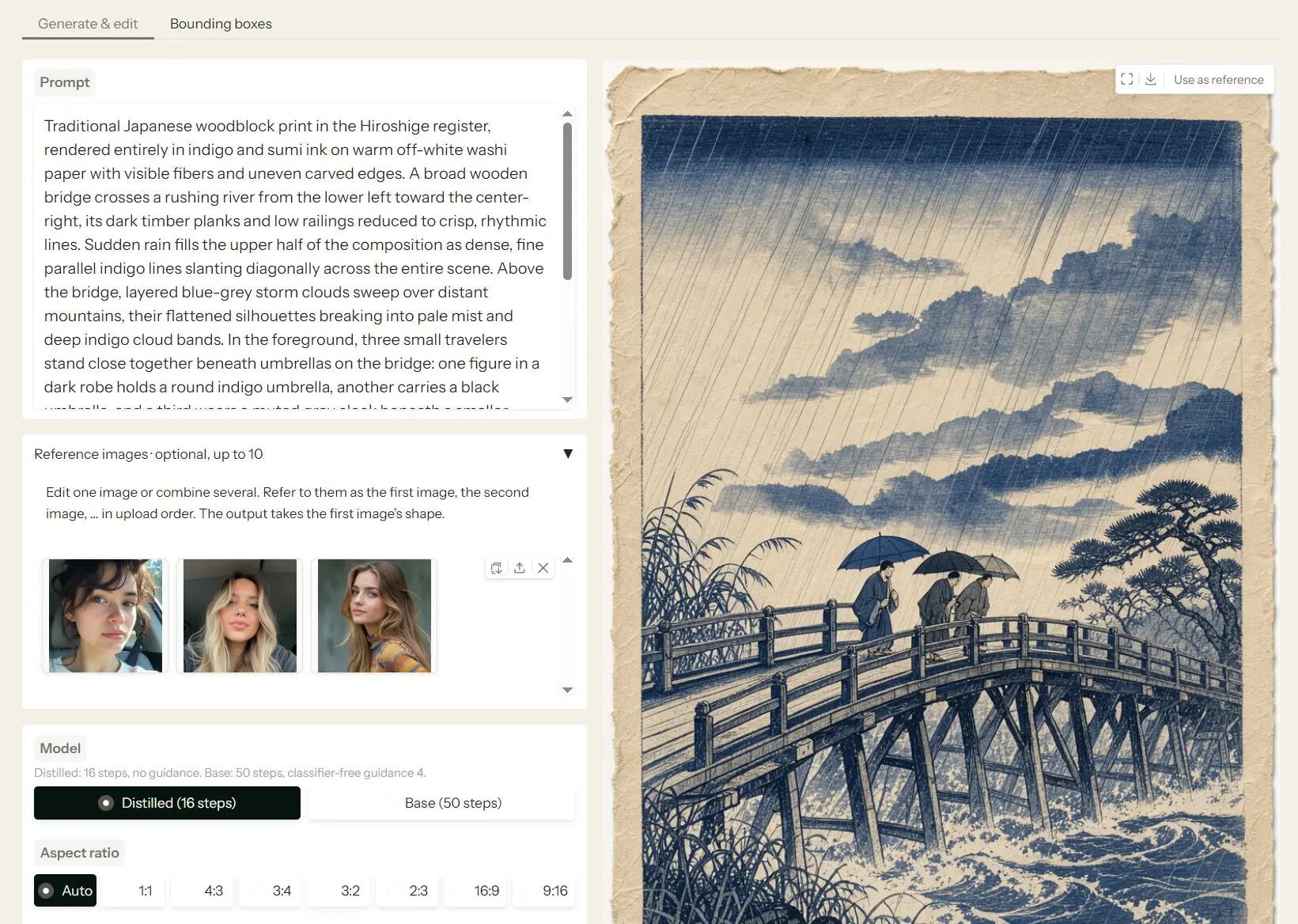
This is Black Forest Labs’ official image generator playground for generating and editing images using the FLUX 3 Image Klein model. Write a prompt to create an image, upload a photo to change it, or use as many as ten reference images to make a new composition.
The playground also lets you draw bounding boxes to guide object placement and changes to selected areas. Image creation and reference-based editing use Black Forest Labs’ latest 5.6B open-weight model, with Distilled and Base options in the playground.
Key Features
- Generate original images from text prompts.
- Edit uploaded photos using natural-language instructions.
- Build new compositions using up to ten reference images.
- Draw multiple bounding boxes for object placement or regional edits.
- Generate text within images for posters, signs, and graphics.
- Switch between Distilled and Base generation modes.
- Select seven aspect ratios and resolutions up to 4K with Distilled.
- Adjust seeds, image dimensions, steps, and Base guidance settings.
Generate and Edit Images with Text and References
Describe the subject, setting, lighting, and style of the image you want. For example, a ceramic coffee cup on a blue tabletop in soft morning light.

To change an existing photo, upload it and write the edit instruction. You could replace the background of a product photo or change the color of a jacket.
For a composition that draws on several photos, upload the references in the order you want to identify them.
The first reference determines the generated image’s size, and the model interprets the remaining references as guidance for the requested scene.
Direct Layouts and Regional Edits with Bounding Boxes
Bounding Box mode lets you mark one or more rectangular areas and write an instruction for each. For an uploaded fashion photo, you could draw a box around the jacket to change its color and another around a sign to replace its lettering.

The boxes also guide placement in an original composition. For a poster, draw a large rectangle for the main subject and another for a headline, then describe what should appear in each region.
How to Use FLUX 3 Image Klein Online
1. Open the official FLUX 3 Image Klein playground on Hugging Face. It runs in your browser on Hugging Face ZeroGPU.
2. Enter a description of the image you want or an instruction for editing an existing picture.
3. Optionally upload up to ten reference images. Identify them in your prompt as the first image, second image, and so on.
4. Select Distilled or Base model. For a new image, choose an aspect ratio: 1:1, 4:3, 3:4, 3:2, 2:3, 16:9, or 9:16.
5. Choose a resolution. Distilled has 1K, 2K, and 4K settings in this Space. Base is configured for 1K. Advanced settings include seed, width, height, steps, and Base guidance scale.
6. To control a layout or an edit, open Bounding Box tab, draw the areas, and describe the intended changes or objects.
7. Click Generate. The completed image appears in the playground for inspection and saving.
Distilled vs. Base Model
Distilled is designed for faster image generation and editing. Base is the undistilled checkpoint intended for fine-tuning, LoRA training, and research.
| Model | Official playground settings |
|---|---|
| Distilled | 16 steps, no classifier-free guidance, 1K, 2K, or 4K. |
| Base | 50 steps with classifier-free guidance, 1K. |
Free Access and Usage Limits
The official Hugging Face Space is free to use through shared ZeroGPU capacity. Hugging Face allocates 2 minutes of GPU time to visitors who are not signed in, 5 minutes to free account holders, and 40 minutes to PRO subscribers per daily quota period. The allowance resets 24 hours after the first GPU use. Queues and GPU demand affect how quickly a request runs.
Download the Model for Local Use
Black Forest Labs releases Distilled model weights and Base model weights on Hugging Face.
The official reference inference repository provides Python and command-line examples, and the models also work with ComfyUI and Diffusers.
Local generation requires the corresponding model components, a prompt upsampler, and suitable GPU resources.
Pros
- Free access to text-to-image generation and editing.
- Up to ten references in one image request.
- Bounding-box instructions for multiple regions and layout elements.
- 4K output in the Distilled playground mode.
- Downloadable checkpoints for local inference and customization.
Cons
- Shared GPU queues and short free daily allowances.
- The official Space limits Base generation to 1K.
- Bounding-box edits can change pixels outside the selected area.
FAQs
Can I use FLUX 3 Image Klein images commercially?
The FLUX Kommunity License allows Qualifying Users whose gross annualized revenue, together with affiliates, is under $5 million to use generated outputs commercially, including production generation for that purpose, subject to its conditions. The license requires appropriate content filtering or output review before distribution and any AI disclosures required by law.
Can I run FLUX 3 Image Klein on an 8 GB GPU?
Black Forest Labs provides INT8 model files for ComfyUI that run on 8 GB GPUs, including the RTX 3070. The BF16 and FP8 configurations have higher memory requirements. GPU needs also depend on the runtime, image size, model components, and prompt upsampler.
Does 5.6B include the text encoder?
No. The 5.6B parameter count describes the image transformer. FLUX 3 Image Klein uses a separate Qwen3-VL-4B-Instruct text encoder, an image autoencoder, and a prompt upsampler in the reference implementation.
Alternatives & Related Resources
- 10 Best AI Image Generators in: Free and Paid
- Free, Unlimited AI Image Generator – PixPark AI
- FLUX Timeline: Black Forest Labs Model Releases & History
More Free AI Tools from Black Forest Labs
- Free AI Outpainting Tool for Social & Product Images – FLUX Outpainting
- Free AI Virtual Try-On With Developer API – FLUX VTO
- Free AI Object & Text Removal Tool from BFL – FLUX Erase
- Free Pixel-level AI Image Editing Tool by FLUX 3 Image – Precise Editing