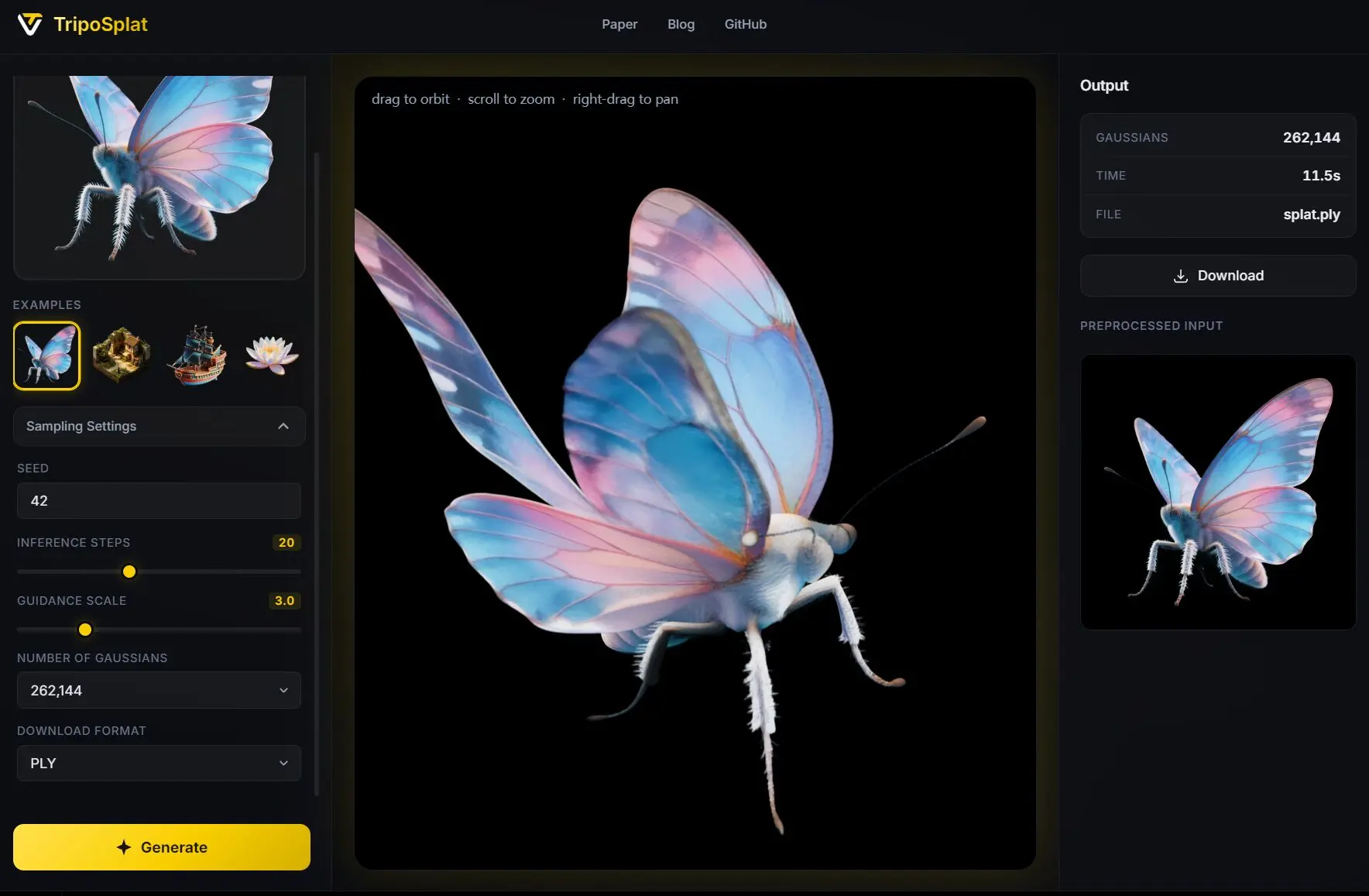
TripoSplat is an open-source model that converts a single 2D image into high-quality 3D Gaussians you can rotate, zoom, and export directly for game engines, AR/VR, or real-time viewers.
The model runs on a HuggingFace demo with no signup, and the full inference code and weights are MIT-licensed for local deployment and commercial use.
When you need a 3D asset from a photo, concept art, or stylized illustration, the typical AI pipeline generates a polygon mesh that still requires cleanup and format conversion for Gaussian splat renderers.
TripoSplat generates native 3D Gaussian splats, a format already supported in Unreal Engine, Unity, Blender add-ons, and web-based editors like SuperSplat and SparkJS, without a separate meshing step.
You can set the number of Gaussians at generation time, from a few thousand for lightweight background props up to 262,144 for hero assets with fine surface detail.
Features
- Converts one 2D image into 3D Gaussians.
- Accepts PNG, JPG, and WEBP images up to 20 MB.
- Exports generated results as SPLAT or PLY files.
- Includes Seed, Inference Steps, Guidance Scale, Number of Gaussians, and Download Format controls.
- Generates a variable number of Gaussians up to 262,144.
- Includes preview controls for orbit, zoom, and pan.
- Releases code and model weights under the MIT License.
- Runs through GitHub inference code, Hugging Face weights, and a ComfyUI workflow template.
Use Cases
- Generate Gaussian splat assets from product renders, concept art, stylized objects, or isolated reference images.
- Create several Gaussian-count versions of the same asset for quality and rendering-budget comparison.
- Build AR, VR, game, or simulation prototypes that can render Gaussian splatting assets.
- Test single-image 3D Gaussian generation before moving into a heavier reconstruction pipeline.
- Add TripoSplat to a ComfyUI image-to-3D workflow.
How to Use It
1. Open the TripoSplat Hugging Face Space.
2. Upload one 2D image. Use PNG, JPG, or WEBP format and keep the file under 20 MB.
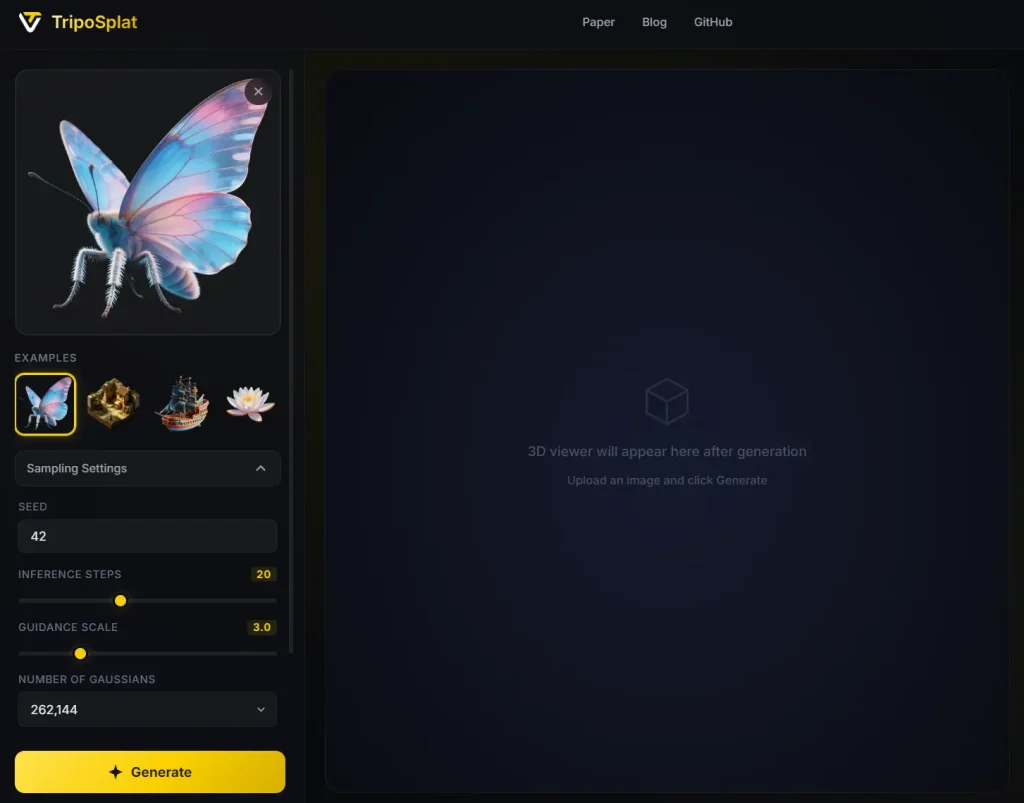
3. Set a Seed value when you want repeatable generation behavior from the same input and settings.
4. Adjust Inference Steps. Higher values can increase processing time, especially when the hosted Space has a queue.
5. Adjust Guidance Scale. This setting changes how strongly the generation follows the source image.
6. Set the Number of Gaussians. Lower counts reduce rendering cost and file size. Higher counts can preserve more surface detail.
7. Select the download format. Pick SPLAT for Gaussian splatting workflows or PLY when your viewer or pipeline accepts PLY files.
8. Click Generate.
9. Inspect the preview. Drag to orbit, scroll to zoom, and right-drag to pan.
10. Download the generated file.
Local Setup
Download the model weights into the ckpts/ folder.
Use Hugging Face CLI:
hf download VAST-AI/TripoSplat --local-dir ckpts/Use huggingface_hub:
pip install huggingface_hub
python -c "from huggingface_hub import snapshot_download; snapshot_download(repo_id='VAST-AI/TripoSplat', local_dir='ckpts/')"
Use ModelScope CLI:
pip install modelscope
modelscope download VAST-AI-Research/TripoSplat --local_dir ckpts/
Use the ModelScope Python SDK:
pip install modelscope
python -c "from modelscope import snapshot_download; snapshot_download('VAST-AI-Research/TripoSplat', local_dir='ckpts/')"
Install PyTorch and TorchVision for your own environment. Then install the listed Python packages and run the example script.
pip install numpy safetensors pillow tqdm
python run_example.py
Install Gradio and run the local demo script.
pip install gradio
python run_gradio.py
ComfyUI Quickstart
Download the official ComfyUI workflow template.
Drag the JSON file into your ComfyUI canvas, connect an image input node, and run the workflow.
TripoSplat appears as a custom node that feeds Gaussian splat output directly into the ComfyUI preview or save pipeline.
Alternatives and Related Tools
- TRELLIS 3D Assets: Compare image-to-3D and text-to-3D generation with mesh and Gaussian output paths.
- CADAM AI: Generate parametric CAD models from text and images with STL and SCAD export.
- Vibe Draw: Turn sketches into 3D models through an open-source creative workflow.
- Qwen 3D Camera Control: Generate new camera perspectives from a single image.
Pros
- Single-image input.
- SPLAT and PLY exports.
- MIT-licensed release.
- Adjustable Gaussian count.
- ComfyUI template available.
- Local inference path.
Cons
- Hosted Space may queue.
- Output is not mesh-first.
- Input quality affects output.
FAQs
Q: Is TripoSplat free to use commercially?
A: Yes. The code and model weights are released under the MIT license, which permits commercial use, modification, and redistribution.
Q: Do I need to create an account to use the web demo?
A: No. The HuggingFace Space demo requires no signup or API key. You can upload an image and download the result immediately.
Q: What hardware do I need to run TripoSplat locally?
A: A GPU with enough VRAM to hold the model. The exact requirement depends on the Gaussian count and image resolution, but most modern consumer GPUs with 8 GB or more VRAM should work.
Q: Does TripoSplat output textured polygon meshes?
A: No. It outputs 3D Gaussians in PLY or SPLAT format. You can view and edit them directly in splat-aware tools.
Q: How does TripoSplat compare to other open-source image-to-3D tools?
A: In a user study with 399 pairwise human preference choices, TripoSplat scored an Elo rating of 1137, outperforming TRELLIS.2 (992), Hunyuan3D 2.1 (996), and UniLat3D (900). The adaptive density control also lets it achieve higher quality with fewer Gaussians than structure-aligned methods.
Q: Does the model send my uploaded image anywhere when I run it locally?
A: No. All processing stays on your machine. The local script runs offline after the initial model weight download.