Takes for Mac is a free, open-source video recording and AI editing app for Mac.
Record talking-head videos with a teleprompter that follows your speech, capture your camera and screen together, and ask Claude Code, Codex, or pi to turn the footage into an edited video and social media drafts.
Each video has a session for its script, recorded takes, edits, and posts. Choose your preferred take, ask the agent for a cut or a vertical version, and review the result in Takes.
Comments attached to individual frames help direct revisions, and saved rules carry your editing preferences into future videos.
Visit Takes for Mac · GitHub Repository
Key Features
- Turn an idea into a script and a storyboard with individual shots.
- Read from a teleprompter that follows your speech as you record.
- Capture camera and screen footage in synchronized recordings.
- Ask Claude Code, Codex, or pi to cut takes and prepare vertical videos.
- Apply caption and title styles to edited footage.
- Leave feedback on exact frames and keep earlier edit versions.
- Save recurring editing instructions as rules for future sessions.
- Draft, preview, and schedule posts for LinkedIn, X, YouTube, and Shorts.
- Connect other MCP agents and access sessions from an iPhone companion app.
From an Idea to a Recorded Take
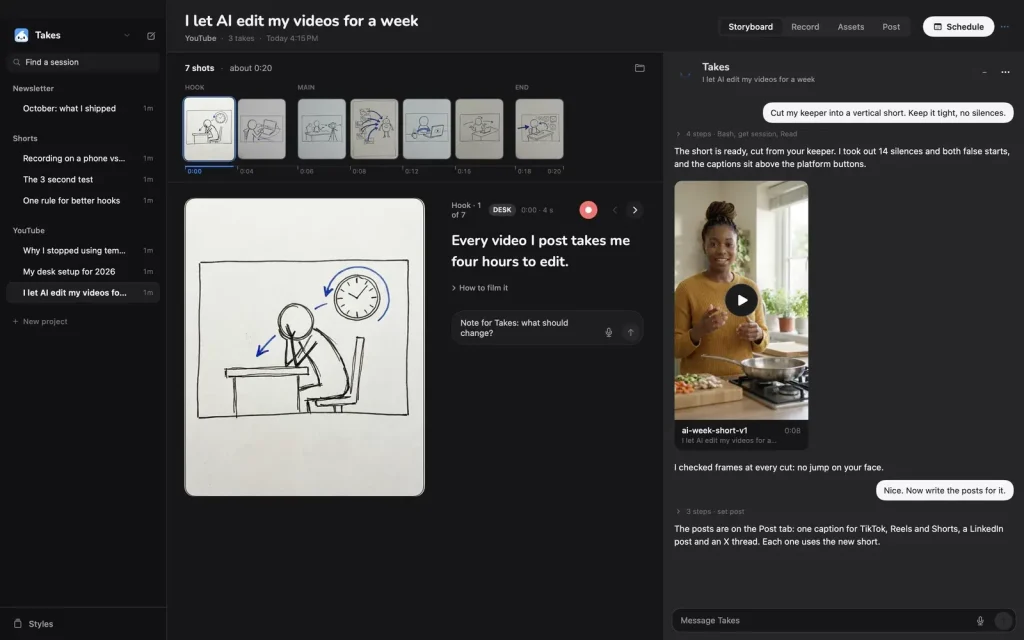
Ask the agent to “storyboard my next video.” It drafts a script and sketches the shots. The storyboard pairs spoken lines with a drawing for each shot, giving you a filming plan for a talking-head explanation, a product walkthrough, or a short tutorial.
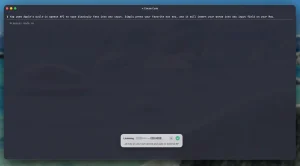
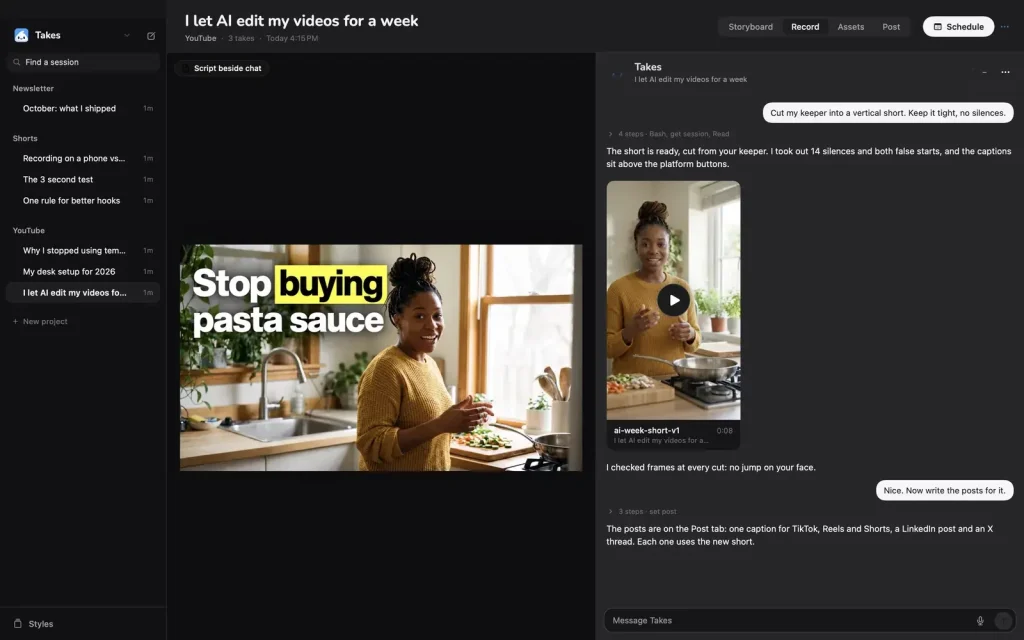
In the recording view, the teleprompter follows your voice while you read. You can record the camera and a selected screen or window as two synchronized files, capturing both an on-camera explanation and the demonstration on your Mac. Takes saves each attempt as a take.
Edit Videos by Talking to Your Agent
Ask “cut my last take” in the chat. The agent works with the selected recording and session files, using Takes’ video tools and FFmpeg to cut the footage. It can remove silences, filler words, and restarts, adjust the pacing, and prepare a 9:16 version for Shorts or other vertical-video posts. The resulting video appears in Takes for review.
Takes uses a video preview and agent instructions in place of a conventional editing timeline. You can apply caption and title styles, request revisions in ordinary language, and revisit earlier edit versions.
Give Feedback on a Frame and Reuse Your Preferences
Pause the preview at a frame that needs work and leave a comment, such as a request to loosen a crop or move a title. You can also comment on a script line. The agent reads that feedback when making another version, and the earlier cut stays available for comparison.
You can turn recurring feedback into editing rules. For example, a preferred caption position or a rule for cutting long pauses can guide later sessions. The agent reads the saved rules before future edits, and you can change them as your video style develops.
Prepare Posts for Different Social Platforms
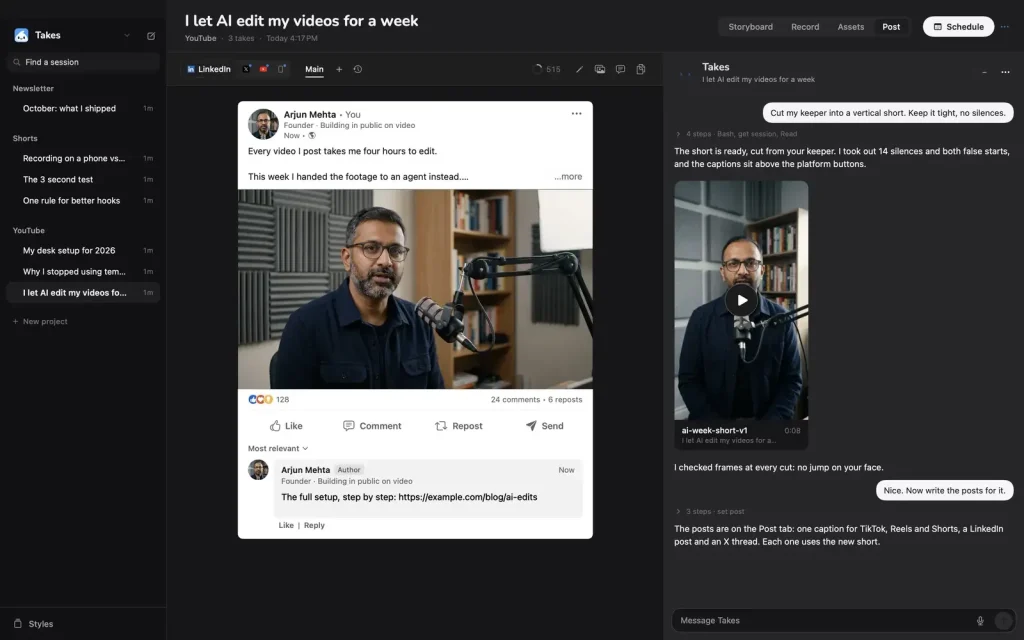
After reviewing the video, ask the agent to “write the posts.” Takes drafts copy for LinkedIn, X, YouTube, and Shorts and displays each draft in a preview modeled on that network’s post layout. You can check the opening text and presentation of the accompanying video, comment on a line, and ask for another draft.
The posting area keeps your drafts, previews, and schedule with the video session. Set dates for each post and return to the preview whenever you need to revise the copy.
How to Install and Make Your First Video
Takes runs on an Apple Silicon Mac with macOS 15 or later. The installer sets up Takes, FFmpeg, and Apple’s developer tools for the MCP connection. It recognizes an existing Claude Code, Codex, or pi installation and helps you sign in.
If you have none of those agents, it installs Claude Code.
Open Terminal and run the installation command:
curl -fsSL https://gettakes.app/install | bashAfter Takes opens, finish agent setup and open a new session. Ask for a storyboard, record a short video with the teleprompter, and star the take you want to use. Enter “cut my last take” to request an edited version. You can review the result and comment on individual frames. Running the installer again updates Takes.
For a manual installation, download Takes.dmg from GitHub Releases, drag Takes into Applications, and select Finish setup in the sidebar.
If macOS prevents it from opening, go to System Settings -> Privacy & Security and select Open Anyway for Takes.
Agents, MCP Connections, and Optional Skills
The in-app chat runs Claude Code, Codex, or pi. Choose an agent and model beneath the Takes chat header, using the account or model access already configured for that agent. It reads the session’s scripts and recordings and writes edits or post drafts back to the library.
Takes also exposes its session library through a Model Context Protocol (MCP) server. On first launch, the app connects that server to detected clients including Claude Code, Codex, Cursor, Gemini CLI, opencode, Claude Desktop, and pi with the pi MCP adapter. You can ask an external agent to prepare a storyboard, find takes, edit footage, or work on posts.
Takes installs three agent skills: takes-storyboard, takes-video-edit, and takes-image-prompt. It also downloads the HyperFrames skills for motion-graphics work. Use Plugins -> Skills to enable or disable skills or install another skill from GitHub.
For storyboard sketches, B-roll suggestions, and help selecting cuts, you can optionally configure a Gemini API key in Settings -> Gemini. Whisper is another optional LLM for transcripts.
Record and Review from an iPhone
The iPhone companion lets you view sessions, storyboards, recordings, and posts, and send requests through the agent chat. Record on your iPhone and the take appears in the session on your Mac.
The iPhone app requires a manual developer installation. You need iOS 18 or later, Xcode, an Apple ID, and a Tailscale connection to the Mac. Run the iPhone installer with your Apple development team ID:
TAKES_TEAM=<team-id> ios/install.shWith a free Apple ID, the iPhone build needs to be installed again every seven days. The Mac app handles recording, editing, and post drafts on its own, so the mobile companion is optional.
Local Files and Privacy
Takes saves your video library in ~/Movies/Takes. Recordings, scripts, edits, posts, and chat history are ordinary files on your Mac. The app checks for updates and sends usage counts only if you opt in.
Your media library stays on the Mac, but AI tasks use Claude Code, Codex, pi, or other services you connect. Provider data handling and API charges depend on the agent and model configuration you choose.
Use Cases
- Weekly founder or team updates. Deliver a short announcement on camera, select the best of several recordings, and prepare a finished clip with LinkedIn and X post drafts for the update.
- App demos and feature announcements. Record your face and a live screen walkthrough at once. The agent can tighten the demonstration and prepare a vertical clip for Shorts.
- Recurring tutorials or creator series. Build a shot plan, record an episode, and use saved rules for captions, pacing, and titles across later episodes.
Pros
- Recording, agent editing, review, and post drafts share one session.
- Voice-following teleprompter and synchronized screen capture suit on-camera explanations.
- Frame-specific comments and version history support iterative edits.
- Local folders keep source footage and scripts accessible.
- Free MIT-licensed app with several agent connection options.
Cons
- Requires an Apple Silicon Mac with macOS 15 or newer.
- Editing requires agent access.
- No conventional video timeline for detailed manual editing.
- iPhone setup requires Xcode, Tailscale, and Apple developer signing.
FAQs
Can Takes generate a complete video from a text prompt?
Takes focuses on videos you record with your camera, Mac screen, or iPhone. An agent can draft the script and storyboard, edit the footage, and create versions for social posts. Fully synthetic text-to-video generation requires a different tool.
What if I install a new AI agent after setting up Takes?
Open Settings -> Agents -> Connect to connect the new client. You can also run python3 /Applications/Takes.app/Contents/Resources/takes_mcp.py --setup to repeat MCP setup. Restart the agent session afterward.
Why does Cursor display fewer Takes tools than another MCP client?
Takes initially exposes a reduced selection of 30 tools to Cursor. To request the full tool set, set "env": {"TAKES_TOOLS": "all"} on the takes entry in ~/.cursor/mcp.json, and reopen the MCP session.
Why are Takes MCP tools unavailable in Gemini CLI?
Gemini CLI disables MCP connections in folders that have not been trusted. Trust the working folder when Gemini CLI prompts you, and open a new agent session to load the Takes tools.
Alternatives & Related Resources
- Mortiflix: Open-Source Local AI Video Generator with Claude
- OpenMontage: Open-Source AI Video Production System
- LTX-Desktop: Free Local AI Video Editor Powered by LTX-2.5
- 10 Best AI Video Editors for Quick Professional Videos