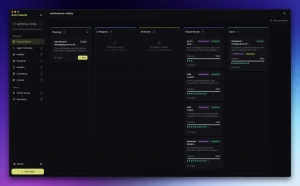
Terax is an open-source desktop development workspace built around a native terminal. It combines terminal sessions, a code editor, file explorer, Git controls, web preview, and a built-in coding agent into a single app, with cloud models via your own API keys and local models through LM Studio, MLX, or Ollama.
The AI workspace stays central to the development process. You can run a project from a real PTY, edit files beside it, inspect Git changes, open a local web app, and ask the built-in agent to work with your repository.
Key Features
- Native terminal:
portable-pty, xterm.js WebGL rendering, tabs, split panes, block-based command input, and common shells. - Built-in editor: CodeMirror 6, Vim mode, AI autocomplete, media viewing, and optional language server features.
- AI coding agent: Reads project files, searches code, edits files, runs commands, creates plans, and delegates tasks to sub-agents.
- Reviewable AI edits: Accept or reject proposed file changes hunk by hunk.
- Cloud and local AI: Connect provider API keys or run models through LM Studio, MLX, and Ollama.
- Git tools: Stage hunks, commit, push, inspect history, and navigate a commit graph.
- Web preview: Detect local development servers and open them in a preview tab.
- Project instructions: Store repository guidance in
TERAX.mdand create custom agents with restricted tool sets. - Windows WSL workspaces: Use the local Windows environment or an installed WSL distribution.
- Workspace customization: App themes, editor themes, background images, shortcuts, and persistent tab layouts.
How Terax Works
Terax organizes a project around tabs and panes. A tab can contain a terminal, editor, web preview, Markdown preview, AI diff, Git diff, or Git history. Terminal processes and editor state persist while you move between tabs, including working directories, selections, and open processes.
The terminal uses a Rust PTY backend with portable-pty, while xterm.js handles terminal rendering in the desktop app. Terax works with shells such as zsh, bash, fish, PowerShell, and cmd.exe.
Shell integration tracks the active working directory. Changing directories in a terminal can update the workspace breadcrumb and file explorer, and a newly opened terminal can start from the active project location.
The file explorer follows the active workspace and includes fuzzy file search, keyboard navigation, file operations, and project-wide content search. Files and selected code can be included in an AI request as context.
Built-In AI Coding Agent
The AI composer works with the current project. You can attach files, selected code, terminal output, images, or reusable prompt snippets before sending a task.
Typing @ searches workspace files for attachment. A #handle inserts a saved prompt snippet, while / opens available composer actions. Selected editor or terminal text can also become task context.
The agent can inspect files, search the repository, edit code, and run shell commands. File writes and shell actions use approval controls, while AI edits open as diffs that you can accept or reject hunk by hunk.
Plan Mode, Sub-Agents, and Project Instructions
Plan mode creates an ordered plan before multi-step work starts. You confirm the plan before execution, and operations that change files or run commands keep their approval controls.
Sub-agents let the main agent delegate a focused task with narrower instructions. Custom agents can use their own system prompt and selected tools.
Repository instructions live in TERAX.md. The file can store coding conventions, architecture notes, test commands, known issues, and other project context for the agent.
Cloud and Local AI Models
Terax uses your own credentials for cloud AI and can run against local inference servers. Cloud requests go directly from Terax to the provider you configure. Terax does not operate an AI proxy backend. Provider pricing, usage limits, and data policies apply to those requests.
Local inference works through LM Studio, MLX, and Ollama. The built-in chat agent and inline autocomplete can use different model configurations.
Current cloud options include:
- OpenAI
- Anthropic
- Google Gemini
- Groq
- xAI
- Cerebras
- OpenRouter
- DeepSeek
- Mistral
- OpenAI-compatible endpoints
Terminal, Editor, Git, and Web Preview
Terminal sessions are first-class workspace tabs with background execution, split panes, true-color output, link detection, inline search, and persistent working directories.
The CodeMirror editor handles common programming languages including JavaScript, TypeScript, Rust, Python, Go, C, C++, Java, HTML, CSS, JSON, and Markdown. It also includes Vim mode, AI autocomplete, media and document viewing, and optional language server features.
Git provides hunk staging, commits, pushes, repository history, commit search, and a graph of branches and merges. Selecting a commit opens its changed files and diffs.
Local development servers can open beside the terminal and editor. Terax detects localhost URLs from terminal output and can open the running app in a preview tab with the development server’s normal hot reload.
Claude Code Integration
Claude Code can run inside a Terax terminal while Terax provides the surrounding editor, file explorer, Git controls, and web preview.
Terax includes Claude Code hooks for agent notifications and a /claude-code command for agent orchestration. The integration can report states such as active work, requests for attention, completion, and exit.
How to Get Started
Download the installer for macOS, Windows, or Linux from the Terax website or GitHub Releases.
- Open Settings > Models.
- Select a cloud provider and enter its API key, or configure LM Studio, MLX, or Ollama.
- Open a project directory.
- Start a terminal and open project files from the explorer.
- Open the AI composer when you want the built-in agent to inspect or change the project.
- Start a local development server when you want Terax to detect and open its preview.
Build Terax from Source
Building Terax requires stable Rust, Node.js 20 or newer, pnpm, and the Tauri prerequisites for your operating system.
pnpm install
pnpm tauri dev
pnpm tauri build
Windows and Linux Notes
Windows can use the local Windows environment or an installed WSL distribution as the workspace environment. Terax detects WSL distributions and uses the selected distribution’s shell and filesystem.
Linux builds include AppImage, .deb, .rpm, AUR, and Nix options. The AppImage requires FUSE. Systems without FUSE can run the extracted AppImage directly:
./Terax_*.AppImage --appimage-extract-and-runPros
- Native terminal with integrated editor and Git
- Cloud API keys and local model options
- Hunk-level AI edit review
- Approval controls for agent writes and commands
- macOS, Linux, Windows, and WSL
- Free under Apache-2.0
Cons
- No dedicated debugger UI
- No advanced IDE refactoring tools
- Cloud model costs come from external providers
FAQs
Can I use Terax without its AI features?
Yes. Terax can function as a terminal, editor, file explorer, Git client, and web preview without using the AI panel.
Can chat and autocomplete use different models?
Yes. Terax can configure the main AI agent and inline code autocomplete with different model choices, including local models.
Is TERAX.md required for every project?
No. TERAX.md is project instruction and memory context for the agent. A repository can run in Terax without creating that file.
Alternatives & Related Resources
- 10 Best CLI AI Coding Agents in 2026: Open-Source & Commercial
- Aperant (Auto Claude): Open-Source AI Coding Agent Harness
- SmallCode: Fast, Free, Local AI Coding Agent for Small LLMs
- Claude Code Local: Run Claude Code With Local AI on Apple Silicon