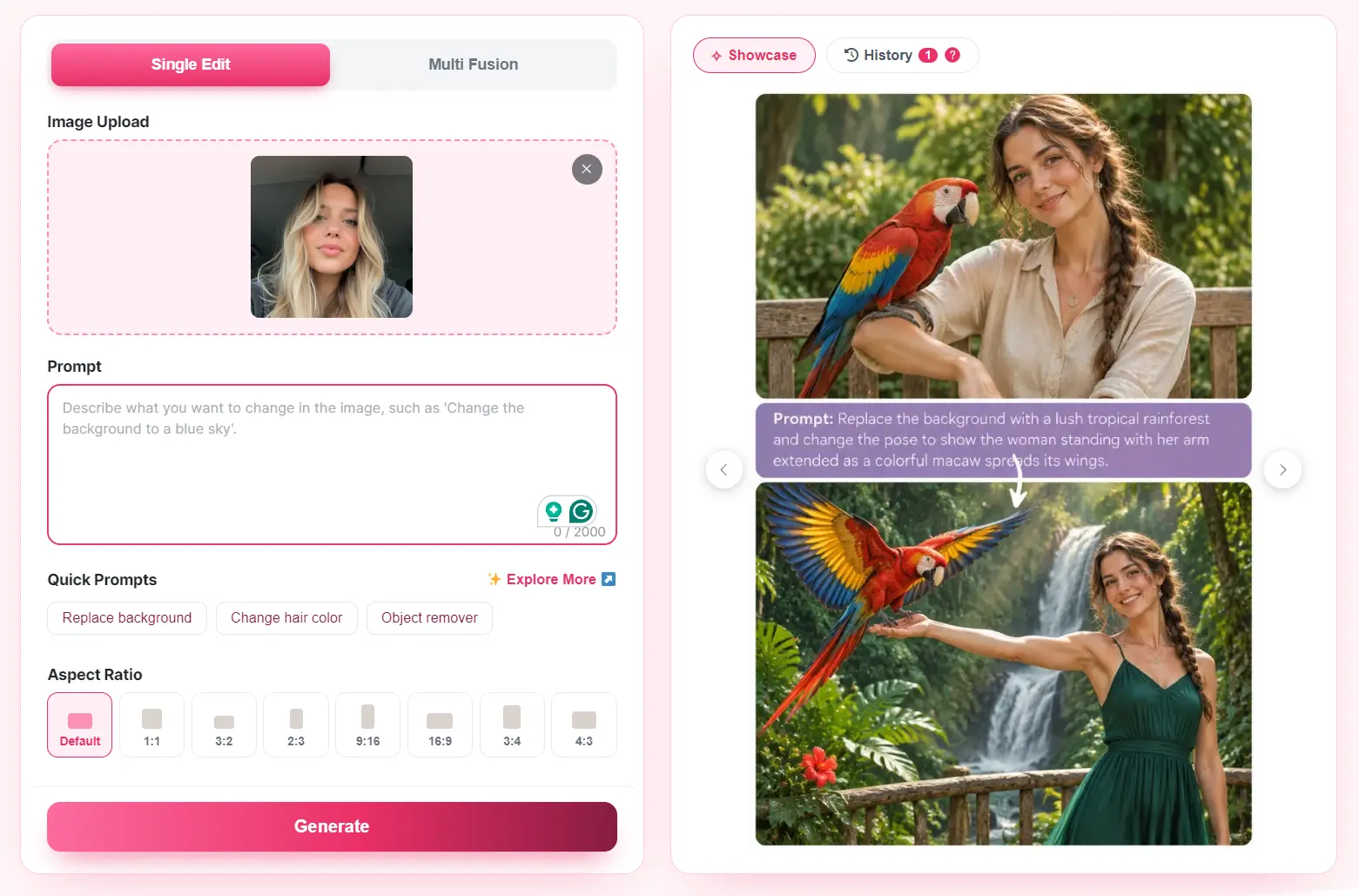
PixEditor AI is a free AI photo editor for changing existing pictures through plain language.
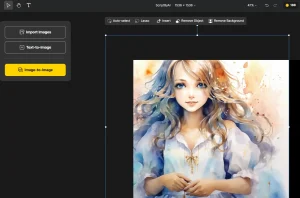
Upload a photo, describe what should change, and generate a new version.
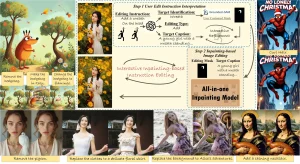
You can use it to remove an unwanted object, replace a background, repair an old photograph, or adjust the lighting and colors.
Key Features
- Edit an uploaded photograph using a written description of the desired changes.
- Remove unwanted people, objects, text, logos, or watermarks from images you have permission to modify.
- Remove or replace backgrounds with solid colors or a new setting.
- Adjust lighting, image colors, and the atmosphere of a scene.
- Repair visible damage in older photos and colorize black-and-white pictures.
- Change the appearance of portraits, including hairstyles, clothing colors, and visual styles.
- Use Single Edit for one photograph or Multi Fusion to combine up to three source images.
How PixEditor AI Works
PixEditor AI uses your uploaded image and a prompt to generate an edited picture. You can describe a change to the whole scene or identify a particular object by its position and appearance. For example: “Remove the bicycle on the left and reconstruct the sidewalk behind it. Keep the storefront and people unchanged.”
A prompt can also specify details to preserve. For product photos, mention the object’s color, label, shape, and camera angle. For portraits, identify the facial features or lighting you want to retain. After generation, you can refine the instruction and create another version.
How to Use PixEditor AI
1. Open PixEditor AI and select Single Edit for one photo or Multi Fusion for a combined-image composition.
- Single Edit takes one source photo and produces a new version based on your prompt. Use it to clean up a background, remove a distraction, retouch a portrait, or restore an older picture.
- Multi Fusion combines material from up to three uploaded images into one generated result. Describe how the elements should appear together, such as placing a photographed product into another photographed setting.
2. Upload your source image or images. Write a prompt that describes what to change and which details to preserve.
3. Select Default or an aspect ratio, then submit the prompt to generate the edit.
4. Open the result and inspect the edited areas, faces, and any important text or product markings. Refine the prompt if needed, then download the version you want to use.
Pros
- 100% free and no account needed.
- Your prompts can direct background changes, object removal, restoration, and color adjustments.
- Aspect-ratio presets support square, portrait, and landscape outputs.
Cons
- Generated edits can alter faces, lettering, or branded product details outside the intended area.
- Complex restorations and multi-image compositions may take several generations to refine.
Alternatives & Related Resources
- 10 Best AI Image Editors to Edit Photos Fast
- Precise Editing: Pixel-level AI Image Editing Tool by FLUX 3 Image
- AI Magic Eraser: Free AI Object Remover for Photos
- unbagrnd: Free Local AI Background Remover for Desktop & Android
- Free Local AI Photo Editor for Mac – AIvory