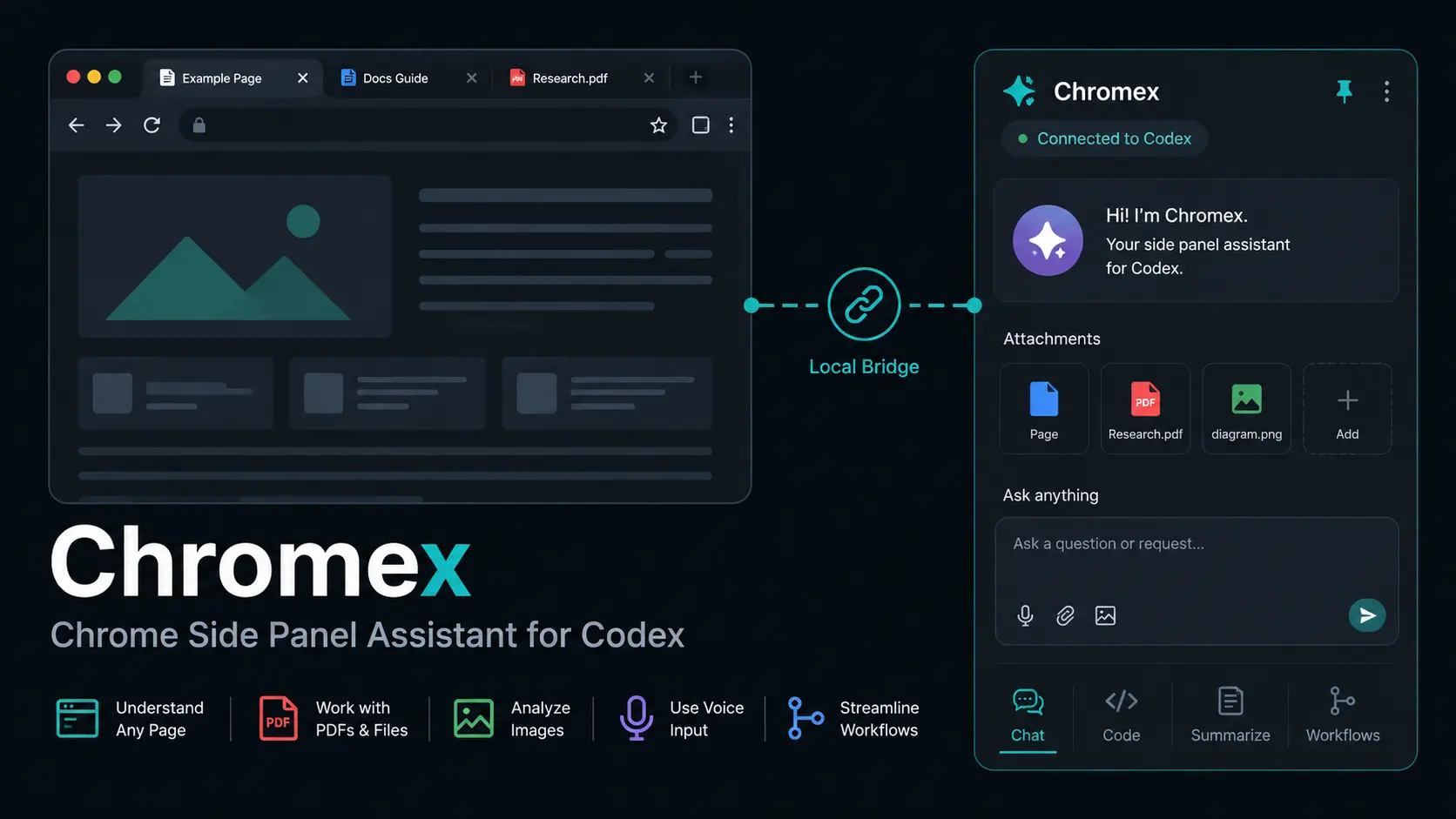
Chromex is an open-source Chrome side-panel assistant from GenexisAI that connects Chrome to OpenAI Codex through a local native messaging bridge.
It can work with the current page, selected tabs, highlighted text, files, screenshots, images, browser history, and voice input from inside Chrome.
The extension is available from the Chrome Web Store. Setup also requires Codex CLI and a one-time local bridge registration on the same computer.
Chromex vs OpenAI’s Chrome Extension
Chromex connects Chrome to a local Codex app-server through its own native bridge. OpenAI’s extension works with the ChatGPT desktop app and can participate in ChatGPT Work and Codex browser tasks.
| Chromex | OpenAI ChatGPT Chrome Extension | |
|---|---|---|
| Developer | GenexisAI | OpenAI |
| Runtime | Local native bridge and Codex app-server | ChatGPT desktop app and Chrome plugin integration |
| Installation | Chrome Web Store plus one-time local bridge setup | Chrome Web Store through the ChatGPT plugin setup flow |
| Main interface | Chromex side panel | ChatGPT side chat and desktop app workflows |
Features
- Page and tab context: Ask about the active webpage, selected tabs, highlighted text, screenshots, browser history, and uploaded files.
- Research and media workflows: Summarize or compare webpages, YouTube videos, news articles, research pages, PDFs, and arXiv papers.
- Context controls: Add open tabs with the
@picker, send selected text to the side panel, or start a question from Chrome’s right-click menu. - File analysis: Attach images, text files, PDF, DOCX, CSV, TSV, XLSX, and XLSM files.
- Image workflows: Generate or edit images from uploaded references, page images, or visible screen captures.
- Voice and Translation/Live mode: Dictate prompts, capture live transcripts, use optional realtime translation, and continue chatting from the transcript.
- Browser actions: Run page-control workflows through Chrome content scripts with visible in-page activity indicators.
- Reusable workflows: Plan mode, instruction profiles, site-aware suggestions, and optional local Codex skills support repeated tasks.
- Page reading strategies: DOM, vision, hybrid, and site-adapter modes handle different types of page context.
How to Install Chromex
Install From the Chrome Web Store
1. Install Codex CLI and confirm it runs.
npm install -g @openai/codex
codex --version
2. Install Chromex from the Chrome Web Store.
3. Download chromex-local-bridge.zip from the latest Chromex release and extract it.
4. Open a terminal in the extracted bridge folder and register the Chrome native host:
node scripts/install-native-host.mjs --browser=chrome5. Close every Chrome window, reopen Chrome, open the Chromex side panel, and press Check connection. Authentication runs through the local Codex app-server flow. An API-key login is available as an optional fallback.
Install Chromex From Source
Clone the project or download chromex-public-source.zip, then run these commands from the folder that contains package.json:
git clone https://github.com/GENEXIS-AI/chromex.git
cd chromex
npm install
npm run build
node scripts/install-native-host.mjs
Close every Chrome window, reopen Chrome, go to chrome://extensions, turn on Developer mode, select Load unpacked, and choose:
packages/extension/distIf Windows reports
ENOENT Could not read package.json, reopen the terminal in the Chromex source folder that containspackage.jsonand run the commands again.
Troubleshooting
| Symptom | Fix |
|---|---|
| Local bridge keeps waiting | Fully quit Chrome, reopen it, and press Check connection. Re-run node scripts/install-native-host.mjs --browser=chrome from the extracted bridge folder if the connection still fails. |
| Native host missing or forbidden | Register the native host again. Source-build users should also rebuild and reload the unpacked extension. |
| Extension ID mismatch in a source build | Copy the ID from chrome://extensions and run node scripts/install-native-host.mjs <extension-id> --browser=chrome. |
codex app-server exited with code 1 | Run codex --version and update Codex CLI if it is older than 0.130.0. |
| Codex executable is not detected on Windows | Run where codex. If needed, set the optional Codex binary path in Chromex to %APPDATA%\npm\codex.cmd, save the setting, and restart Chrome. |
| Model list does not load | Confirm that the native bridge is connected, then complete the app-server login flow. |
| Page context is unavailable | Open Chromex from the target tab or approve the Chrome site permission requested for that workflow. |
| Old UI appears after a source update | Run npm run build, reload the extension card, and confirm that Chrome loads packages/extension/dist. |
Privacy and Data Handling
Chromex keeps raw OpenAI API keys, OAuth tokens, and ChatGPT session tokens out of Chrome extension storage. Authentication, temporary files, generated images, diagnostics, and Codex app-server communication run through the local bridge installed on the computer.
Browser context can leave the device when a requested task needs model processing. That context can include page text, selected content, tab data, screenshots, uploaded files, voice input, browser history, and page-action state sent through the bridge to the configured Codex/OpenAI service.
History, tabs, microphone, screen capture, and site access use optional or task-specific permissions. Conversation history is session-only by default, with persistent local history available as an opt-in setting.
Pros
- Open-source MIT-licensed codebase.
- Deep browser context across pages, tabs, files, screenshots, and selected text.
- Local bridge keeps OpenAI credentials outside Chrome extension storage.
Cons
- Setup requires Codex CLI and local bridge registration.
- Browser context can be sent to the configured Codex/OpenAI service for processing.
- Chrome is the documented browser target.
Related Resources
- OpenAI Codex Commands Cheat Sheet: Codex CLI commands, slash commands, flags, configuration, MCP, and common workflows.
- Codex Timeline: Major Codex releases, model changes, product updates, and platform expansion.
- OpenAI Codex CLI: Install and manage the Codex runtime used by Chromex.
- OpenAI ChatGPT Chrome Extension: Set up OpenAI’s separate browser integration.
- Chrome Native Messaging: Technical reference for Chrome’s native-host connection mechanism.
FAQs
Q: Do I need an OpenAI API key to use Chromex?
A: Codex OAuth/ChatGPT login runs through the local Codex app-server. API-key login is an optional fallback. Realtime translation uses a separately confirmed OpenAI API-key path when that feature is enabled.
Q: Which Chrome version does Chromex require?
A: The Chrome Web Store listing requires Chrome 116 or later.
Q: What languages does the Chromex interface support?
A: Chromex follows the browser language by default and includes 55 Chrome Web Store languages. You can also choose the interface language in Settings > General > App UI language.
Q: Does Chromex read browser history automatically?
A: Browser history is an optional permission used for history-based requests. Chromex requests that access when a workflow needs it.
Last Updated: Aug 10, 2026