Parrot is a free, open-source meeting recorder for Mac that offers AI assistance while a call is in progress.
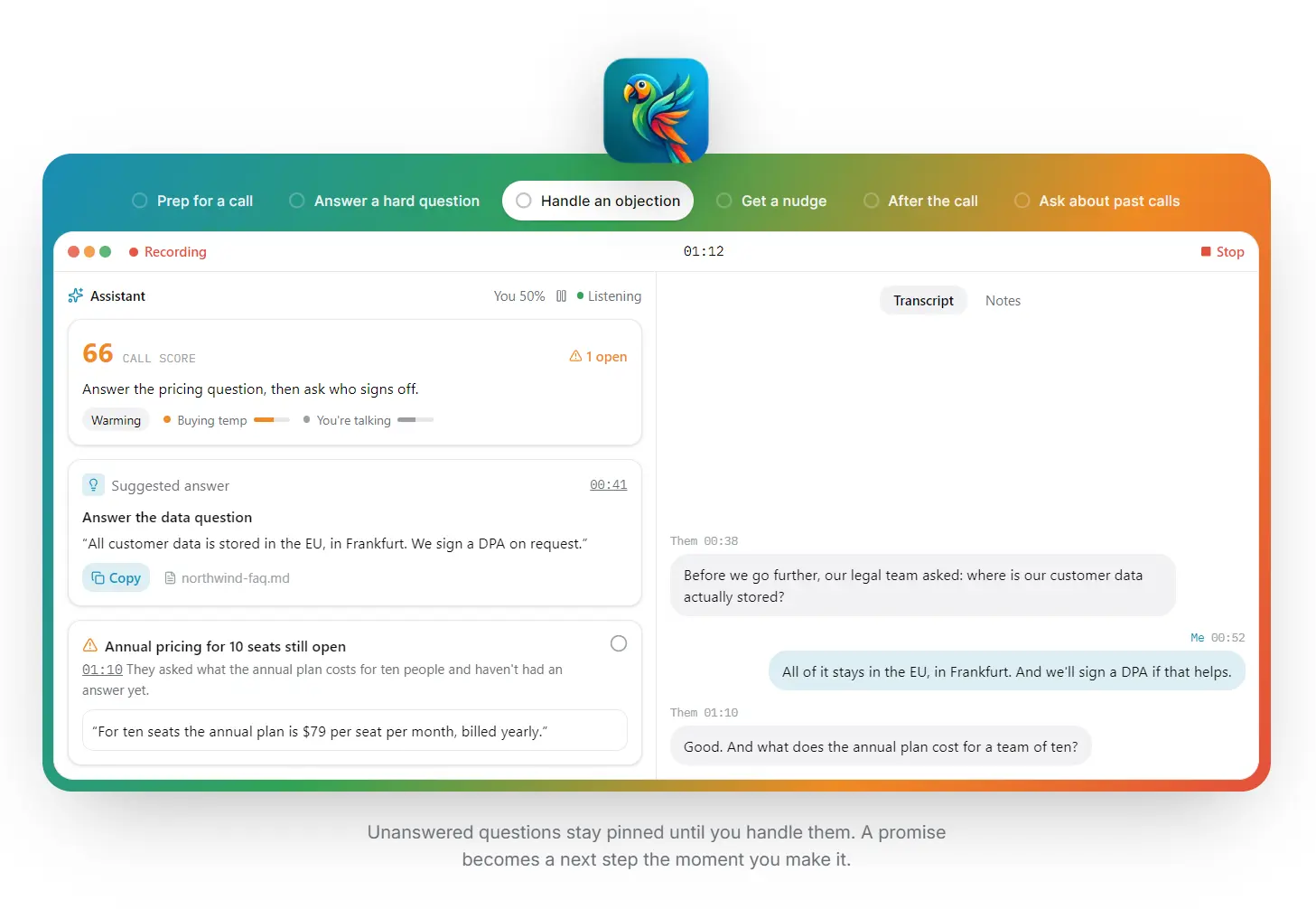
When someone asks about pricing, security, or a product requirement, Parrot can find a relevant answer in your documents and display a suggestion beside the live transcript.
The native macOS app records your microphone and the audio from Zoom, Google Meet, Microsoft Teams, and other calls. No meeting bot joins the conversation.
Parrot also produces speaker-attributed transcripts, reports linked to the recording, and a searchable history of what people agreed to do.
Transcription runs locally by default, and you can use a local AI model or connect a cloud provider for the assistant.
Key Features
- Records microphone and system audio from Mac calls, with automatic call detection and no meeting bot.
- Transcribes conversations on your Mac using Whisper or Parakeet speech recognition.
- Suggests answers from your PDFs, text documents, and Markdown files during a call.
- Tracks questions, objections, promised next steps, talk balance, and live coaching cues.
- Detects different speakers and associates transcript lines with participant names.
- Generates profile-specific reports with timestamped evidence from the recording.
- Searches past meetings through Ask Parrot, with answers linked to the relevant moments.
- Connects meeting history to Claude Desktop, Claude Code, Codex, and Cursor.
- Exports reports and transcripts and sends follow-up actions to supported Mac apps or webhooks.
Get Answers and Coaching During a Call
Parrot records your microphone and the other side of the conversation as two audio tracks. The transcript develops as people speak. You can begin recording manually or let Parrot notice that a meeting app is using your microphone and ask whether to record the call.
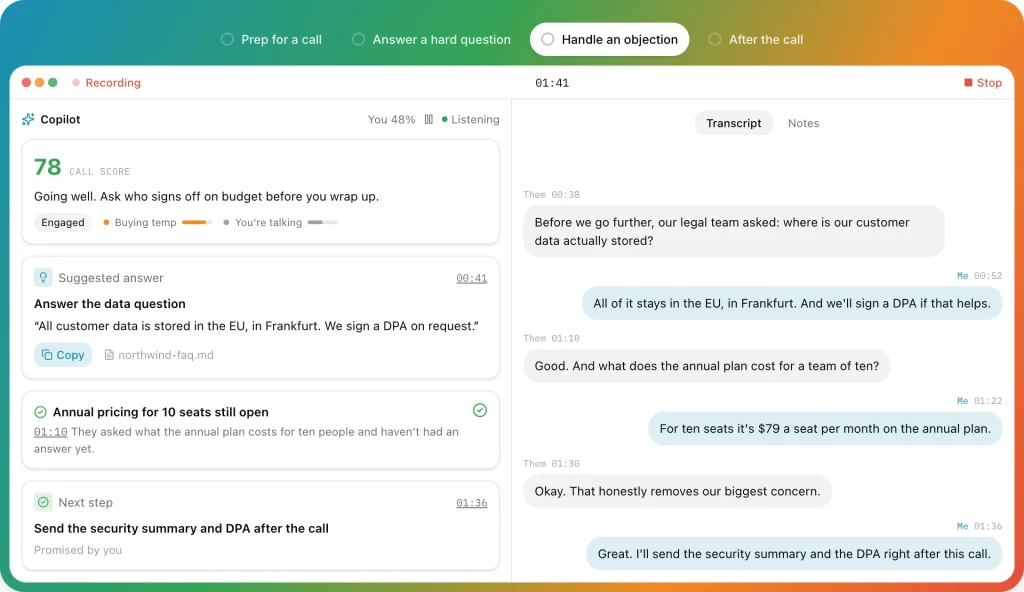
With the live assistant enabled, Parrot watches the conversation for questions that need answers, objections that need attention, and actions you promise to take. A suggested answer appears on a card with a Copy button. An unresolved question can stay pinned until it is handled. If you agree to send a proposal, the assistant identifies that promise as a next step.
The call screen also shows a score, a short coaching line, and gauges relevant to your call profile, including your share of the speaking time. Optional live nudges flag long silences, extended monologues, interruptions, and unanswered questions. You can switch the assistant off during a call while recording and transcription continue.
Answers From Your Own Documents
Open Settings > Knowledge to import a pricing sheet, security FAQ, sales playbook, or another PDF, plain-text, or Markdown file. Parrot indexes the documents on your Mac and retrieves matching passages when a relevant question comes up. A response card identifies the source document, and you can decide whether the assistant should also use general knowledge.
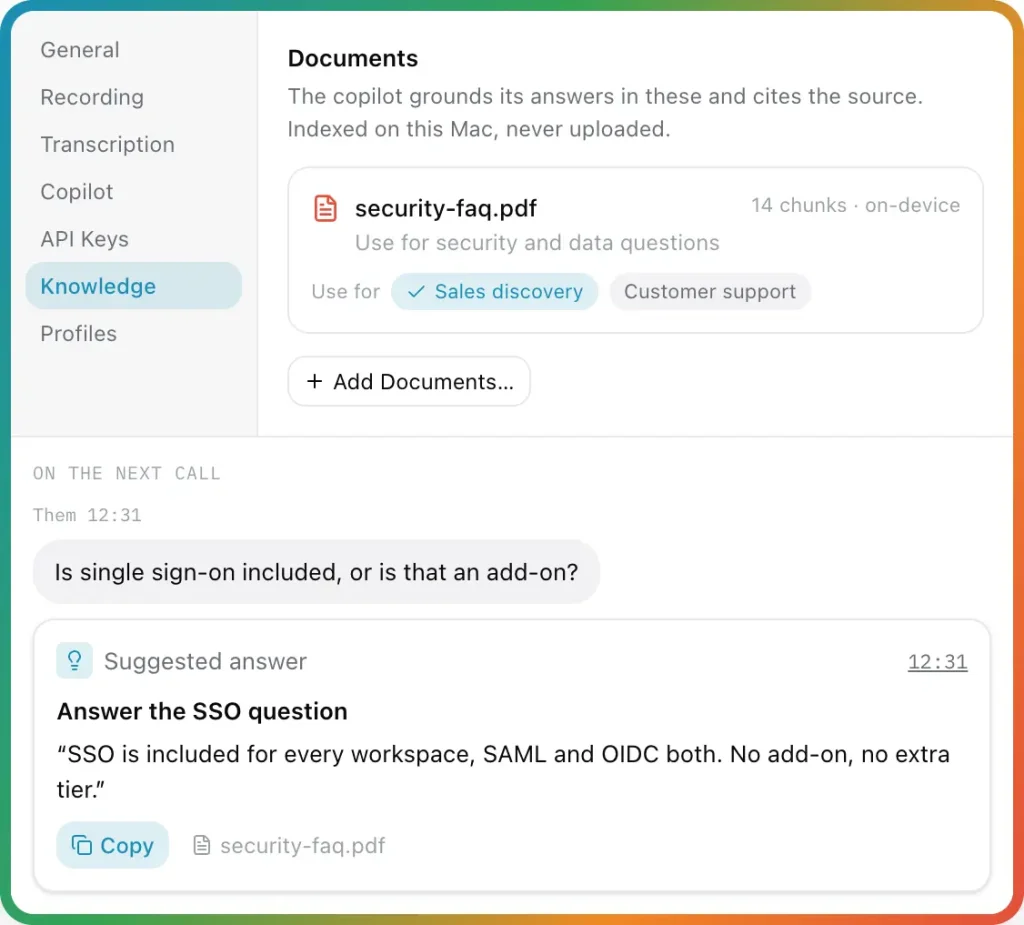
Documents can be grouped into folders and assigned to particular call profiles. For example, a sales call can use pricing and security material, while an interview uses a job description and interview notes. You can give a document its own call-type setting or disable a folder temporarily.
Before the call, enter a short brief about the meeting on the dashboard. Parrot uses the brief and the selected documents when the conversation begins. If you connect your calendar, Parrot can identify the meeting and participants from a matching event. An optional setting also lets the assistant use details from the invitation.
For Claude-powered assistance, an optional TypeSafe AI connection can display relevant document excerpts before the main Claude response finishes. This requires a TypeSafe AI key and sends the question, brief conversation context, and selected snippets to that service.
Call Profiles for Sales, Interviews, and One-on-Ones
Call profiles determine the questions Parrot watches for, the knowledge documents it can consult, and the report it produces afterward. The eight built-in profiles are Default, Sales discovery, 1:1 coaching, Interview, Customer support, Vendor call, Investor pitch, and Generic.
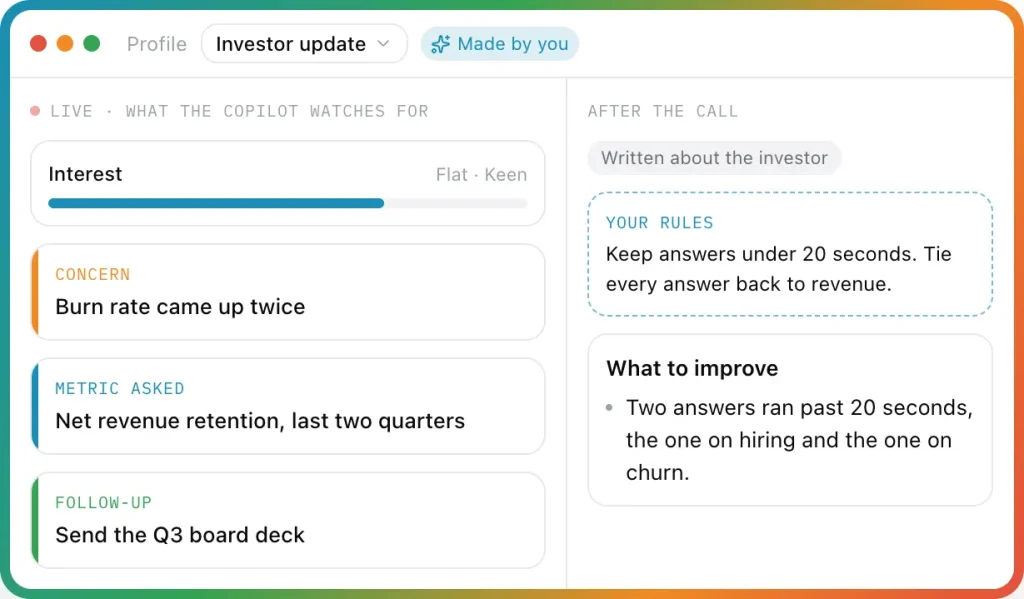
During a sales discovery call, the assistant can track objections, budget questions, and buying signals. An interview profile can focus on follow-up questions and assessment criteria. In a one-on-one meeting, the emphasis can shift to discussion points and commitments. These differences carry into the post-call report.
You can make a custom profile with your own assistant instructions, knowledge folders, card types, gauges, and report sections. A custom report can include a scorecard whose ratings link to the relevant moments in the conversation. Profiles can be shared as .parrotprofile files. Those files contain profile settings, not your meeting recordings or documents.
Speaker-Labeled Transcripts and Post-Call Reports
The two audio tracks let Parrot distinguish your speech from the other participants during recording. After the call, an on-device speaker-detection model analyzes the voices on the incoming track. Play a short excerpt, assign the correct name, and the transcript uses that name for the corresponding lines. Parrot can suggest names from a connected calendar or previous calls, and optional remembered voices can help identify recurring participants. You can correct a line or merge two speaker labels when detection gets them wrong.
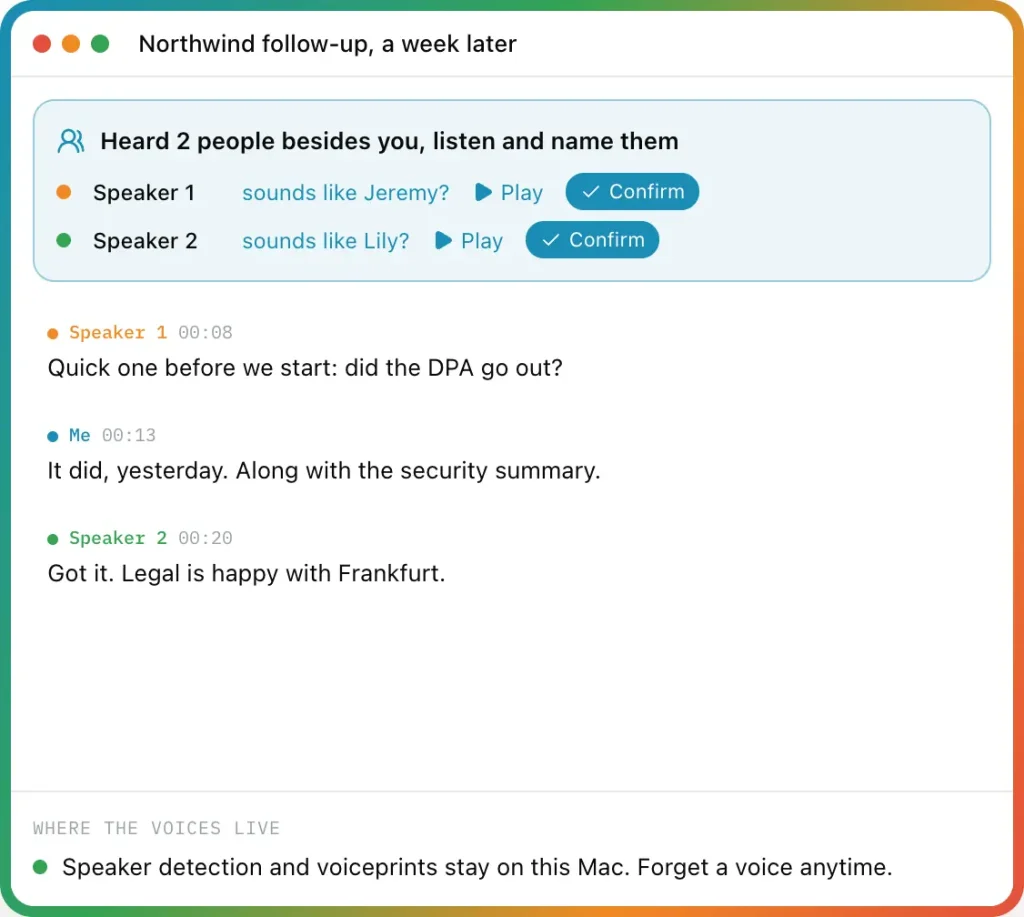
After the meeting, Parrot creates a report using the selected call profile. It can summarize the discussion, identify decisions and promised actions, flag handled or missed questions, and include coaching on speaking time and other call behavior. Sales and interview profiles can generate their own specialized sections. You can rewrite a saved report under another profile and undo the change.
The report’s timestamp chips lead back to the relevant transcript line or audio. Parrot checks its cited moments against the locally stored transcript and marks a commitment as unverified when the supporting statement cannot be confirmed. You can also mark an important moment during the conversation with the Mark control or Control + Option + M.
For sharing, export a report as PDF or save a meeting as Markdown or TXT. Transcripts can also be exported as SRT subtitles. Parrot can draft a follow-up message in Apple Mail, send action items to Apple Reminders, save Markdown notes to an Obsidian folder, or deliver selected meeting details to a webhook for Zapier, Make, or n8n.
Search Previous Meetings or Connect Claude
Ask Parrot is a built-in chat for questions about saved calls. Ask “What did I promise Acme last week?” and Parrot searches your meeting history, writes an answer, and links each cited fact to the moment it was spoken. Follow-up questions work in saved chats. Questions about meeting counts and durations are calculated directly from your local records.
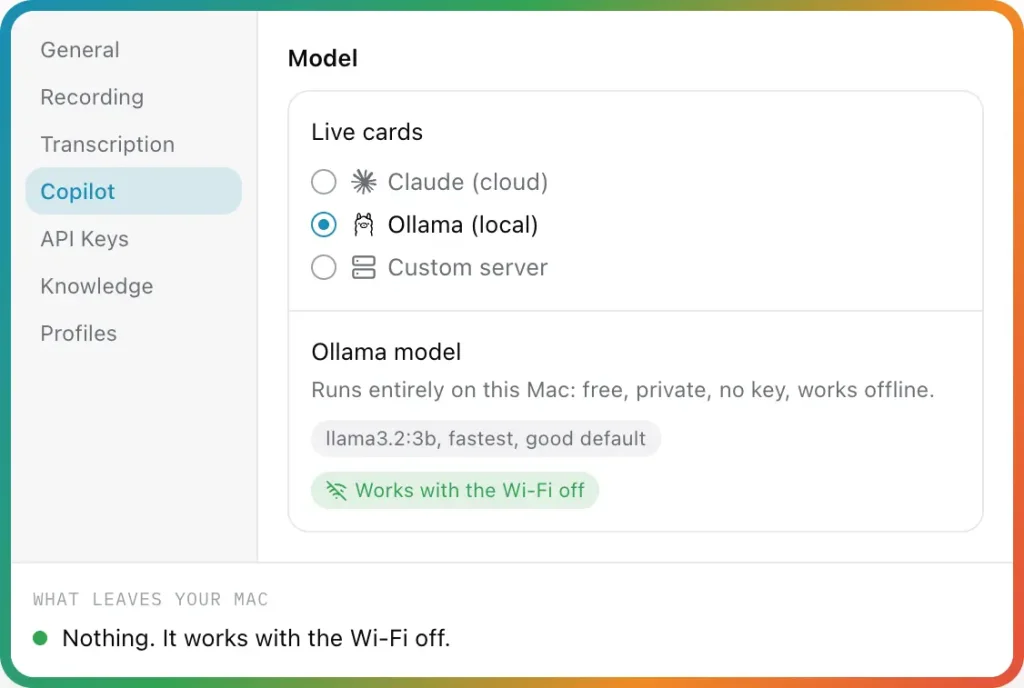
Search itself runs on your Mac. You can use Ollama locally to generate answers or choose Claude or another OpenAI-compatible AI service. A hosted model receives selected meeting excerpts and recent chat context, not your complete recording. If you have not configured an AI model, Ask Parrot can show matching meeting moments instead of a written answer.
Parrot also lets external desktop AI applications read your meeting history through its Claude & AI Apps connection. Enable access in the sidebar and connect Claude Desktop, Claude Code, Codex in the ChatGPT app, or Cursor. An external assistant can prepare for an upcoming client call, draft an email from recorded promises, or examine recurring feedback across earlier conversations. Access to the connected AI application depends on that application’s own plan or account.
You choose whether connected apps can read transcripts, reports, notes, assistant cards, and specific call types. The connection is read-only for meeting records. An AI app can submit a suggested profile change, but Parrot asks you to review it before applying it. Audio recordings, API keys, and meetings marked On-device only are excluded from this connection.
How to Get Started With Parrot
1. Download the .dmg from Parrot’s GitHub Releases, open it, and drag Parrot into Applications.
2. Launch the app and grant Microphone permission for your voice and System Audio Recording permission for the other side. On macOS 14, the system-audio permission appears under Screen Recording and takes effect after you reopen Parrot.
3. Choose Private for local transcription and Ollama AI, Balanced for local transcription and Claude through your Anthropic API key, or Cloud for Deepgram transcription and Claude. You can decide later and configure the assistant from Settings.
4. Download the speech recognition model selected for your Mac. Optionally import a reference document in Settings > Knowledge and choose a call profile.
5. Open a call and select Record, or accept the call-detection prompt. Watch the transcript update and, if enabled, the assistant show its cards. Stop the call to open the saved recording and report.
Models, Pricing, and Language Support
Parrot is free, open-source software under GPL-3.0. There is no Parrot subscription, signup requirement, or 30-day meeting-history limit. Local speech recognition and an Ollama model have no per-call provider charge.
Cloud providers charge for their own API usage. The amount depends on the selected model, call length, transcription engine, and assistant activity.
Parrot shows model requests, token usage, transcription minutes, and estimated costs for each call.
Whisper supports multilingual transcription and automatic language detection. You can select a transcription language and supply a custom vocabulary for product names and technical terms.
| Function | AI options and access |
|---|---|
| Live transcription | Whisper or Parakeet v3 on-device. Optional Groq Whisper or Deepgram Nova-3 cloud transcription requires provider keys. |
| Live assistant | Ollama locally, Claude through an Anthropic API key, or an OpenAI-compatible server. |
| Post-call reports | Local or cloud AI, with a model choice that can differ from the live assistant. |
| Ask Parrot | Local meeting search with written answers from Ollama, Claude, or an OpenAI-compatible service. |
| Fast document excerpts | Optional TypeSafe AI key with the Claude-powered assistant. |
Pros
- Gives document-backed answers during a call, along with live questions and action tracking.
- Runs recording, transcription, speaker detection, and optional AI processing locally.
- Creates customizable profiles and reports with links back to the recorded conversation.
- Connects past meetings to external AI assistants with configurable read access.
Cons
- Runs only on Apple Silicon Macs with macOS 14 or newer.
- Cloud models and cloud transcription require provider access and usage charges.
- Speaker detection sometimes needs correction.
FAQs
Can Parrot transcribe audio I recorded elsewhere?
Yes. Import an M4A, MP3, WAV, AAC, AIFF, or CAF file. Parrot can transcribe it, identify speakers, and generate a report from the imported recording.
Does muting my microphone in Zoom or Teams also mute Parrot?
No. Parrot captures your microphone independently. Select Mute me on Parrot’s call screen or press Control + Option + Shift + M to stop recording your side until you unmute it. The other side continues to be recorded.
Can I rewrite a report after choosing the wrong call profile?
Yes. Open the saved meeting, select Rewrite Report, and choose another profile. Parrot can regenerate the report, and you can undo the rewritten version.
Alternatives & Related Resources
- Free, Private AI Meeting Transcription & Summary – Meetily
- Free, Private, Local AI Meeting Notes for Mac – Snaply (Granola Alternative)
- Free Local-First AI Notepad for Private Meetings – Hyprnote
- cue: Open-Source AI Assistant for Private On-Screen Help
- Private Voice Dictation & Meeting Transcription for macOS – Ghost Pepper