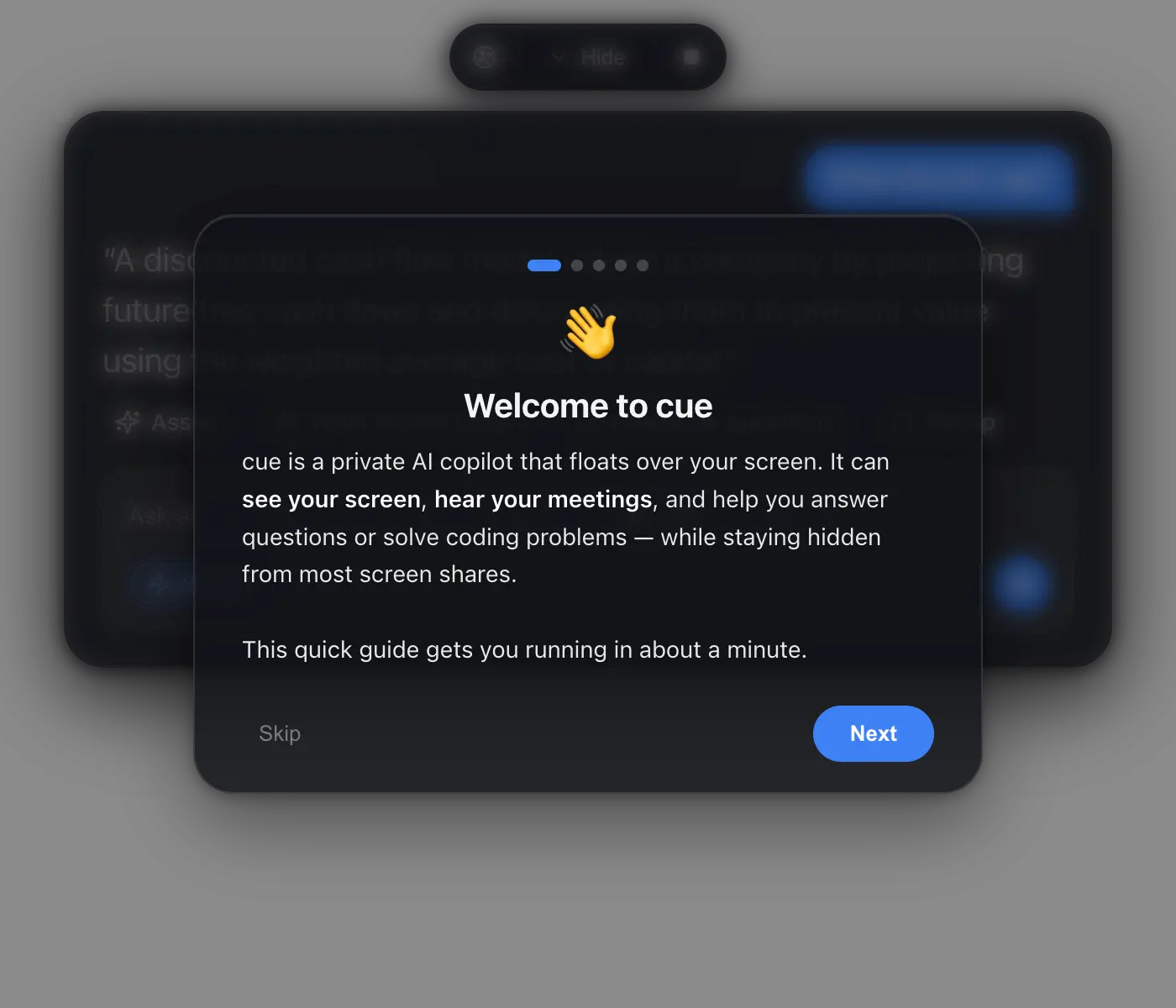
cue is a free, open-source desktop AI copilot for Apple Silicon Macs. A translucent panel floats above the active app, reads screenshots, listens to both sides of a meeting, and sends the selected context to OpenAI, Anthropic, or Google Gemini through your API key.
The app places two distinct workflows inside the same compact overlay. During a call, cue tracks the conversation and drafts a response, follow-up questions, or a recap. During coding practice, Command + H captures the visible problem and returns an approach, code, and time and space complexity.
cue runs as a local Electron application, but the connected AI provider processes prompts, screenshots, and transcribed audio. The source code and desktop client cost nothing. Model and transcription usage consume API credits.
Key Features
- Keeps the cue panel visible on the local Mac while supported screen-sharing tools exclude it from the shared output.
- Captures the current screen only when a feature requests visual context.
- Records microphone input and meeting audio as separate “You” and “Them” transcript channels.
- Drafts a response from the latest conversation through the “What should I say?” action.
- Generates follow-up questions from the full meeting transcript.
- Creates a recap from the current conversation session.
- Analyzes visible coding problems through
Command + H. - Returns a coding approach, implementation, and time and space complexity.
- Combines typed questions with the current screen and recent conversation context.
- Switches between faster and more capable model settings through the Smart toggle.
- Connects directly to OpenAI, Anthropic, or Google Gemini with your own API key.
- Stores application settings and provider keys in a local
cue-data.jsonfile. - Keeps transparent areas around the overlay click-through, so they do not block the application underneath.
Use Cases
Presentations With Private Talking Points
Place cue above slides, a browser tab, or a product demo. The local display shows reminders, explanations, and suggested responses next to the material being presented.
Supported capture tools share the presentation and omit the protected panel. The presenter keeps the current slide visible while reading private prompts in the same field of view.
Permitted Meeting Assistance
Start listening during a meeting where transcription and AI assistance are authorized. cue identifies speech from both sides and drafts a response based on the latest exchange.
The response appears above the meeting window. Other participants do not see the panel when the capture setup respects window protection.
Screen-Shared Technical Work
You sharing an editor or terminal can ask cue about a visible error, unfamiliar code, or algorithm problem. The answer appears locally over the shared application.
This setup supports pair-programming discussions, technical demonstrations, coding practice, and collaborative debugging where AI assistance is disclosed or permitted.
Accessibility and Communication Support
You might need additional time to process spoken questions or formulate a response. cue converts both sides of the conversation into text and displays a suggested answer inside the local overlay.
The interface keeps that assistance close to the active call. Screen-share protection prevents private accessibility prompts from entering supported captures.
Presentation and Interview Practice
During private rehearsal, cue listens to a simulated question and proposes a response. Follow-up questions expose weak areas in an explanation, while the recap records the main points covered during the session.
This use case concerns preparation and practice. Using concealed assistance during a real interview requires explicit permission from the interviewer or organization.
Study Sessions
Open a lesson, coding exercise, paper, or slide deck and ask cue about the visible content. The protected panel keeps explanations next to the source material during private screen recordings or approved collaborative sessions.
Main Controls
| Action | Control | Context Used |
|---|---|---|
| General assistance | Command + Enter | Screen and recent conversation |
| Solve visible coding problem | Command + H | Current screen |
| Start or stop listening | Square button | Microphone and meeting audio |
| Ask a typed question | Type and press Enter | Screen and conversation |
| Draft a response | “What should I say?” | Recent conversation |
| Generate follow-up questions | Follow-up button | Full conversation |
| Create a recap | Recap button | Full conversation |
| Open settings | Command + , | Provider and application settings |
| Quit cue | Command + Shift + X | Application |
How to Install cue on macOS
1. Download the app from the cue Releases page and drag cue.app into the Applications folder.
2. Open the Unsigned App. cue does not use a paid Apple developer certificate. macOS blocks the normal first launch.
Right-click cue.app, select Open, and confirm the dialog.
Run this command when macOS reports that cue is damaged:
xattr -cr /Applications/cue.appOpen cue again after the command finishes.
3. Open System Settings > Privacy & Security and activate cue under:
- Microphone
- Screen Recording
4. Open Settings through the three-dot button or Command + ,. Select OpenAI, Anthropic, or Google Gemini and enter the API key. Add a transcription-capable OpenAI or Gemini key before using meeting listening.
5. Start a private test meeting from a second account or record a short sample. Confirm that the shared application appears and the cue overlay does not.
Repeat this test after changes to Zoom, macOS, Electron, or the cue application.
6. Open a document or coding problem and press Command + Enter. cue captures the required context and streams the answer into the overlay.
cue vs Cluely
| cue | Cluely | |
|---|---|---|
| Main UI | Protected desktop overlay | Managed commercial assistant |
| Screen-share behavior | Best-effort protected window | Product-specific concealed-assistance features |
| Source code | GPL-licensed public repository | Closed commercial product |
| AI access | User-supplied provider keys | Account and subscription access |
| Backend | No cue-hosted server | Managed service |
| Cost structure | Provider usage charges | Free and paid service tiers |
| Setup | App permissions, provider keys, capture configuration | Account-based product setup |
Pros
- Protected local overlay
- Open-source GPL code
- No cue account
- Separate speaker channels
- Screen-aware coding help
- Local key storage
Cons
- Hiding lacks a guarantee
- Multiple permissions required
- Zoom needs configuration
- No local model support
- External cameras expose the panel
Alternatives & Related Resources
- Pluely: Undetectable AI Assistant for Meetings & Interviews (Cluely Alternative)
- Free, Private, Local AI Meeting Notes for Mac – Snaply (Granola Alternative)
- Free, Private AI Meeting Transcription & Summary – Meetily
- Private Voice Dictation & Meeting Transcription for macOS – Ghost Pepper
- Free Open-Source AI Notetaker for Mac Users – Meetingnotes
FAQs
Is cue completely invisible during screen sharing?
No. cue requests exclusion through the macOS protected-window API. External cameras always see the display.
Why does cue appear in Zoom?
Zoom displays cue when screen capture runs without window filtering. Select Advanced capture with window filtering under Zoom’s Share Screen settings and test the output again.
Does cue record meetings automatically?
No. You need to start and stop the listening session through the square button. Meeting recording and transcription require the relevant permissions and a transcription-capable provider key.
Is cue fully local?
The desktop application and configuration run locally. OpenAI, Anthropic, or Gemini processes requests that include screenshots, prompts, transcripts, or conversation context.
Does cue work with Anthropic alone?
Anthropic handles screen and coding assistance. Meeting listening needs OpenAI Whisper access or a Google Gemini key for transcription.