PeakCut is an open-source video clipper that turns long recordings and live streams into captioned vertical videos for YouTube Shorts, Instagram Reels, and TikTok.
Paste a YouTube, Twitch, or Kick link, or upload a video file, and it identifies highlight moments, cuts them into 9:16 clips, and adds word-synced captions and a hook.
The tool can also record a creator’s live broadcast and make highlight clips while the stream continues. The browser dashboard lets you manage channels, review each cut, and queue finished clips for posting.
Key Features
- Generate vertical clips from YouTube, Twitch, and Kick videos or uploaded files.
- Select highlights from speech transcripts and audio signals with your chosen AI model.
- Render 9:16 videos with timed, word-by-word captions, hooks, and adjustable layouts.
- Record live channels and generate clips during an ongoing broadcast.
- Keep each creator’s channels, clipping preferences, and posting activity in one dashboard.
- Preview, trim, re-render, download, or batch-export finished clips.
- Queue or automatically post clips to connected YouTube, Instagram, and TikTok accounts.
- Use cloud AI providers, local Ollama models, or loudness-based selection with no API key.
- Run it on your own computer or set up a shared server for multiple creators.
How PeakCut Makes Shorts from Existing Videos
When you submit a video, PeakCut extracts its audio and creates a timestamped transcript using sherpa-onnx and the Parakeet speech model. It also measures audio activity, including louder reactions that could signal a worthwhile moment.
Transcription runs on the computer or server hosting PeakCut.
With an AI model configured, PeakCut evaluates the transcript and audio cues to propose segments with start and end times. The model supplies a score and text for each selected segment, including a hook, title, description, and hashtags.
PeakCut uses FFmpeg to render the footage into vertical clips with captions synchronized to individual words. You can set the clip count, duration, caption style, and layout before processing.
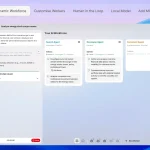
The finished clips appear beside their source video in the dashboard. Preview a segment, adjust its cut points or caption presentation, and render it again if needed.
Download clips individually or export a batch as a ZIP file. The generated post text is available alongside each video.
Live Highlights and Gaming Streams
To clip a live stream, create a workspace for the creator and add the channel to monitor. PeakCut can record automatically when that channel goes live. It keeps recent footage in a rolling buffer and checks the transcript, audio peaks, and chat activity for moments to clip. Highlights can appear in the dashboard before the stream ends.
Each creator has settings for clip length, selection thresholds, recording, and posting. You can also set spoken trigger phrases such as “clip that” to capture a recent moment that the streamer calls out.
Gaming streams have a dedicated gameplay layout that fills the vertical frame with the game and positions a detected facecam over it. PeakCut can use the game identified from a creator’s settings or video title when writing clip titles and hashtags.
How to Install PeakCut and Make Your First Clip
PeakCut requires Python 3.10 or later, Git, and FFmpeg.
Windows (PowerShell):
git clone https://github.com/haziqahmedqasmi/PeakCut.git C:\peakcut
cd C:\peakcut
pip install -r requirements.txt
python -m studio.server
macOS and Linux:
git clone https://github.com/haziqahmedqasmi/PeakCut.git ~/peakcut
cd ~/peakcut
pip install -r requirements.txt
python -m studio.server
On first launch, PeakCut downloads its speech model, approximately 480 MB. Open http://127.0.0.1:8765 in your browser. A personal local installation opens directly into the dashboard.
For AI-selected clips, go to Settings -> AI, choose a provider, enter your API key, select a model using Find models, and press Save and test. You can leave AI unconfigured and use loudness-based selection for an initial clip.
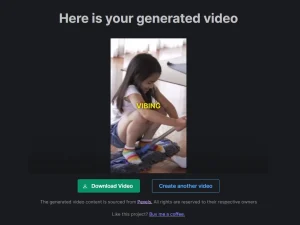
Paste a supported video link or upload a file, set the clip length, count, and caption style under Options, and select Make clips. When processing finishes, open a generated clip to preview the video, edit the cut if needed, and download the MP4.
AI Models, Privacy, and Costs
PeakCut works with Gemini, OpenAI, xAI (Grok), Groq, OpenRouter, Claude, Ollama, and custom OpenAI-compatible services. Select the model in the dashboard or configure its provider, model ID, and credentials in .env.
Video files, transcripts, and rendered clips are stored in PeakCut’s data directory. You can review the data location in Settings → Storage or set PEAKCUT_DATA for a different storage directory.
Posting Clips to YouTube, Instagram, and TikTok
After reviewing a clip, you can download it or add it to a posting queue. PeakCut supports scheduled and automatic posting with per-creator spacing rules and daily caps.
To connect a social account on your own server, register a developer application for the destination platform and configure its OAuth credentials in Settings → Connected apps.
Self-Hosting PeakCut for Multiple Creators
PeakCut can run as a shared web application on a Linux server. The Docker Compose deployment uses the PeakCut app, PostgreSQL for account and usage data, and Caddy for HTTPS.
For several active users, plan for at least eight CPU cores, 16 GB RAM, and 200 GB of disk space.
To deploy it, copy the repository, create .env from .env.example, and configure the domain, AI provider, database password, and HTTPS settings. From the project directory, start the containers with:
docker compose up -d --buildEnable PEAKCUT_ACCOUNTS=1 for a shared or publicly reachable server. Users can then sign in with email or Google, and their videos and clips are stored under their own accounts.
Pros
- Free, MIT-licensed self-hosted edition with no built-in clip credits.
- Recorded-video and real-time stream clipping in one dashboard.
- Clip editing, creator workspaces, and posting queues after processing.
- Choice of cloud AI providers, local Ollama, or keyless audio selection.
Cons
- Python, FFmpeg, and video-processing hardware are required for self-hosting.
- Public auto-posting requires developer-app configuration and platform approval.