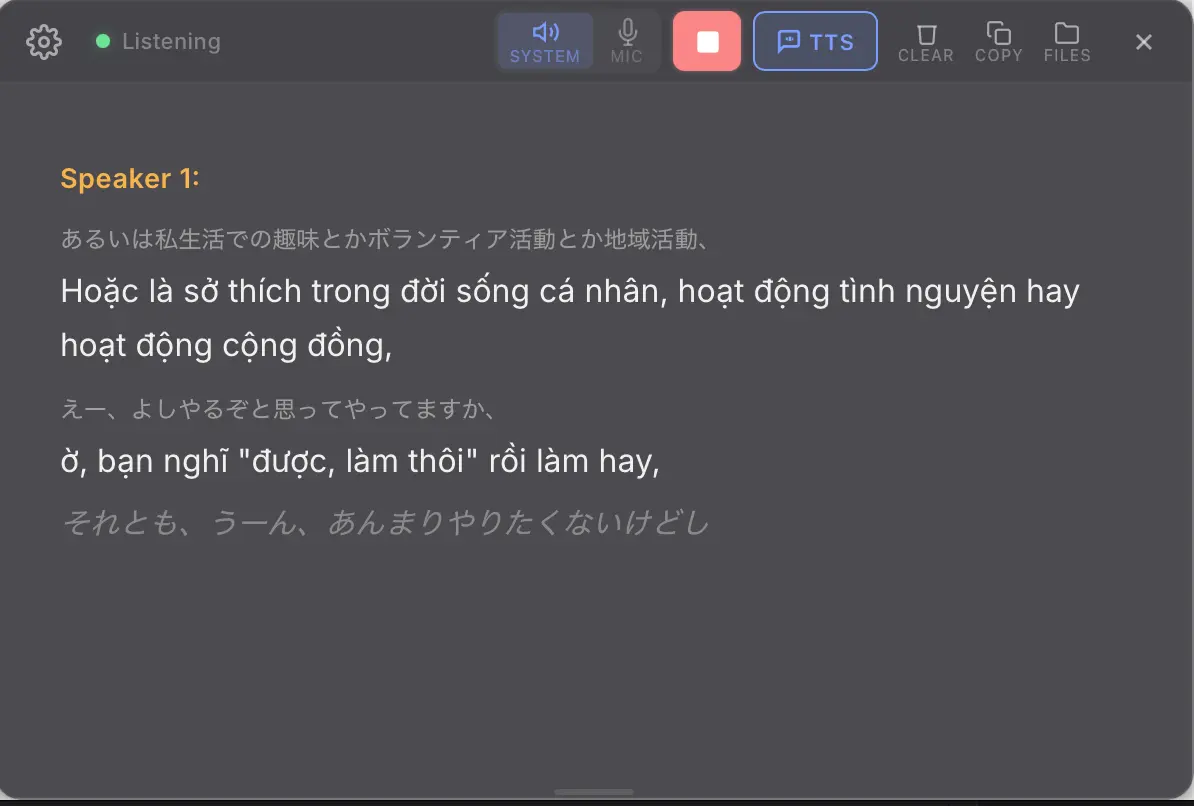
My Translator is a free, open-source, real-time speech-translation desktop app for macOS and Windows. It captures system audio, microphone input, or both, then shows live translations in a clean overlay for calls, videos, lectures, and bilingual conversations.
The app is published by phuc-nt and built with Tauri. It can run through cloud translation engines such as Soniox, OpenAI Realtime, and Qwen LiveTranslate Flash, or use a local MLX mode on Apple Silicon for offline translation with no API key.
Text-to-speech narration is available through Edge TTS, Google Cloud TTS, ElevenLabs, and OpenAI Realtime’s native voice output. Edge TTS is free and does not require an API key.
Features
- Captures system audio, microphone input, or both simultaneously.
- Transcribes and translates speech in real time through Soniox, OpenAI Realtime, Qwen LiveTranslate Flash, or Local MLX.
- Offers low-latency cloud modes for live calls and a slower offline mode for Apple Silicon Macs.
- Provides broad language coverage: 70+ source languages through Soniox, 13 target languages through OpenAI Realtime, 60+ languages through Qwen, and a smaller JA/EN/ZH/KO to VI/EN set in local mode.
- Handles one-way translation and two-way conversation translation when the selected engine allows it.
- Displays output in single or dual-panel view, with source text on the left and translation on the right when both streams are available.
- Reads translations aloud through Edge TTS, Google Chirp 3 HD, ElevenLabs, or OpenAI Realtime native audio.
- Saves full session transcripts locally with date, time, source language, target language, and translation mode metadata.
- Accepts custom translation terms so medical, legal, religious, or technical vocabulary stays consistent.
- Checks for app updates from Settings and can notify you when a newer release is available.
Use Cases
- Follow a foreign-language lecture, webinar, podcast, or YouTube video in real time.
- Translate a live Zoom, Google Meet, or Microsoft Teams call while capturing both system audio and your microphone.
- Use the dual-panel view to study a language by reading source text and translation side by side.
- Run local speech translation on an Apple Silicon Mac when you want offline processing and can accept higher latency.
How To Use It
Install on macOS
1. Download the .dmg file from the Releases page.
My.Translator_x.x.x_aarch64.dmgfor Apple Silicon Macs.My.Translator_x.x.x_x64.dmgfor Intel Macs.
2. Open the .dmg, drag My Translator to your Applications folder, and eject the disk image.
3. On first launch, macOS may ask for Screen & System Audio Recording permission. Open System Settings, enable My Translator in the permission list, then quit and reopen the app when macOS prompts you.
Install on Windows
1. Download the .exe installer from the Releases page. Choose the x64 build for most Intel or AMD PCs, or the arm64 build for compatible Snapdragon devices.
2. Windows SmartScreen may display a warning because the app does not yet use a Windows code-signing certificate. Click More info, then click Run anyway if you trust the GitHub release you downloaded.
3. If the app does not launch, install the Microsoft Edge WebView2 Runtime separately.
Choose a Translation Engine
Open Settings with Cmd+, on macOS or Ctrl+, on Windows. Pick the engine that matches your cost, language, privacy, and latency needs.
| Mode | Best For | Approximate Cost |
|---|---|---|
| Soniox | Low-latency speech translation with broad language coverage | About $0.12/hr |
| OpenAI Realtime | Translated text plus native translated speech from one WebSocket | About $4/hr |
| Qwen LiveTranslate Flash | Free-preview text translation with a 60-language picker | Free preview |
| Local MLX | Offline translation on Apple Silicon | Free |
Add the Required API Key
For Soniox, create an account at console.soniox.com, add billing, create an API key, and paste it into the Soniox section in Settings.
For OpenAI Realtime, paste your OpenAI API key into the OpenAI engine section. This mode uses gpt-realtime-translate and sends audio directly from the app to OpenAI’s realtime endpoint.
For Qwen LiveTranslate Flash, create a DashScope key through Alibaba Cloud Bailian and use the Singapore region. Keys from other regions can connect to a different endpoint and fail when you start translation.
Local MLX mode does not require an API key. It requires an Apple Silicon Mac and several gigabytes of free disk space for local model files.
Start Translating
Press Cmd+Enter on macOS or Ctrl+Enter on Windows to start. Play audio on your computer, speak into your microphone, or choose the combined system-plus-mic source for calls.
Translations appear in the overlay in real time. Switch display modes with the panel button at the bottom-right corner of the overlay:
- Single: Translation text only.
- Dual: Source text and translation side by side, when the selected engine returns both streams.
Qwen returns translated text only, so the app collapses Qwen sessions into a single translation panel.
Adjust font size with the A- and A+ buttons. Use session history to reopen saved transcripts after a call or lecture ends.
Use Two-Way Translation
Two-way translation lets the app listen for two languages and translate each speaker into the other language. For video calls, set the audio source to Both, choose Two-way, then select Language A and Language B.
Two-way mode works best with engines that expose the required speech and language signals. It is disabled for OpenAI Realtime and Qwen LiveTranslate Flash in the current app.
TTS narration turns off automatically in two-way mode to prevent feedback loops.
Set Up TTS Narration
TTS is off by default. Open Settings, go to the TTS tab when it is available for the active engine, and pick a provider:
| Provider | Cost | Speed Control | Setup Required |
|---|---|---|---|
| Edge TTS | Free | Yes | None |
| Google Chirp 3 HD | Free up to 1M chars/mo, then paid | Yes | Google Cloud API key |
| ElevenLabs | Paid plan | No | ElevenLabs API key |
| OpenAI Realtime native audio | Usage-based API cost | Engine controlled | OpenAI API key |
Edge TTS setup:
- Open Settings and choose the TTS tab.
- Select Edge TTS as the provider.
- Pick a voice from the list.
- Save settings, then toggle TTS from the main screen with the TTS button or
Cmd+T.
Google Chirp 3 HD setup:
- Go to console.cloud.google.com and create a project.
- Enable the Text-to-Speech API at console.cloud.google.com/apis/library/texttospeech.googleapis.com.
- Create an API key at console.cloud.google.com/apis/credentials.
- Restrict the key to the Cloud Text-to-Speech API.
- Paste the key in Settings, then save and close.
ElevenLabs setup:
- Create an account at elevenlabs.io and choose a plan.
- Create an API key from your ElevenLabs profile.
- Paste the key in Settings, choose a voice, then save and close.
Add Custom Translation Terms
Open Settings, go to Translation terms, and enter terms in Original = Translation format, one per line:
Original sin = ...
Christ = ...
Pneumonia = ...
The app applies these substitutions across each session, which helps when live machine translation needs consistent vocabulary for names, medical terms, legal phrases, or religious language.
Keyboard Shortcuts
macOS
| Shortcut | Action |
|---|---|
Cmd+Enter | Start / Stop |
Cmd+, | Open Settings |
Esc | Close Settings |
Cmd+1 | Switch to System Audio |
Cmd+2 | Switch to Microphone |
Cmd+3 | Switch to Both |
Cmd+T | Toggle TTS narration when available |
Windows
| Shortcut | Action |
|---|---|
Ctrl+Enter | Start / Stop |
Ctrl+, | Open Settings |
Esc | Close Settings |
Ctrl+T | Toggle TTS narration when available |
Pros
- Runs as a free, open-source desktop app for real-time speech translation.
- Compare several real-time translation API engines from one interface.
- Captures system audio directly.
- Keeps API keys and transcripts on your own device.
- Provides a free offline route for Apple Silicon users through Local MLX.
- Includes a free TTS route through Edge TTS when the selected translation engine can use external narration.
Cons
- The strongest cloud modes require your own API keys and may add usage costs.
- OpenAI Realtime is much more expensive than Soniox.
- Qwen LiveTranslate Flash is text-only.
- Local MLX mode is limited to Apple Silicon and has higher latency than cloud engines.
Related Resources
- Latest Release: Download the newest macOS and Windows builds.
- Soniox Console: Manage your Soniox API key and billing for speech recognition and translation.
- Soniox API Documentation: Read about real-time STT, translation, WebSocket streaming, and STT v4 parameters.
- OpenAI Realtime Documentation: Learn how OpenAI’s realtime API handles streaming audio and responses.
- Alibaba Cloud Bailian: Create the DashScope key used for Qwen LiveTranslate Flash.
- Google Cloud Text-to-Speech: Reference docs for Chirp 3 HD voices, pricing tiers, and credential setup.
- ElevenLabs Documentation: API key setup, voices, and plan details for premium TTS.
- Microsoft Edge TTS Documentation: Background on the neural speech engine behind Edge TTS.
- Realtime Voice Chat: A related local AI voice companion.
FAQs
Q: Is My Translator free?
A: The desktop app is free and open source. Local MLX mode and Edge TTS can run without paid API usage, but Soniox, OpenAI Realtime, Google Cloud TTS, ElevenLabs, and some Qwen access paths depend on your own provider account, key, region, and billing rules.
Q: Does My Translator record or store my audio on any external server?
A: The app does not run a relay server. It connects directly from your device to the engine you configure, such as Soniox, OpenAI, Qwen, or a local MLX model. Transcripts save locally on your own disk.
Q: Can I use this app to translate Zoom or Google Meet calls?
A: Yes. Set the audio source to System Audio to translate what you hear, or choose Both when you need to capture the meeting audio and your microphone at the same time.
Q: Is My Translator a real-time voice translation API?
A: No. It is a desktop app that connects to realtime speech translation and STT APIs. If you are comparing API engines, it gives you a practical way to try Soniox, OpenAI Realtime, Qwen LiveTranslate Flash, and Local MLX in one interface.
Q: Why does the application show a “No API key” error?
A: The active cloud engine needs its own provider key. Check the selected engine in Settings, then paste the matching Soniox, OpenAI, or DashScope key into that engine’s section.
Q: Why is Qwen showing only one transcript panel?
A: Qwen LiveTranslate Flash returns translated text only in the current app. My Translator therefore hides the empty source panel and shows a single translation stream.
Q: How do I fix missing translation text on macOS?
A: Enable Screen and System Audio Recording for My Translator in macOS System Settings, then quit and reopen the app.
Q: Can I use this for live conversations in person?
A: Yes. Switch the audio source to Microphone and place the app near the speaker. For two-way conversations, choose a compatible engine and set the two conversation languages in Settings.
Last Updated: June 29, 2026