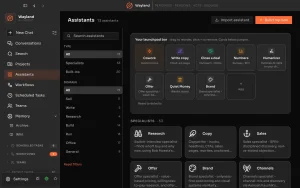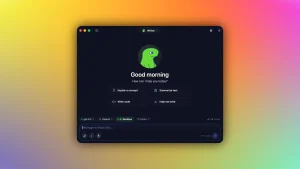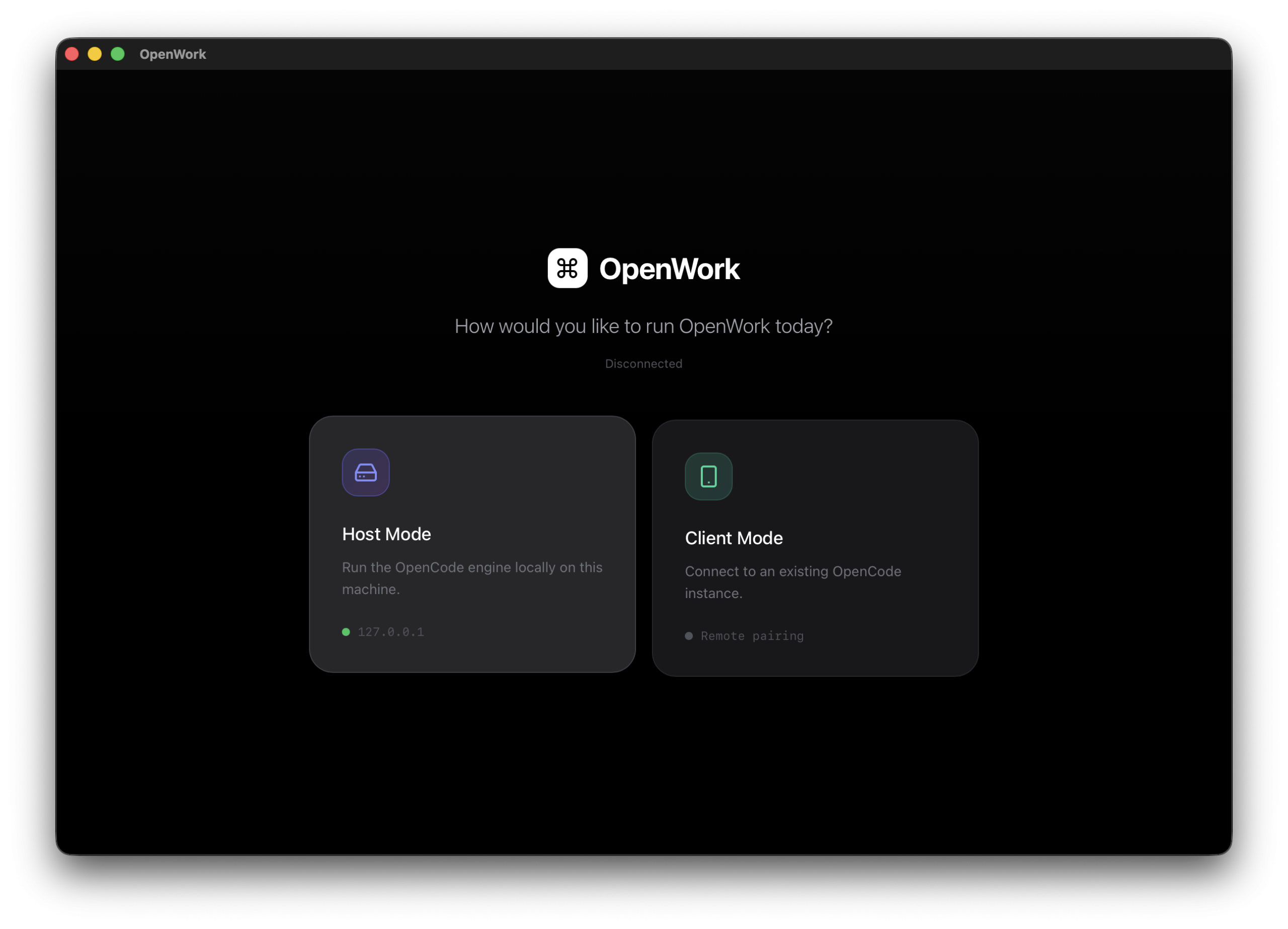
OpenWork by Different AI is a free, open-source desktop AI agent for macOS, Windows, and Linux. Give it a folder and a task, and it can organize documents, collect information from websites, update files, or prepare a finished report from your source material.
Each workspace runs with the model and connections you choose. Sign in with ChatGPT, add an API key, or use a compatible local model, then decide which files and services the agent can reach. The Solo app has no license fee. Cloud model providers charge for the requests you send through their APIs.
OpenWork at a Glance
| Developer | Different AI |
| Product type | Open-source desktop AI agent and workflow platform |
| Agent runtime | OpenCode |
| Platforms | macOS, Windows, Linux |
| Desktop price | Free and open source |
| Model access | Provider sign-in, API keys, or compatible local models |
| OpenWork account | No account for the public download; an account is required for Connect and Cloud |
| Best for | Model switching, local models, and reusable team workflows |
What OpenWork Does
- Works inside a selected folder. OpenWork can read, create, edit, and organize files in the workspace you give it. It asks for permission before sensitive file operations or commands.
- Uses your choice of model. You can sign in with a supported account, enter a model provider’s API key, or connect a compatible local model through OpenCode.
- Handles browser and connected-service tasks. Its built-in browser can navigate pages, fill forms, collect information, and take screenshots. OpenWork Connect can add approved services such as Gmail, Google Drive, Slack, Notion, and Linear.
- Saves repeatable ways of working. A Skill stores task instructions, a plugin packages related capabilities, and a Model Context Protocol server connects the agent to outside systems. Teams can distribute these components through OpenWork Cloud.
OpenWork vs Claude Cowork
OpenWork and Claude Cowork both handle multi-step work across files and connected services. OpenWork runs with the model provider and workspace configuration you choose. Claude Cowork uses Claude models and includes model access in Anthropic’s paid plans. OpenWork requires provider configuration before the first task. Claude Cowork starts with fewer setup decisions.
| OpenWork | Claude Cowork | |
|---|---|---|
| Source model | Open source | Proprietary |
| Model choice | Multiple providers and compatible local models | Claude models |
| Desktop systems | macOS, Windows, Linux | macOS and Windows |
| Individual price | Free Solo app; cloud providers bill model usage separately | Included in paid Claude plans, starting with Pro |
| Local files | You select a local workspace folder | Local access through supported Claude desktop features |
| Team sharing | Skills, MCP servers, plugins, configs, and managed providers | Projects, Skills, connectors, and organization controls |
| Setup | You choose and configure model access | Model access is included in the Claude experience |
Pricing and Model Costs
The Solo desktop app is free and open source. The download starts no subscription, and installation requires no OpenWork account. Cloud model providers bill their usage separately.
If you enter an Anthropic, OpenAI, or another provider’s API key, that provider bills the model usage. A Claude subscription and Anthropic API credits are separate. A compatible local model can avoid external API charges, though your computer must have enough memory and processing power to run it.
Team Starter includes five seats at no charge, then costs $10 per seat per month. It adds an Extension Marketplace, team distribution, and organization-managed model access. Enterprise plans use custom pricing for features such as SSO, SCIM, private inference, desktop policies, and managed deployment.
How to Start Your First Workspace
- Install the desktop package. Use the build that matches your operating system and processor.
- Select a workspace folder. Start with a folder that contains only the files needed for the task. This keeps the agent’s access easy to review.
- Choose model access. Sign in with a supported provider, enter an API key, or configure a local OpenAI-compatible endpoint. Model-powered tasks require one of these connections.
- Give the agent a bounded request. Name the input, the work, and the expected file. For example: “Read the PDFs in this folder, extract each invoice date and total, and save the result as invoice-summary.csv.”
- Review each permission request. Check file changes, commands, and browser actions before approval. Inspect the final file before using it elsewhere.
Model Access and Local Models
Choose model access under Settings > Connect Provider. The OpenAI panel includes ChatGPT OAuth, and each API provider accepts its own key. An organization administrator can also configure a shared provider for team members.
Local models need extra setup and keep inference on your computer. OpenWork reads OpenCode provider settings from .config/opencode/opencode.json inside the workspace. A local Ollama entry can point to http://localhost:11434/v1 and name the model installed on your computer.
{
  "provider": {
    "ollama": {
      "npm": "@ai-sdk/openai-compatible",
      "name": "Ollama",
      "options": {
        "baseURL": "http://localhost:11434/v1"
      },
      "models": {
        "qwen3:8b": {
          "name": "Qwen3 8B"
        }
      }
    }
  }
}
The model name in this file must match the model installed in Ollama. Run ollama pull qwen3:8b, make sure the Ollama service is active, then reopen the workspace. A local model’s speed and usable context depend on the hardware and model size.
Local Files, Model Providers, and Cloud Workers
Desktop mode separates file storage from model inference. Workspace files stay on your computer. With a cloud model, OpenWork sends the prompt and required context to the selected provider. A local model keeps inference on your computer. Connected services send and receive data through their authorized connections.
OpenWork Connect adds services authorized through an organization account. Hosted workers run tasks on remote infrastructure and keep their workspace files there. These options are separate from a Solo desktop workspace. Before approving a private task, check its model provider, connected services, and execution location.
Connect Services and Custom MCP Servers
OpenWork Connect is the managed route to business services. Open Settings > OpenWork Connect, sign in, choose the correct organization, and authorize each service. Gmail, Google Calendar, Google Drive, Slack, Notion, and Linear appear as Ready to use after the account connection succeeds. Organization permissions determine which members can use each connection.
A custom MCP server belongs under Settings > Extensions > Add Custom App. OpenWork asks whether the connection applies only to the current workspace or to every workspace. It also asks whether the server uses OAuth. Dynamic client registration handles most OAuth servers, while the advanced fields accept a fixed client ID and secret.
Use Connect for services managed by an organization administrator. Add a custom MCP entry when you need direct control over the server URL and authentication. Keep project-specific servers in the workspace configuration because a global entry appears in unrelated projects.
Skills, Plugins, and Team Sharing
A one-time prompt is enough for an occasional task. A Skill is better for a procedure that must produce the same kind of result each week. It can specify the required inputs, steps, output format, and conditions that should stop the task. OpenWork stores a Skill inside a small plugin, which can also hold related capabilities.
A Solo workspace can keep its Skills and custom MCP connections inside the project. For a team, an administrator publishes plugins to an organization marketplace and grants access to specific teams or members. Assigned extensions then appear in the desktop app. Coworkers receive the approved workflow without rebuilding the setup themselves.
To publish a team Skill, an administrator adds it to a plugin, tests it, and publishes the plugin to an organization marketplace. Access can apply to the whole organization, a team, or individual members. OpenWork also imports compatible plugins from GitHub, and a repository source keeps marketplace content connected to the team’s maintained version.
Use OpenWork Capabilities in OpenCode and Codex
OpenWork Cloud exposes approved organization capabilities through https://api.openworklabs.com/mcp/agent. The remote MCP server uses browser OAuth and asks you to choose an organization. The resulting login belongs to that organization. Switching organizations requires a logout and a new authentication flow.
The server provides two tools. search_capabilities finds the Skills, connectors, workers, providers, and other resources available to the member. execute_capability runs the selected capability. Role permissions, organization policy, and allowlists apply when each request runs.
OpenCode configuration
{
  "mcp": {
    "openwork": {
      "type": "remote",
      "enabled": true,
      "url": "https://api.openworklabs.com/mcp/agent",
      "oauth": {}
    }
  }
}
After saving the configuration, start the browser login with:
opencode mcp auth openworkCodex commands
codex mcp add openwork --url https://api.openworklabs.com/mcp/agent
codex mcp login openwork
Sessions, Browser Automation, and Token Use
Every task runs in a session. Sessions can be renamed, pinned, archived, reordered, and grouped into folders. A long job can keep research, drafting, review, and completed sessions separate without mixing their conversation histories. The agent can also perform these session actions from a chat instruction.
OpenWork Browser is the supported automation surface. The agent can navigate pages, click controls, enter text, read page content, and save screenshots inside that browser. Native desktop applications sit outside this browser automation. A hosted worker performs the same browser work remotely.
Each prompt and Skill run creates a model request. Repeating a task sends a new request and consumes tokens again. Large attachments, long session histories, and repeated tool calls increase the context sent to the model. Installing a Skill or reading its instructions consumes no model tokens until the Skill runs.
Team Permissions and Security Controls
OpenWork Cloud manages identity and access for shared providers, connections, marketplaces, and hosted workers. Organizations can assign owner, administrator, member, and custom roles, then use teams to control access to specific capabilities. Membership and permission checks run again when a capability executes. Removing access takes effect beyond the old client session.
Enterprise controls include SSO, SCIM, private inference options, and desktop policies. Security-sensitive administrative changes require a recent login. Audit events record changes to API keys, roles, members, invitations, SCIM, and SSO without copying secret values into the event record.
Who OpenWork Fits
Choose OpenWork if you want to switch among model providers, run local models, or keep a separate configuration for each project folder. It also fits teams that use OpenCode, Codex, Claude Code, Cursor, or MCP connections and need to distribute reusable Skills.
Choose Claude Cowork for a single managed service with fewer provider decisions. OpenWork requires you to manage model credentials and review file, command, and browser permissions before the agent acts.
Pros
- Solo app has no license fee
- Works on macOS, Windows, and Linux
- Supports cloud APIs and compatible local models
- Workspace settings keep project configurations separate
- Marketplaces distribute approved workflows to teams
Cons
- You must arrange model access before the first task
- Cloud providers bill API usage separately
- Local models consume your computer’s memory and compute
- Browser automation is limited to OpenWork Browser
FAQs
Q: Is OpenWork free?
A: The Solo desktop app is free and open source. Model API usage, paid team seats, hosted workers, and enterprise services have separate costs.
Q: Does OpenWork require OpenCode?
A: OpenCode powers OpenWork. The packaged desktop app includes the required runtime, and separate CLI installation is unnecessary.
Q: Which operating systems does OpenWork support?
A: OpenWork provides desktop packages for macOS, Windows, and Linux, with processor-specific builds for common x64 and ARM systems.
Q: Can OpenWork use local AI models?
A: Yes. OpenWork can use compatible models through OpenCode providers such as an OpenAI-compatible Ollama endpoint. The computer must have enough resources for the selected model.
Q: Does OpenWork keep files on the local computer?
A: Desktop workspace files stay on the local computer. Cloud model providers receive prompts and required context. Hosted workers keep their task files on remote infrastructure.
Q: Is OpenWork suitable for teams?
A: Yes. Teams can share Skills, plugins, MCP connections, model providers, and hosted workers. Team Starter includes five seats, with paid seats after that.
Alternatives and Related Resources
- 7 Best & Open-source Claude Cowork Alternatives
- What is Model Context Protocol? Everything You Need to Know About MCP
- OpenWorker: Free Local AI Coworker with 25+ App Connectors
- OpenWork Get Started Guide
- OpenMausBot: Claude, Codex as Persistent AI Bots (Grok Bot Alternative)
Last Updated: July 30, 2026