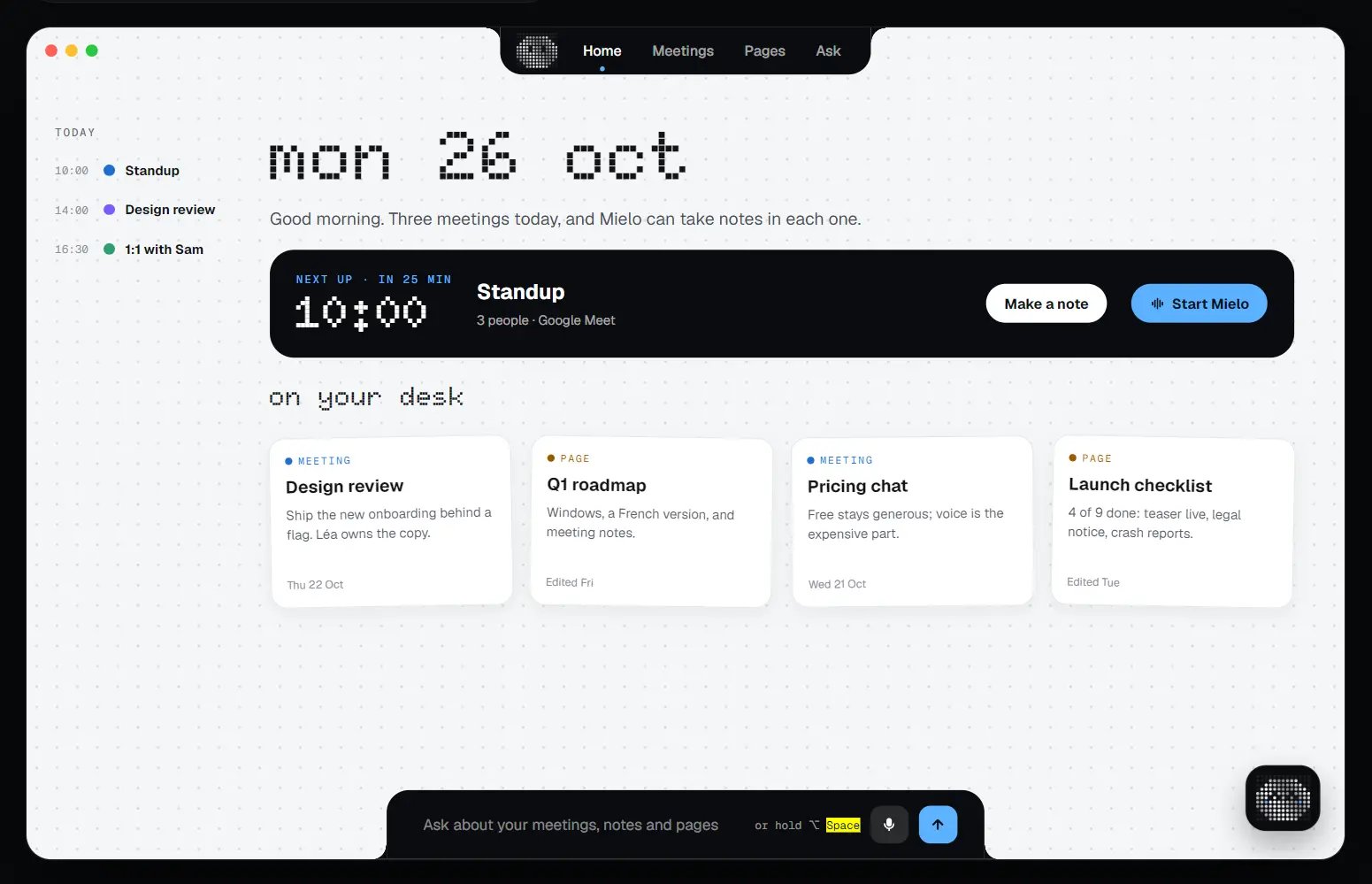
Binqo for Mac is a free macOS app built around Mielo by Binqo, an animated dot-matrix assistant in a hover-open notch panel.
Open the panel to check music, upcoming meetings, files, and recent clipboard items. Hold Option-Space (⌥ Space) to ask Mielo a question aloud and hear its answer.
Launch Binqo’s optional desk window to transcribe meetings, organize notes, and ask questions with links to the original material.
On Macs with Apple Intelligence, you can also describe a mini-app and generate it locally.
Key Features
- Open Mielo’s animated control panel by hovering over a physical or virtual Mac notch.
- Control Spotify or Apple Music and see your next calendar event with a countdown.
- Drop files onto a shelf for quick access or transfer them through AirDrop.
- Reuse recent text, links, code, colors, and images from clipboard history.
- Hold ⌥ Space to ask Mielo a question and receive a spoken answer.
- Get actionable notices for an upcoming meeting, a copied address, or changing weather.
- Run a focus timer and view an animated forecast for the next six hours.
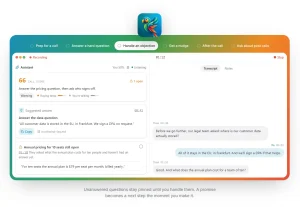
- Transcribe meetings, organize notes, and find answers linked to saved meetings and pages.
- Create mini-apps from a written description on Macs with Apple Intelligence.
What You Can Do in the Notch
Move your cursor to the top of the display, and Binqo expands the notch into a panel. You can pin it open when you need the controls for longer. Mielo’s expression changes with music, focus sessions, and periods of inactivity.
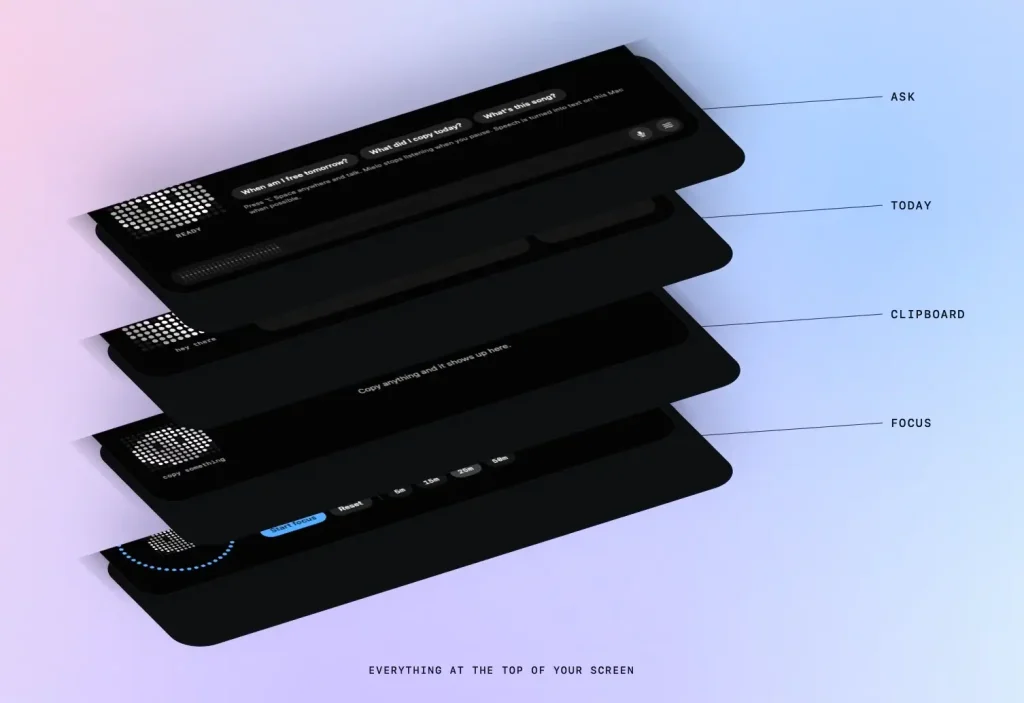
The panel shows the current song in Spotify or Apple Music with playback controls. It also displays your next calendar event and a countdown. Drop files onto the shelf to retrieve or AirDrop them later.
Clipboard history groups recent copies into text, links, code, colors, and images. Select an item to copy it again.
Clipboard history is stored in memory and erased when Binqo quits. Entries that a password manager marks as sensitive are excluded.
A focus timer and animated weather forecast are available from the panel. Mielo can also show a small notice when your meeting is about to start, an address is copied, or rain is approaching. Click an offered action to join the meeting or open the address in Maps.
Ask Mielo Questions by Voice
Hold ⌥ Space from any Mac app and speak. Release the keys when you finish your question. Mielo turns your speech into text, prepares an answer, and reads it aloud. Mielo can also suggest copying the reply, starting a timer, or reserving time on your calendar.
Binqo uses Apple’s speech recognition. Recognition runs on your Mac when available, and Apple can process the audio when on-device recognition is unavailable.
Spoken answers use ElevenLabs within a daily allowance, then switch to a built-in macOS voice.
Transcribe meetings and search your notes
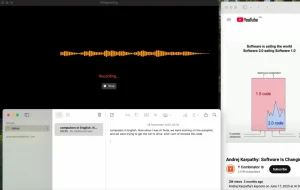
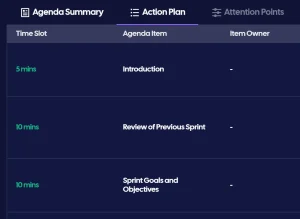
The optional desk window organizes meetings, notes, and saved pages. Start Mielo during a meeting to transcribe your microphone and Mac audio. After the meeting, Mielo organizes the transcript and your notes into a summary, decisions, and action items.
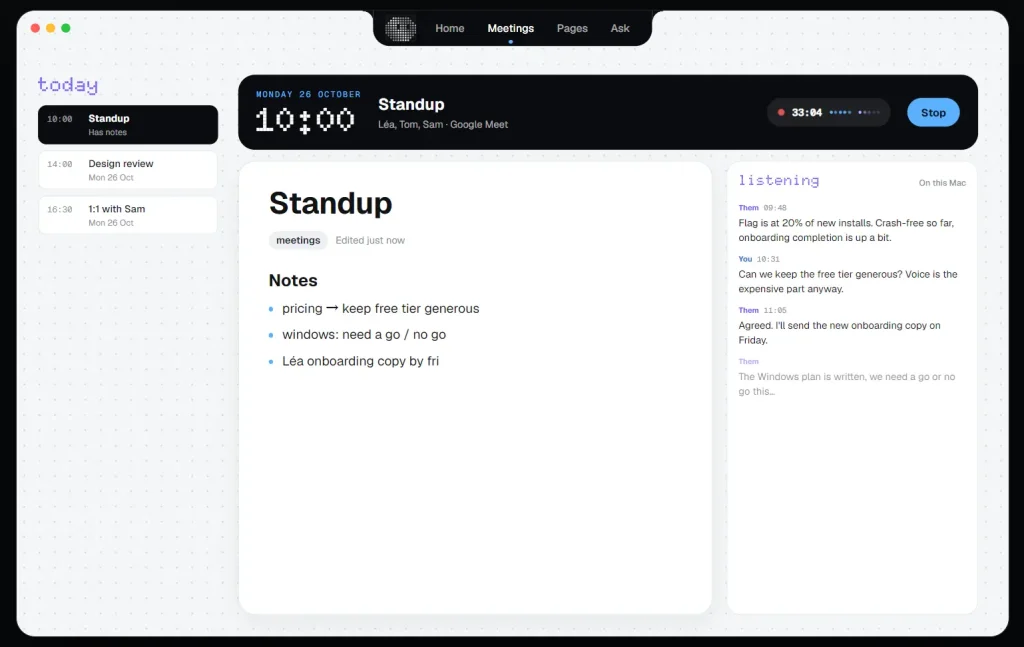
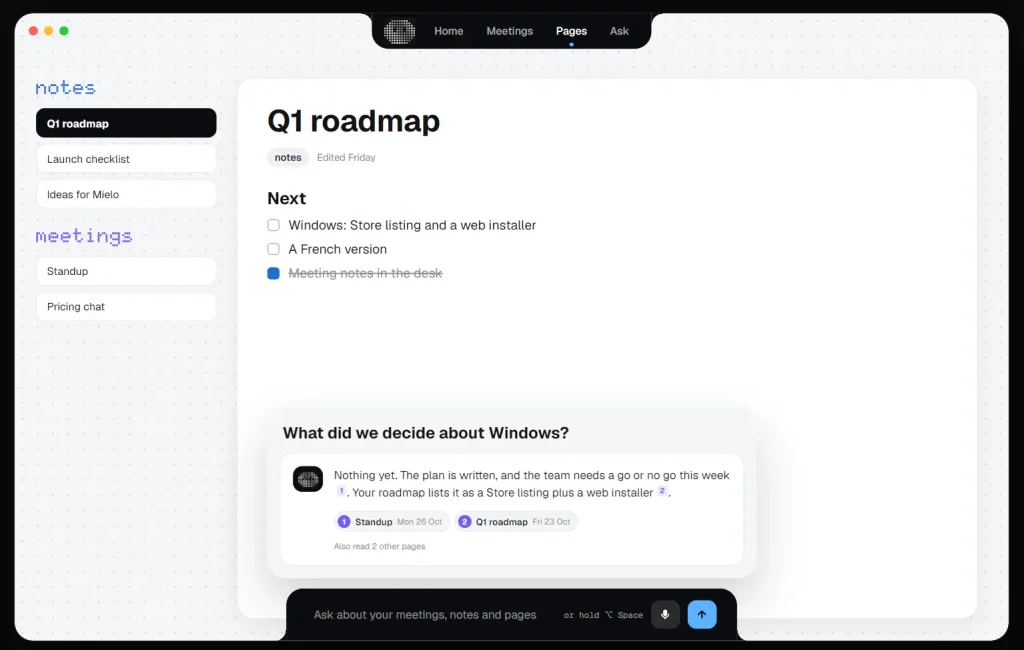
Later, ask a question about a meeting or saved page. Binqo searches the local material and returns an answer with numbered references. Select a reference to open the meeting or page containing the supporting information.
Meeting audio is transcribed on the Mac and is neither saved nor uploaded. To generate the meeting write-up, Binqo sends the meeting title, transcript, and your notes to its server for processing through Groq. The transcript and saved pages are stored locally.
Generate a mini-app from a description
On an Apple Silicon Mac running macOS 26 with Apple Intelligence, describe a small app in the desk and Mielo generates it with Apple’s on-device model.
How to Install and Start Using Binqo
1. Open the official Binqo download page, download Binqo.dmg, and drag the app into Applications.
2. Launch Binqo from Applications and confirm Open when macOS prompts you.
3. Hover over the top center of your display to open Mielo’s notch panel.
4. Hold ⌥ Space and ask a question. Grant Microphone and Speech Recognition permissions when prompted. Connect Calendar to show events, approve Music or Spotify automation for playback controls, and choose location access if you want local weather.
Mac Requirements and Price
Binqo is free to use and requires no account. It runs on macOS 14 Sonoma or later, on Intel and Apple silicon Macs.
On an iMac, Mac mini, older MacBook, or external display, Binqo draws a virtual notch at the top of the screen.
What Stays Local and What Goes Online
On Macs with Apple Intelligence, Mielo can answer questions about your personal information on the device. General-knowledge questions normally go through Binqo’s server to Groq, even on those Macs. You can turn off Ask online for general questions in the Ask tab. Mielo asks for approval before sending a question online when local processing cannot handle it.
On other Macs, questions are processed through Binqo’s server and Groq. If you permit it, today’s calendar events or recent clipboard text can accompany a question. Questions about your saved notes can also include the matching excerpts. Binqo’s server and Groq do not retain copies of these questions and answers.
For spoken responses, answer text passes through Binqo’s server to ElevenLabs. Weather requests send an approximate location to Open-Meteo. Clipboard history and the file shelf stay local, and anonymous in-app analytics are opt-in.
Pros
- Free to use with no account, on Intel and Apple Silicon Macs.
- Combines everyday notch controls, spoken questions, and a desk for meeting notes.
- Stores clipboard history in memory and transcribes meeting audio locally.
Cons
- Available only on macOS.
- Local personal AI answers and mini-app generation require macOS 26 with Apple Intelligence.
- AI meeting write-ups transmit the transcript and notes to an external service.
Alternatives & Related Resources
- Free, Private, Local AI Meeting Notes for Mac – Snaply (Granola Alternative)
- OpenWhispr: Free Open-Source Voice Dictation and AI Meeting Notes
- Private Voice Dictation & Meeting Transcription for macOS – Ghost Pepper
- cue: Open-Source AI Assistant for Private On-Screen Help