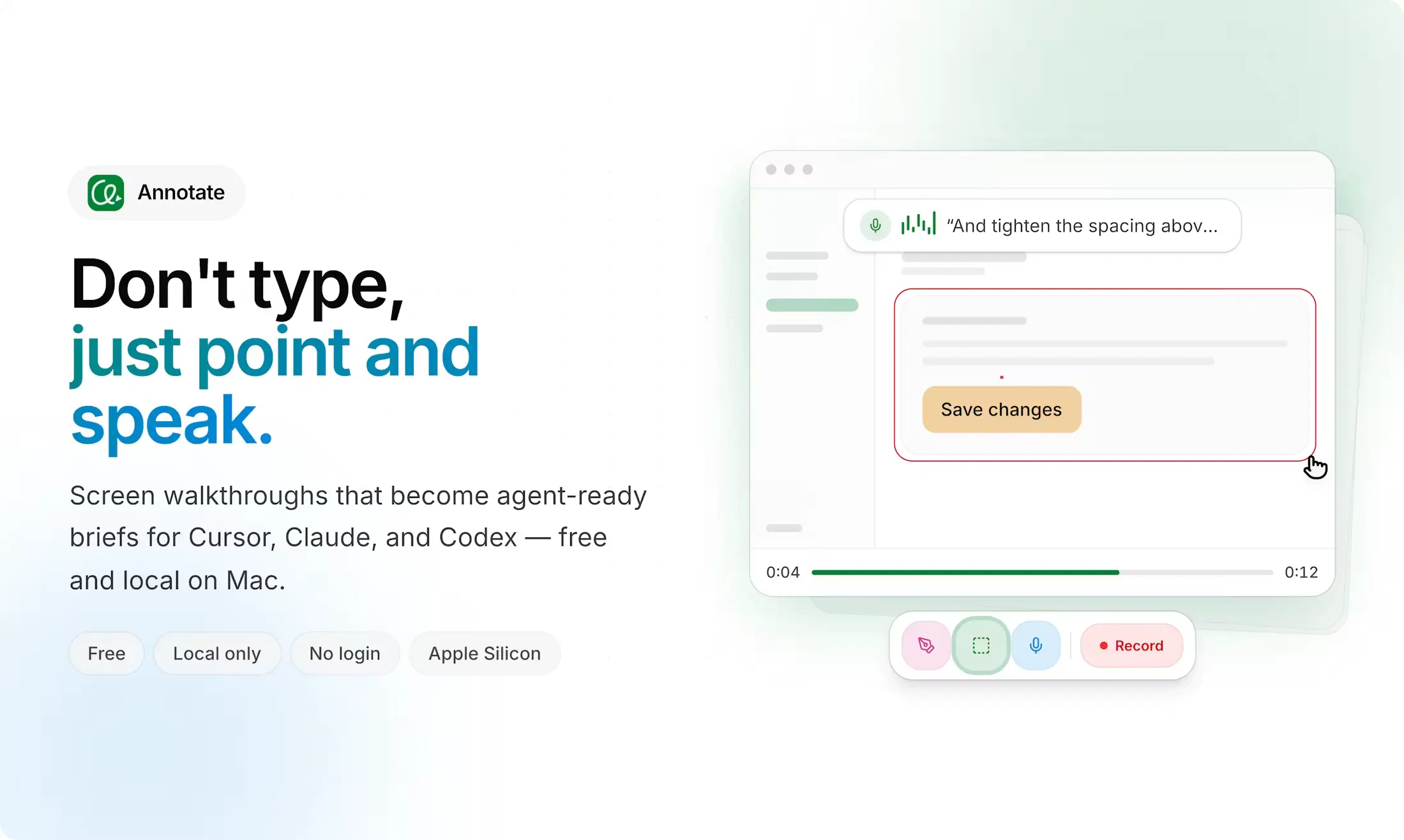
Annotate is a free, local screen-recording app for Apple Silicon Macs that turns a visual walkthrough into context for AI coding agents or coworkers.
Record a window or multiple displays, mark the UI with drawing tools, explain the requested change by voice, then hand the session to Cursor, Claude Code, Codex, or another AI agent.
The app addresses tasks that are difficult to express through a text prompt alone. A recording preserves navigation, clicks, UI state changes, annotations, and spoken instructions across time.
Key Features
- Records one window or every connected display in a single session.
- Draws pen, rectangle, and text marks on the recording.
- Transcribes spoken narration and synchronizes it with the recorded frames.
- A local
annotate-sessionMCP server that serves keyframes and transcript segments to the connected agent. - Starts and stops recording with Ctrl+Shift+R and toggles drawing tools with Ctrl+1, Ctrl+2, and adjacent shortcuts.
- Stores frames, transcripts, and annotations on the Mac with no upload step and no account.
Use Cases
Explain a UI change
Record the app, point to the affected component, and describe the required change while the relevant state is visible. The resulting session contains the visual target, spoken instruction, and surrounding interaction sequence.
Reproduce a multi-step interface problem
Start recording before reproducing a form issue, navigation bug, modal problem, or state transition. The agent receives context from the sequence that led to the problem.
Describe layout & style adjustments while looking at the page
Draw around a component or mark an area while describing spacing, positioning, color, or layout changes. Standard drawing tools disappear automatically during recording, while holding Shift keeps an annotation visible for longer sketches or UI-flow explanations.
Work across an app and editor
Multi-monitor capture records multiple displays in one session. You could show the running application on one display and related code or tooling on another while explaining how the two relate.
How to Use Annotate
1. Download Annotate on an Apple Silicon Mac and launch the application.
2. Start recording with Ctrl + Shift + R or the recording control.
3. Open the application or website that needs work.
4. Draw, point, or add text while explaining the requested change.
5. Stop the recording with Ctrl + Shift + R.
6. Open the resulting session in your coding agent or copy its session prompt into the agent you already use.
Install Annotate MCP
Replace ~ with the absolute home-directory path inside MCP configuration files.
~/Library/Application Support/Annotate/mcp/annotate-session/index.jsCursor
Open or create:
~/.cursor/mcp.jsonAdd the local server:
{
  "mcpServers": {
    "annotate-session": {
      "command": "node",
      "args": [
        "/ABSOLUTE/PATH/TO/Annotate/mcp/annotate-session/index.js"
      ]
    }
  }
}
Claude Code
The shared JSON configuration also works under the top-level mcpServers section in ~/.claude.json.
claude mcp add --scope user annotate-session -- node /ABSOLUTE/PATH/TO/Annotate/mcp/annotate-session/index.jsCodex
Open or create:
~/.codex/config.tomlAdd:
[mcp_servers.annotate-session]
command = "node"
args = ["/ABSOLUTE/PATH/TO/Annotate/mcp/annotate-session/index.js"]
MCP Tools
| MCP Tool | Purpose |
|---|---|
list_sessions | Lists recorded sessions and their storage paths |
get_timeline | Retrieves the full session timeline; the required first call for any session |
search_session | Finds moments in a session by keyword |
get_frames_near | Pulls a capped set of keyframes near a timestamp |
get_transcript_range | Pulls a capped slice of the spoken transcript |
Pros
- Free Mac download
- No account required
- Local recording storage
- Time-aligned speech context
- Multi-monitor recording
- Local MCP integration
- Cursor, Claude Code, and Codex support
Cons
- Apple Silicon Mac only
- Node.js required for MCP
- MCP configuration after initial setup
Alternatives & Related Resources
- Generate Codebase-Aware AI Specs for Claude Code & Cursor – Shotgun CLI
- SKI: Free Local Voice Coding for Claude Code, Codex & OpenClaw
- agent-browser: Free Open-Source Browser Automation CLI for AI Agents
- The Ultimate Claude Code Resource List: Agents, Skills, Plugins & More
- 10 Best MCP Servers for Web Developers