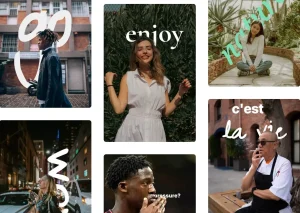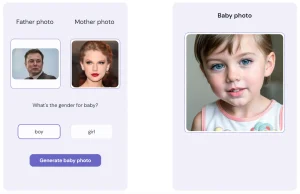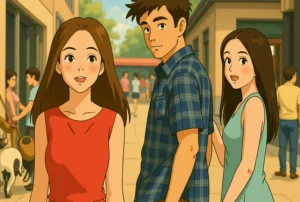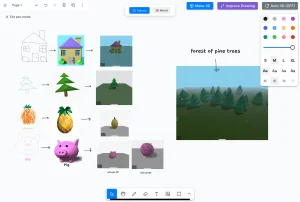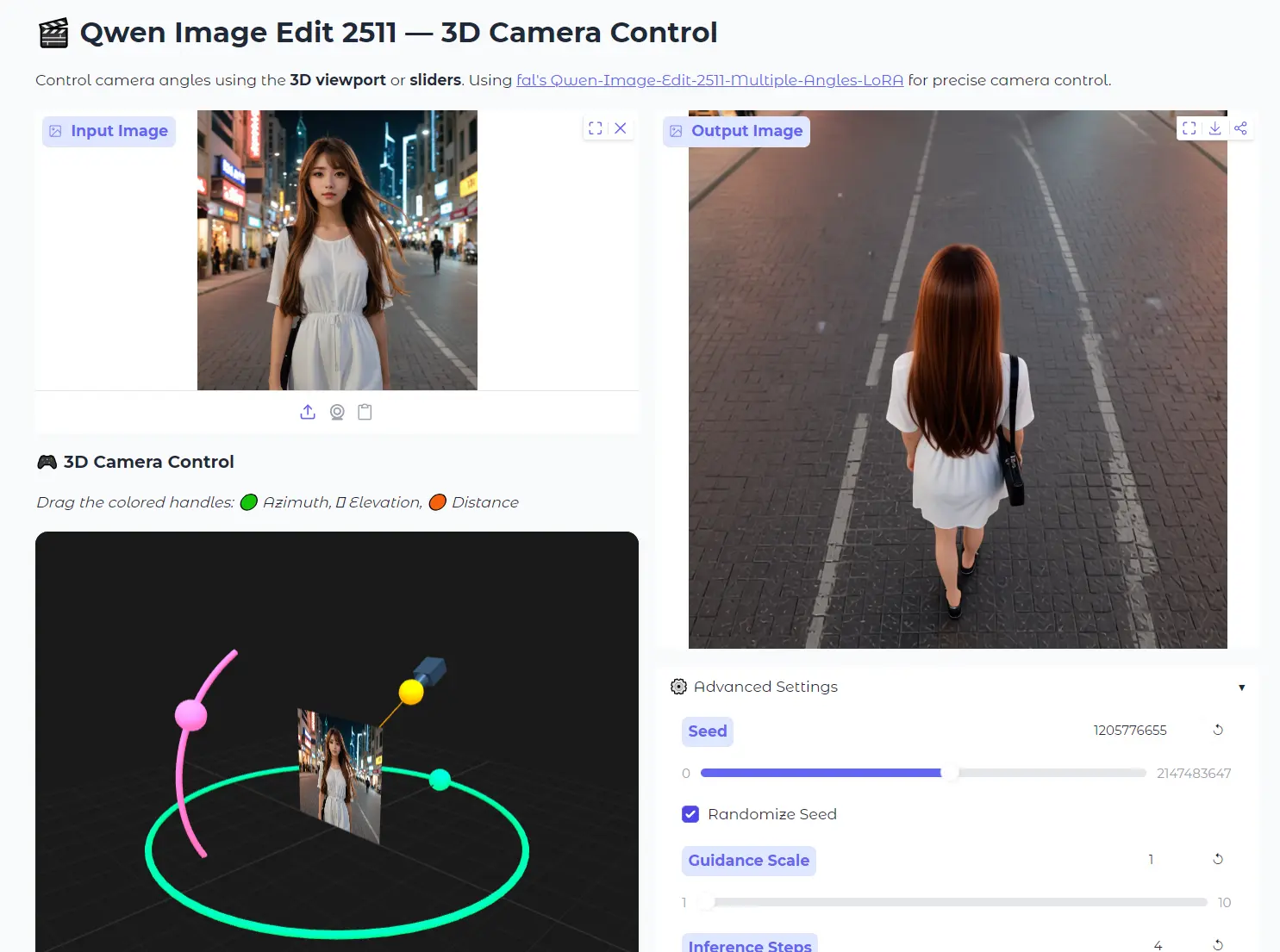
This is a free AI-powered web application that transforms static images by generating new views from different camera angles. Based on Fal’s Qwen-Image-Edit-2511-Multiple-Angles-LoRA model.
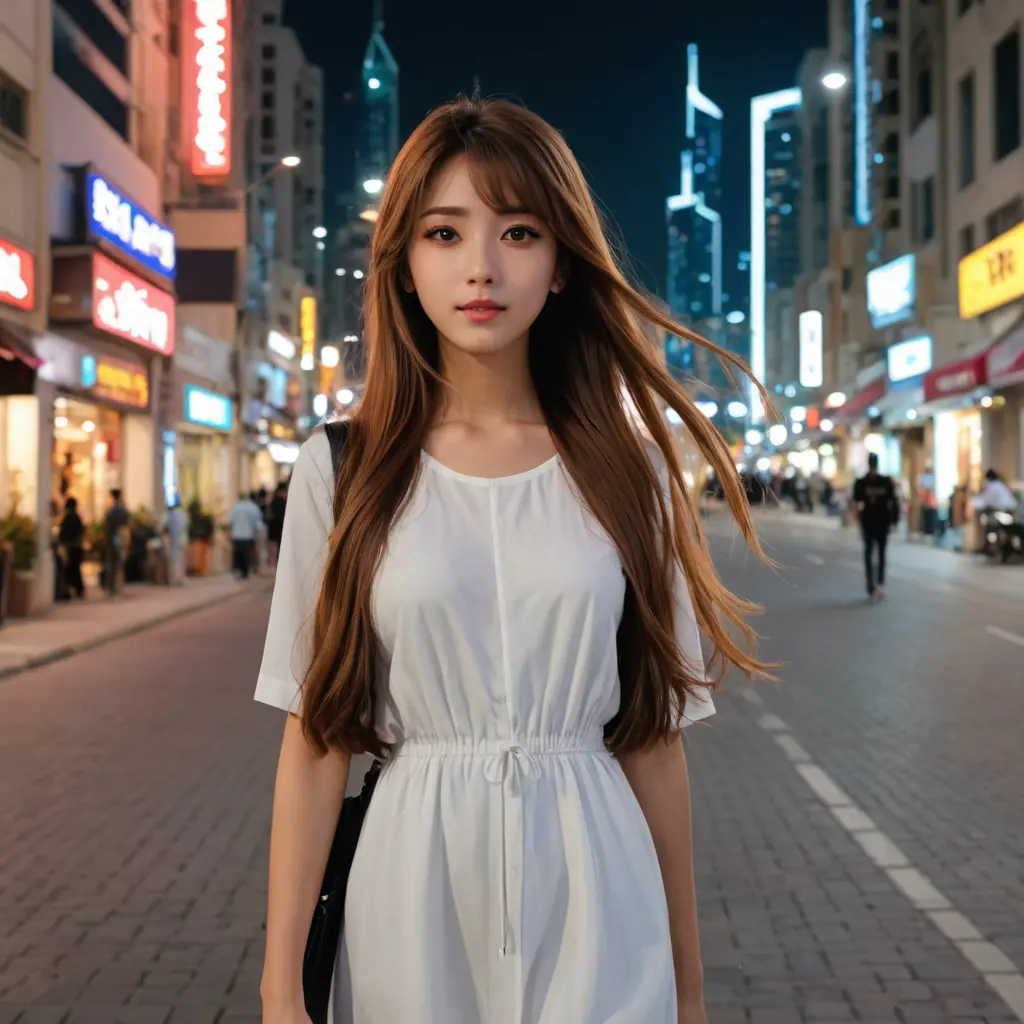
Upload a photo, adjust the virtual camera position, and the AI renders what that scene would look like from your chosen viewpoint.
Features
- Interactive 3D Viewport: Drag colored handles to position your virtual camera.
- Slider Controls: Manual sliders give you precise numerical input for azimuth (0° to 360°), elevation (-30° to 60°), and distance (0.6 to 1.4).
- 96 Camera Pose Support: The model handles a grid of positions: front, back, sides, and all angles between.
- Low-Angle Camera Control: Includes -30° elevation in its training data.
- Editable Generation Prompt: Auto-generates a text prompt describing your camera move.
- Advanced Parameter Controls: Seed, guidance scale, inference steps, and output dimensions are all adjustable.
Showcase

Use Cases
- Product Visualization: Create a full 360-degree view of a product from a single stock photo for an e-commerce site.
- Portrait Photography Exploration: Experiment with cinematic camera angles for character portraits.
- Concept Art and Storyboarding: Quickly visualize scenes from different perspectives.
- Architectural Preview: See a building or interior design concept from various vantage points.
- Social Media Content: Repurpose a single high-quality image into a carousel post showing an object or scene from multiple angles.
How To Use It
1. Open the Qwen Image Multiple Angles 3D Camera Control space on Hugging Face and upload your source image.
2. Position your virtual camera using the 3D handles. Grab the green handle and drag horizontally to rotate around the subject (azimuth). Pull the pink handle up or down to change the viewing angle (elevation). Move the yellow handle closer or farther to adjust the distance.
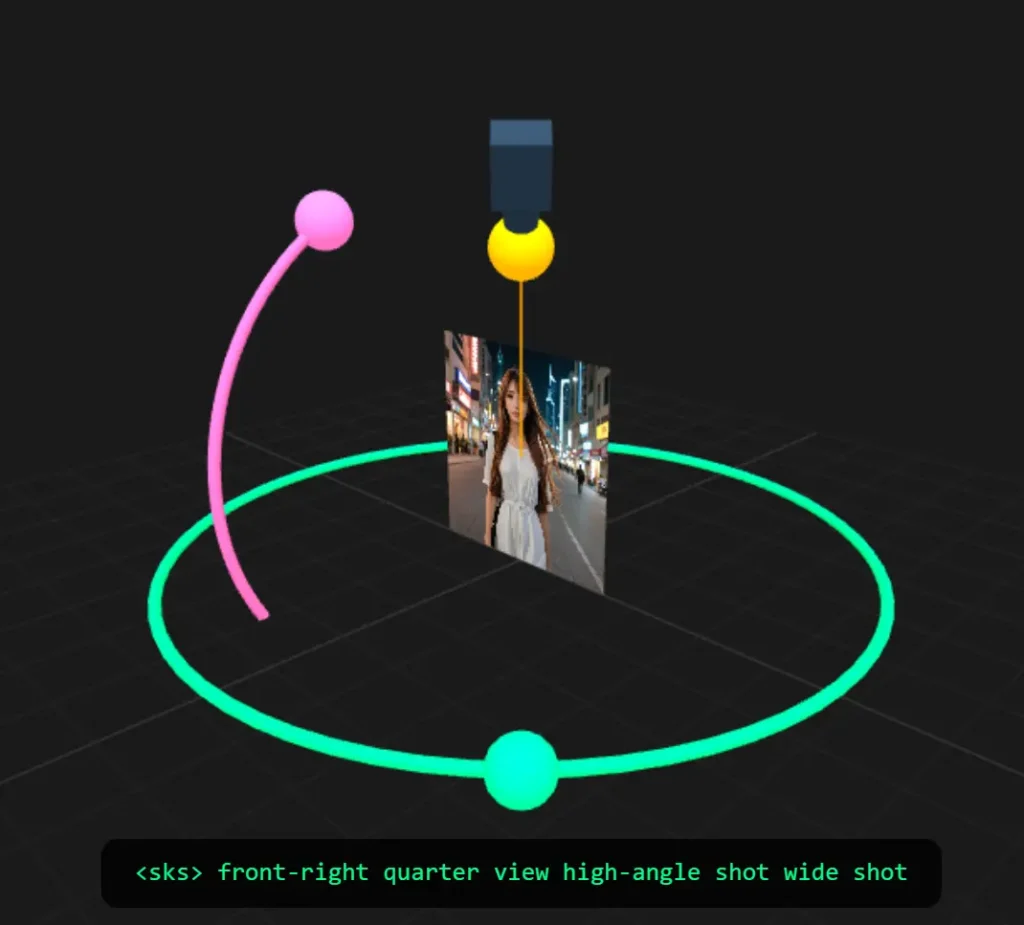
3. Use the sliders for precise adjustments if needed. Azimuth values work like a compass: 0° faces front, 90° shows the right side, 180° is the back view, and 270° shows the left side. Elevation at 0° is eye level, negative values look upward at the subject, and positive values look down. Distance at 1.0 is the default framing; go lower for close-ups, higher for wider shots.
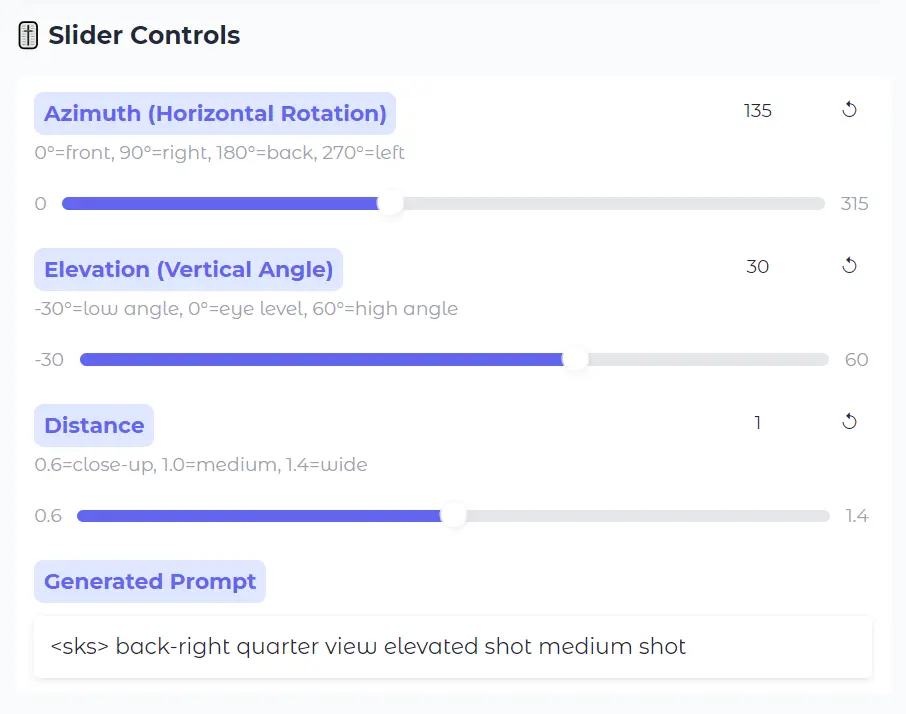
4. Review the generated prompt in the text field. The tool creates a description of your camera transformation automatically. You can edit this text to add style directions or clarify what you want preserved in the output. I usually leave it alone unless the results seem off.
5. Click the “🚀 Generate” button. Processing takes a few seconds, depending on server load.
Pros
- Free and Accessible: No cost, no login required for basic use, running directly in your browser.
- Intuitive Dual Controls: The combination of visual dragging and precise sliders caters to both quick experimentation and exact repositioning.
- Technically Robust Backend: Built on a LoRA trained with 3,000+ Gaussian Splatting data points.
Cons
- Dependent on Server Availability: Hugging Face Spaces can have queue times during peak hours.
- Limited Extreme Angles: The 96-pose grid doesn’t cover every possible viewpoint.
- No Batch Processing: One image at a time through the web UI.
FAQs
Q: Why does my output look blurry or distorted?
A: Low-resolution inputs often produce soft outputs. The model works best with source images at 512 pixels or larger on the shortest side. Compression artifacts in the original also transfer to (and sometimes amplify in) the generated result.
Q: How do I get the same result again?
A: Note the seed number from your successful generation. Enter that same seed in Advanced Settings before your next run. Keep all other parameters identical: same angles, same prompt, same dimensions.
Q: What’s the difference between this and regular image rotation?
A: Standard rotation just pivots the existing pixels. This tool generates new visual information. It synthesizes what would be visible from a different camera position, including surfaces that weren’t in the original frame.
Related Resources
- Qwen-Image-Edit-2511-Multiple-Angles-LoRA: The model card containing technical details, training data, and API usage information.
- Qwen Official Page: Learn about the base Qwen family of models that power this specific editing tool.