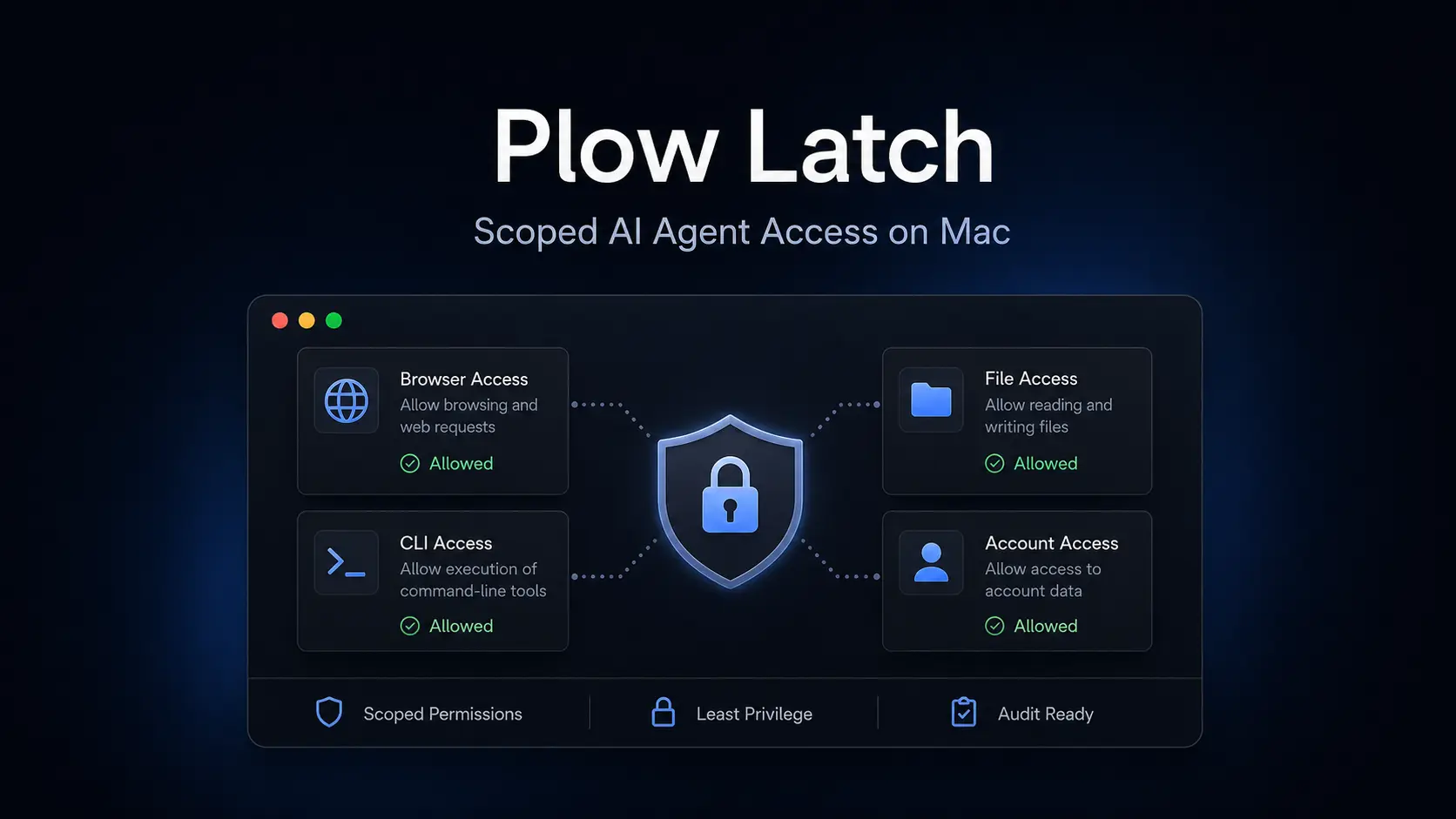
Plow Latch is a macOS app that connects your AI agents to the browser, command line, files, and logged-in accounts already available on your Mac.
It works with Claude.ai, Codex, OpenClaw, Hermes, and any other MCP-compatible AI agents. Once connected, the agent can continue a task through steps that normally require you to leave the chat and operate the Mac yourself.
Plow Latch’s access stays limited to approved capabilities. A request outside existing permissions can stop for your decision or an AI Reviewer check.
How Plow Latch Works
Install Latch on your Mac, copy the MCP link created for that computer, and add the link to a supported AI agent. Plow currently supports Claude.ai, Codex, OpenClaw, and Hermes. Other agents can connect when they support the same MCP connection.
During a task, the connected agent requests the browser, files, terminal, or account access it needs. A restaurant reservation can move from finding an available table to completing the booking through a logged-in browser session. Receipt matching can pull information from email and compare it with files stored on the Mac.
The agent receives access to the capabilities needed for the job, and Latch checks requests that fall outside of already approved permissions.
Scoped Access and the AI Reviewer
Prompt injection becomes a larger concern once an agent can act through real accounts and local data. A webpage, email, or file can contain instructions that try to redirect the agent toward an unrelated action.
Latch checks new requests against the access already approved for the job. A request outside that scope can stop for your decision or for review by its AI Reviewer. The reviewer evaluates the request against the job you assigned. It does not automatically trust content produced by the working agent, and it denies requests when it cannot reach a verdict.
Saved credentials use a similar control. Latch can fill a password for an authenticated website without exposing the password itself to the agent.
Payments, account changes, destructive file operations, and messages sent in your name still deserve close supervision because those actions affect real accounts or data.
Getting Started
Install Latch on your Mac, copy its MCP link, and connect the agent you plan to use.
Start with a single job such as finding a receipt, checking a file, or researching a reservation. Review the access requested during that task before moving to jobs that can submit payments, change account data, or modify important files.
This first task also shows how Latch handles permissions in normal use. You can see which resources the agent requests and where a new action triggers a decision.
Who Should Use Plow Latch?
Latch is great for Mac users who already work with an AI agent and want it to complete tasks involving browser sessions, local files, terminal commands, or authenticated accounts.
It’s designed for short multi-app jobs, repeated personal tasks, and self-run agents that need controlled access to services such as Gmail and Slack.
Pros
- Combines browser, CLI, file, and authenticated account access on a Mac.
- Limits access through scoped permissions.
- Fills saved credentials without exposing the password to the agent.
- Reviews new requests that fall outside existing permissions.
- Keeps personal file contents on the Mac.
Cons
- Requires macOS.
- Task data can reach cloud AI providers you connect.
- High-impact actions need close supervision.
Alternatives & Related Resources
- Osaurus focuses on local AI agents for Mac with local models, persistent memory, MCP, and automation.
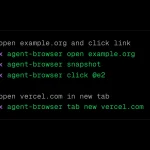
- agent-browser focuses on browser automation when an agent does not need wider Mac access.
- Windows-MCP brings MCP-compatible agent control to Windows.
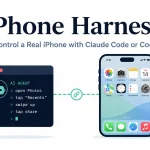
- Phone Harness connects Claude Code, Codex, and other shell-capable agents to a real iPhone through Apple’s iPhone Mirroring.