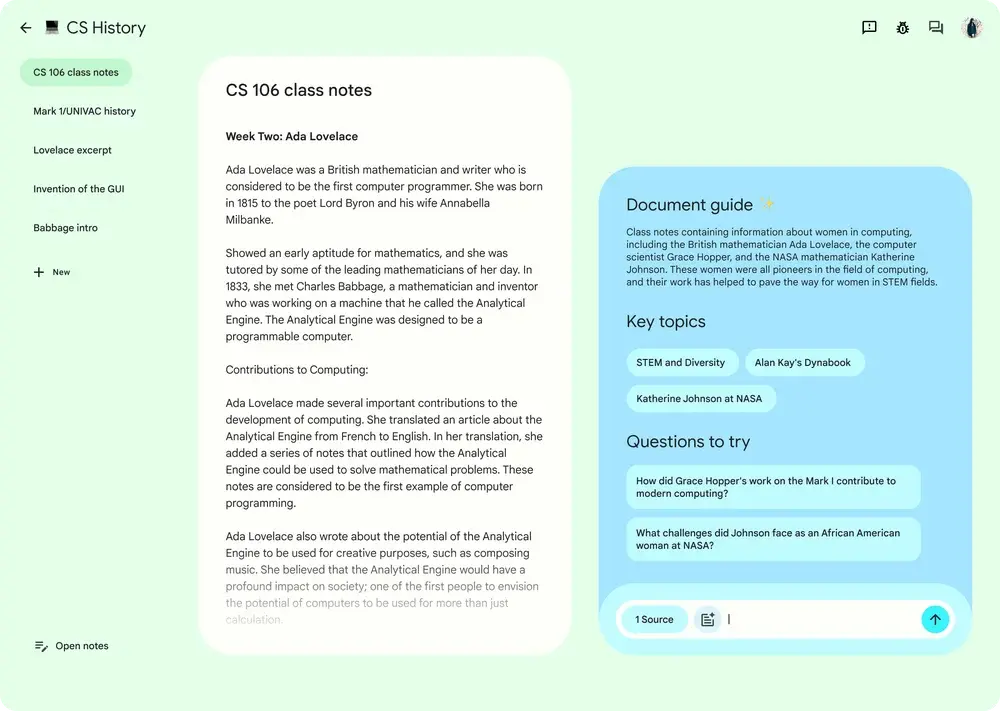
Gemini Notebook, formerly NotebookLM, is Google’s AI research tool for working with a collection of sources. Add the documents, links, videos, and recordings for one project, then wait for the notebook to process them.
Once processing is complete:
Chat can answer questions across the collection. Select the sources relevant to a question, ask for a comparison or explanation, and open the citations to check the evidence. Save an answer worth keeping as a note; its citations remain attached.
Studio can then create reports, study aids, Audio and Video Overviews, data tables, infographics, or slide decks from the same material.
The sources, questions, supporting evidence, and finished work stay in the notebook. You can return later and trace the finished output back to the material that supports it.
Features
Source management: Gemini Notebook accepts PDFs, Google Docs, Google Slides, Google Sheets, web URLs, public YouTube videos with captions, pasted text, audio, images, DOCX, TXT, Markdown, CSV, PowerPoint, and ePub files.
Source-grounded chat: Ask questions about selected sources, compare documents, request summaries, or simplify a difficult passage. Answers cite the notebook material, and each citation opens the relevant source passage.
Audio Overviews: Two AI hosts can discuss notebook sources in formats such as Deep Dive, Brief, Critique, and Debate. Interactive mode supports questions during some Audio Overviews.
Video Overviews: Gemini Notebook creates narrated visual summaries from notebook sources. These can present lessons, project material, or reports as a slide-style walkthrough.
Study tools: Mind maps show relationships between ideas. The same source set can produce flashcards, quizzes, Learning Guide sessions, study guides, briefing documents, FAQs, and timelines.
Source discovery: Fast Research searches the web or accessible Google Drive files. Deep Research can browse a larger set of websites and produce a report with sources for review before import.
Studio artifacts: The Studio panel stores Audio Overviews, Video Overviews, reports, mind maps, data tables, infographics, slide decks, flashcards, and quizzes. Standard access includes limited generations, while paid plans raise quotas.
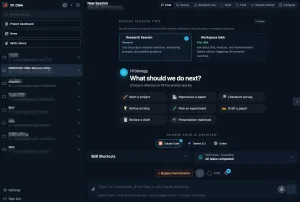
Code-assisted research: Eligible accounts receive a secure cloud computer for code execution, data analysis, charts, and downloadable files. Google currently includes this upgrade with AI Ultra and qualifying Workspace business access, with a web rollout to Pro users scheduled over the coming weeks.
Gemini app integration: Personal notebooks appear in Gemini. Names and sources sync with custom instructions across both apps. Studio artifacts remain available only in the standalone Gemini Notebook experience.
Use cases
- Upload lectures, papers, and textbook chapters for cited explanations, study guides, flashcards, and quizzes.
- Collect background material, compare viewpoints, and prepare an outline from a controlled source set.
- Prepare briefs, presentations, or review media from internal reports, onboarding documents, and training material.
- Analyze mixed-format data and create charts, spreadsheets, or PDF reports with eligible upgraded access.
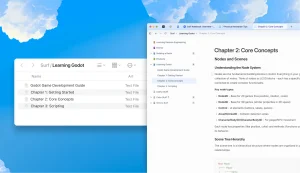
- Build a personal learning notebook from articles, books, notes, recordings, and public videos.
Free plan and limits
Each source can contain up to 500,000 words. Local uploads can be up to 200 MB. Google Sheets are limited to 100,000 tokens, and Google Slides can contain up to 100 slides. Paid Google AI and qualifying Workspace plans raise notebook and source limits alongside chat and artifact quotas.
| Limit | Standard access |
|---|---|
| Account | Google sign-in required |
| Notebooks | 100 per user |
| Sources | 50 per notebook |
| Chats | 50 per day |
| Audio Overviews | 3 per day |
| Video Overviews | 3 per day |
| Reports | 10 per day |
| Flashcards | 10 per day |
| Quizzes | 10 per day |
| Mind maps | 10 per day |
| Deep Research | 10 per month |
Supported source types
- PDF, DOCX, TXT, Markdown, CSV, PowerPoint, and ePub files
- Google Docs, Google Slides, and Google Sheets
- Web pages and public YouTube videos with captions
- Pasted text
- Audio files such as MP3 and WAV
- Images including JPG, PNG, GIF, WebP, TIFF, HEIC, and AVIF
- Gemini chats added as notebook context
How to use Gemini Notebook
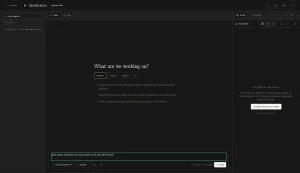
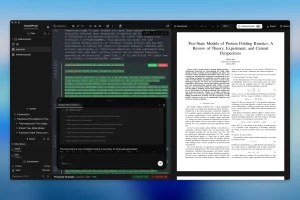
Gemini Notebook organizes a project around three working areas: Sources, Chat, and Studio. Build the source library first, confirm that the imported material is readable, use Chat to examine it, and create reusable outputs in Studio.
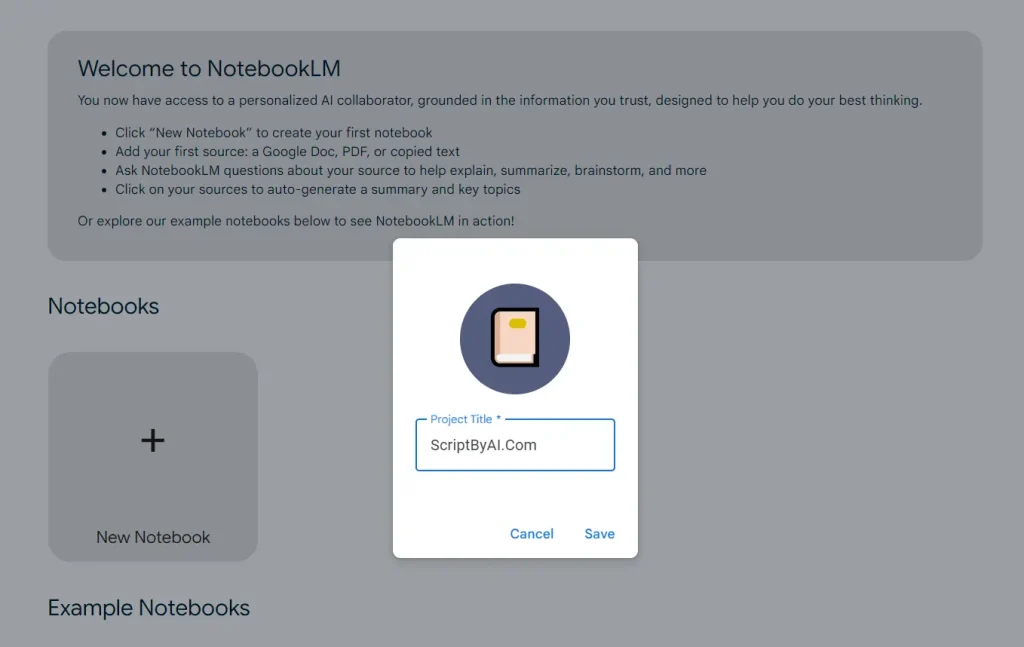
Create one notebook for one project
Select “Create new notebook” and give the project a specific name. Each notebook has its own sources, chat history, notes, and Studio artifacts.
Add your existing sources
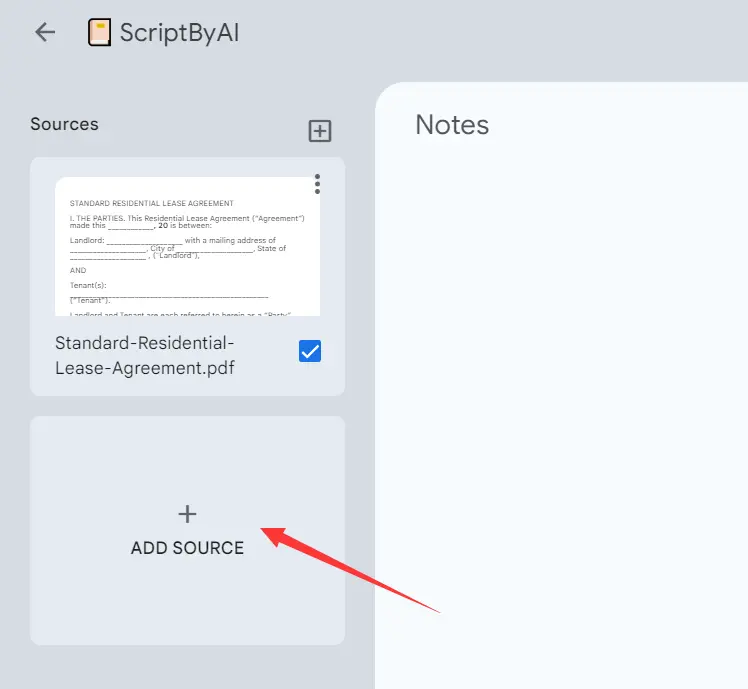
Select “Upload a source” in a new notebook or “+ Add” in an existing one. You can upload local documents, images, and audio; import Google Docs, Slides, or Sheets; paste text; or enter web and YouTube URLs.
Find sources with Fast Research or Deep Research
Enter a research question in the Sources panel when you need material from the web or Google Drive. Fast Research returns titles, short relevance descriptions, and links to the original pages. Open the results, remove weak matches, and import only the sources that belong in the project.
Deep Research performs a longer web investigation and produces a multi-page report with its source list. Turn on “Web” and “Deep Research,” start the search, then review the report and individual sources before import. This mode is restricted to users over 18, uses the notebook’s source quota, and discards results that you leave unimported.
Check, organize, and refresh the source library
Open a source to read its Source Guide and generated summary. A notebook with five or more sources can group them with automatic labels.
Drive imports refresh every few minutes when you open the notebook. Open the source and select “Click to sync with Google Drive” when you need an immediate update. If the original file is deleted or your Drive permission expires, the source becomes inactive, still counts toward the source limit, and disappears from Chat and Studio results.
Ask focused questions in Chat
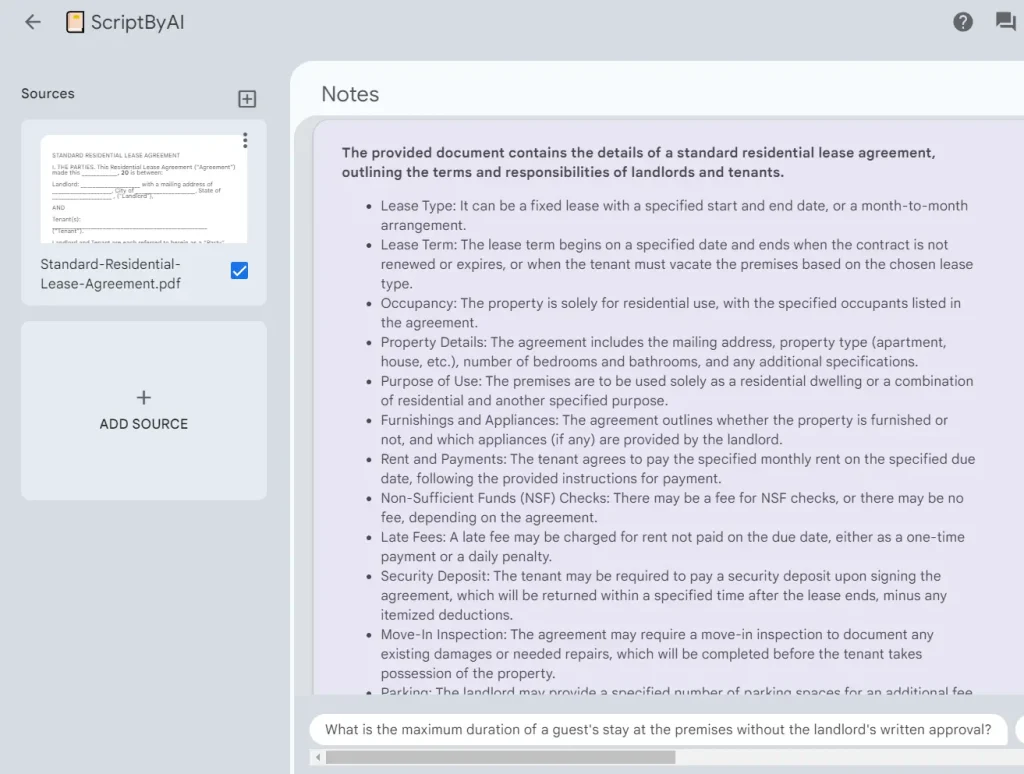
Wait for source processing to finish, then open Chat. The panel begins with a summary of the selected sources. Use the checkboxes in the Sources panel to control which documents contribute to an answer. Mention a source by name when several files discuss the same topic.
Ask for a specific comparison, explanation, quotation, timeline, or summary. Hover over a citation to read the quoted passage, or select it to open that location in the source viewer. A response that lacks the needed evidence is a signal to revise the question, select a different source set, or inspect the original document.
Open “Configure Chat” to select Default, Learning Guide, or Custom conversation style and to change response length. Save a useful answer as a note when you need it later. The saved note retains tables and clickable citations. Chat history remains private to your account until you delete it from the Chat menu.
Create and customize Studio artifacts
Open Studio and select the artifact that matches the next task. Reports include study guides, briefing documents, FAQs, and custom formats. Data Tables accept instructions for language, rows, and columns. Flashcards and quizzes include controls for quantity and difficulty.
Audio Overviews support Deep Dive, Brief, Critique, and Debate formats. Set the language, length, source selection, and focus before generation. Video Overviews add format and visual-style controls. Artifact generation continues in the background, and a Video Overview can take more than 30 minutes.
Use the pencil icon before generation to add instructions for the audience, emphasis, language, or format. The three-dot menu beside an artifact includes “View custom prompt” after generation. Check this prompt when an output emphasizes the wrong part of the notebook.
Export work for editing or presentation
Open the three-dot menu beside a report and select “Export to Docs.” A report with data tables can also export those tables to Google Sheets. Standalone Data Tables export their content to the first sheet tab and place citations in the second tab.
Slide Decks can download as PDF or PowerPoint files. Eligible upgraded accounts can create other downloadable documents, images, charts, and structured data files. Edits made in exported Docs or Sheets do not return to the notebook, and the exported file receives its own sharing permissions.
Select “Share” and add collaborators as Viewers or Editors. Viewers can read shared sources and notes. Editors can add or remove material and can share the notebook again. Personal Gmail accounts support up to 50 individual collaborators and cannot share with Google Groups.
Public sharing uses “Anyone with a link” and still requires the visitor to use a Google account. “Copy link to chat view” opens a simpler chat-focused view, but it does not remove the recipient’s underlying access to sources and artifacts.
Continue the notebook in Gemini or on mobile
Personal notebooks appear in the Gemini app and sync their names, sources, and custom instructions. Chat behaves differently in the two products: Gemini Notebook answers exclusively from notebook sources, while Gemini can also call web search and other tools. Audio Overviews, Video Overviews, infographics, and slide decks remain in Gemini Notebook Studio.
On mobile, use the system share menu to add a website, PDF, or YouTube video to a notebook. You can also download Audio Overviews for offline listening, review flashcards and quizzes, or present generated infographics and slide decks. Return to the browser when a mobile feature is missing or has fewer controls.
11. Fix common source-import problems
- Remove password protection from a PDF before upload.
- Keep each source within 500,000 words and 200 MB.
- Use a readable document copy for paywalled or script-heavy pages.
- Confirm that a YouTube video is public and has captions.
- Wait up to 72 hours before importing a newly uploaded video.
- Restore Drive access or remove an inactive Drive source.
- Use clear speech when an audio transcript fails.
Google Docs imports omit comments and footnotes. Web imports capture page text, and YouTube imports capture the transcript. Check the source viewer before relying on a summary that depends on charts, embedded media, comments, or page elements outside the imported text.
Tip: Name the source and the intended output in the same request. “Create a one-page study guide from Lecture 3 and the assigned paper” is more precise than “make a study guide.”
Privacy and data handling
Files and chats added to Gemini Notebook are not used directly to train Google’s foundational generative AI models unless you submit feedback.
Qualifying Workspace and Workspace for Education accounts receive enterprise-grade protections. Uploaded files, chats, and model outputs are not reviewed by human reviewers or used to improve generative AI models.
Notebook conversations inside the Gemini app follow Gemini Apps activity and retention settings. Deleting Gemini Apps activity does not delete the linked notebook data. A notebook that contains Gemini chat context is private and cannot be shared.
Gemini Notebook is a cloud service. Material covered by strict client, legal, or organizational confidentiality rules should use an approved Workspace configuration or a private self-hosted alternative.
Pros
- Free Standard access with Google sign-in
- Answers include inline source citations
- Drive sources can sync automatically
- Audio and video review formats
- Notebooks sync with the Gemini app
- Supports more than 80 languages
Cons
- Standard chats stop at 50 daily
- Standard notebooks cap sources at 50
- Paywalled pages cannot be imported
- YouTube imports require public captions
- Code execution needs eligible paid access
Alternatives and related resources
- Open Notebook: Private, Self-Hosted Alternative to Google NotebookLM
- NotebookLM MCP
- Gemini Notebook Help Center
- NotebookLM is now Gemini Notebook
- Featured Gemini Notebooks
More Free AI Tools from Google
- Code Wiki: Google’s AI-Powered Solution for Code Understanding.
- NotebookLM: AI Research Assistant for Students and Professionals.
- Pomelli: Google’s Free AI Tool for SMB Marketing Campaigns
- Mixboard: Free AI Moodboard Tool from Google Labs.
- Google Stitch: Free AI Vibe Design Tool with Agent and Web Export
- Producer.ai: Free AI Studio-Quality Music Generator by Google.
- Google Antigravity 2: Agent-First Dev Platform with Gemini 3.5.
- Dreambeans: Google Apps Turned Into Daily AI Stories
FAQs
Q: Will old NotebookLM links and shared notebooks still work?
A: Yes. Google is using automatic redirects for existing links and shared notebooks.
Q: Why can’t I see code execution or the new downloadable formats?
A: The secure cloud computer is currently available to Google AI Ultra users and qualifying Workspace business accounts.
Q: Can I recover a deleted note?
A: Deleted notes cannot currently be recovered. Export important notes to Google Docs or retain a separate copy before deleting them.
Q: Can I duplicate a notebook?
A: Gemini Notebook does not currently include a duplicate-notebook command. Create a new notebook and import the needed sources again when a project needs a separate copy.
Q: Why does an answer sometimes have no citation number?
A: Very short source material may be referenced as a complete document. Open the selected source and compare the answer with the full text.
Changelog
July 16, 2026: Google renamed NotebookLM to Gemini Notebook. The standalone product remains available, existing links redirect automatically, and the new name and logo are rolling out across interfaces.