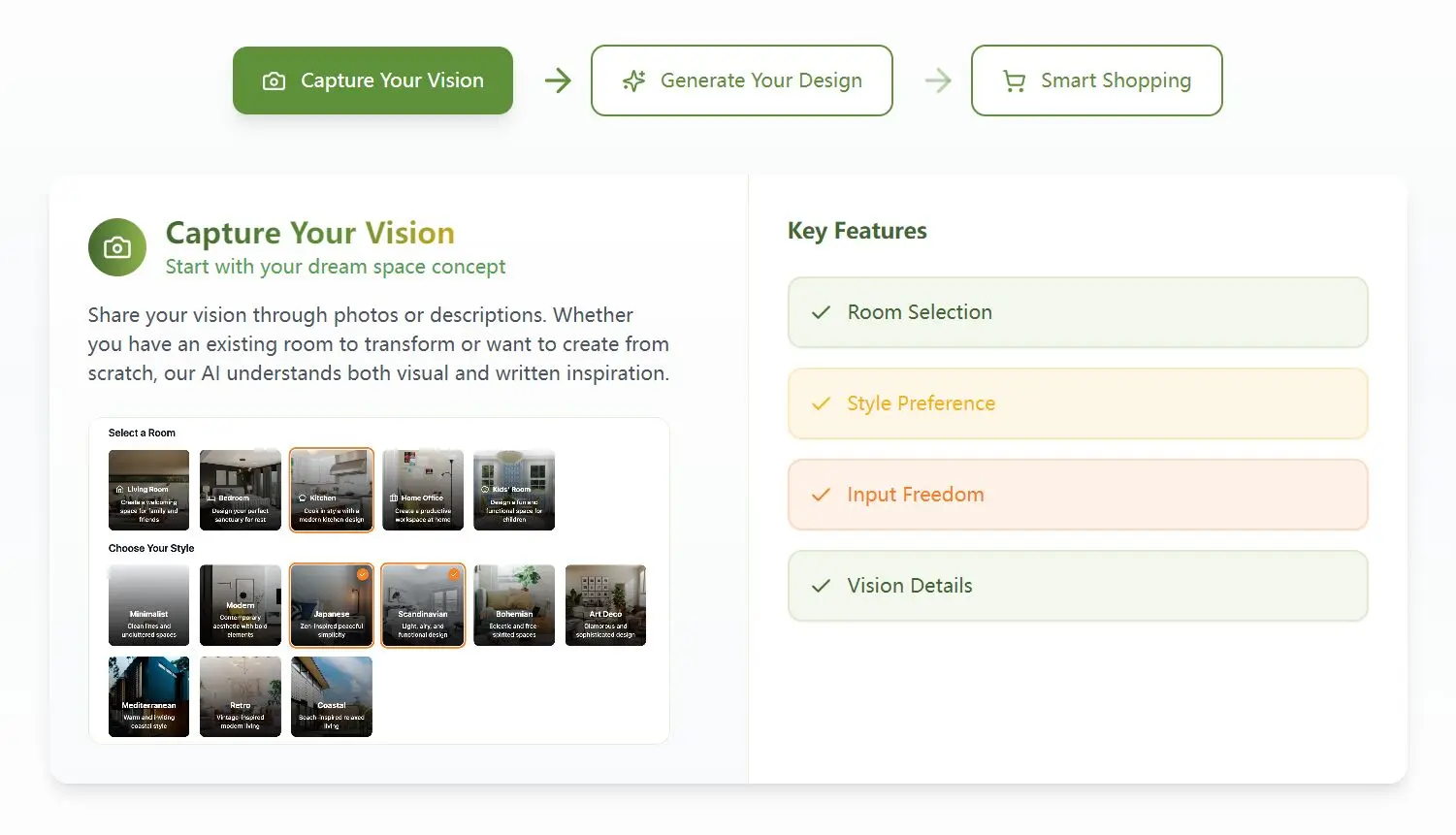
Interior design can feel overwhelming when you’re staring at an empty room or trying to refresh your current space. Finding furniture that matches your vision and budget adds another layer of complexity. That’s where YouZu.ai enters the picture – a free AI-powered platform that combines interior design with intelligent shopping features.
YouZu.ai lets you upload photos of your existing spaces or describe your dream rooms, then generates photorealistic design concepts based on your preferences. What sets it apart is the integrated shopping functionality that identifies the exact furniture pieces in your designs and compares prices across major retailers.
Features
- Photo Transformation: Upload images of your current space and watch as the AI transforms it according to your selected style
- Text-to-Design: Describe your dream room in words and see it visualized as a photorealistic design
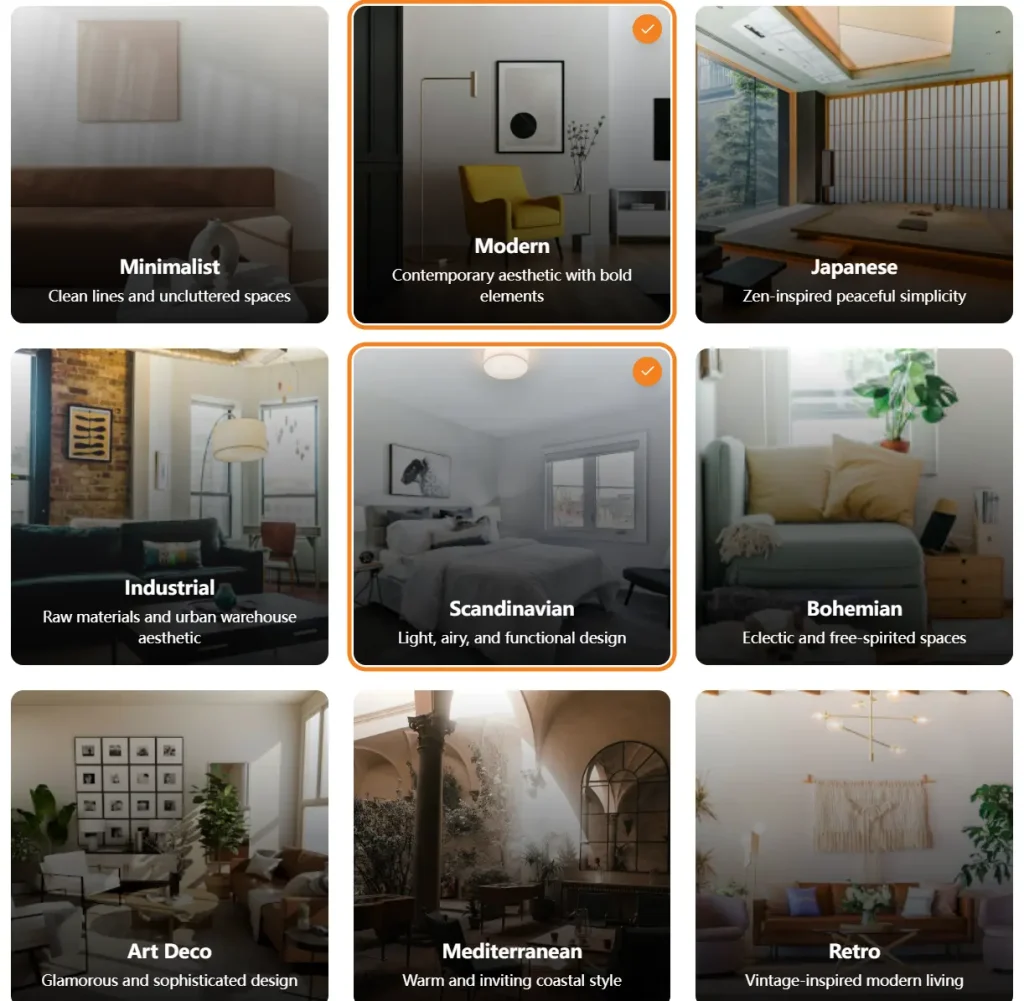
- Style Selection: Choose from 12 distinct design styles, including Minimalist, Modern, Japanese, Industrial, Scandinavian, and more
- Multiple Design Options: Generate various concepts for the same space to explore different possibilities
- Interactive Designs: Save favorites and mix elements from different generated designs
- Smart Shopping Integration: Click on any furniture piece in your design to find exact or similar products for purchase
- Price Comparison: Compare costs across major retailers to find the best deals on your selected items
- Room-Specific Expertise: Get personalized designs for specific spaces like living rooms, bedrooms, kitchens, home offices, and more
Use Cases
- Rental Apartment Makeovers: Visualize potential changes without committing to purchases
- Pre-Move Planning: Design your new home before moving in so you can purchase furniture with confidence
- Budget Redecorating: Find affordable alternatives to high-end design pieces through the price comparison feature
- Style Exploration: Test how different aesthetic approaches would look in your actual space
- Room Repurposing: Tturn a spare bedroom into a home office or creating a multifunctional space
How To Use Youzu.ai
1. Sign Up: Go to youzu.ai and register a free account. You’ll need an email or Google account.
2. Pick Your Space: Select the type of room you’re working on (Living Room, Bedroom, Kitchen, Home Office, Kids’ Room, Bathroom, Studio, Balcony). This helps the AI tailor suggestions.

3. Choose a Style: Select one or more styles that appeal to you (e.g., Minimalist, Modern, Japanese, Industrial, Scandinavian, Bohemian, etc.). This guides the AI’s aesthetic direction.
4. Provide Input:
- Option A: Upload Photo: Take a clear picture of your room and upload it. Try to get a wide view.
- Option B: Describe: Write a text description of the room and what you envision (e.g., “Small living room with large window, needs cozy seating for 4, prefer light colors”).
5. Add Details (Optional): You can add specific notes or requirements like “need a standing desk” or “avoid red colors” to refine the concept.

6. Generate: Click the ‘Generate Design’ button. The AI will process your input and create several design mockups, usually within a minute. It shows different layouts and furniture arrangements based on your chosen style.
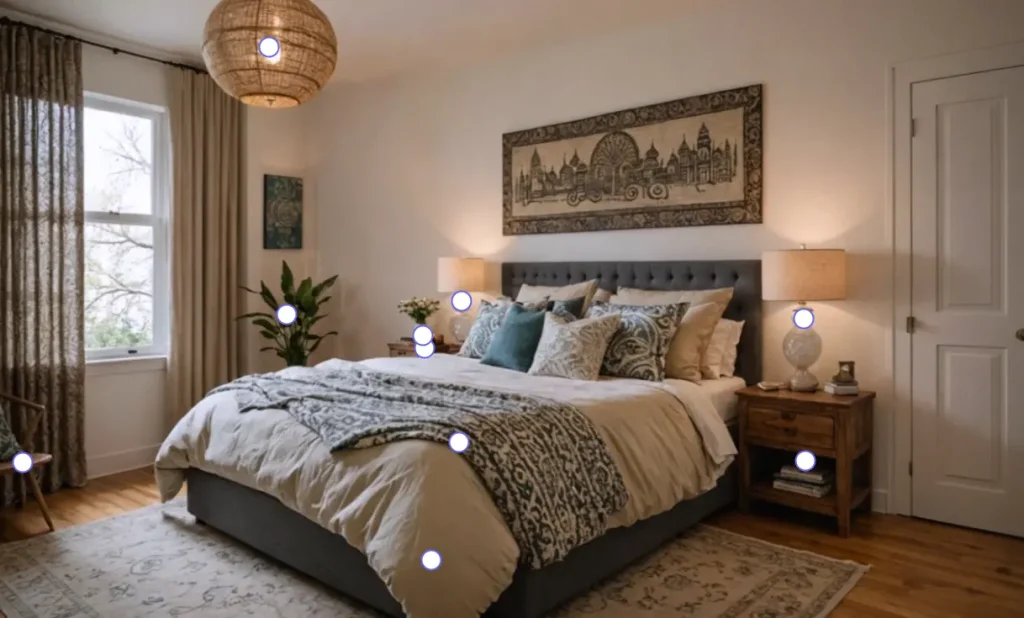
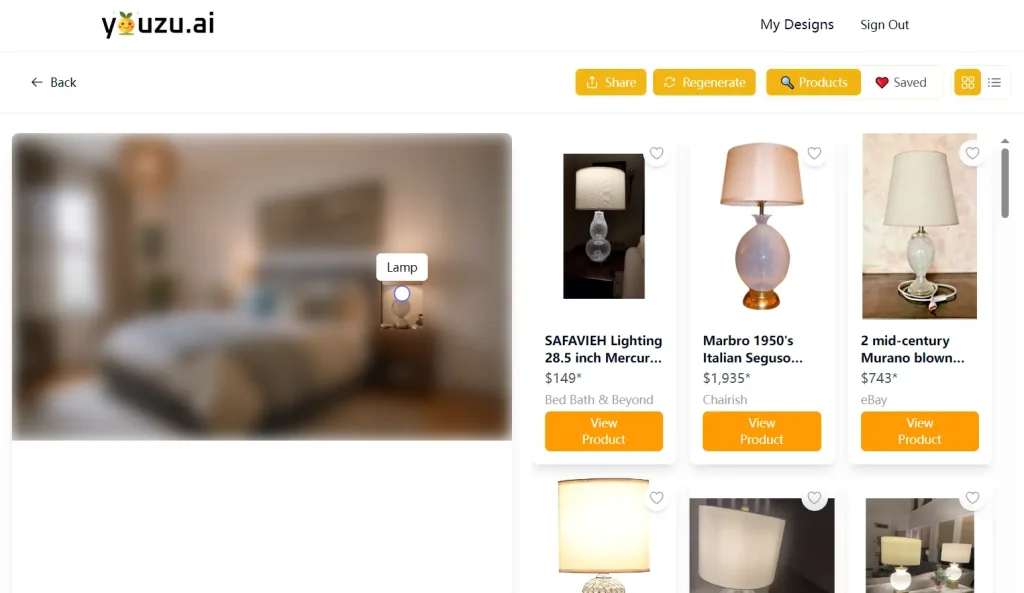
7. Review & Shop: Look through the generated designs. Save the ones you like. If you see furniture you’re interested in, click on it. The Product Finder will attempt to locate that item or similar ones across various retailers, showing you prices and purchase links.
Pro Tip: Clear photos work best. Tidy up a bit if possible – extreme clutter can sometimes confuse the AI about the available space. For text descriptions, be specific about the room size and key features you want included or avoided.
Pros
- Speed: Generates multiple design ideas very quickly.
- Ease of Use: Simple interface, no complex software to learn.
- Integrated Shopping: Directly find and compare prices for items in the designs. Big time-saver.
- Variety of Styles: Good range of popular interior design styles to choose from.
- Photo or Text Input: Flexible options for starting your design.
Cons
- Potential for Generic Results: Sometimes the initial designs can feel a bit template-based; refining with specific requirements helps.
- Furniture Matching Isn’t Perfect: While often accurate, “exact matches” might sometimes be close approximations, especially for less common items.
- Style Limitations: You’re mostly limited to the predefined styles offered. Less flexibility for highly unique or niche aesthetics.
- AI Interpretation: Like all AI, it can occasionally misinterpret photo details or text descriptions, requiring regeneration or tweaking input.
FAQs
Q: How realistic are the AI-generated room designs?
A: They are generally quite photorealistic, enough to give you a strong sense of the style and layout. You can usually tell it’s an AI generation if you look very closely at details like textures or object edges, but for visualization purposes, they work well.
Q: Can I incorporate my existing furniture into the design?
A: The primary function is generating new designs based on styles. It doesn’t currently have a feature to specifically identify your existing furniture from a photo and build around it. It redesigns the space, potentially replacing everything, based on the style you select. You’d use the output more as inspiration.
Q: How does the smart shopping feature actually work?
A: When you click an item in the AI design, Youzu uses image recognition and its product database to find visually similar items from partner retailers (like Amazon, Wayfair, etc.). It then displays links to those product pages along with current prices.
Q: What if I don’t like any of the designs the AI generates?
A: You can simply hit ‘Generate’ again. You can also try tweaking your input – select a different style, adjust your text description, or upload a different photo angle. Adding more specific requirements in the optional details field can also help guide the AI better.