Image to Excel is a free online tool that converts tables and text from images into editable Excel files. It’s accurate, fast, and perfect for anyone who works with data.
This AI-powered tool uses optical character recognition (OCR) to quickly and accurately extract data from uploaded images. It recognizes English, Simplified and Traditional Chinese characters, letters, numbers, and special symbols. It can also automatically correct rotated images. Mobile users can access Image to Excel through iOS and Android apps for on-the-go convenience.
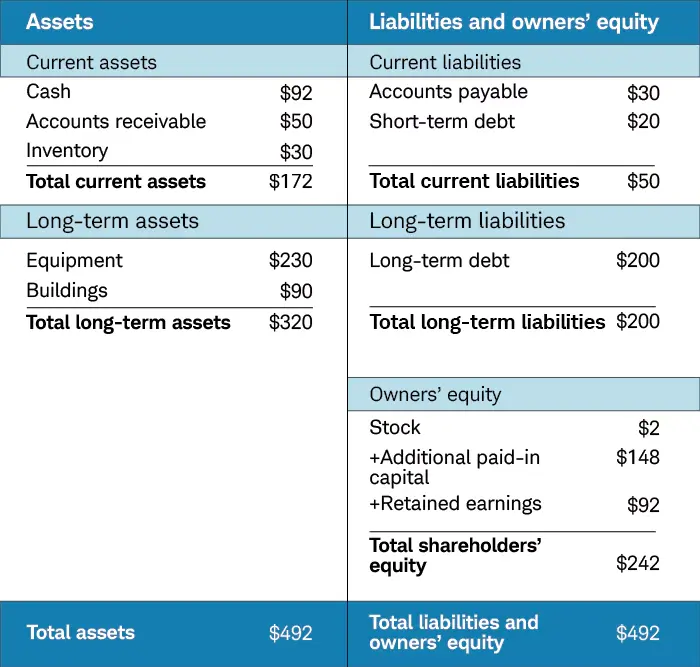
I tested Image to Excel with a financial report image. Within seconds, the tool generated a downloadable XLSX file containing the report data. This allowed me to edit and modify the information in Microsoft Excel without manually recreating the entire report.

How to use it:
1. Go to the Image to Excel website and click “Get started” to begin conversion on desktop. Mobile users can download the iOS or Android app from their device’s app store.

2. Upload your image from your device. For optimal results:
- Ensure the table in the image is clear, flat, and correctly oriented
- Keep image size reasonable – very large images may not convert well
- Use images with text at least 40 pixels in size
- Crop out non-table areas when possible
3. After uploading, the AI automatically converts your image to an Excel file. The tool rapidly processes the image data, recognizing text and table structures. It then organizes this information into a properly formatted spreadsheet. Once complete, click the download button to save the XLSX file.

4. Open the downloaded XLSX file in Microsoft Excel to view, edit, and analyze the extracted data.