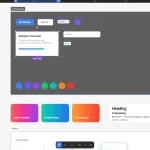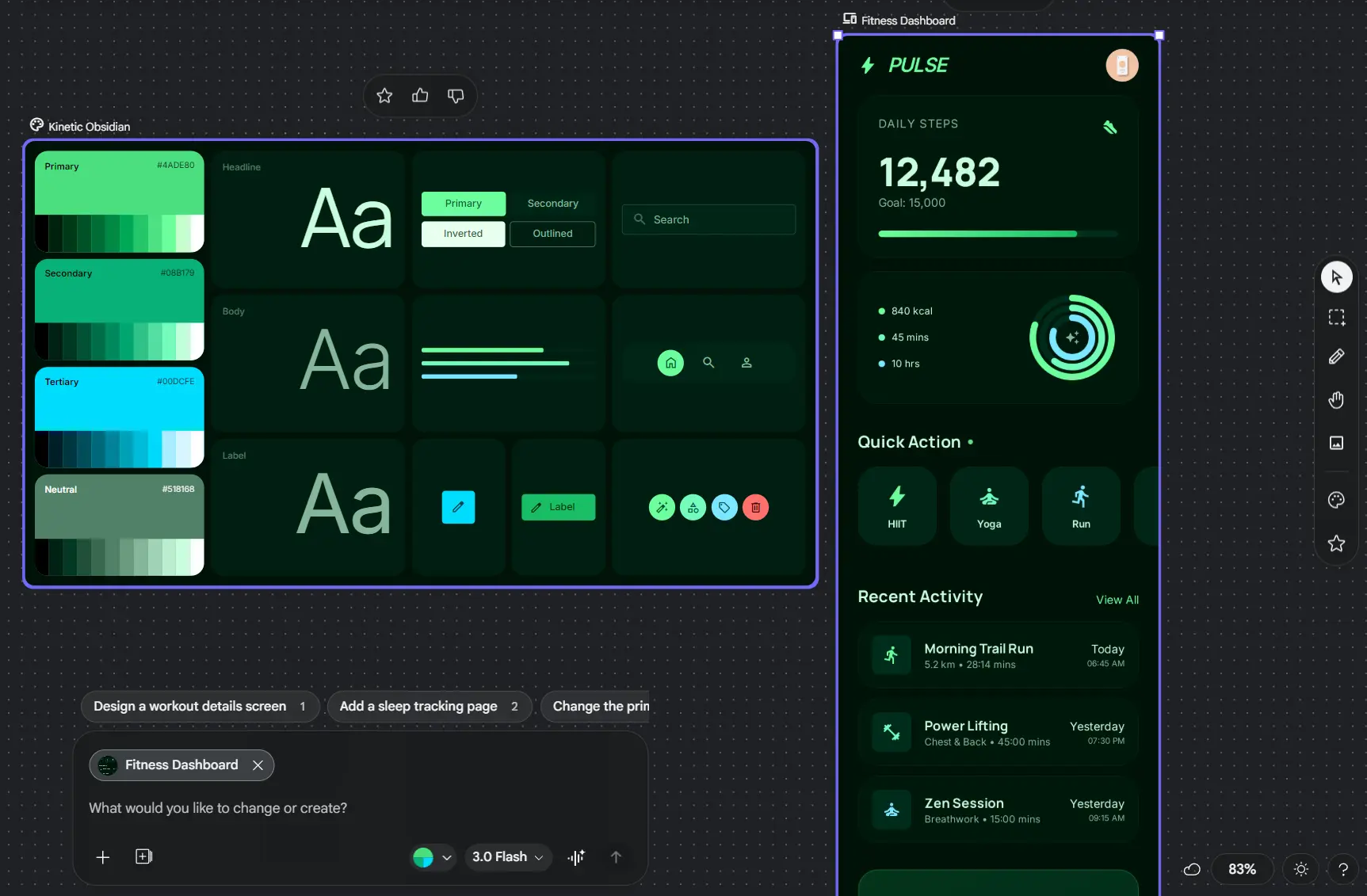
Google Stitch is a free AI UI design tool from Google Labs that converts natural language prompts, hand-drawn sketches, and screenshots into high-fidelity mobile and web app UI with exportable frontend code.
The tool is launched at Google I/O 2025 and built on Gemini models (currently Gemini 3 Flash and 3.1 Pro). As of March 2026, a major update introduced an AI-native infinite canvas, a redesigned design agent, voice interaction, instant prototyping, and DESIGN.md-based design systems under the new “vibe design” approach.
Describe your screen in natural language or drop in a sketch, and Stitch generates multi-screen interfaces with consistent layouts, components, themes, and production-ready code. You can export the final designs directly to Figma, Google AI Studio, Google Jules, or download the raw HTML, CSS, and React code for immediate deployment.
Features
- Generates complete UIs from natural language descriptions.
- Transforms hand-drawn sketches, wireframes, or screenshots into high-fidelity, editable designs using image recognition.
- Provides multiple layout variants for each prompt so you can compare options before refining.
- Places generated designs on an AI-native infinite canvas that handles images, text, and code simultaneously.
- Includes a design agent that understands the full project context and helps manage parallel design explorations.
- Supports voice interaction for real-time design critiques and updates.
- Creates interactive prototypes instantly by stitching screens together with clickable hotspots.
- Builds automatic design systems with DESIGN.md, an agent-friendly markdown file that documents and syncs design rules.
- Generates production-ready frontend code with responsive layouts.
- Offers one-click paste to Figma with editable layers and Auto Layout.
- Integrates with Google AI Studio, Antigravity, and MCP servers for turning designs into functional apps.
Use Cases
- Build investor-ready app prototypes in minutes.
- Align teams quickly during sprint planning by generating multiple layout directions.
- Create pitch mockups for clients at high speed during agency work.
- Explore layout variations before committing to a design direction.
- Test user journeys with clickable prototypes before writing any code.
How to Use Google Stitch
1. Go to stitch.withgoogle.com and sign in with your Google account.
2. Select either Mobile or Web app, and then pick a generation mode:
| Mode | Model | Best For | Monthly Quota |
|---|---|---|---|
| Standard | Gemini 3.0 Flash | Quick drafts, MVPs, multiple variants | ~350 generations |
| Experimental | Gemini 3.1 Pro | High-fidelity designs, image inputs | ~200 generations |
| Redesign | NanoBanana Pro | Redesigning existing apps from screenshots | Varies |
| Ideate | Gemini 3 | Problem-solving and solution exploration | Varies |
3. Write a clear description of what you want. A well-structured prompt includes:
- Context and platform (mobile fitness app, web dashboard)
- Core components (navbar, cards, charts, bottom nav)
- Visual style (dark theme, green accents, rounded corners)
- Specific requirements (WCAG compliant, one-handed use)
Example prompt: “Design a mobile dashboard for a crypto tracking app. Include a top navigation bar with logo and notification bell, a portfolio summary card showing total value and percentage change, a pie chart for asset distribution, a horizontal scroll section for trending coins, a two-column grid for top movers, and a bottom navigation bar. Use a dark theme with green accent colors and rounded corners.”
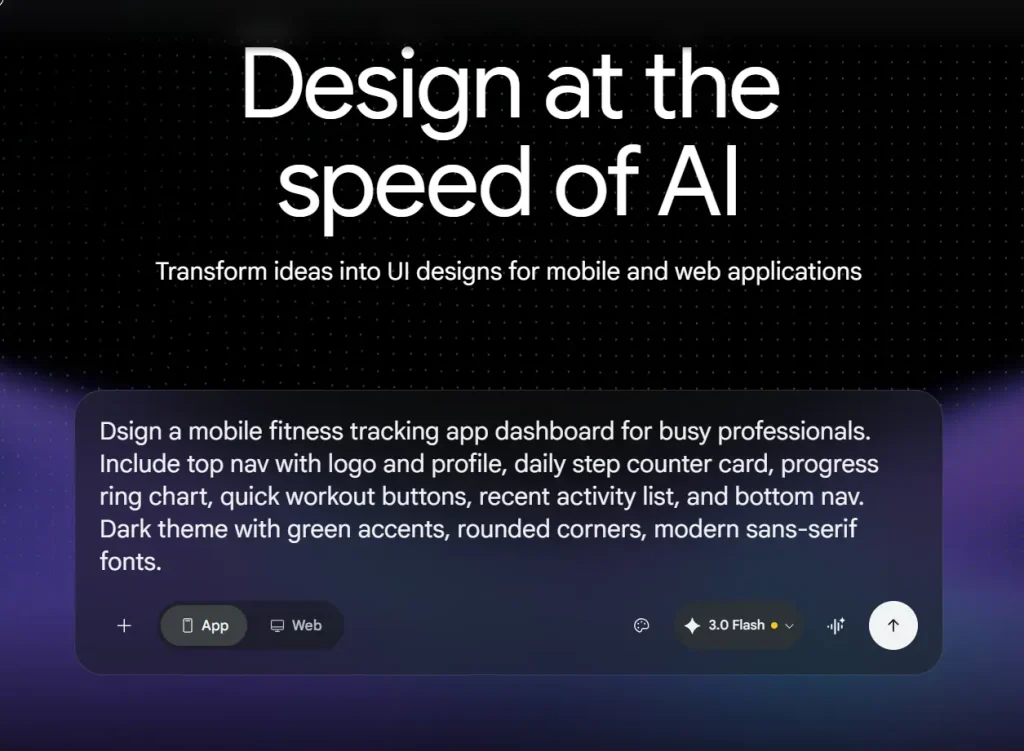
4. You can also upload a sketch or screenshot and add a descriptive prompt to guide the generation.
5. Hit generate and wait a few seconds to see the result. You can then use the chat agent to request refinements, for example, “Make the header sticky” or “Increase contrast for WCAG compliance.”
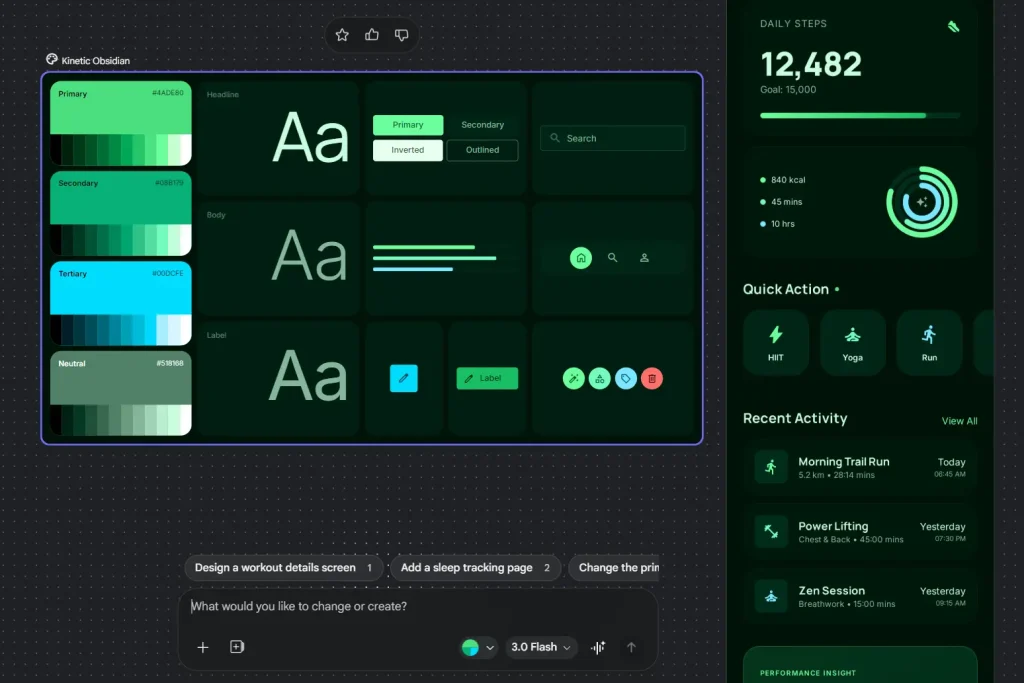
6. The infinite canvas lets you work across multiple ideas simultaneously. You can:
- Drag and resize components manually
- Adjust colors, typography, and spacing via the sidebar
- Add new screens and link them for prototyping
- Use multi-select to apply changes across screens
- Ask the design agent to generate logical next screens based on clicks
- Generate more variations or regenerate the UI
7. Use Voice for Real-Time Changes. Click the voice icon in the chatbox and speak directly to your canvas. The agent responds immediately and starts making changes as you speak.
8. Export your UI design:
- Figma: Click “Copy to Figma” and paste directly into your Figma file. Works in Standard Mode only.
- Code: Click on the generated design, select the Code tab, and copy HTML/CSS or React code.
- AI Studio: Send designs directly to Google’s AI development environment.
- Google Jules: Export to Google’s AI coding assistant.
- MCP: Use the Stitch MCP server to connect with tools like Antigravity, Gemini CLI, or Cursor.
- ZIP: Download an archive with all assets and code.
Pros
- Cuts design time from hours or days to minutes.
- Non-designers can create professional-looking UI designs without Figma expertise.
- Generates both visual layouts and frontend code in one workflow.
- Voice interaction makes iteration faster than typing.
Cons
- Works better for mobile apps than complex web layouts.
- Monthly quotas limit heavy daily use.
- No built-in backend logic or full interactivity.
Related Resources
- Stitch Documentation: The official Stitch documentation site.
- Stitch SDK on GitHub: Build custom integrations and skills.
- Stitch Skills Library: Agent skills for design system documentation and React component conversion.
More Free AI Tools from Google
- Code Wiki: Google’s AI-Powered Solution for Code Understanding.
- NotebookLM: AI Research Assistant for Students and Professionals.
- Antigravity: Agent-First Dev Platform with Gemini 3 Pro.
- Mixboard: Free AI Moodboard Tool from Google Labs.
- Pomelli 2.0: Google’s Free AI Tool for SMB Marketing Campaigns.
- Producer.ai: Free AI Studio-Quality Music Generator by Google.
FAQs
Q: What is DESIGN.md?
A: It’s a new feature that documents your design system in an agent-friendly markdown format. You can export design rules from one project and import them into another, ensuring consistency across projects.
Q: How do I get better results?
A: Be specific about components, hierarchy, and visual style. Start broad, then iterate with follow-up prompts. Use the voice feature for quick tweaks.
Q: Can teams collaborate in Stitch?
A: The March 2026 update added collaborative features through the Agent Manager. Multiple team members can work on parallel design explorations, and the design agent helps track progress across different directions.
Q: What is the difference between the 3 Flash and Thinking with 3.1 Pro modes?
A: The 3 Flash mode runs on Gemini 3.0 Flash and prioritizes speed. It works well for rapid iteration, early ideation, and exporting to coding agents. The Thinking with 3.1 Pro mode uses Gemini 3.1 Pro and prioritizes output quality and reasoning over generation speed.
Q: What is the MCP server and who needs it?
A: The Stitch MCP server exposes Stitch’s generation capabilities as machine-callable tools. You can use it to build Stitch into automated workflows, CI pipelines, or other AI agents via the Model Context Protocol.