OpenWork is a free, open-source macOS app that serves as an accessible alternative to Claude Cowork.
It runs locally on your Mac and automates knowledge work tasks like organizing files, creating documents, and managing repetitive workflows. You maintain full control over your data and API usage.
The tool integrates with OpenCode under the hood but presents a guided workflow rather than requiring terminal commands.
Features
- Local Processing: Your files stay on your machine and never transmit to external servers unless you explicitly authorize a connection.
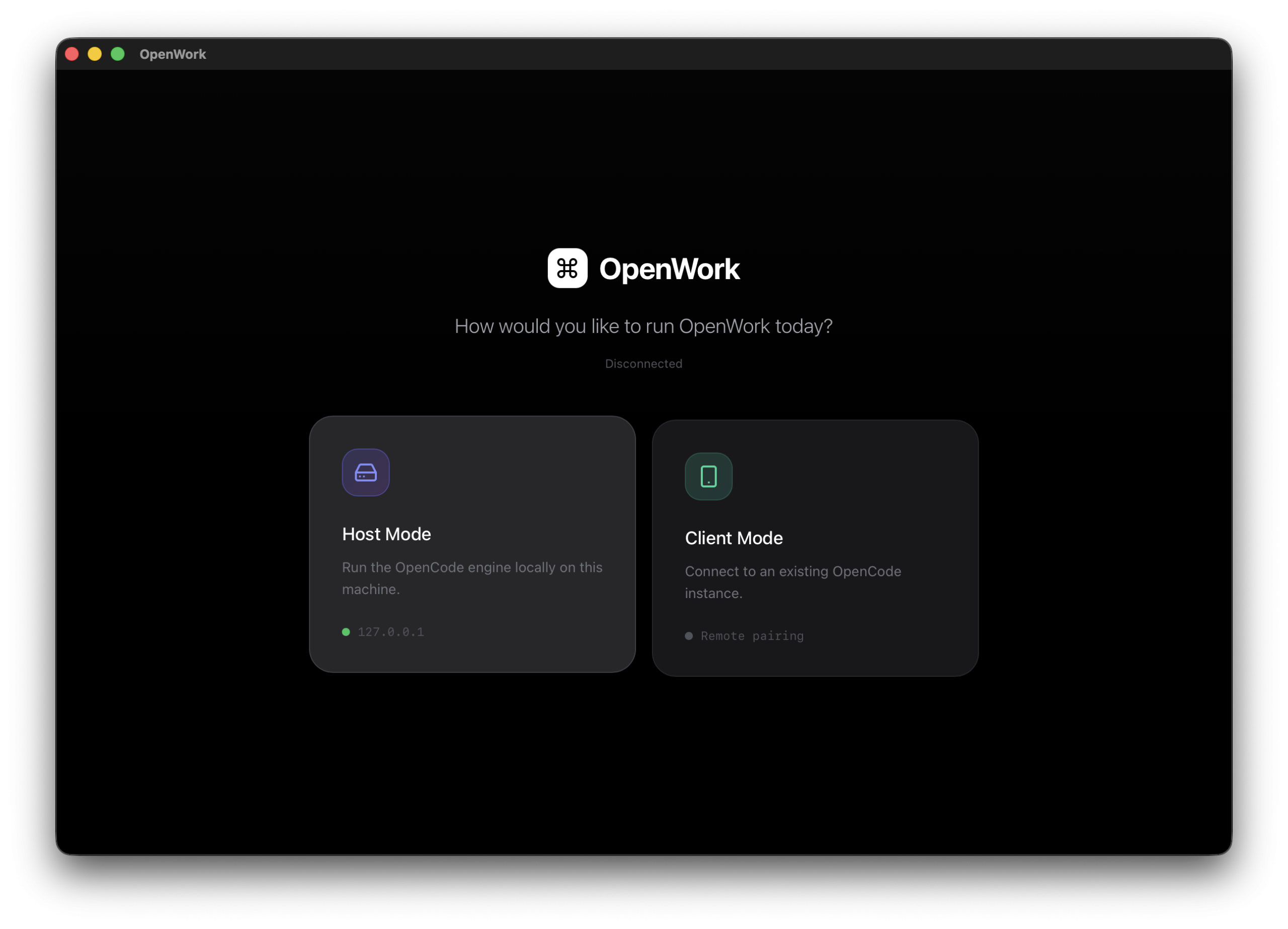
- Multiple Operation Modes: Host mode spawns a local OpenCode server in your selected project folder. Client mode connects to an existing OpenCode server by URL.
- Live Session Management: The interface creates and manages sessions for different projects or workflows. Real-time streaming through Server-Sent Events shows execution progress as it happens. You see each step the AI takes before it commits changes.
- Execution Timeline: OpenWork renders OpenCode’s planned actions as a visual timeline. You review the sequence of operations before approving execution. The plan view breaks down complex tasks into discrete steps you can evaluate individually.
- Permission System: The application surfaces permission requests for privileged operations. You choose to allow once, always allow, or deny each request.
- Template Library: Save successful workflows as reusable templates. Templates store locally and let you repeat common patterns. You can share templates with team members who use OpenWork.
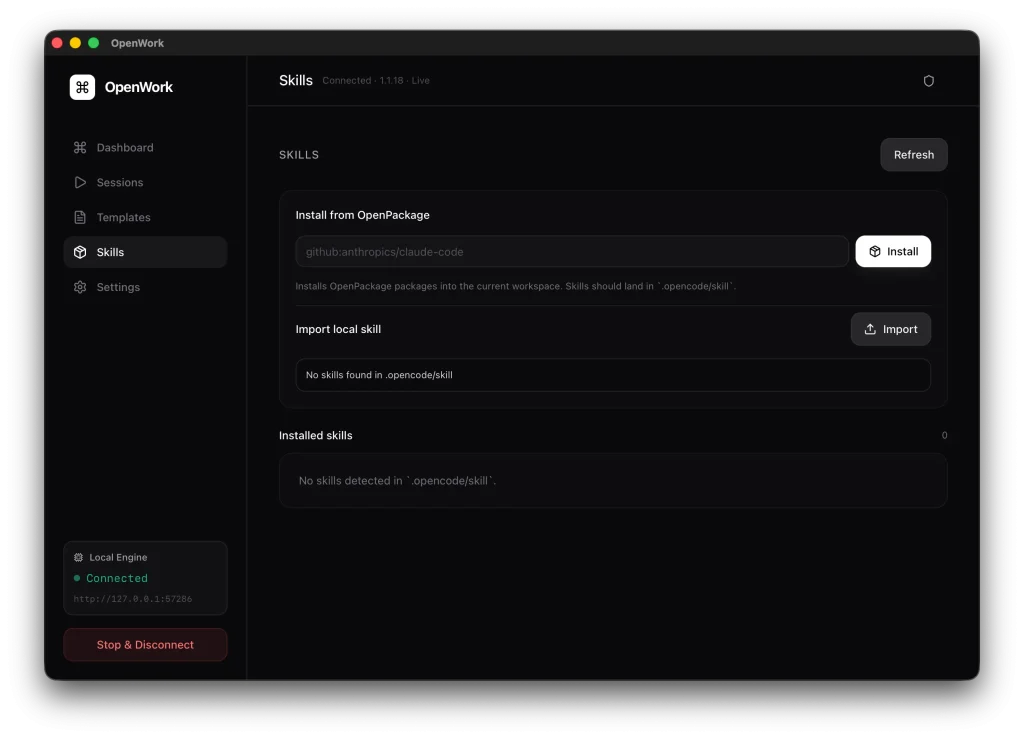
- Skills Manager: The built-in skills manager lists installed capabilities from your
.opencode/skillfolders. You install new skills from OpenPackage repositories usingopkg installcommands. Local skill folders import directly into OpenWork’s skill directory. - Model Selection: Choose from 75+ AI models through OpenCode’s Models.dev integration. The interface remembers your model preference per session.
- OpenCode Detection: Host mode automatically detects the OpenCode CLI installation. If OpenCode is missing, OpenWork shows clear installation instructions with an in-app guided installer for macOS.
Use Cases
File Organization Projects: You have hundreds of documents scattered across folders with inconsistent naming. OpenWork scans the contents, identifies document types, and reorganizes everything according to rules you specify.
Document Generation Workflows: Your team needs to create similar reports weekly with updated data. You define a template that pulls information from multiple sources, formats it consistently, and generates final documents.
Content Migration Tasks: You need to move files between cloud services like Notion, Google Drive, and Dropbox. OpenWork connects through local APIs and transfers content according to mapping rules you establish. The tool preserves metadata and handles format conversions automatically.
Automated Code Reviews: Development teams use OpenWork to scan codebases for common issues before pull requests. The AI checks style consistency, identifies potential bugs, and suggests improvements. You review suggestions before applying any changes to the repository.
Research Data Processing: Academic researchers collect data from multiple sources that need standardization. OpenWork reads various file formats, extracts relevant information, and consolidates everything into structured datasets. The process reduces hours of manual data entry to minutes.
How to Use It
1. Go to the GitHub releases page and download the OpenWork_VERSION.dmg file.
2. Open the DMG and drag OpenWork.app into your /Applications folder.
3. Apple’s Gatekeeper will likely block the app on the first launch because notarization is still pending. You must override this asl follows
- Navigate to your
/Applicationsfolder. - Hold the
Controlkey and click the OpenWork app. - Select Open from the menu.
- Click Open again in the dialogue box.
If macOS claims the app is “damaged,” run this command in your terminal:
sudo xattr -dr com.apple.quarantine "/Applications/OpenWork.app"Then relaunch the app.
4. OpenWork needs the OpenCode CLI to function. Launch the application and it will check for OpenCode automatically. If the CLI is missing, OpenWork displays installation instructions. You can also install manually by running curl -fsSL https://opencode.ai/install | bash in your Terminal.
5. After OpenCode installs, you need to connect the app to an AI provider. Click the settings or configuration panel in OpenWork and enter your API credentials for your chosen provider. OpenWork supports OpenAI, Anthropic, Google Gemini, AWS Bedrock, Groq, Azure OpenAI, OpenRouter, and more. Your API key stores in the secure system keychain on macOS. The application never transmits your key to external servers.
6. Select Host mode to work with local files. Choose a workspace folder using the built-in folder picker. OpenWork spawns an OpenCode server bound to 127.0.0.1 on an available port. The server runs in the background while you interact through the desktop interface.
7. Skills extend OpenWork’s capabilities. Navigate to the Skills tab to see installed skills. Click “Install from OpenPackage” to browse available extensions. Enter package names like “opencode-wakatime” and OpenWork handles installation. You can also import local skill folders by selecting them through the file browser.
8. Templates save successful workflows for reuse. After completing a task, click “Save as Template” and give it a descriptive name. The next time you face similar work, select the template and adjust parameters as needed. Templates store in your local OpenWork configuration directory.
9. For remote collaboration, switch to Client mode. Enter the URL of an existing OpenCode server running on another machine or network location. OpenWork connects and displays available sessions. You can work on shared projects while changes sync through the remote server.
Pros
- Cost Savings: It provides similar functionality to Claude Cowork (part of a $100/mo subscription) for free.
- Privacy Control: Your data stays on your machine unless you explicitly connect to a remote server.
- Extensibility: The plugin system allows you to add specific capabilities via
opencode.json.
Cons
- Requires Technical Setup: You must install the OpenCode CLI separately and manually configure API credentials.
- OpenCode Dependency: The application cannot function without a working OpenCode installation.
Related Resources
- OpenCode Documentation: Official guides for installing and using the OpenCode CLI that powers OpenWork’s backend operations.
- OpenCode GitHub Repository: Source code and issue tracking for the core OpenCode project that OpenWork depends on.
- OpenWork GitHub Releases: Download the latest DMG installers and view version changelogs for OpenWork updates.
- Models.dev Provider List: Browse all available AI model providers that work with OpenCode and OpenWork for task execution.
- OpenPackage Repository: Discover installable skills and plugins that extend OpenWork’s capabilities for specific use cases.
FAQs
Q: What’s the difference between OpenWork and Claude Cowork?
A: Claude Cowork runs inside Anthropic’s desktop app and requires a Max subscription tier. The service bundles model access with the application. OpenWork works as a standalone app that you install independently. You connect your own API keys from any provider and pay only for actual usage.
Q: Can I use OpenWork without spending money on API calls?
A: No. OpenWork requires API credentials from a supported AI provider to function. The application itself costs nothing but executing tasks consumes API tokens that you pay for directly.
Q: How does OpenWork handle file security and permissions?
A: The application requests folder access explicitly before reading or modifying files. You approve each permission through macOS security dialogs. OpenWork runs operations locally without transmitting data to external servers by default. In Host mode, the backend server binds only to localhost address 127.0.0.1.