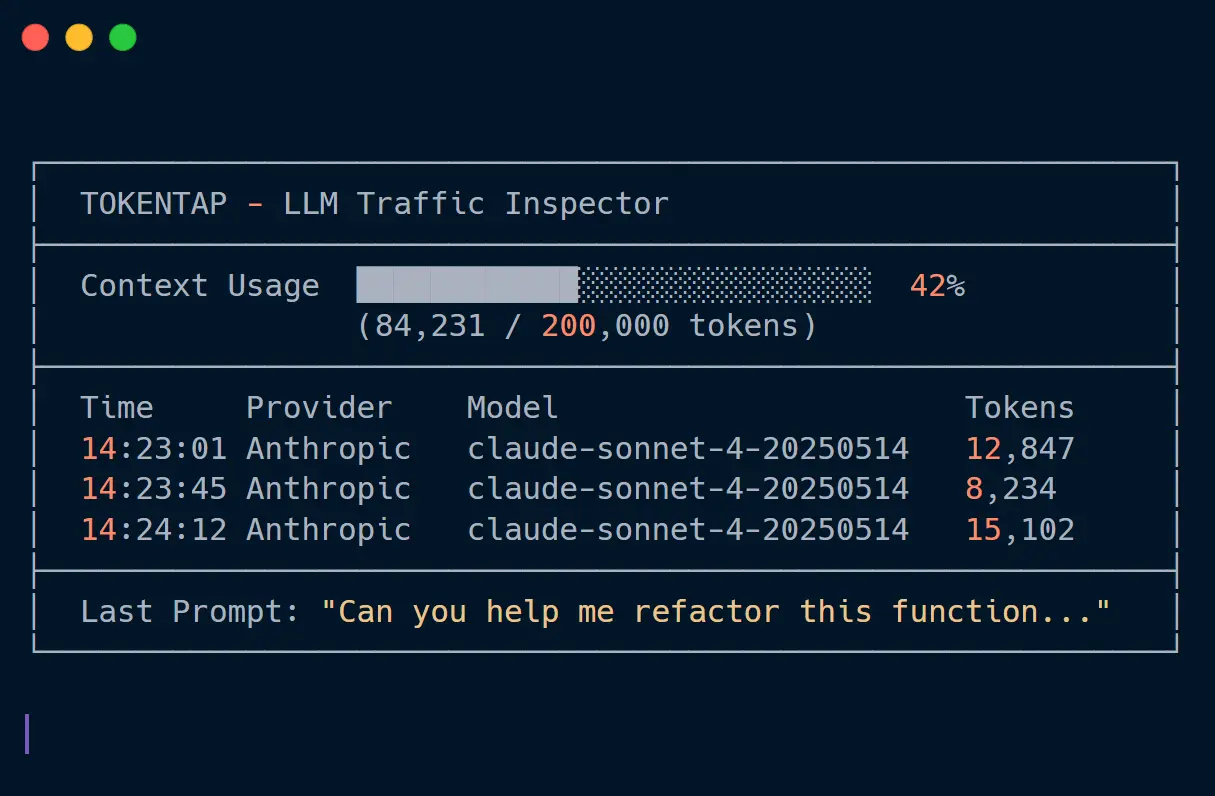
Tokentap is a free command-line token tracker that monitors real-time token usage for AI CLI agents like Claude Code, OpenAI Codex, and Gemini CLI. It runs an HTTP proxy between your CLI tool and the LLM API, capturing every request to display live token consumption in a terminal dashboard.
Most developers usingAI coding CLI tools have no visibility into their token usage until the bill arrives. You can’t see how much each code generation request costs or when you’re approaching context window limits. Tokentap solves this by intercepting API traffic and showing you exactly what’s happening under the hood, for example, token counts, cumulative usage, and even the full prompts being sent to the model.
The CLI saves every intercepted prompt as both markdown and JSON files. This creates an automatic debugging archive so you can review what your CLI tool actually sent to the API when something goes wrong.
Features
- Real-Time Token Dashboard: The dashboard includes a color-coded fuel gauge (green under 50%, yellow 50-80%, red above 80%) that tracks cumulative usage against your configured context window limit.
- Zero Configuration Setup: The tool requires no certificates, base URL configuration, or manual proxy settings. Install via pip and run. The proxy handles all routing automatically.
- Automatic Prompt Archive: Every request gets saved to your chosen directory in two formats: human-readable markdown with metadata headers and raw JSON containing the complete API request body.
- Multi-Provider Support: Works with Anthropic’s Claude Code, OpenAI Codex, and has built-in commands for Gemini CLI (though Gemini CLI currently has an upstream OAuth issue that blocks proxy usage).
- Context Window Monitoring: The visual fuel gauge shows your total accumulated tokens against a configurable limit (default 200,000). This prevents you from hitting context limits mid-session.
- Session Summaries: When you exit, the tool displays total token usage and request count for the entire session.
How to Use It
1. Install Tokentap via pip (requires Python 3.10 or higher):
pip install tokentapYou can also install from source if you want the latest development version:
git clone https://github.com/jmuncor/tokentap.git
cd tokentap
pip install -e .
2. Open two terminal windows. In the first terminal, start the Tokentap proxy and dashboard. The CLI prompts you to choose a directory for saving captured prompts. After you select a location, the dashboard appears and begins listening for traffic on localhost:8080.
tokentap start2. In the second terminal, run your AI CLI agent through Tokentap. For Claude Code:
tokentap claudeFor OpenAI Codex:
tokentap codexFor Gemini CLI (currently blocked by an upstream OAuth issue):
tokentap gemini3. The dashboard in Terminal One updates in real-time as you work. Each API request shows the timestamp, provider, model name, and token count. The fuel gauge fills progressively to show cumulative usage.
4. When you finish your session, press Ctrl+C in the dashboard terminal. Tokentap displays a summary showing total tokens consumed and the number of requests made.
5. Available commands:
| Command | Purpose | Default Port |
|---|---|---|
tokentap start | Launch proxy server and dashboard | 8080 |
tokentap start -p 9000 | Start proxy on custom port | 9000 |
tokentap start -l 100000 | Set custom token limit for fuel gauge | 100000 |
tokentap claude | Run Claude Code with proxy configured | 8080 |
tokentap claude -p 9000 | Run Claude Code with custom proxy port | 9000 |
tokentap codex | Run OpenAI Codex with proxy configured | 8080 |
tokentap gemini | Run Gemini CLI with proxy (blocked upstream) | 8080 |
tokentap run --provider anthropic <cmd> | Run any command with Anthropic proxy setup | 8080 |
6 Available parameters:
For tokentap start:
-p, --port NUM: Specify the proxy port (default: 8080)-l, --limit NUM: Set the token limit for the fuel gauge visualization (default: 200000)
For tokentap claude and other provider commands:
-p, --port NUM: Connect to a custom proxy port if you started the server on a non-default port[ARGS]...: Pass any additional arguments directly to the underlying CLI tool
Pros
- Instant Visibility: You see token usage immediately.
- Privacy-Focused: All logs are stored locally on your machine. .
- Works With Existing Tools: You don’t need to modify your CLI agents or change your workflow.
Cons
- Requires Two Terminals: You must keep the dashboard running in a separate window or pane.
- Gemini Support Issues: The Google Gemini CLI currently ignores custom base URLs during OAuth.
Related Resources
- Claude Code Documentation: Official documentation for Anthropic’s command-line coding tool that works with Tokentap.
- Tiktoken: OpenAI’s fast tokenizer library for counting tokens without making API calls.
- Anthropic API Documentation: Complete reference for Claude API endpoints and token counting methods.
- Claude Code Usage & Observability: Tools to track token consumption, monitor costs, and analyze performance metrics in real-time.
FAQs
Q: Does Tokentap work with the web-based Claude.ai interface?
A: No. Tokentap only intercepts traffic from CLI tools that respect HTTP proxy environment variables. The Claude.ai web interface doesn’t route through local proxies.
Q: Can I use Tokentap with multiple CLI tools simultaneously?
A: Yes, but you need to configure them to use the same proxy port. Start the dashboard once with tokentap start, then run multiple CLI tools in separate terminals using the same port number.
Q: Does Tokentap modify the requests sent to the API?
A: No. Tokentap operates as a pass-through proxy that logs requests without modification.
Q: Can I change the token limit threshold for the fuel gauge color coding?
A: Yes. Use the -l flag when starting the server: tokentap start -l 150000 sets the limit to 150,000 tokens. The color bands remain at the same percentages (green under 50%, yellow 50-80%, red above 80%).
Q: Why does the Gemini CLI command exist if it doesn’t work?
A: The Tokentap codebase includes full Gemini support. The blocker is an upstream bug in Google’s Gemini CLI where OAuth authentication ignores custom base URLs. Once Google fixes this issue, Tokentap will work with Gemini CLI without requiring updates.