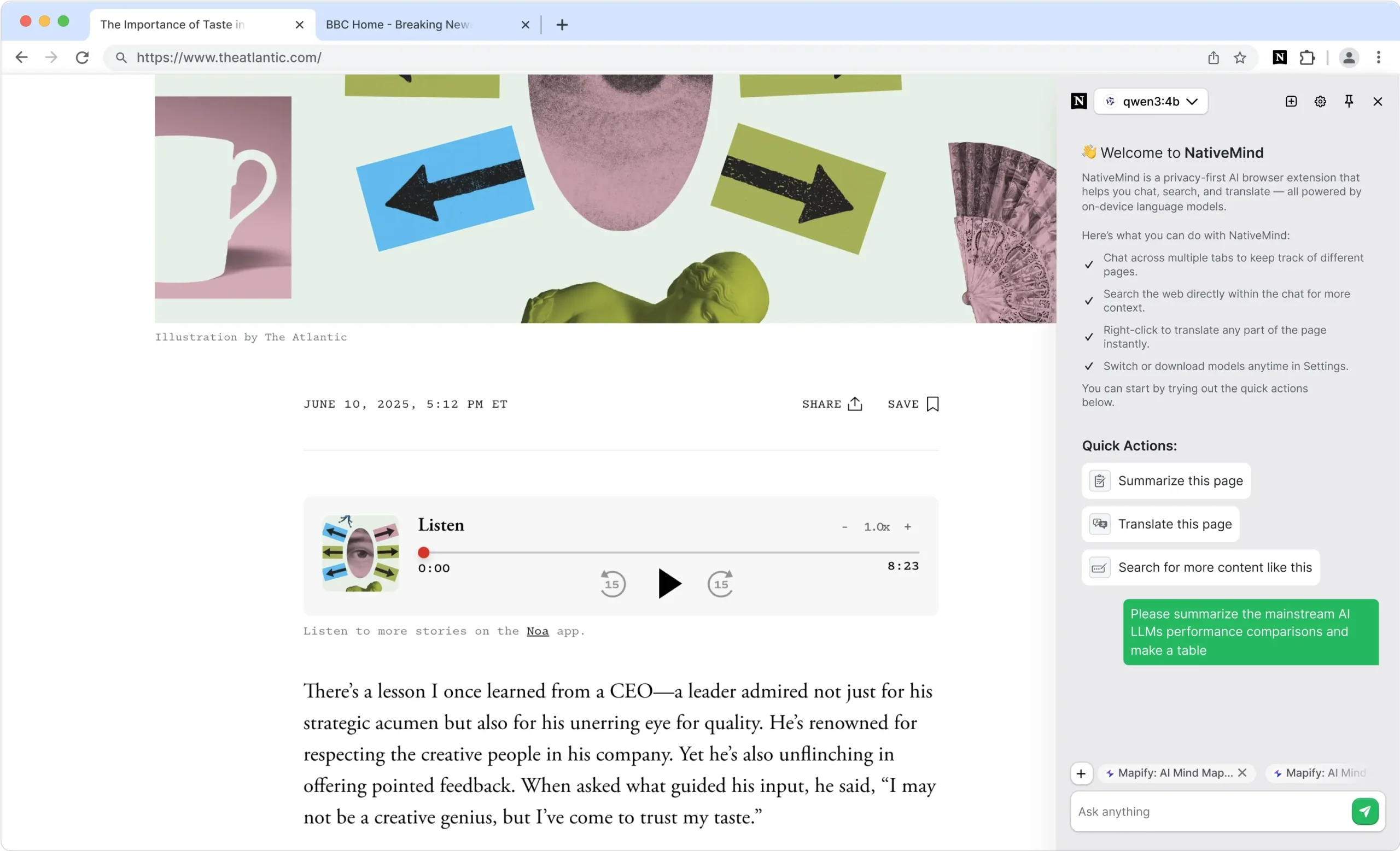
NativeMind is a free, open-source Chrome extension that runs large language models directly on your computer.
It connects with local AI frameworks, such as Ollama, to provide you with the power of models like Deepseek, Qwen, Gemma, Mistral, and Llama, without your data ever leaving your machine.
Features
- Private AI Conversations: Multi-tab context awareness allows conversations to continue across different browser tabs while maintaining full privacy
- Instant Page Summarization: Click to get quick summaries of any webpage without sending content to external servers
- Offline Translation: Full-page translation with side-by-side bilingual view, plus selected text translation
- Local Web Search: Enhanced search functionality that processes results locally rather than through cloud APIs
- Cross-Platform Compatibility: Works on Windows, macOS, and Linux with Chrome and Edge browsers
- Model Flexibility: Switch between different AI models based on your performance needs and available system resources
- Real-time Assistance: Floating toolbar appears contextually across websites for immediate AI help
- Zero-Setup Demo: WebLLM integration allows immediate testing without installing additional software
Use Cases
- Researching Sensitive Topics: If you’re a journalist or researcher gathering information on a confidential subject, you can use NativeMind to summarize source materials and search across them. Your entire research process remains on your computer.
- Analyzing Proprietary Code or Documents: A developer can ask questions about a codebase opened in browser tabs. Since the AI runs locally, no proprietary information is exposed to the cloud.
- Offline Productivity: Imagine you’re on a flight with no Wi-Fi. You can still use NativeMind to read and translate saved web pages or summarize documents you’ve downloaded, as the AI models are stored on your device.
- Learning and Study: A student can use the tool to get summaries of long academic papers or translate foreign language sources for a project. The cross-tab chat is helpful for synthesizing information from multiple sources.
How to Use It
1. Get NativeMind from the Chrome Web Store. After it’s installed, I recommend pinning it to your toolbar for easy access.
2. Set Up an AI Model Provider. You have two choices here.
- Quick Trial (WebLLM): For a zero-setup experience, you can use the built-in WebLLM option. This runs a small model directly in your browser using WebAssembly and is perfect for a quick test. It requires no other software.
- Full Power (Ollama): To use more powerful models like Llama 4 or Deepseek R1, you need to install Ollama. This is an application that runs on your computer (Windows, macOS, Linux) and serves the AI models to NativeMind.
3. Once Ollama is running, open your computer’s terminal and type a command like ollama run llama4. This downloads the model to your machine. You only have to do this once per model.
4. Click the NativeMind icon in your browser. You can select your desired model and start chatting, summarizing, or translating right away.
5. Basic usages:
- Page Summarization: Navigate to any webpage, click the NativeMind icon, and select “Summarize”
- Translation: Right-click on selected text or use the extension popup to translate content
- Cross-Tab Chat: Start a conversation on one tab and continue it on another—the AI maintains context
- Local Search: Use the search feature to find information while keeping your queries private
Pros
- Absolute Privacy: Your data never leaves your computer.
- No Latency or Rate Limits: Since it runs locally, responses are instant. You aren’t subject to network delays or API usage caps.
- Works Offline: Once you’ve downloaded your models, all features work without an internet connection.
- Free and Open Source: The tool is completely free to use, and its code is publicly available for anyone to inspect.
- Model Flexibility: You are not locked into one AI model. Through Ollama, you can use dozens of different open-source models and switch between them anytime.
Cons
- Requires Local Resources: The performance depends on your computer’s hardware. Ollama recommends at least 8 GB of RAM, and more powerful models require more. A GPU is helpful but not mandatory.
- Initial Setup: While the WebLLM option is instant, using the more powerful Ollama setup requires installing another application and running some commands in a terminal.
- Browser-Based Only: Its functionality is limited to the Chrome browser (and Chromium-based browsers like Edge). You can’t use it as a standalone desktop application.
FAQs
Q: Does NativeMind send any data to the cloud?
A: No. All AI processing happens 100% on your local device. Your prompts, the content of the pages you visit, and the AI’s responses never leave your machine.
Q: Can I use my own custom AI models?
A: Yes. Because NativeMind integrates with Ollama, you can use any model that is compatible with the Ollama framework, including custom or fine-tuned models you create yourself.