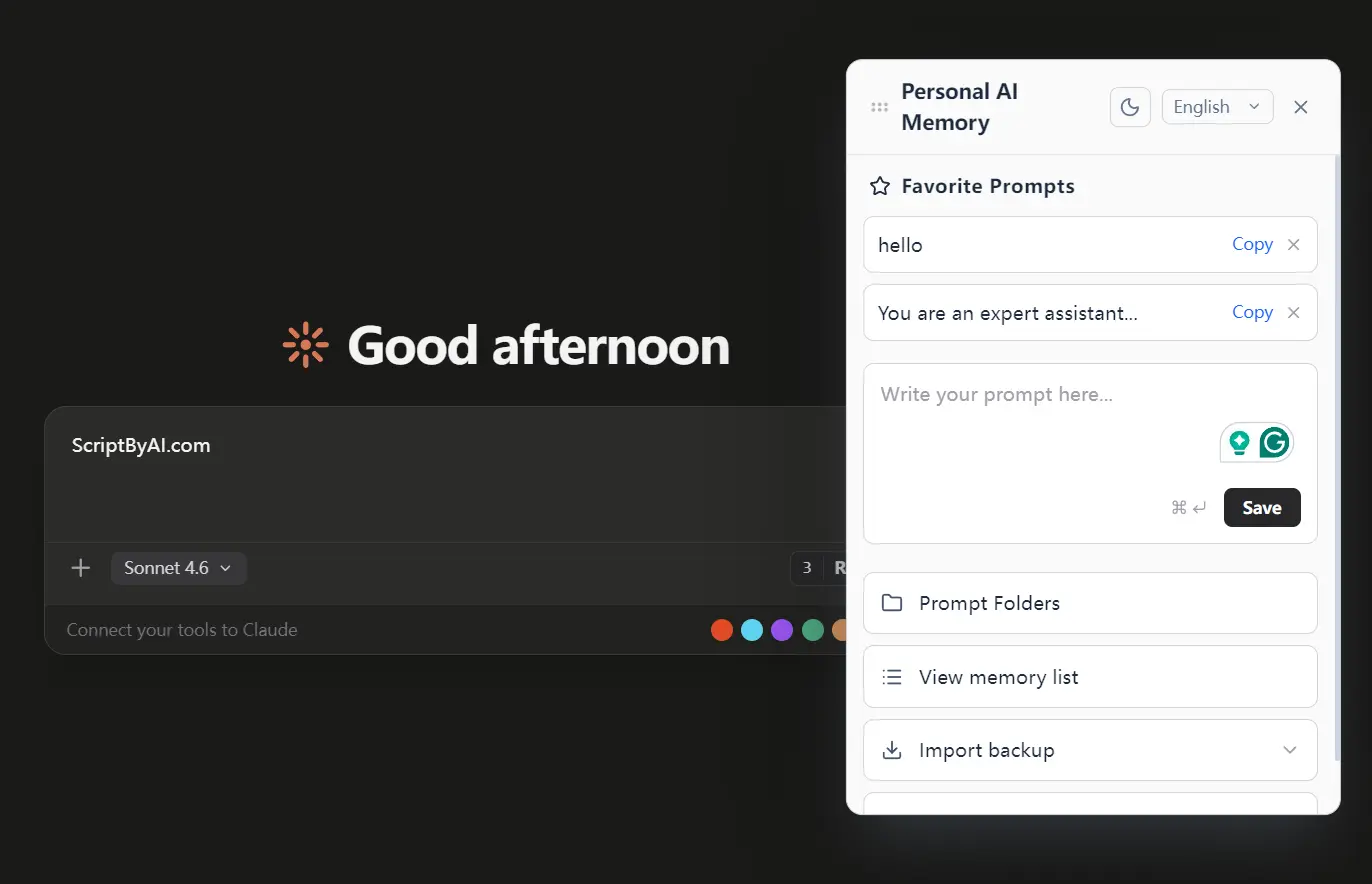
Personal AI Memory is a free, open-source Chrome extension that passively captures your conversations from ChatGPT, Claude, Gemini, Perplexity, and Grok, then stores them as private semantic memories directly in your browser.
It runs a Hybrid RAG engine (Vector + BM25) entirely inside the browser using WebAssembly and IndexedDB. No servers touch your data, and no account is required.
Features
- Auto-intercepts conversations on ChatGPT, Claude, Gemini, Perplexity, and Grok.
- Runs Vector similarity search with time-decay alongside BM25 keyword search, then fuses both result sets using Reciprocal Rank Fusion (RRF).
- Injects the top-k most relevant memory results directly into the ChatGPT or Claude input field as an RAG context block.
- Exports and imports your full memory database as a JSON file.
- Saves frequently used prompts with Trie-based autocomplete.
- Displays a draggable panel overlay on every supported AI site for quick access.
- Supports zh-TW, zh-CN, English, Japanese, Korean, Spanish, French, and German, with auto-detection.
- Includes an Apple Liquid Glass-inspired theme toggle.
- Weights recent memories higher during vector search using an exponential decay function with a half-life of approximately 69 days.
- Falls back to keyword-only results if embedding fails, or to vector-only results if no keyword matches are found.
- Published under the Apache 2.0 license with full source code available on GitHub.
Use Cases
- Recall specific library configurations or boilerplate code snippets from a project you discussed with an AI weeks ago.
- Inject previous findings from a Perplexity search into a new Claude document to maintain a consistent narrative.
- Store your most effective system instructions and drag them into the chat input box whenever you need them.
- Carry context from a ChatGPT brainstorming session into a Gemini drafting session.
How to Use It
1. Install Personal AI Memory from the Chrome Web Store:
2. Open any supported AI platform and chat normally. The extension intercepts conversations silently in the background. On first run, it downloads the ONNX embedding model (paraphrase-multilingual-MiniLM-L12-v2) once. All subsequent processing runs locally.
3. Open a new conversation on ChatGPT or Claude. Click the 🧠 Recall button next to the input field. The extension runs a hybrid search against your local memory and injects the top results as a RAG-style context block directly into the input. Submit the prompt as usual.
4. The draggable floating panel appears on every supported AI site. Use it to:
- Browse memories grouped by session
- Soft-delete individual memory records
- Search your memory manually
5. To clear all data, open Chrome DevTools, go to Application > Storage > IndexedDB > AIMemoryDB, and delete the database.
6. You can bulk-import past conversations from platforms that support data export.
ChatGPT:
- Log in and click your profile name.
- Go to Settings > Data Controls > Export Data.
- Confirm the export. You receive a download link via email.
- Extract the ZIP. The relevant file is
conversations-00x.json. - Import this file via the extension’s Import panel.
Claude:
- Go to
https://claude.ai/settings/data-privacy-controls. - Click Export Data. You receive an email with a download link.
- Extract the file. The chat history is
conversations.json. - Import via the extension.
Gemini:
- Go to Google Takeout.
- Click Deselect all, then check My Activity only.
- Click Multiple formats, change the first activity format from HTML to JSON, and click OK.
- Click Next step and create the export. After extraction, the file is
my activity.json.
Grok:
- Open
https://grok.comand click your profile picture (bottom-left). - Go to Settings > Data Controls > Export Account Data.
- Wait for the email. The file after extraction is
prod-grok-backend.json.
Perplexity
Perplexity does not support data export. Conversations are captured individually as you visit each one in the browser.
Pros
- All conversations stay in your browser’s IndexedDB.
- No conversation data ever leaves your device.
- Works across all major AI platforms today with more planned.
- The complete source code is on GitHub for transparency.
Cons
- Only available as a Chrome extension.
- IndexedDB has size limits depending on the browser and available disk space.
- No cloud sync.
Related Resources
- Personal AI Memory on GitHub: The full source code, issue tracker, and release downloads.
- Dexie.js (IndexedDB Wrapper): Documentation for the IndexedDB abstraction layer used by the extension for local storage.
- MiniSearch (BM25 Search Library): The BM25 keyword search library used in the hybrid search pipeline.
FAQs
Q: Does Personal AI Memory upload my conversations to any server?
A: No. The extension stores all captured conversations in your browser’s IndexedDB (AIMemoryDB). The only outbound network request is a one-time download of the ONNX embedding model on the first run.
Q: Which browsers does the extension support?
A: Personal AI Memory targets Chrome and Chromium-based browsers that support Manifest V3, including Microsoft Edge. Firefox is not currently supported.
Q: Can I import conversations I had before installing the extension?
A: Yes. ChatGPT, Claude, Gemini, and Grok all support data export. You can download your chat history from each platform and import the JSON files directly into the extension’s Import panel to backfill your local memory.
Q: How does the Recall feature decide which memories to inject?
A: The extension runs a two-route hybrid search. Route A computes vector similarity between your current query and stored embeddings, weighted by an exponential time-decay function (half-life approximately 69 days). Route B runs a BM25 keyword search with prefix matching. Both ranked lists are fused using Reciprocal Rank Fusion (RRF, k=60), and the top results are injected as an RAG context block.
Q: Is there a limit to how many memories the extension can store?
A: The extension relies on IndexedDB, which is limited by your browser’s available disk space allocation per origin. There is no hard cap set by the extension itself.
Q: What happens if the ONNX embedding model fails to generate a vector?
A: The extension falls back to keyword-only BM25 search results. If no keyword matches exist, it falls back to vector-only results. At least one search route will return results as long as relevant data is in your local memory.