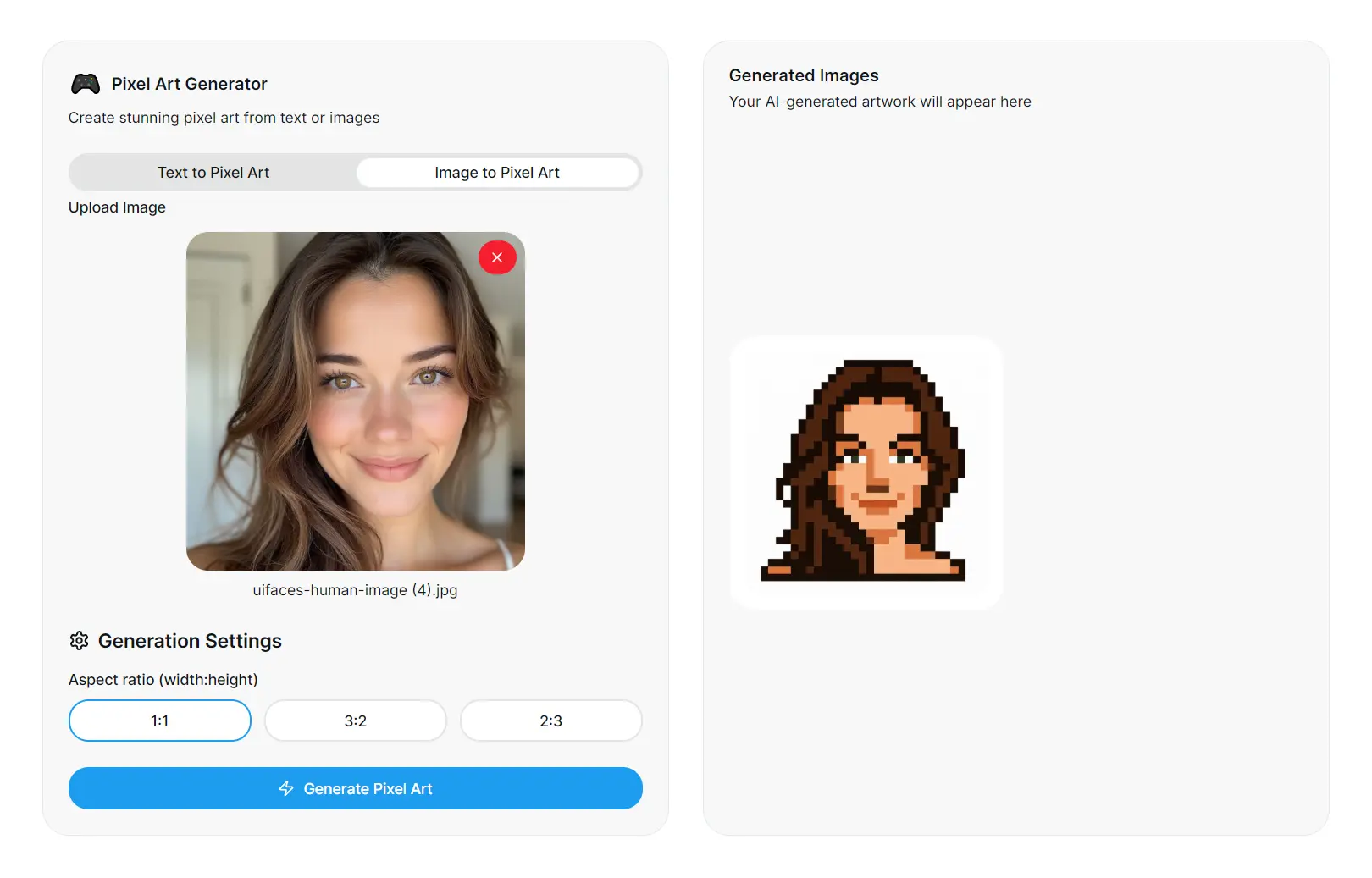
AI Pixel Art Generator is a free AI tool that transforms regular photos into authentic pixel art and creates original pixelated artwork from text descriptions.
It’s great for anyone who needs to create retro-style 8-bit graphics quickly, from game developers, NFT creators, to digital artists.
Features
- Multiple Aspect Ratios: Choose from 2:3, 3:2, or 1:1 aspect ratios to match your project requirements and output specifications.
- Game-Ready Export: Download pixel art in PNG format with multiple resolution options compatible with Unity, Godot, GameMaker, and other game engines.
- Commercial Usage Rights: Create unlimited pixel art for commercial projects without licensing restrictions or attribution requirements.
Use Cases
- Game Development Assets: Create sprites, tiles, characters, items, and background elements for indie games, mobile apps, and retro-style gaming projects.
- NFT Art Creation: Generate unique pixelated artwork for digital collectibles and blockchain-based art projects with authentic 8-bit aesthetics.
- Social Media Content: Transform profile photos, brand logos, and promotional images into eye-catching pixel art for enhanced social media engagement.
- Digital Art Projects: Explore pixel art as a creative medium for personal artwork, fan art, and experimental digital compositions.
- Marketing Materials: Convert product images and brand assets into distinctive pixelated versions for retro-themed campaigns and nostalgic marketing approaches.
How to Use It
To convert text to pixel art:
- Go to the AI Pixel Art Generator website.
- Select the “Text to Pixel Art” mode.
- Describe the image you want to create. Be specific for better results. For example, instead of “a knight,” try “a knight with silver armor and a red cape, 8-bit style.”
- Choose your desired aspect ratio: 2:3, 3:2, or 1:1.
- Click the “Generate Pixel Art” button.
- The AI will produce the image in a few moments. You can then preview it and download the PNG file.
To convert an image to pixel art:
- On the main page, choose the “Image to Pixel Art” option.
- Upload an image file from your computer.
- Select the aspect ratio that best fits your image or project.
- Click “Generate Pixel Art.”
- The tool will process the image and present the pixelated version.
- From there, you can preview and download the result.
Pros
- No Cost: The tool is completely free for both personal and commercial projects.
- No Barriers: You don’t have to create an account, and the images you download are free of watermarks.
- Dual Functionality: Both text-to-image and image-to-image options in one tool.
Cons
- Limited Customization: The tool lacks advanced editing options. You can’t adjust pixel size, tweak color palettes, or refine the output within the generator.
- AI Interpretation: The text-to-art generator can sometimes misinterpret prompts, requiring you to rephrase or try again for the desired result.
FAQs
Q: How does the image-to-pixel-art feature work?
A: You upload an image, and the tool’s AI analyzes it, simplifies the details, and reduces the color palette to transform it into an authentic-looking piece of pixel art.
Q: Is there a limit to how many images I can create?
A: No, there are no limits on the number of images you can generate. You can create as many as you need for free.
Q: What image formats can I upload for conversion?
A: The tool accepts standard image formats, including JPG, JPEG, PNG, and most common photo formats. Images should be reasonably sized for optimal processing speed and results quality.
Q: How detailed should my text prompts be for AI generation?
A: More specific prompts generally produce better results. Include details about characters, colors, settings, and style preferences. For example, “red-haired warrior with blue armor in forest setting” works better than simply “warrior character.”
Q: Can I modify the pixel art after generation?
A: The tool provides the final pixel art as a downloadable PNG file. For modifications, you’ll need to use external image editing software like GIMP, Photoshop, or specialized pixel art programs like Aseprite.