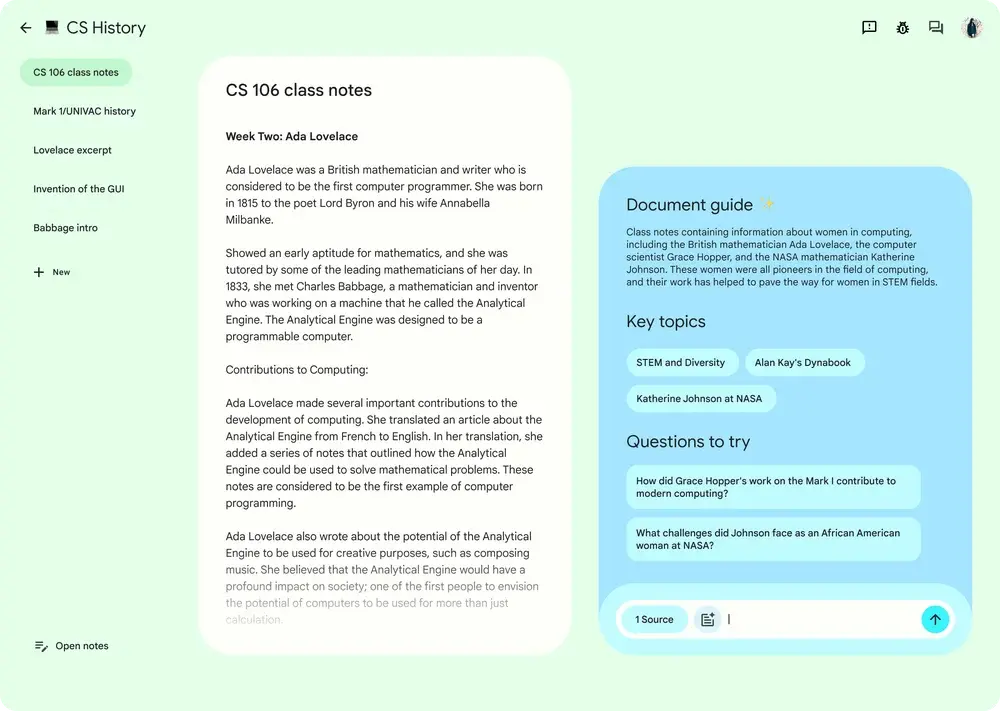
Google NotebookLM is an AI-powered online tool for research and note-taking that helps you interact with your documents. It acts as a virtual research assistant, using Google’s Gemini AI to help you make sense of your own materials. This tool is for anyone who needs to synthesize information from various sources, like students, researchers, and writers.
Instead of searching the entire internet, NotebookLM focuses only on the documents you upload. This approach helps to ground the AI’s responses in your specific content, reducing the chances of inaccurate information. You can upload various file types, including PDFs, Google Docs, websites, and even YouTube videos, and the tool will help you find connections and generate insights.
Features
Source Management: Upload up to 50 sources per notebook in the free version (300 with NotebookLM Plus). Accepted formats include PDFs, Google Docs, Google Slides, web URLs, YouTube videos with transcripts, and pasted text. The system analyzes these materials and creates contextualized responses based solely on your uploaded content.
Audio Overviews: Two AI hosts generate lively discussions that summarize material, make connections between topics, and engage in natural banter. Users can select from three audio formats: Brief (a single AI host delivers a short summary), Critique, and Debate formats. The feature is available in over 76 languages, and you can download these podcast-style discussions for offline listening.
Video Overviews: This feature distills complex information into clear, digestible content with narrated slides. The system pulls images, diagrams, and quotes directly from your content to create visual presentations that explain your materials.
Interactive Audio Mode: Users can now interact with AI hosts during Audio Overviews by asking questions and getting personalized responses. This experimental feature allows you to steer conversations in real-time, though the hosts may pause awkwardly before responding.
Mind Maps: An interactive mind map lets users navigate complex topics in their notebooks and explore new connections. This visual tool helps identify relationships between concepts that might not be obvious from reading alone.
Flashcards and Quizzes: Users can turn notes, research papers, or work reports into customized flashcards and quizzes with adjustable difficulty levels. Share study sets with others through a simple link.
Learning Guide: The new Learning Guide offers personalized tutoring within NotebookLM, providing structured support for understanding complex topics.
Discover Sources: Describe your topic and NotebookLM will find and summarize relevant sources from the web that you can add to your notebook with one click. This feature, powered by Gemini, automates the research gathering process.
Custom Reports: Generate briefing documents, study guides, FAQs, timelines, and professional reports with suggested options tailored to your specific content and audience.
Studio Panel: The redesigned Studio panel lets you create and store multiple studio outputs of the same type in a single notebook, making it easy to generate different versions for different audiences or languages.
Use Cases
- Academic Research: Students and researchers can upload lecture notes, academic papers, and textbook chapters to create study guides, generate summaries, and ask specific questions about the material. I’ve found this particularly helpful for quickly getting up to speed on dense academic papers.
- Content Creation: Writers and content creators can upload their research materials to brainstorm ideas, generate outlines, and even draft blog posts.
- Business and Professional Use: Professionals can use NotebookLM to analyze reports, prepare for meetings by uploading agendas, and create training materials for new hires.
- Personal Learning: Anyone looking to learn a new topic can upload articles, books, and videos to create a personalized learning guide.
How to use it:
1. Visit notebooklm.google.com and sign in with your Google account.
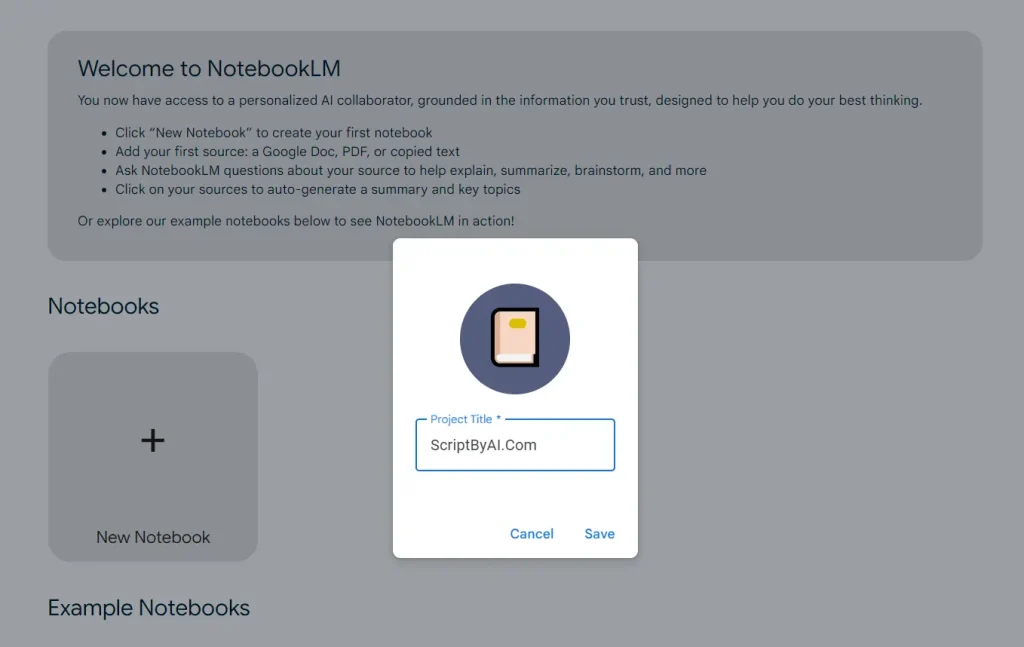
2. Click “Create New” under the My Notebooks section. Each notebook serves as a separate project workspace where you’ll upload related materials.
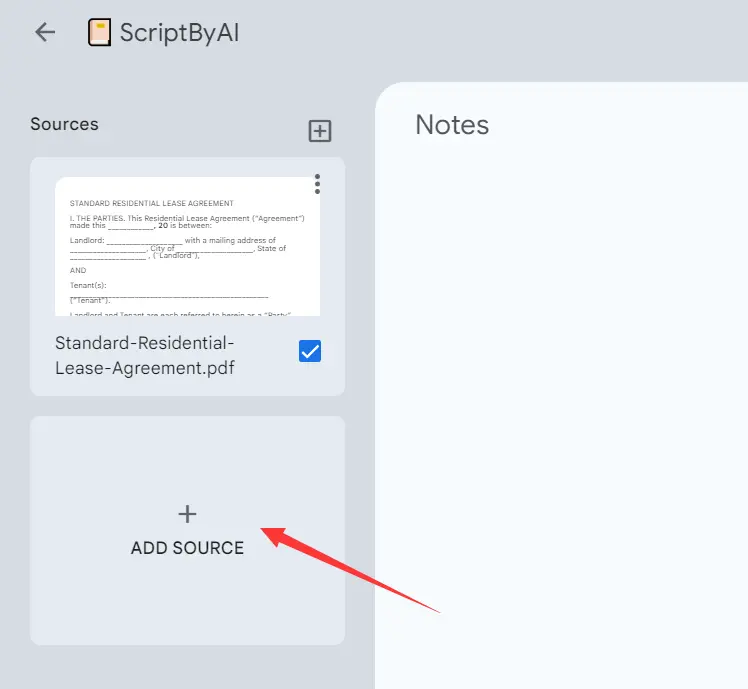
3. Upload Your Sources. The Add Sources panel appears immediately. You have multiple options: drag and drop files from your computer, connect Google Docs or Slides directly from Drive, paste URLs from websites or YouTube videos, or copy and paste text directly into the interface. The free version allows up to 50 sources per notebook with a combined limit of around 500,000 words.
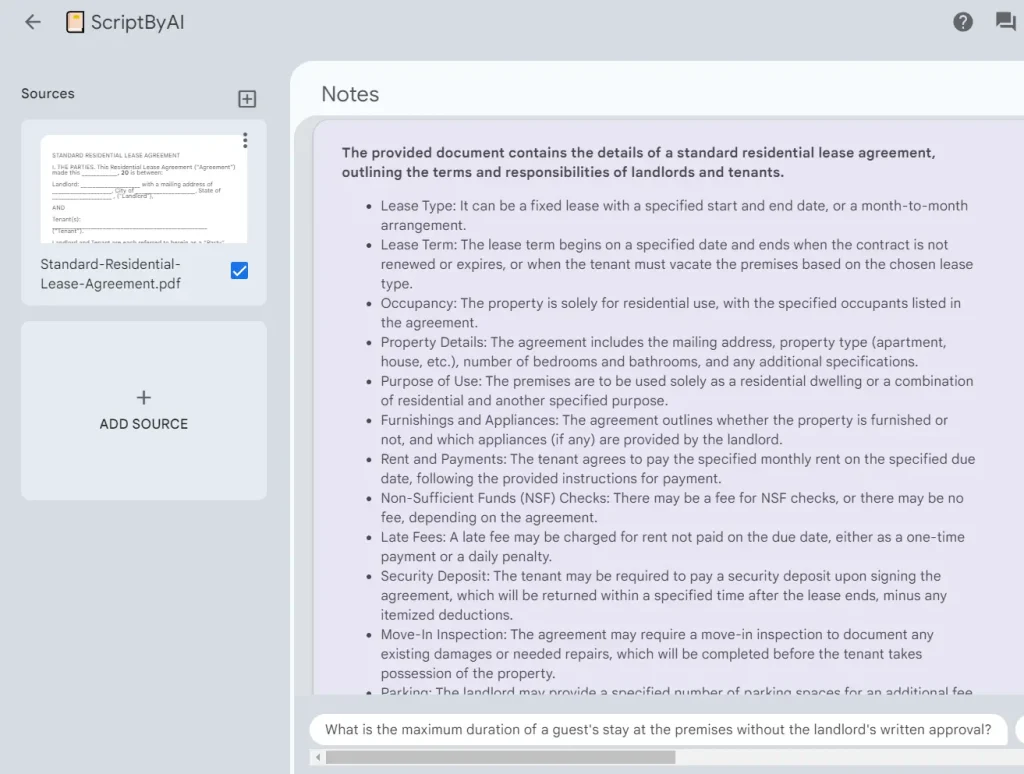
4. Once sources are uploaded, the Chat panel becomes active. Ask specific questions about your materials, request summaries of particular sections, or have it explain complex concepts in simpler terms. The AI responds based exclusively on your uploaded content, citing specific sources for each claim.
5. Navigate to the Studio panel on the right side. Here you can generate Audio Overviews by clicking “Generate” under the Audio Overview section. Customize the discussion by clicking “Customize” first and adding instructions like “Focus on chapter 3” or “Explain concepts at a beginner level.” The generation takes a few minutes for large notebooks.
6. Use the Studio panel to generate Video Overviews with visual elements, Mind Maps to see concept relationships, or traditional documents like study guides and briefing docs. Each output type offers customization options for tone, length, and focus areas.
7. Use the Noteboard feature to capture your own thoughts and ideas alongside AI-generated content. Share notebooks with collaborators by adjusting sharing settings. With NotebookLM Plus, you can create “chat-only” access that lets others query your sources without viewing the original documents.
Pro Tip: If Audio Overviews aren’t focusing on the right topics, create a new document highlighting key sentences from your sources, then upload that as an additional source. This guides the AI toward the most important content.
Pros
- Source-Grounded Responses: Every answer ties back to your uploaded materials with citations, reducing the risk of fabricated information common in general AI chatbots. This makes NotebookLM particularly reliable for academic and professional work.
- Multimodal Learning Support: The combination of text chat, audio discussions, video presentations, and visual mind maps accommodates different learning preferences. Auditory learners benefit from podcast-style overviews while visual thinkers appreciate mind maps and video content.
- Exceptional Audio Quality: The AI hosts sound natural with pauses, filler words, and occasional stutters that mimic human speech patterns. They adapt tone based on content—serious for medical topics, upbeat for technology discussions.
- Privacy and Data Control: Your uploaded files and conversations remain private and aren’t used to train Google’s AI models for other users. Files stay within your Google account security boundary.
- No Prompt Engineering Required: The interface handles complexity behind the scenes. You don’t need to craft perfect prompts—just ask questions naturally and the system understands context from your sources.
- Free Tier Generosity: The free version provides substantial functionality, including three audio overviews daily, 100 notebooks, and 50 sources per notebook. This suffices for most individual users and students.
- Integration with Google Ecosystem: Seamless connections with Google Drive, Docs, and Slides streamline workflows if you already use Google’s productivity tools.
Cons
- Daily Limits Can Feel Restrictive: The free tier caps audio overviews at three per day and chat queries at 50. Heavy users hit these limits quickly, particularly during exam preparation or project deadlines.
- Audio Overviews Lack Precision: The AI hosts sometimes focus on tangential details while glossing over critical information. You can’t directly control which specific points get emphasized beyond adding customization instructions.
- Limited File Format Support: The tool doesn’t handle spreadsheets, heavily formatted documents, or purely visual content without text. Excel files and image-heavy presentations require workarounds.
- Generation Time for Large Projects: Creating audio or video overviews for notebooks with many sources takes several minutes. You can work on other tasks during generation, but immediate results aren’t available.
Related Resources
- NotebookLM Help Center: Official documentation covering all features, troubleshooting guides, and frequently asked questions directly from Google’s support team.
- Google Labs Blog: Announcements of new NotebookLM features, product updates, and behind-the-scenes insights into development decisions from the team building the tool.
- NotebookLM Discord Community: Join thousands of users sharing tips, custom workflows, and creative use cases. The development team occasionally participates to gather feedback.
- Featured Notebooks Collection: Explore publicly shared notebooks created by other users on topics ranging from academic research to hobby interests, demonstrating creative applications of the tool.
- Open Notebook: Private, Self-Hosted Alternative to Google NotebookLM.
- NotebookLM MCP: Use the NotebookLM MCP Server to connect AI agents like Claude to your private docs. Get zero-hallucination answers powered by Gemini.
FAQs
Q: How accurate are the Audio Overviews?
A: Audio Overviews provide a reflection of your uploaded sources rather than a comprehensive or objective view of a topic. The AI hosts may introduce occasional inaccuracies or emphasize minor details over major points. Always verify critical facts by checking the original sources. The quality improves when you provide clear, well-organized source materials and use customization options to guide the discussion focus.
Q: Can NotebookLM access information beyond my uploaded sources?
A: No. NotebookLM operates exclusively on the sources you provide. It cannot browse the internet or pull in external information beyond what you explicitly upload or add through the “Discover Sources” feature. This limitation ensures responses stay grounded in your materials but means you must upload comprehensive sources for complete answers.
Q: What’s the difference between NotebookLM and ChatGPT?
A: ChatGPT draws from its general training data to answer questions on any topic. NotebookLM becomes an expert specifically on your uploaded documents. When you ask NotebookLM a question, it searches only through your materials and cites specific sources. This makes NotebookLM better for research projects requiring deep engagement with particular documents, while ChatGPT excels at general knowledge queries and creative tasks without source constraints.
Q: Can I collaborate with others on a notebook?
A: Yes. Click the sharing settings in any notebook to add collaborators. You can grant full edit access, view-only access, or “chat-only” access with NotebookLM Plus. Chat-only mode lets collaborators query your sources without seeing the original documents, useful for protecting sensitive materials while sharing insights. Shared notebooks support team research projects and group study sessions.
Q: Do my uploaded files remain private?
A: Files uploaded and queries entered into NotebookLM are not used to train models and are not reviewed by humans. Your data stays within your Google account security boundary. Other users cannot access your notebooks unless you explicitly share them. For business users, data remains within the organization’s trust boundary.
Last Updated: Oct 21, 2025