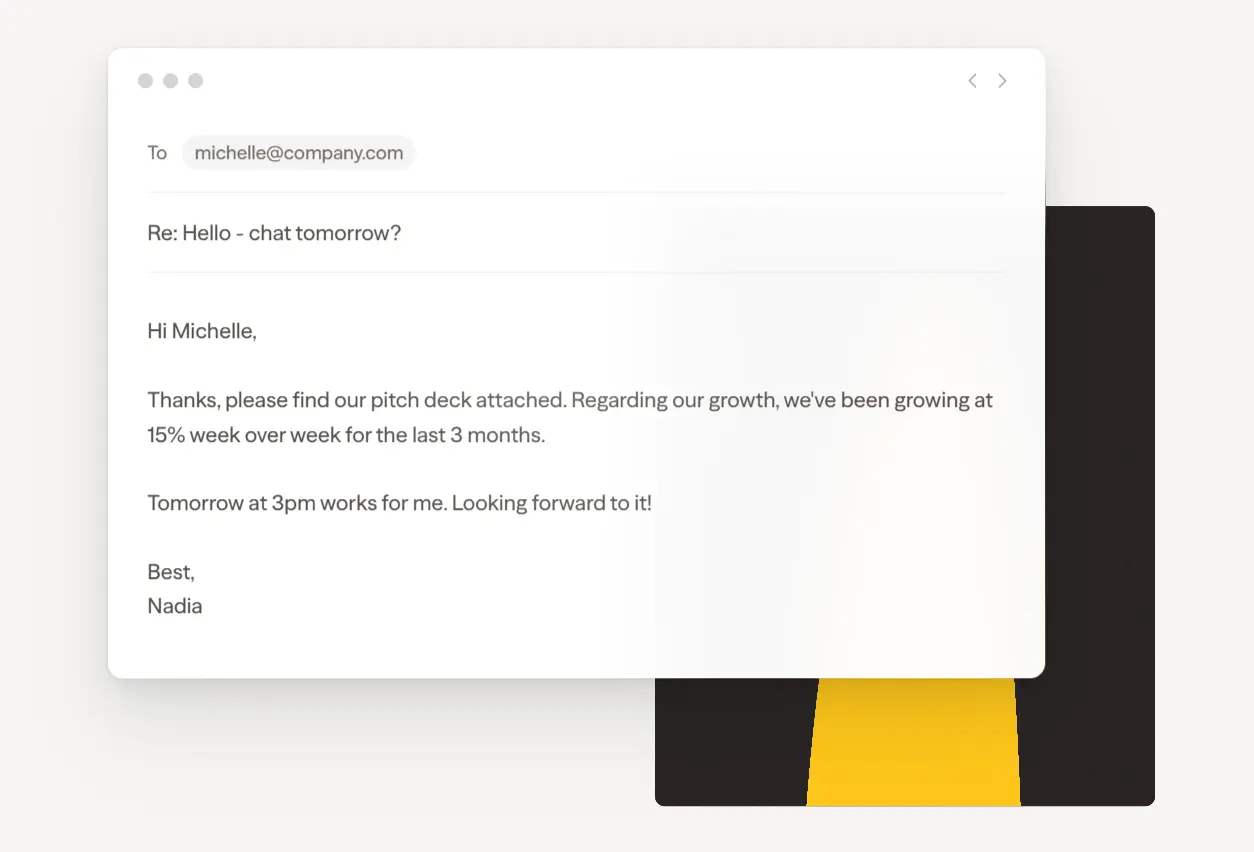
Lightfern is a free AI-powered email writing assistant that works as a Chrome extension directly in your Gmail app.
It provides context-aware autocomplete suggestions based on your personal writing style, including greetings, sign-offs, nicknames, and tone preferences.
The tool was co-founded by Doug Watkins, OpenAI’s first hire in London, and the team built the autocomplete model in Europe with zero data retention on by default.
Features
- Suggests full sentences and phrases as you type, drawn from your past email style and the current thread’s context.
- Pulls details from prior conversations, such as names, invoice numbers, and personal details you’ve mentioned.
- Reads your current draft in real time.
- Restricts meeting time suggestions to your configured working hours.
- Replaces AI-generated em dashes with regular dashes in completions when the Advanced Robotic Reduction setting is active.
- Encrypts your connected Gmail and Google Calendar data and never shares it with third parties.
Use Cases
- Reply to client emails with context about previous conversations.
- Draft follow-up emails after meetings with suggested meeting times based on your Google Calendar availability.
- Edit an existing draft by opening the inline composer (Ctrl+Alt+L) and asking for feedback or a summary.
- Maintain consistent tone across your team by letting the tool learn your preferred sign-offs, greetings, and nicknames.
How to Use It
1. Go to the Chrome Web Store and install the Lightfern extension.
2. Visit lightfern.com and register for a free account.
3. Grant Lightfern access to your Gmail and Google Calendar. The calendar connection lets the tool suggest meeting times within your working hours. All data is encrypted and never shared.
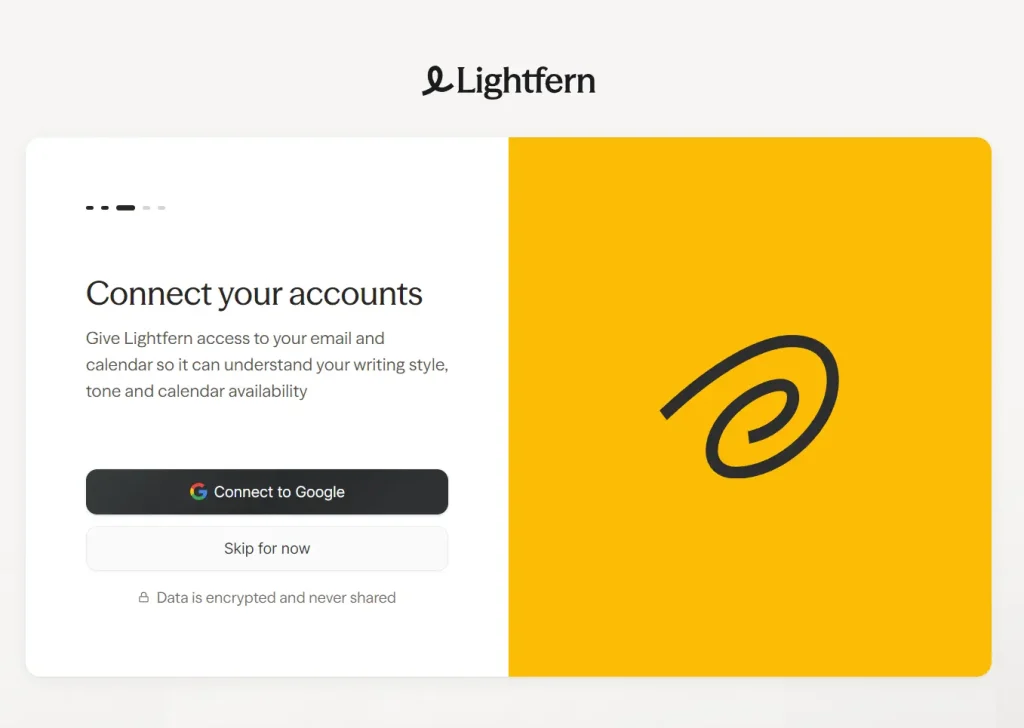
4. Once connected, open Gmail and begin composing or replying to any email.
5. Ultracomplete runs passively in the background. Start typing in any Gmail draft or reply field, and suggestions appear inline. Press Tab to accept the full suggestion or → to accept one word at a time. The suggestions adjust based on the current thread context, your past writing patterns, and the recipient.
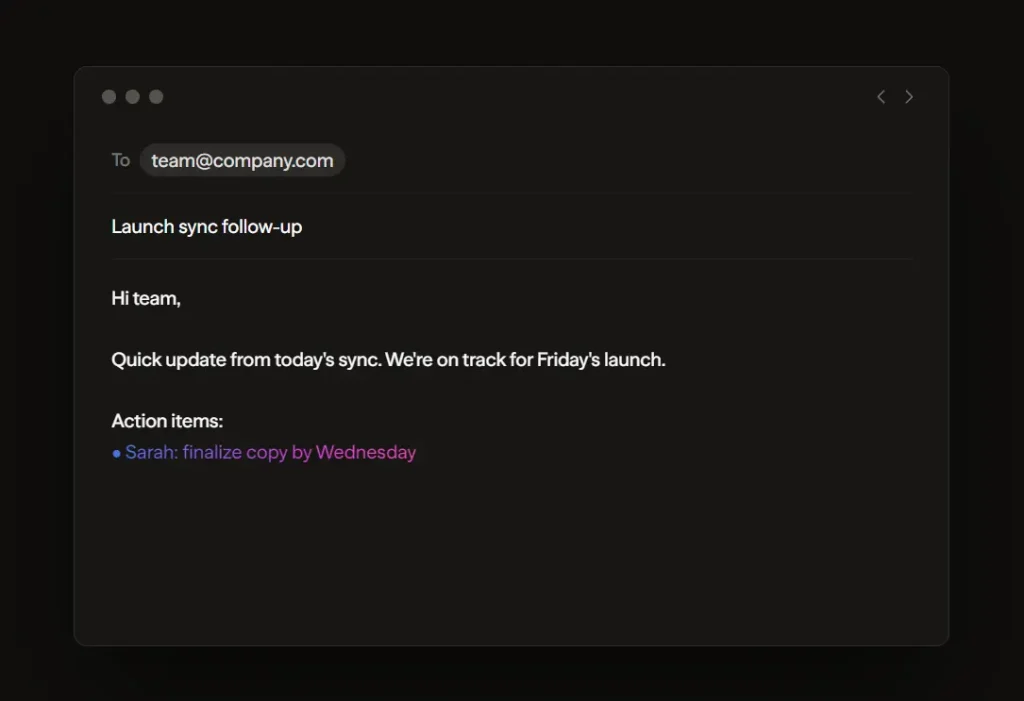
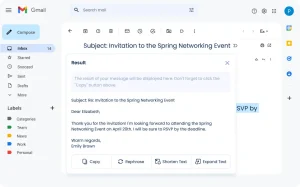
6. Press Ctrl + Alt + L to open the Inline Composer panel. From there, you can ask it to draft a reply, clean up a paragraph, or summarize the current thread.
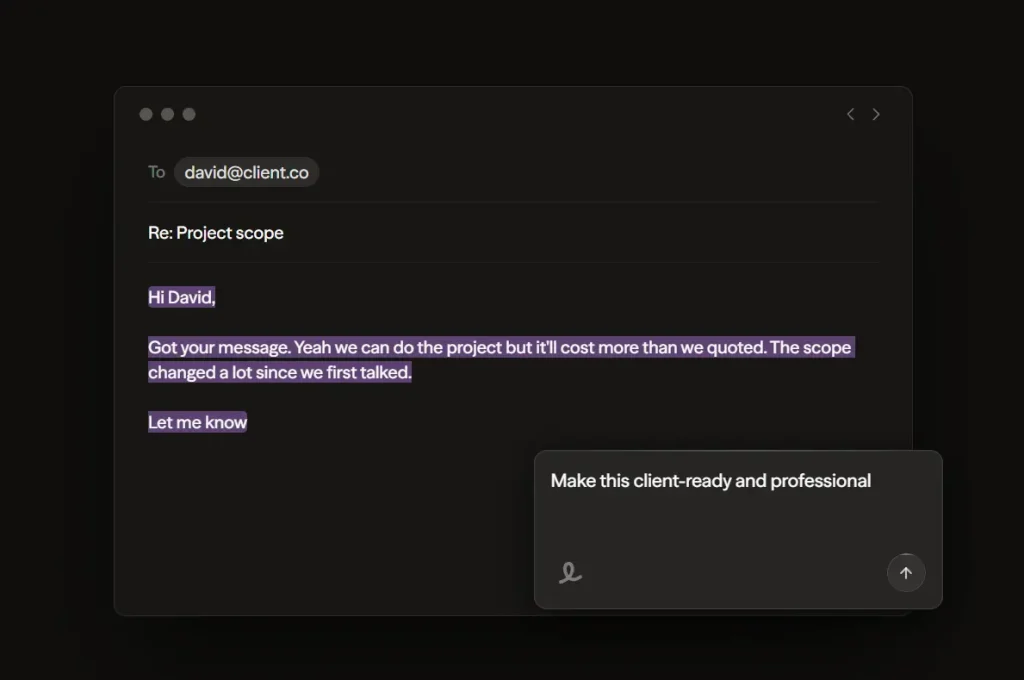
7. Available settings:
| Setting | What It Does |
|---|---|
| Advanced Robotic Reduction | Automatically replaces em dashes in completions with regular dashes. |
| Working Hours | Sets the time window Lightfern uses when suggesting meeting availability. |
| Data Retention Opt-In | Off by default. Enables your emails to contribute to model training if switched on. |
Pros
- Maintains your authentic voice.
- Zero configuration.
- Works directly inside Gmail.
Cons
- Works only in Gmail via Chrome.
- Requires access to your Google Calendar.
FAQs
Q: What does “zero data retention by default” actually mean?
A: Your email content is not stored on Lightfern’s servers after processing, and it’s never used to train AI models unless you explicitly opt into data sharing.
Q: How does the tool learn my writing style?
A: Lightfern analyzes your past emails to identify patterns in your greetings, sign-offs, nicknames, tone, and sentence structure. The learning happens automatically after you connect your Gmail account.
Q: What happens if I don’t have enough past email history?
A: The tool provides more generic suggestions until it has sufficient examples to learn your style.