Maivi (My AI Voice Input) is a free, open-source, AI-powered desktop application that converts voice to text in real time directly on your computer.
It processes audio locally using AI models (NVIDIA Parakeet model). This means your voice data never leaves your machine.
This tool works on Windows/macOS/Linux and transcribes your speech in real-time as you talk into your microphone.
Press Alt+Q once to start recording, speak naturally, and press Alt+Q again to stop.
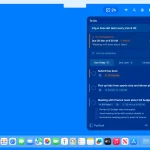
Your transcribed text appears in a floating window and gets copied automatically to your clipboard.
Features
- Hotkey Recording: Toggle voice recording with Alt+Q from any application. The global hotkey works system-wide, so you can start dictating without switching to the Maivi window.
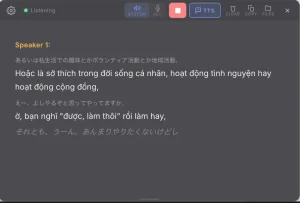
- Real-Time Transcription Display: A floating overlay window shows your transcription as it processes. Text appears within 2-3 seconds after you start speaking, updating continuously as you talk.
- High Accuracy: It is powered by the NVIDIA Parakeet TDT 0.6B model, a 600-million-parameter speech recognition system that processes audio with about 6-9% word error rate.
- Automatic Clipboard Copy: Transcribed text copies to your clipboard automatically when you stop recording. Just paste it wherever you need it without manual copying.
- CPU-Only Processing: The tool runs on standard processors without requiring dedicated graphics hardware. GPU acceleration is optional if you have an NVIDIA card, but most users won’t need it.
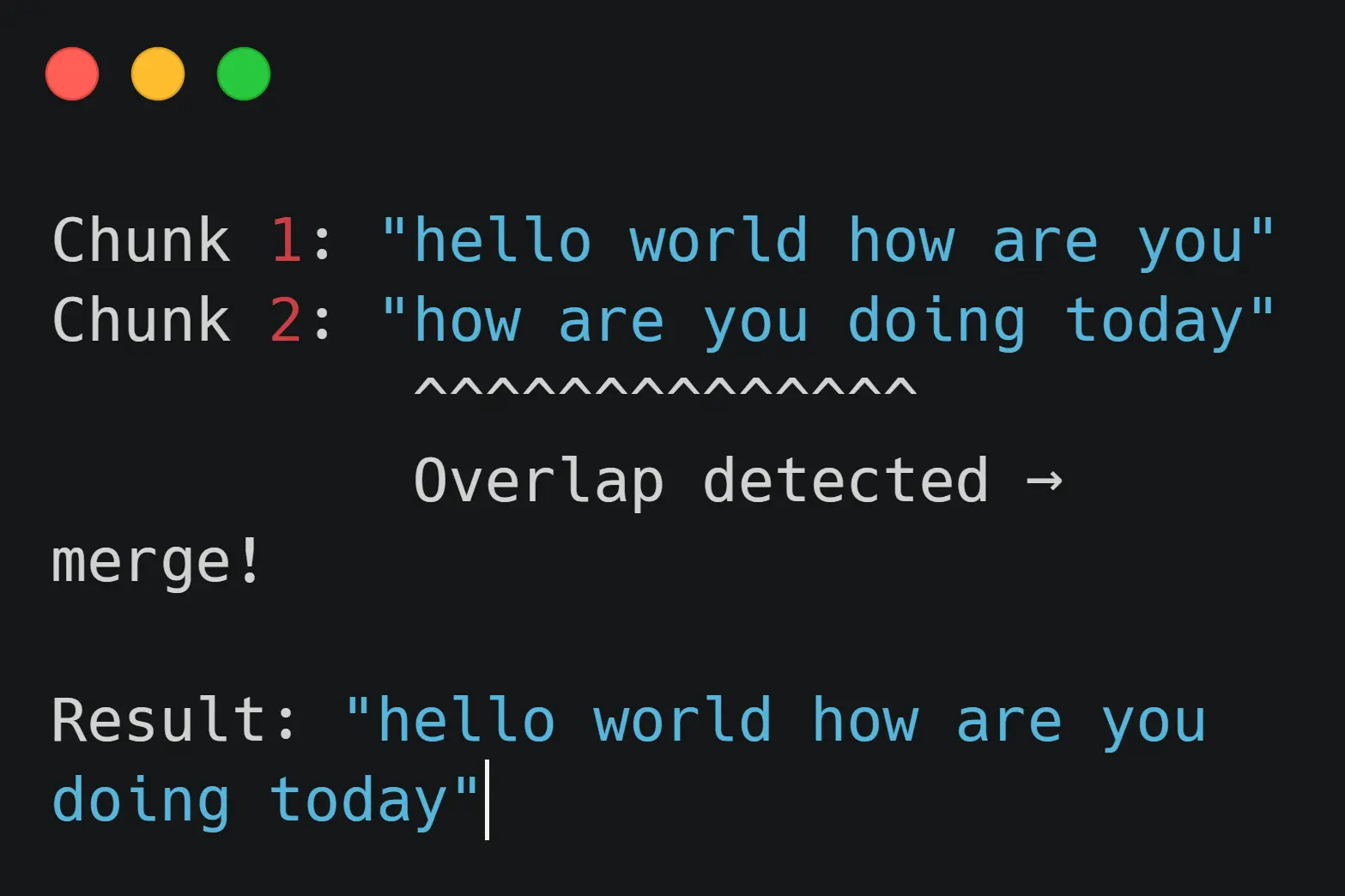
- Smart Chunk Processing: Maivi records audio in overlapping 7-second segments with 4 seconds of overlap between chunks. This approach prevents words from getting cut mid-syllable and eliminates duplicate text when merging segments.
- Low Resource Usage: The application uses about 2.5GB of RAM total, including the AI model (2GB) and audio buffers. CPU usage sits around 5% when idle and peaks at one full core during active transcription.
- Multiple Interface Options: Choose between GUI mode with the floating overlay or CLI mode with terminal output. CLI mode includes a live terminal UI option for users who prefer working in the command line.
Use Cases
- Writing and Documentation: Dictate blog posts, articles, or documentation faster than typing. Writers with wrist pain or repetitive strain injuries can maintain productivity without typing long passages. The 6-9% error rate means you’ll need to do some editing afterward, but the initial draft comes together quickly.
- Note-Taking During Meetings: Capture meeting notes or brainstorming sessions without typing. Press Alt+Q when someone starts talking, let Maivi transcribe, and paste the text into your notes. The clipboard integration means you can quickly move transcriptions into Notion, Obsidian, or whatever note-taking tool you use.
- Email and Messaging: Draft emails and messages by speaking instead of typing. Useful when you need to send longer messages but don’t want to spend time at the keyboard. The transcription appears in your clipboard, ready to paste into Gmail, Slack, or any messaging platform.
- Accessibility Support: Helps users who can’t type due to physical limitations or injuries. Voice input becomes a primary text entry method rather than an occasional alternative. The CPU-only requirement means it works on modest hardware that accessibility users might already own.
- Code Documentation: Dictate comments and documentation strings while reviewing code. Developers can explain complex logic verbally, then paste the transcription into their code editor. The real-time feedback helps catch unclear explanations before you finish speaking.
How to Use It
1. Install the tool through pip. This command downloads about 100MB instead of the 2GB+ CUDA files you’d get with a standard pip install.
pip install maivi --extra-index-url https://download.pytorch.org/whl/cpu2. If you have an NVIDIA GPU and want to use it, run:
pip install maivi --extra-index-url https://download.pytorch.org/whl/cu1213. On Linux, you need PortAudio installed first. Run the following command before the pip install command.
sudo apt-get install portaudio19-dev python3-pyaudio4. macOS users should install PortAudio through Homebrew with brew install portaudio. Windows typically includes PortAudio with PyAudio, so no extra step is needed.
5. Launch Maivi in your terminal. The application opens with a small floating window and sits ready in the background. The first time you run it, Maivi downloads the Parakeet model from Hugging Face (about 600MB).
maivi6. Press Alt+Q to start recording. Speak naturally into your microphone at normal conversation volume. The floating overlay window shows transcription text appearing in real-time as you talk.
7. When you finish, press Alt+Q again to stop recording. The final transcription copies to your clipboard automatically.
CLI Usage
1. For command-line usage, run maivi-cli instead. This opens a text-based interface without the GUI overlay.
2. Add --show-ui for a live terminal display that updates as you speak: maivi-cli --show-ui. You can adjust processing parameters with flags like --window 10 --slide 5 to change chunk sizes (though the defaults work well for most situations).
3. Close the application by pressing ESC or closing the window. Maivi stops cleanly without leaving background processes running.
Pros
- Cost-Effective: It’s completely free and open-source.
- Privacy-Focused: All transcription happens locally on your machine, so your data stays private.
- Cross-Platform: It works on Linux, macOS, and Windows.
- Efficient: The smart chunking method ensures both speed and accuracy without cutting off words.
- No GPU Needed: It runs well on standard computer hardware.
Cons
- Technical Setup: Installation requires using the command line, which might be a hurdle for non-technical users.
- Memory Usage: The AI model requires about 2.5GB of RAM to run, which could be significant on older machines.
- 6-9% Word Error Rate: You’ll need to proofread and edit transcriptions. Technical terms, proper names, and uncommon words get misrecognized more often. This is actually pretty good for offline speech recognition, but it’s not perfect.
Related Resources
- NVIDIA NeMo Toolkit: The open-source framework that powers Maivi’s speech recognition. NeMo provides tools for building and training automatic speech recognition models, including the Parakeet models used by Maivi.
- Parakeet TDT Model Documentation: Technical details about the AI model that handles transcription in Maivi. Includes performance benchmarks, training data information, and usage examples for developers.
- PyAudio Documentation: The audio recording library that Maivi uses to capture microphone input. Helpful if you run into audio device configuration issues.
- PySide6 Documentation: Information about the Qt framework used for Maivi’s graphical interface. Useful if you want to understand or modify the floating overlay window.
FAQs
Q: Does Maivi work without an internet connection?
A: Yes, after the initial model download. The first time you run Maivi, it downloads the 600MB Parakeet model from Hugging Face. After that completes, Maivi works completely offline.
Q: Can I change the Alt+Q hotkey to something else?
A: Not through the GUI currently. The hotkey is hardcoded in the current version.
Q: Will Maivi slow down my computer during transcription?
A: It uses one full CPU core during active transcription. On a modern multi-core processor, you probably won’t notice any slowdown in other applications. The tool sits at less than 5% CPU when idle (not recording). Memory usage stays constant at about 2.5GB regardless of how long you record.
Q: Can I use Maivi for transcribing pre-recorded audio files?
A: Not directly through the standard interface. Maivi is designed for live microphone input. You could theoretically route audio from a file through a virtual audio device, but that requires additional software setup. The underlying Parakeet model can transcribe files, so this might become a built-in feature later.
Q: What happens if I pause for a long time while recording?
A: Maivi handles pauses up to about 5 seconds smoothly. If you pause longer, the tool adds “…” as a gap marker in the transcription. This is expected behavior and helps you see where natural breaks occurred in your speech. The transcription continues normally after the pause.