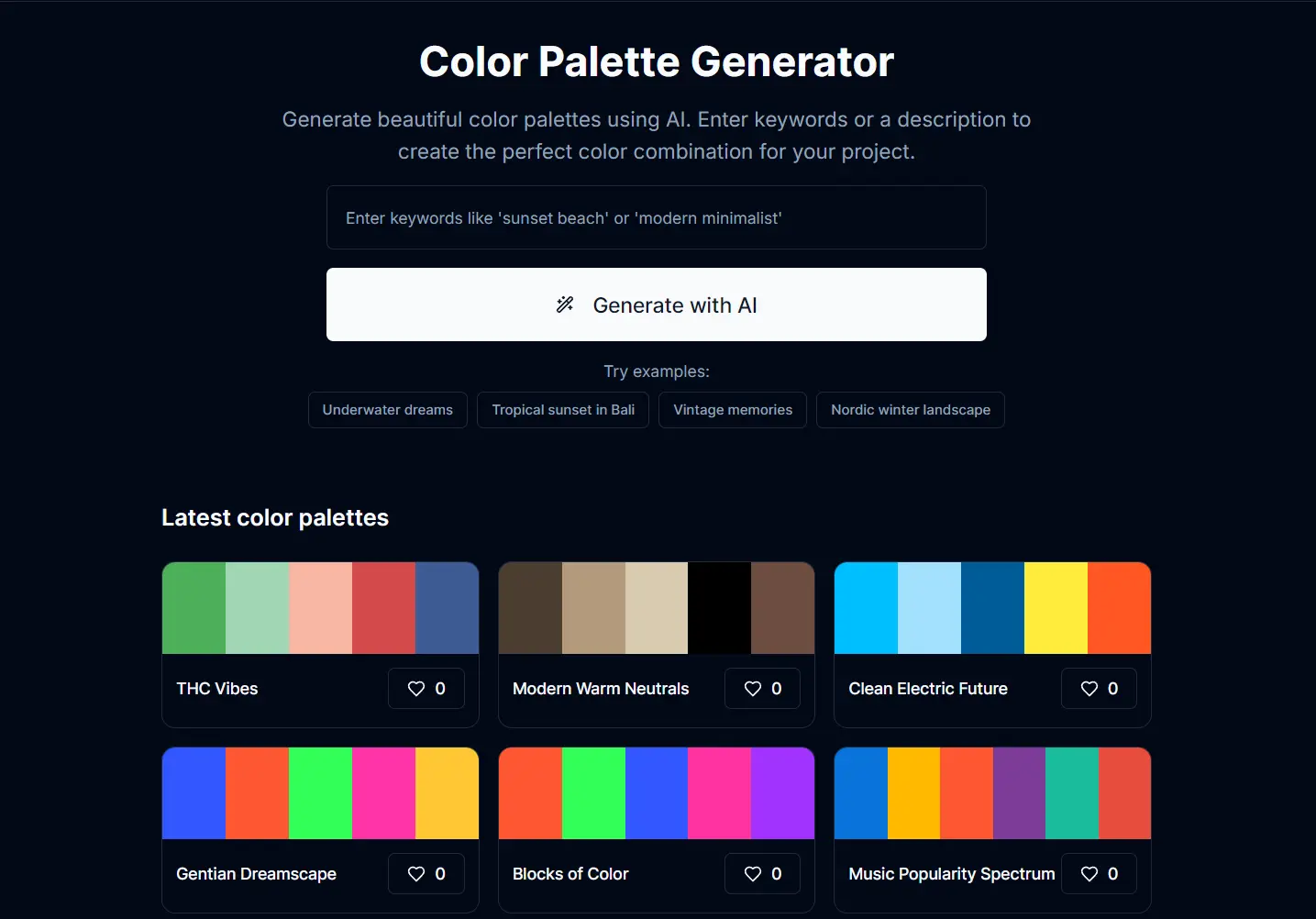
ColorCrawler is a 100% free AI color palette generator that transforms simple keywords into professional color schemes.
You type in a keyword or a short description, and the AI suggests a palette of five colors and 2 gradients, complete with HEX, RGB, CSS codes.
Features
- AI-Powered Generation: Creates unique color palettes from keyword descriptions using artificial intelligence algorithms
- Complete Color Information: Provides HEX and RGB codes for each color in the generated palette
- CSS Code Export: Automatically generates CSS styles and CSS variables for immediate web development use
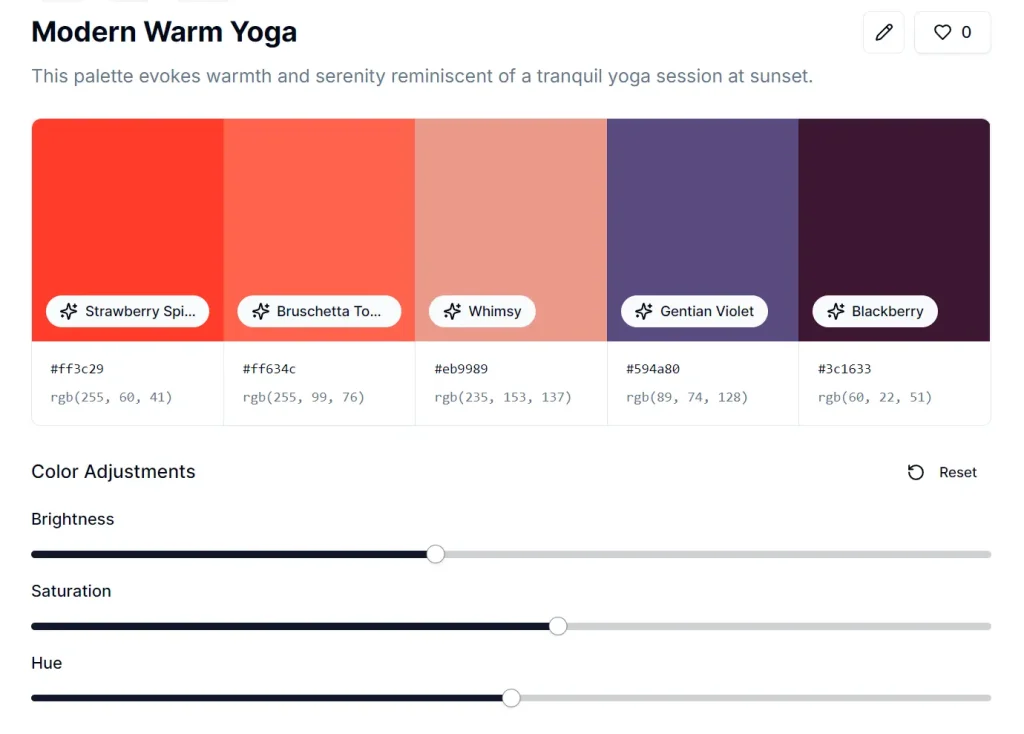
- Color Adjustment Tools: Modify brightness, saturation, and hue of individual colors within the palette
- Gradient Generation: Creates CSS gradients based on your keywords for modern web design applications
- No Registration Required: Access all features without creating an account or signing up
Use Cases
- Web Design Mockups: Quickly generating a color scheme for a new website concept. If a client says “I want something modern and trustworthy,” you can pop that in and get some initial ideas.
- Branding Inspiration: If you’re brainstorming logo colors or overall brand identity, this can give you a few palettes to play with based on brand keywords.
- Social Media Graphics: Creating a consistent look for a series of social media posts. You can use a keyword related to your campaign theme.
- Presentation Slides: Finding a complementary color set for your PowerPoint or Google Slides to make them look more professional.
- Developer Placeholders: When you’re coding a UI and need some quick, decent-looking colors before the final design assets are ready.
How to Use It
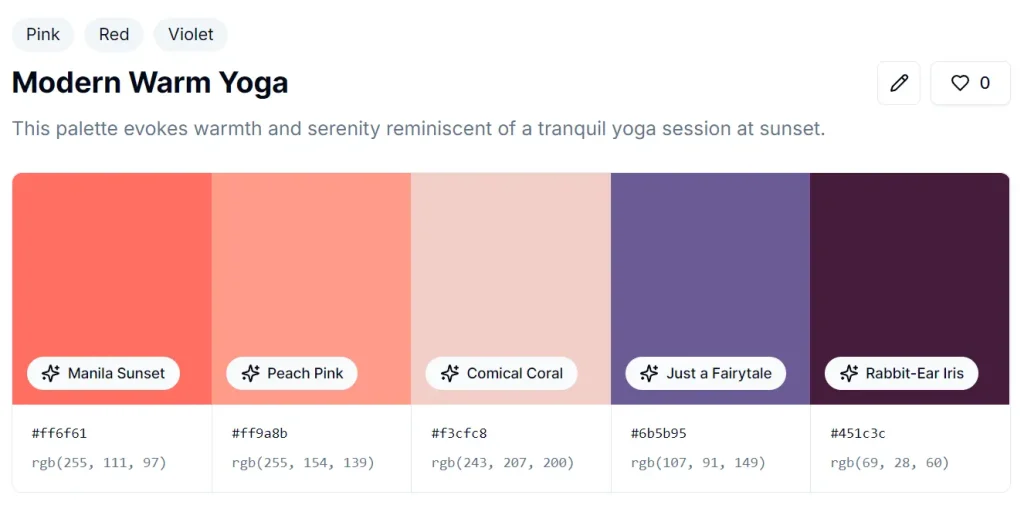
1. Visit Colorcrawler. website and enter a descriptive keyword or phrase that captures your project’s mood or theme. For example, type “Modern Warm Yoga” to generate colors suited for a wellness brand.
2. Click the “Generate with AI” button and wait for the AI to process your request (usually takes 2-3 seconds)
3. Review the generated 5-color palette, which includes unique color names like “Neon Coral,” “Peach Pink,” and “Rabbit-Ear Iris” along with their corresponding HEX/RGB codes.
4. Adjust colors using the brightness, saturation, and hue sliders if the initial results need refinement.
5. Copy the automatically generated CSS code from the code blocks, which include both standard CSS classes and CSS variables format.

6. Access the gradient section to get CSS gradient code based on your keywords, perfect for modern card backgrounds and hero sections.

Pros
- Zero Cost and No Barriers: Completely free with no registration, subscriptions, or usage limits
- Natural Language Input: Accepts descriptive phrases instead of requiring technical color terminology
- Developer-Ready Output: Generates clean CSS code that can be copied directly into projects
- Quick Color Adjustments: Built-in sliders let you fine-tune colors without starting over
- Gradient Support: Creates modern CSS gradients alongside standard color palettes
- Instant Processing: Fast AI generation means no waiting around for results
- Creative Color Names: Assigns memorable names to generated colors, making them easier to reference in team discussions
Cons
- Limited Palette Size: Fixed 5-color output may not suit projects requiring larger color schemes
- No Color Harmony Rules: Doesn’t specify which colors work best together within the generated palette
- Basic Export Options: Only provides CSS format; lacks export for design software like Adobe Creative Suite
FAQs
Q: What if I don’t like any of the five colors generated?
A: You can try modifying your keywords—be more specific or try synonyms. Or, you can use the initial palette as a very rough starting point and heavily modify each color using the adjustment tools.
Q: Does it show trending color palettes?
A: ColorCrawler recommends daily trending palettes and showcases user-generated ones. This is a good source of additional inspiration.
Q: How accurate is the AI at interpreting my keywords?
A: The AI performs well with descriptive, mood-based phrases and concrete concepts. Abstract or highly technical terms may produce less predictable results. Try rephrasing your input if the initial palette doesn’t match your vision.