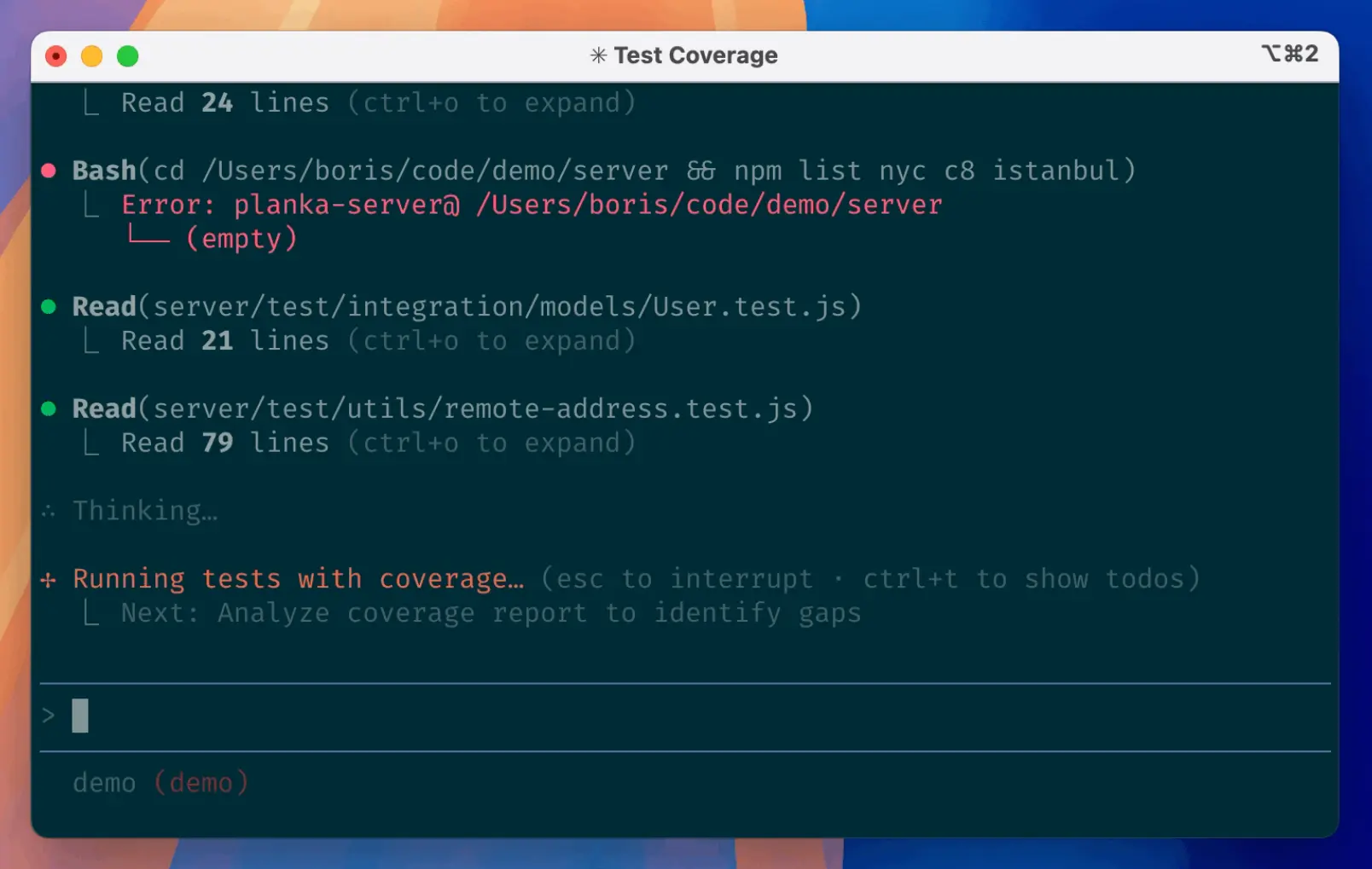
A complete reference of Claude Code slash commands, including built-in commands, MCP-generated commands, bundled workflows, and custom commands.
This page reflects the current behavior of Claude Code (v2.1.x series). All commands are organized by real development scenarios, with syntax and practical usage notes so you can apply them directly in your workflow.
More than 50 commands are included, along with updates introduced in 2026.
Table Of Contents
Session & Conversation Management
| Command | Description |
|---|---|
/clear | Clears all conversation history from the current session. |
/compact [instructions] | Summarizes the conversation to reduce context usage. You can pass instructions like “keep only API decisions”. |
/resume [session] | Reopens a previous session by name or ID. |
/rename [name] | Assigns a readable name to the current session. |
/export [filename] | Exports the session as a Markdown file or copies it to clipboard. |
/rewind | Restores a previous checkpoint in the session. |
/exit | Ends the current session and returns to the terminal. |
/copy | Lets you select and copy specific code blocks from the conversation. |
Context & Cost
| Command | Description |
|---|---|
/context | Shows how the context window is being used across messages and files. |
/cost | Displays token usage and estimated cost for the current session. |
/stats | Shows usage statistics such as sessions and token totals. |
/usage | Displays your plan limits and current quota usage. |
Project & Memory
| Command | Description |
|---|---|
/init | Creates a CLAUDE.md file that describes your project structure and conventions. |
/memory | Opens persistent memory for viewing and editing. |
/todos | Displays the task list Claude maintains during multi-step work. |
Code Review & Analysis
| Command | Description |
|---|---|
/review | Reviews current changes for quality, structure, and completeness. |
/security-review | Scans for common security issues such as injection risks or exposed secrets. |
/pr-comments [id] | Retrieves pull request comments so you can address feedback directly. |
Model & Mode Control
| Command | Description |
|---|---|
/model [name] | Switches the active model or shows the current one. |
/plan | Enables approval mode where each action requires confirmation. |
/effort [low|medium|high] | Controls how much reasoning effort Claude uses. |
/fast | Enables faster responses for rapid iteration. |
/output-style [style] | Sets the default format for responses, such as concise or detailed. |
System, Tools & Permissions
| Command | Description |
|---|---|
/permissions | Controls which tools can run automatically and which require approval. |
/hooks | Configures actions that run at specific events during execution. |
/sandbox | Runs commands in an isolated environment. |
/config | Opens configuration settings such as API keys and defaults. |
/add-dir [path] | Adds additional directories to the working scope. |
/terminal-setup | Configures terminal behavior such as multiline input. |
/keybindings | Customizes keyboard shortcuts. |
/login | Authenticates your account. |
/logout | Logs out and clears stored credentials. |
IDE, Integrations & Remote
| Command | Description |
|---|---|
/ide | Displays connected IDE integrations such as VS Code or JetBrains. |
/mcp | Opens the MCP server manager for external tool integrations. |
/install-github-app | Sets up GitHub integration for pull request workflows. |
/teleport | Connects CLI sessions with web sessions. |
/rc | Starts a remote control session for long-running tasks. |
/remote-env | Configures remote development environments. |
/agents | Manages subagents used during complex workflows. |
/plugin | Opens the plugin manager. |
MCP Server Commands
MCP commands are generated dynamically based on connected servers. The available commands depend on which services you connect.
| Command | Description |
|---|---|
/mcp__[server]__[prompt] [args] | Executes a command provided by an MCP server. |
/mcp__github__list_prs | Lists pull requests from GitHub. |
/mcp__jira__create_issue | Creates a Jira issue. |
/mcp__linear__get_sprint | Retrieves sprint data from Linear. |
Bundle Commands (Multi-Agent Workflows)
| Command | Description |
|---|---|
/simplify | Refactors code across the project using coordinated agents. |
/batch | Applies the same change across multiple files. |
/loop | Repeats a workflow until a condition is met. |
/debug | Runs a structured debugging workflow. |
Custom Commands
Custom commands are defined in:
.claude/commands/.claude/skills/
They support:
- Passing arguments (
$ARGUMENTS,$1,$2) - Injecting files (
@file) - Running shell commands
- YAML frontmatter configuration for tools and models
Community / Unofficial Commands
These are not included by default but are commonly used in shared setups.
| Command | Description |
|---|---|
/commit | Generates and runs a commit message workflow. |
/push | Pushes changes to the repository. |
/branch | Creates a new branch from a description. |
/lint | Runs linters based on the project setup. |
/vitest | Runs tests using Vitest. |
/pr | Opens a pull request. |
/merge-to-main | Handles merge workflow with checks. |
/fix-pipeline | Attempts to fix failing CI pipelines. |
Real Workflows
1. Starting a New Project
When you open a repository for the first time, you usually want Claude to understand the project before doing any work.
/init
/status
This creates a CLAUDE.md file that describes your project structure and confirms your current configuration.
2. Refactoring Existing Code
A typical refactor involves reviewing the current code, applying changes across files, and verifying the result.
/review
/simplify
/batch rename oldFunction newFunction
/reviewhelps you understand current issues/simplifyproposes structural improvements/batchapplies consistent changes across multiple files
3. Fixing Bugs
When something breaks, you usually want to inspect, debug, and iterate until the issue is resolved.
/debug
/loop
/debuganalyzes the issue and proposes fixes/looprepeats the process until the problem is resolved
4. Managing Long Sessions
As conversations grow, context becomes expensive and harder to manage.
/context
/compact keep only important decisions
/cost
/contextshows what is consuming tokens/compactreduces history while keeping key information/costhelps you keep usage under control
5. Working with Pull Requests
Before opening or merging a PR, you usually want a full review and to address feedback.
/review
/security-review
/pr-comments
This workflow checks code quality, identifies risks, and pulls in reviewer comments.
6. Switching Between Tasks
When you work on multiple features, it helps to separate sessions.
/rename feature-auth
/clear
/resume feature-auth
You can save one task, start another, and return later without losing context.
FAQs:
Q: What is Claude Code?
A: Claude Code is Anthropic’s terminal-based AI coding agent. It runs locally via the CLI (npm install -g @anthropic-ai/claude-code), reads and edits your actual project files, executes shell commands, runs tests, and manages git operations.
Q: What is the difference between a slash command and a prompt in Claude Code?
A: A prompt is what you type to give Claude a coding task: “refactor this function,” “write a test for this endpoint.” A slash command controls the session itself.
Q: What is CLAUDE.md and what goes in it?
A: CLAUDE.md is a Markdown file in your project root that Claude reads at the start of every session in that repository. It acts as a persistent project brief.
Q: What is the difference between /clear and /compact?
A: /clear deletes all conversation history. The context window is empty after running it, but file edits made during the session remain. /compact replaces conversation history with a compressed summary, preserving the thread of what was discussed. Use /compact when you want Claude to remember context from earlier in the session but need to free up token budget. Use /clear when you are switching to a completely different task and do not need any prior context.
Q: What does /plan actually do in Claude Code?
A: /plan toggles plan permission mode. In this mode, Claude proposes each tool action and waits for your approval before executing it. Use it when working in an unfamiliar codebase or before a large refactor you want to review step by step.
Q: How do I create a custom slash command in Claude Code?
A: Create a Markdown file at .claude/commands/[name].md in your project (for team-shared commands) or ~/.claude/commands/[name].md (for personal commands available in all projects). The filename without the .md extension becomes the command name. The file content is the prompt Claude receives when the command runs. Add a YAML-style frontmatter block at the top to specify which tools the command can use, which model to run it with, and a description that appears in /help. Use $ARGUMENTS in the file content to capture whatever text is passed after the command name.
Q: Can Claude Code connect to GitHub?
A: Yes, in two ways. First, /install-github-app sets up the Claude GitHub App, which lets Claude participate in pull request workflows via GitHub Actions. Second, connecting a GitHub MCP server via /mcp exposes GitHub API operations as slash commands directly in your session (e.g., /mcp__github__list_prs, /mcp__github__create_pr).
Q: How do I reduce costs when using Claude Code?
A: Several approaches work well in combination. Switch to Haiku for mechanical tasks (/model haiku) and back to Opus or Sonnet for complex reasoning. Use /effort low for quick iteration tasks where deep reasoning is not necessary. Run /compact before context gets very large, since larger contexts cost more per token. For custom commands that run frequently, add model: haiku to the frontmatter.
Q: What is the difference between /doctor and /status in Claude Code?
A: /doctor actively tests your environment. It reports failures with actionable error messages. /status reads and displays your current configuration, such as the active model, permission mode, connected MCP servers, and tool state. Run /doctor after installation, after upgrading, or when Claude Code behaves unexpectedly. Run /status at the start of a session to confirm settings before starting work.
Q: Can Claude Code be used in a CI/CD pipeline?
A: Yes. Claude Code supports a non-interactive print mode (claude -p "your prompt") that executes a single prompt and exits, making it scriptable in any CI environment. The --output-format json flag structures the output for programmatic parsing. For GitHub specifically, /install-github-app sets up the official Claude GitHub Actions integration. The /hooks command also allows HTTP webhooks on lifecycle events, which can trigger external CI systems when Claude completes a task or uses a specific tool.
Q: What MCP servers work with Claude Code?
A: Any server that implements the Model Context Protocol can be connected. Once connected via /mcp, each server’s prompts appear as slash commands in the /mcp__[server]__[prompt] format.
Related Resources
- awesome-claude-code: A curated list of awesome tools, IDE integrations, frameworks, and other resources for developers working with Anthropic’s Claude Code.
- Best Agent Skills: 10 Best Free Agent Skills for Claude Code & AI Workflows.
- Claude Code Slash Commands Cheatsheet: The most complete, verified reference for every Claude Code slash command.
- AI Coding Agents: 7 Best CLI AI Coding Agents.
Last audited: March 2026