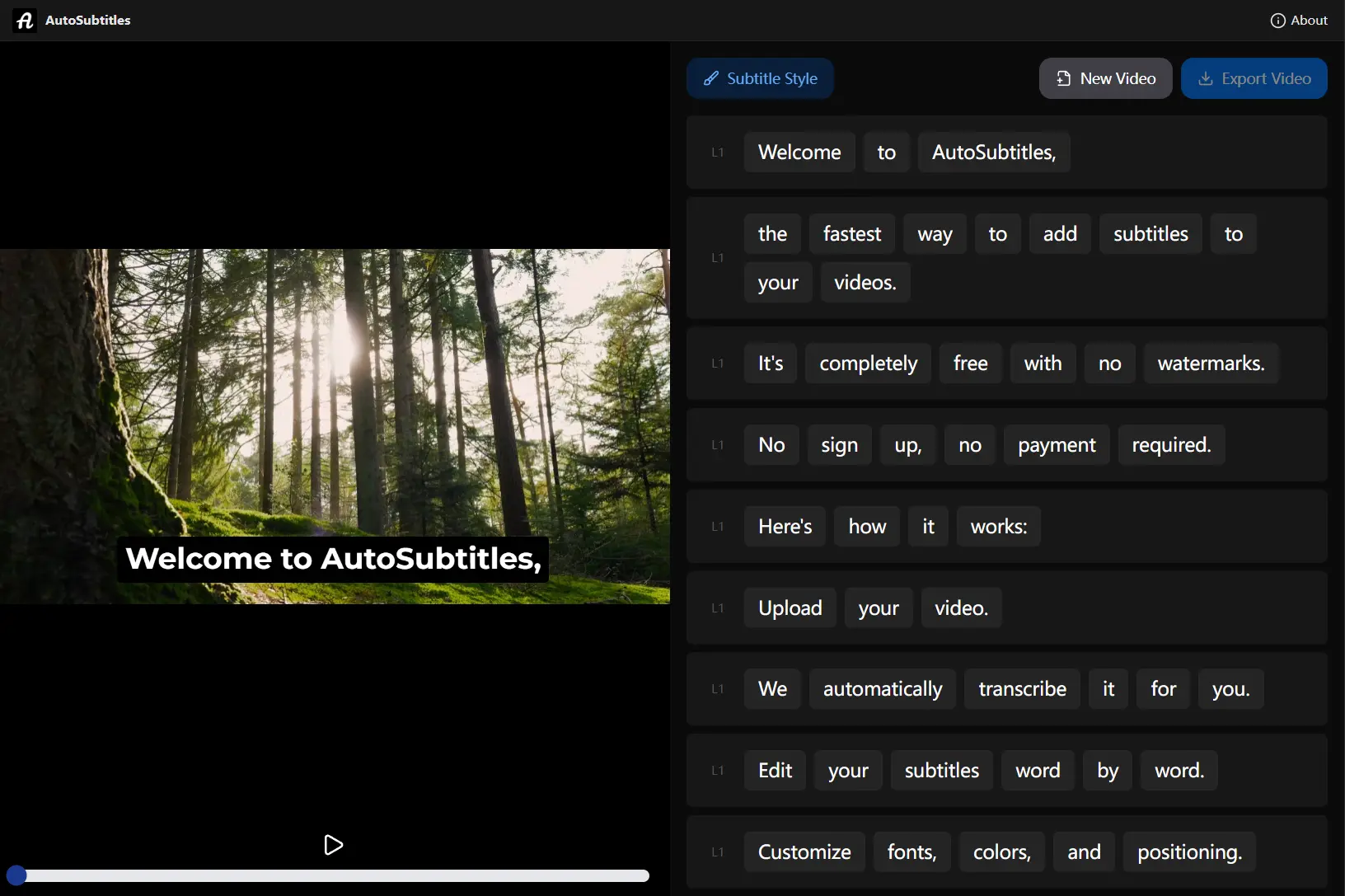
AutoSubtitles is a free AI-powered video subtitling tool that generates accurate captions without watermarks, signup requirements, or hidden fees.
You can upload your video, let the AI transcribe it, adjust the positioning and style, then download a clean file ready for TikTok, Instagram, YouTube, or wherever you need it.
Features
- AI Transcription: The speech recognition engine analyzes your video’s audio and generates time-synced subtitles automatically. Currently optimized for English, though German, French, Spanish, and Italian have been observed working.
- No Watermark: Your exported videos stay clean. There’s no branding stamped on your content, so the final video looks professional and ready to publish.
- Zero Signup Requirement: Access the tool immediately without creating an account or entering payment information. Upload, edit, and export.
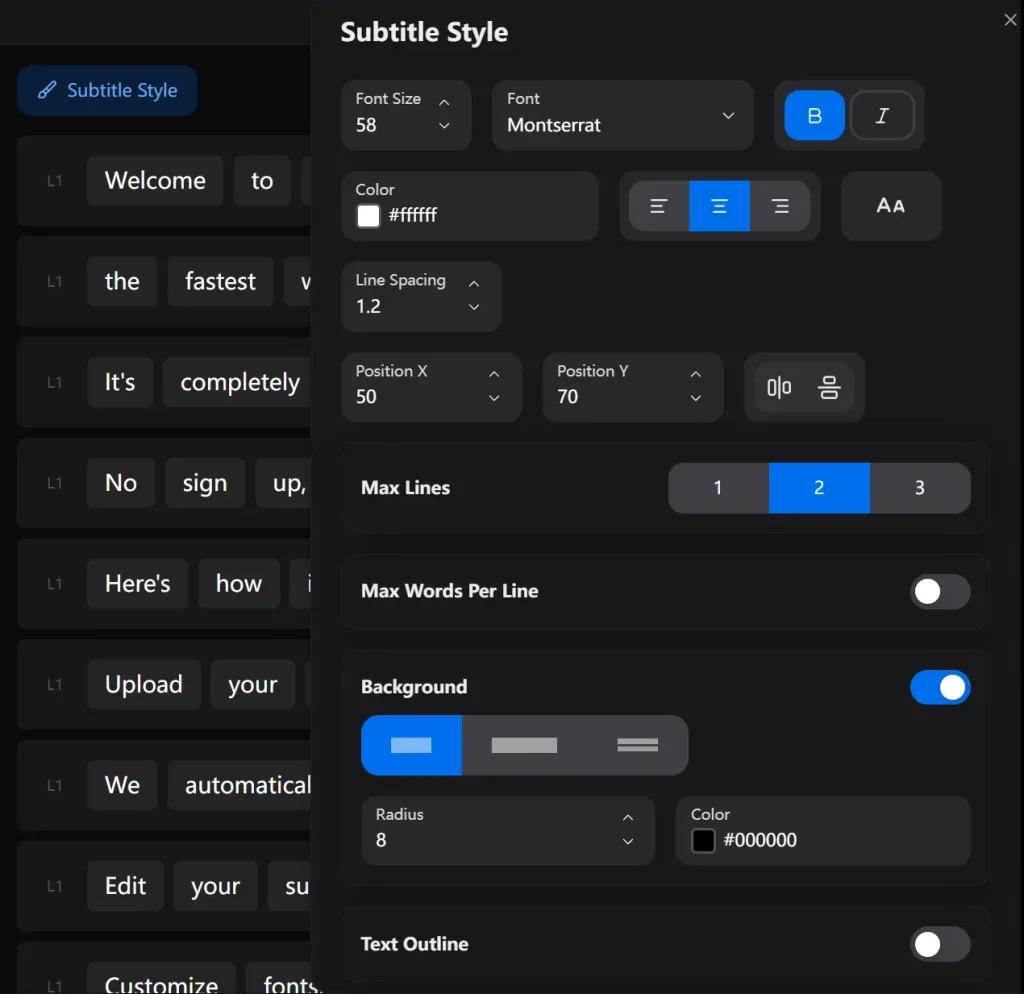
- Style Controls: Customize font family, size, color, line spacing, position (X and Y coordinates), maximum lines per screen, maximum words per line, border radius, background color, text outline, punctuation display, and animation effects.
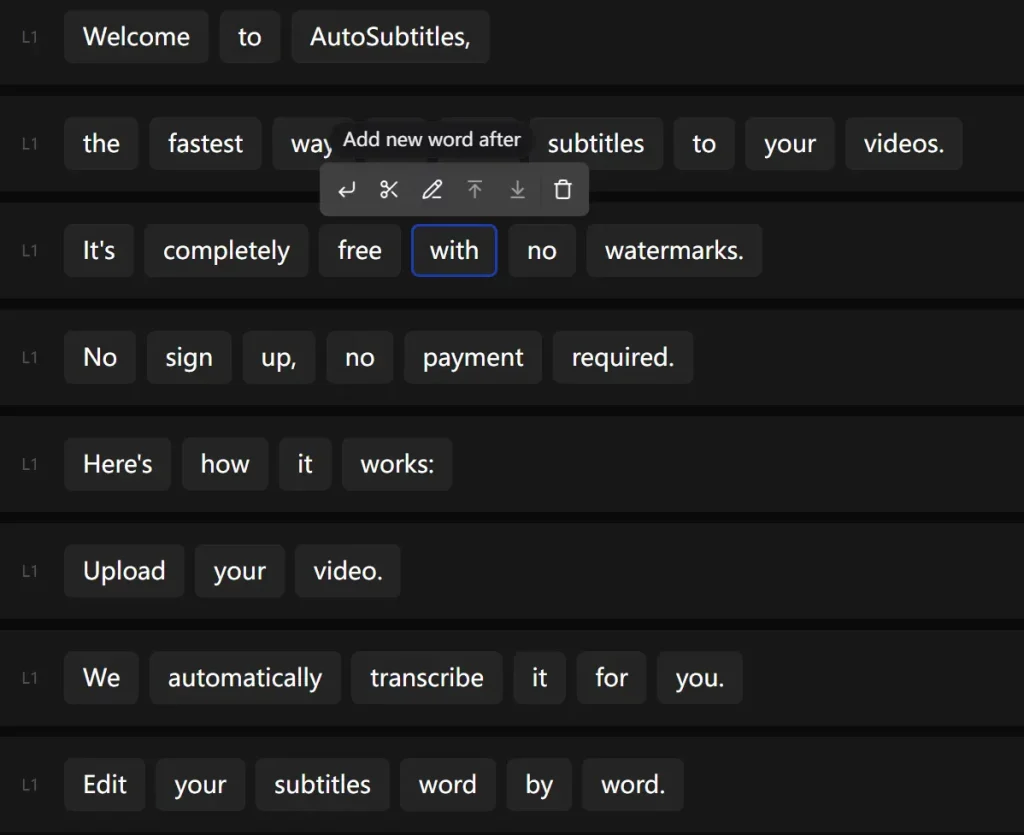
- Word-Level Editing: Adjust subtitle timing on a word-by-word basis for precise synchronization with your video’s audio.
- Secure Processing: Videos are processed with privacy in mind. Your content isn’t stored permanently on their servers.
Use Cases
- Social Media Content: Create accessible videos for TikTok, Instagram Reels, and YouTube Shorts that engage viewers with and without sound.
- Educational Materials: Add accurate captions to tutorial videos and online course content to improve comprehension.
- Multilingual Audiences: Generate base subtitles that can be translated for international viewers while maintaining consistent styling.
- Small Business Marketing: Produce professional-looking promotional videos without investing in expensive subtitle software.
- Accessibility Compliance: Make video content accessible to deaf and hard-of-hearing viewers without complex editing workflows.
How to Use It
1. Click the upload button and select your video file from your device.
2. The AI processes your video and generates subtitles automatically.
3. When transcription completes, you’ll land in the editing interface. The subtitle text appears in an editable box next to your video preview. Here’s where you can make adjustments: scan through to fix any words the AI misheard (happens occasionally with technical terms or accents), adjust timing if a phrase feels rushed or delayed, or edit the actual text content.
4. Customize the subtitle using the styling panel. You can change font family, adjust text size in pixels, pick colors for the text and background, set outline thickness and color for better readability, adjust position coordinates to move subtitles higher or lower on screen, control how many words appear per line, and toggle animation effects on or off.
5. When you’re satisfied with the result, click the ‘Export Video’ button at the top of the interface. The tool renders your video with the subtitles permanently embedded. The export process takes a minute or two, depending on video length. When complete, your MP4 file downloads automatically to your device.
Pros
- 100% Free: No usage limits, watermarks, or hidden paywalls.
- Immediate Access: No email signup or account creation creates zero friction for first-time users.
- Privacy Focused: Your content isn’t used for training models or stored indefinitely.
- Browser-Based: Works on any modern computer without software installation.
Cons
- No SRT Export: You can’t download subtitle files separately for use in other video editors.
- Limited Audio Enhancement: The tool focuses solely on subtitles without audio cleanup features.
- Accuracy varies: Like all AI transcription, performance decreases with poor audio quality or strong accents.
Related Resources
- Whisper by OpenAI: The open-source speech recognition model that powers many AI transcription tools. Understanding Whisper helps you grasp how these subtitle generators work under the hood.
- Subtitle Edit: A free desktop subtitle editing tool for Windows that lets you fine-tune subtitle files in formats like SRT and ASS. Useful if you need more advanced timing controls.
- FFmpeg Documentation: If you ever want to manually embed subtitle files into videos via command line, FFmpeg is the industry-standard tool. The learning curve is steep but the capabilities are extensive.
FAQs
Q: How accurate is the AI transcription?
A: Accuracy varies based on audio quality, accents, and speaking clarity. Clear audio with minimal background noise gets very good results. Heavy accents, technical jargon, or poor audio quality will require more manual corrections. The word-level editing feature exists precisely because no AI is perfect.
Q: Can I download just the subtitle file without the video?
A: Not currently. The export function only outputs the video with subtitles embedded. If you need a standalone SRT or VTT file, you’d have to use a different tool or wait for this feature to be added.
Q: Will subtitles slow down my export?
A: Export time depends on your video’s length and resolution. Rendering subtitles into the video does require processing, so expect a few minutes for a typical 5-10 minute video. It’s not instant, but it’s comparable to other rendering processes.