SmartestKid is an open-source, Python-based AI Assistant for Windows that interacts with Microsoft Office applications, images, and system files.
It provides a straightforward solution for Windows users seeking to incorporate AI-powered automation into their workflow without complex coding.
Features
- Voice and Text Input: You can choose how you interact—speak your commands or type them.
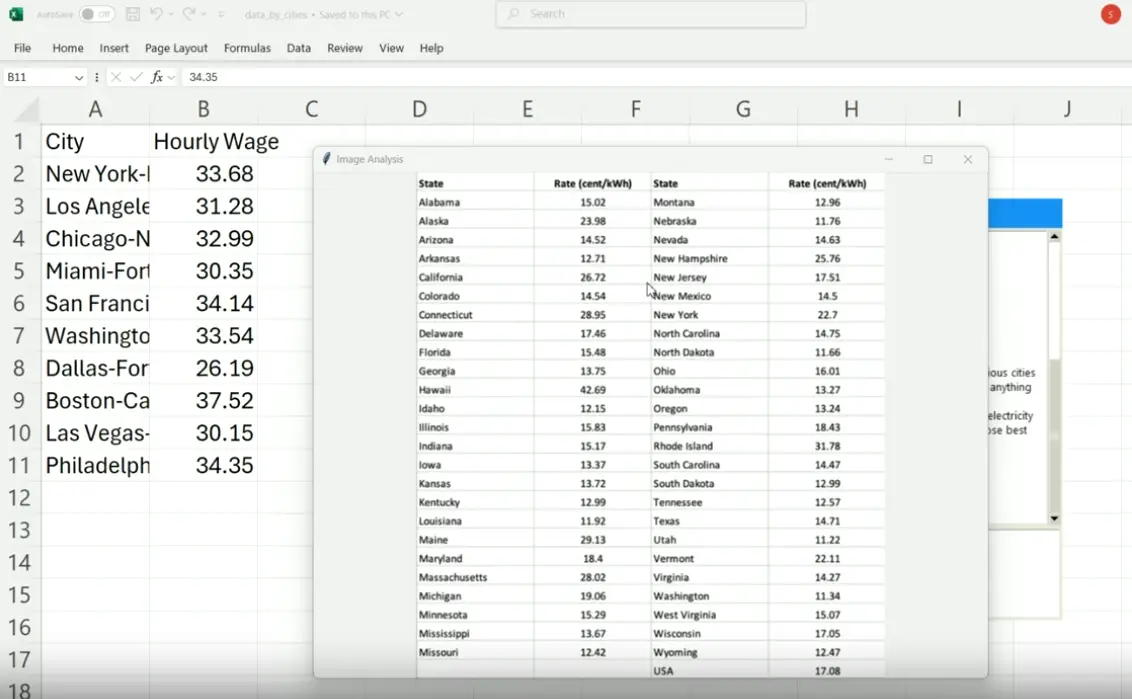
- Microsoft Office Integration: The assistant works with Word and Excel, automating tasks within these applications (Windows only).
- File System Navigation: Easily manage and access files directly through the assistant.
- Image Handling: Get assistance with image-related tasks.
- Draggable Interface: Position the robot character and chat window anywhere on your desktop.
- Minimalist UI Design: Clean, uncluttered interface inspired by classic AI assistants.
- Windows COM Automation: Uses native Windows technologies for reliable system integration.
- Local Data Storage: Datalake directory preserves command history and user preferences.
See It In Action
Use Cases
- Automated Report Generation: If you frequently compile data from Excel into Word documents, you can automate this. Set up the assistant to pull specific data points and format them into a report.
- Quick File Organization: You can tell the assistant to organize files based on date, type, or custom criteria.
- Voice-Controlled Image Editing: If you need basic image adjustments, such as resizing or format conversion, you can use voice commands.
- Hands-Free Email Management: For reading or drafting emails (requires setup and integration), you could use voice commands to manage your inbox.
- Data Entry on Excel If you need to enter a series of data into an Excel sheet, you can automate this task.
How To Use It
1. Initial Setup:
- Clone the SmartestKid repository from GitHub.
- Create and activate a Python virtual environment:
python -m venv venv
.\venv\Scripts\activate
2. Install the required dependencies with:
pip install tkinter pillow pyaudio httpx python-dotenv3. Create a .env file in the root directory with your OpenAI API key:
OPENAI_API_KEY=your_openai_api_key_here
DATALAKE_DIRECTORY=path/to/your/datalake
4. Launching the Application:
- Run the main program file using:
python smartest_kid.py- The robot character will appear on your desktop
5. Interacting with the Assistant:
- Click the microphone icon to use voice commands
- Click the message icon to open the text chat interface
- Type or speak your requests clearly
- For Office automation, ensure the relevant Microsoft Office application is installed
6. Using Office Integration:
- For Word tasks, specify the document name or location
- For Excel operations, provide the spreadsheet details and the specific actions needed
- Commands should be natural but specific, such as “Open the quarterly report in Word and format all headings to Arial 14pt bold”
7. Managing the Interface:
- Drag the robot or chat window to any convenient location on your screen
- Press ESC at any time to exit the application completely
Pros
- Open Source: Modify and adapt the code to your needs.
- Direct File System Access: Manage your files efficiently.
- Office Suite Automation: Streamline your work with Word and Excel.
- Dual Input Modes: Use voice or text commands.
- Customizable: Simple code base, easy to extend.
Cons
- Windows Only: Requires a Windows operating system.
- Dependency on Microsoft Office: Word and Excel features need a local Office installation.
- Setup Required: You’ll need to set up API keys and a virtual environment.
- Limited Initial Functionality: Requires user customization to extend capabilities beyond basic functions.
FAQs
Q: Does SmartestKid work with all versions of Microsoft Office?
A: SmartestKid is designed to work with modern versions of Microsoft Office (2016 and newer) through Windows COM automation. Compatibility with older versions may vary and is not guaranteed.
Q: Can I extend the assistant’s capabilities beyond the provided tools?
A: Yes, the modular Python codebase allows developers to add new tools and functionalities. The project structure includes a dedicated ‘tools’ directory specifically for extending capabilities.
Q: How secure is my data when using SmartestKid?
A: File system operations occur locally on your machine. However, text sent to the OpenAI API for processing is subject to OpenAI’s privacy policy. Sensitive information should not be shared through the assistant.
Q: What are the system requirements for running SmartestKid?
A: SmartestKid requires Windows OS, Python 3.7 or newer, sufficient RAM to run Python applications (minimum 4GB recommended), and disk space for the application and its dependencies (approximately 200MB).
Q: Can SmartestKid run in the background and respond to voice commands at any time?
A: The current implementation requires the application to be actively running. It doesn’t operate as a system-wide background service that listens continuously.
Test SmartestKid AI Assistant with your Excel sheets and Word documents. Share workflow tips in the comments or suggest features for future updates.